
Please find below the changes that would need to be made to your Google Tag Manager Workspace for the webchat pop-up integration
The MaxContact chat application is a self-contained JavaScript application which can be placed on a website. In order to embed a live chat widget, a few simple steps can be followed to allow the website to connect to the contact centre, send messages and resolve issues.
Step One: Log into your Google Tag Manager Account
Step Two: Create a new tag and rename this to “MaxContact – WebChat” or a name that fits your GTM naming conventions.
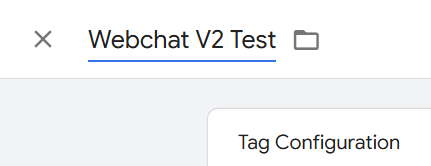
Step Three: Select Tag Configuration and then Custom HTML
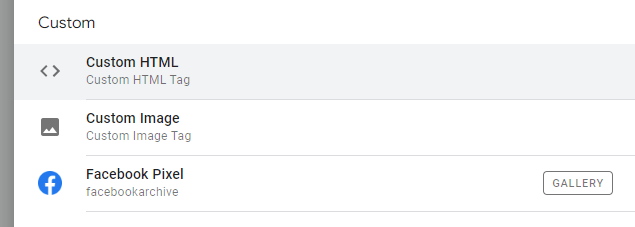
This is where we will paste our custom HTML code, which will include details of the channel, obtained from the Channel Admin page.
Step Four: Paste the two code snippets below into the Tag Configuration area, and use the below guidance to tweak the code to your business:
<div id="max-chat-form-container" data-channel-key="xxx" data-start-text="Speak to the Team" data-company-name="Your Company Name" data-primary-colour="" data-theme="magenta" data-show-footer="true" class="default-form"></div>
<script type="text/javascript" src="https://chat.maxcontact.com/CUSTOMERNAME-chat/v2/max.chat.application.min.js"></script>
What to tweak:
data-channel-key
- A unique key that identifies the Channel or Channel Hub connected to the webchat widget.
data-start-text
- Defines the call-to-action text displayed before a customer opens the chat.
data-company-name
- Defines the company name shown in the chat header before a conversation begins.
customername (within the https:// link)
- This is your company name associated with your MaxContact platform
Additional information on the editable sections of the code can be found here.
Step 5: Configure your triggers
Determine whether you would like the chat box to appear on all pages, or specific pages by choosing an existing trigger, or setting up a new one using the plus icon at the top right corner of the screen. If you have any cookie walls on your website (GDPR) you will need to ensure that the webchat only appears if the cookies have been accepted.
Step 6: Test the tag is firing correctly
Using the Preview button at the top right corner of Google Tag Manager, test the tag as normal to ensure that it fires as desired:

Step 7: Submit/Publish your changes to your container
Be sure to add a description so you or your team can clearly see what has changed in the container in this update
Please note
If you have any trouble installing the code via Google Tag Manager, please contact your account manager or raise a ticket for support by contacting support@maxcontact.com.
Useful Articles: