
Dynamic routing makes use of our 'switcher' IVR element and allows you to quickly change the route of your IVRs. For certain calendar events or other specific circumstances, you can quickly change how your inbound (or other IVR) routes handle traffic by switching IVR paths.
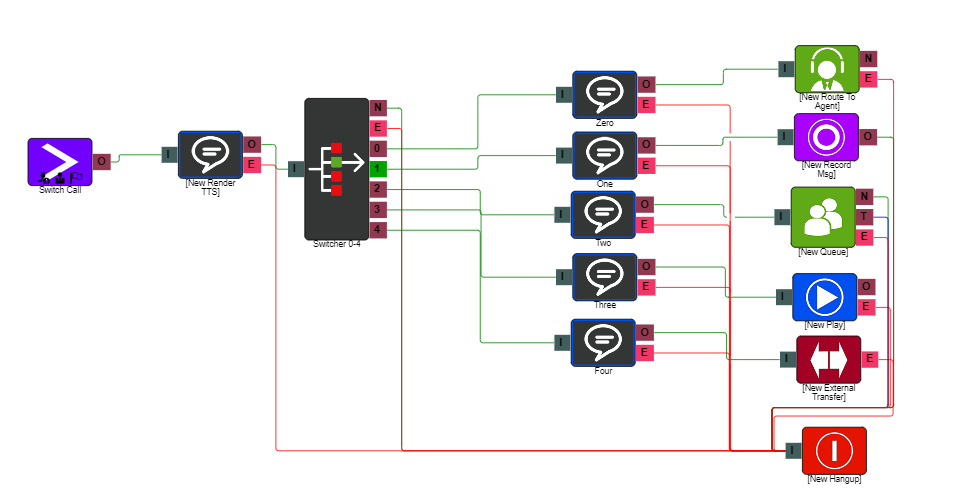
There are two methods of using the switcher element.
You are able to manual change the node path in the IVR editor and you can also automate this process by using a "system control element" which gives you the ability to call into your system and input the number of the node/path you would like the switcher to change to.
Note: On each switcher element you use, you can only choose one path at a time.
Options/Properties
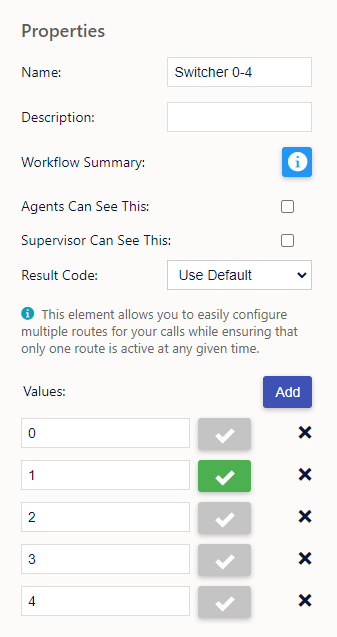
When you first pull the element on the page you will be able to edit the following properties.
Name, Description - On each IVR element, you can add a name and a description of the element.
Agent Can See This - If this is checked, when an agent is on a call to a customer, they can select this element from the transfer drop-down under Workflow.
Supervisor Can See This - Anyone with the role type set as 'supervisor' within their main role, will be able to see the option but no-one else.
Result Code - You can assign a result code to the IVR element.
Values
Next you have the values you are able to create up to 10 values 0-9 per switcher element these will become your node/pathways on the element itself.
When you first use the element in your creation of the IVR, it is best practice to select one of the values straight away by selecting the tick next to it.
You will know the option you picked is selected indicated by the tick being green. (This will be the path the switcher follows)
Set up
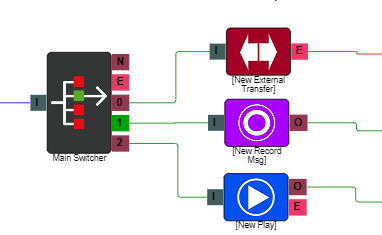
Once you have pulled the element in and selected the amount of pathways you would like you can then connect each path to an option of your choosing.
In the example below the "switcher" is connected to an "external transfer", "record message" and a "play" element however option 1 is highlighted as being in use so you would navigate to a "Record Message Option".
If you wish to change this you would follow the steps outlined above, you would head to the IVR element and manually select the new path you wish the inbound call to take on the properties of the switcher element.
Automation
You are able to automate this process, you can make it so when you call into your business you will be prompted by the system to input the pathway you would like the switcher element to switch to.
The can be exceptionally useful when a quick/emergency change is needed or you are even out the office away from your system and are unable to make the change manually as described above.
To do this you will need to use a system control element.
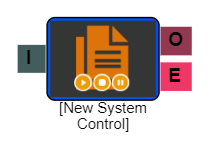
Once you pull in a "system control" element you then have the properties on the right hand side.
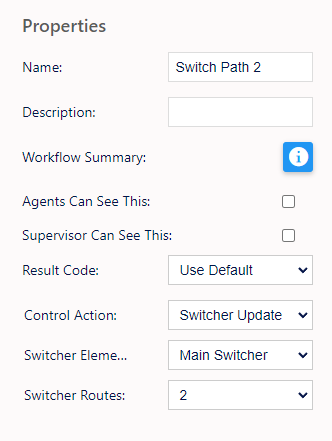
Name, Description - On each IVR element, you can add a name and a description of the element.
Agent Can See This - If this is checked, when an agent is on a call to a customer, they can select this element from the transfer drop-down under Workflow.
Supervisor Can See This - Anyone with the role type set as 'supervisor' within their main role, will be able to see the option but no-one else.
Result Code - You can assign a result code to the IVR element.
Control Action
You will need to use the action switcher update.
Switcher Element
Then you will be able to select which "switcher" element you would like this "system control" to update as you can have multiple switcher elements on your system.
Switcher Routes
Select which numbered pathway this control element is linked to on the switcher
Note: To make this process easier if you are going to use multiple switcher elements on your system make sure to label each one clearly so the choice is clear in the system control.
If you have multiple switcher values it may look something similar to the below example.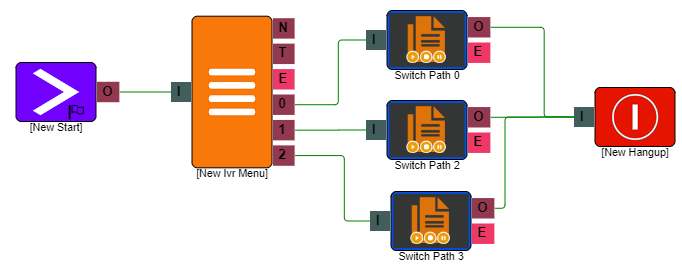
In this example you are able to call into the system you can then use a "Menu" Element to navigate you to the correct system control which if you have followed the above steps will be set up to change the switcher element to the corresponding numbered path.