
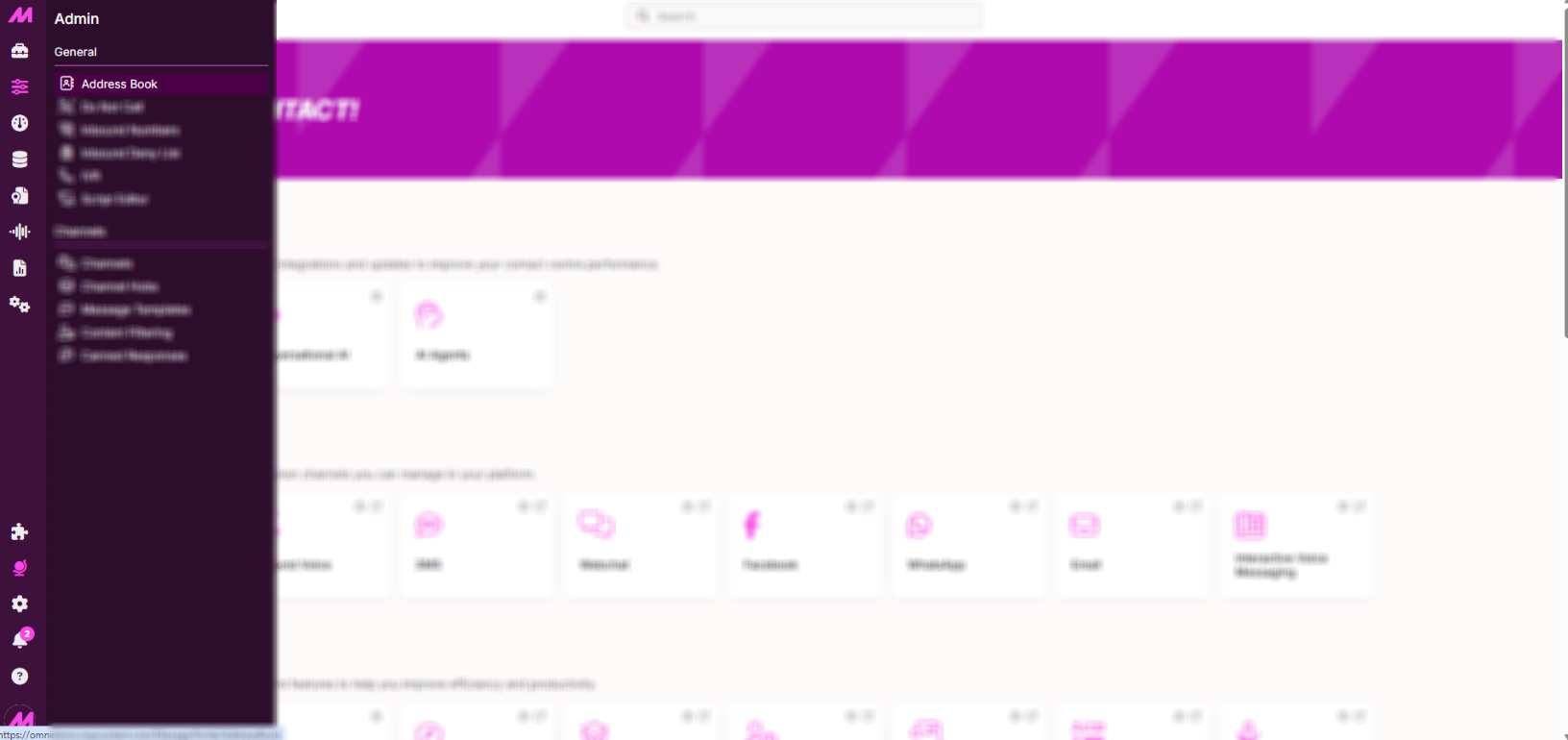
Step 1
Go to Admin -> Address Book.
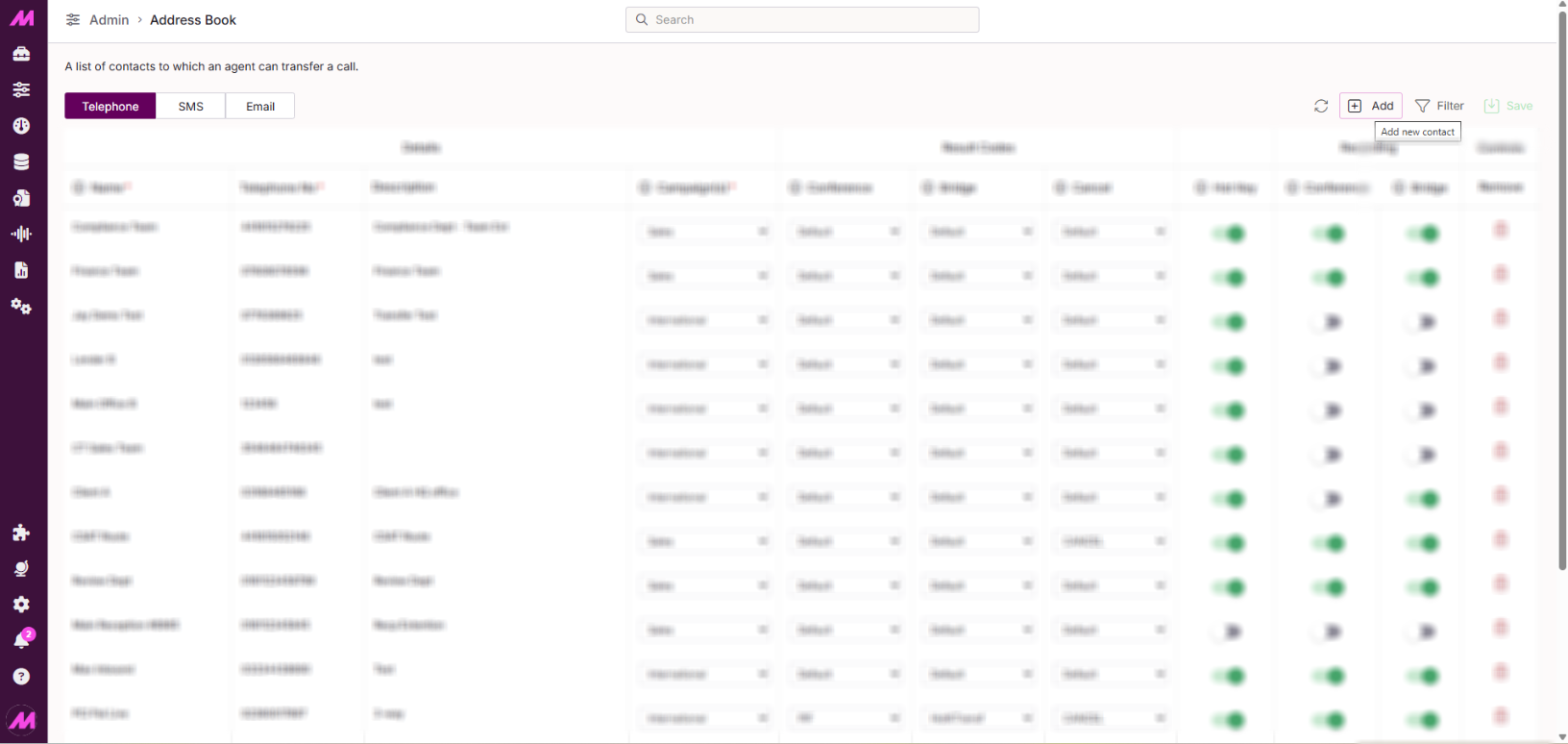
Step 2
Click + Add in the top right of the page.
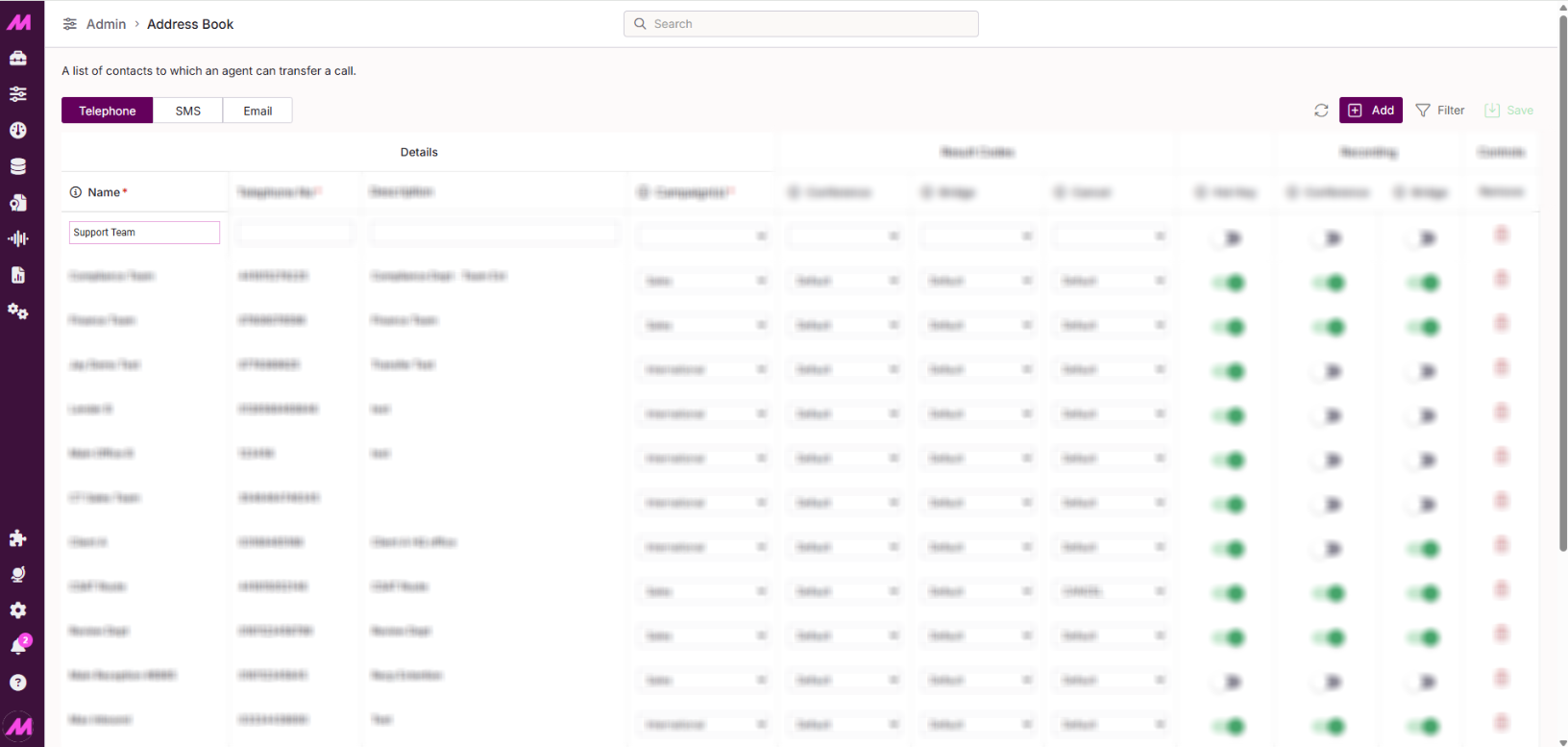
Step 3
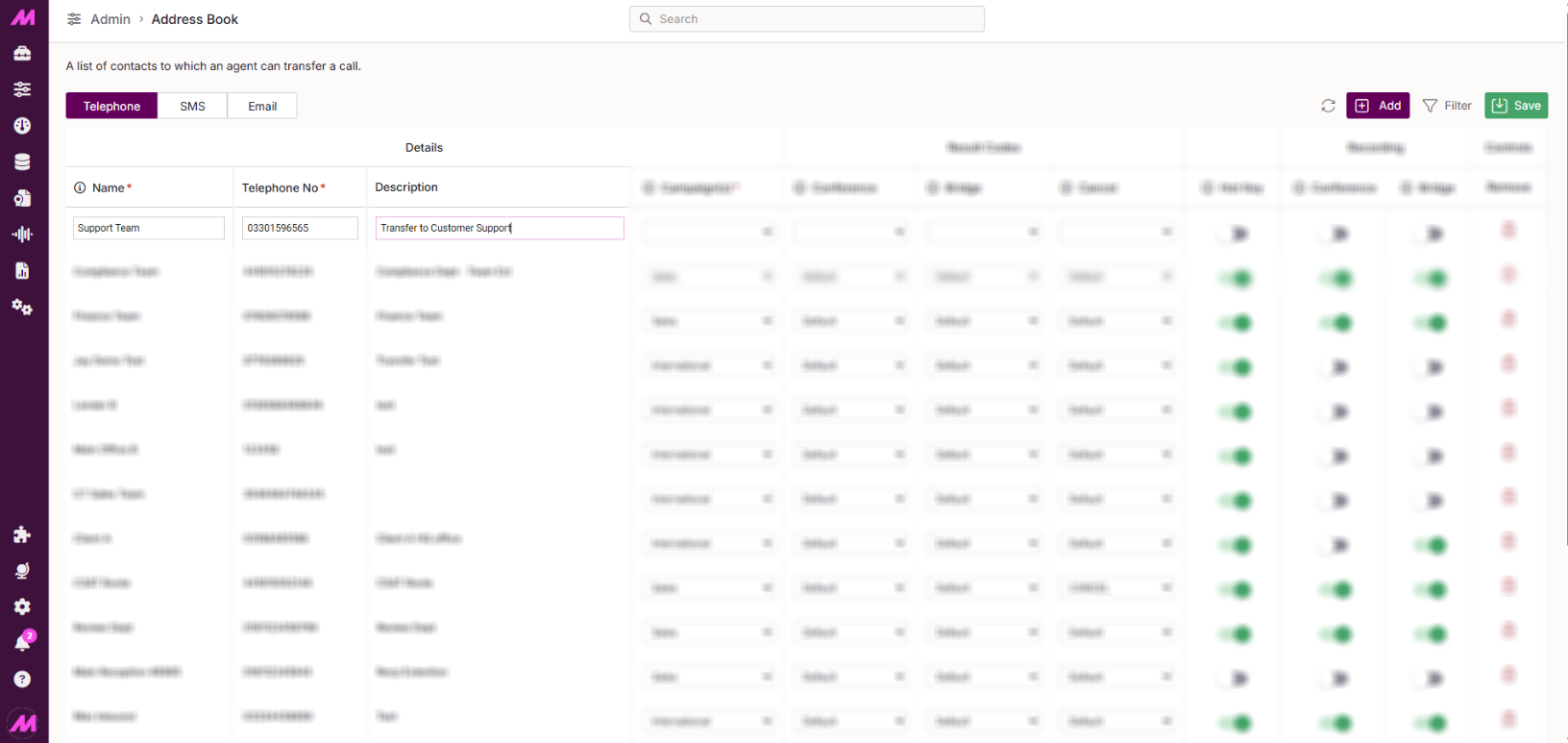
Enter a name for the entry. This is what agents will see when selecting a transfer option in Contact Hub, so keep it clear and descriptive. Names must be between 1 and 400 characters.
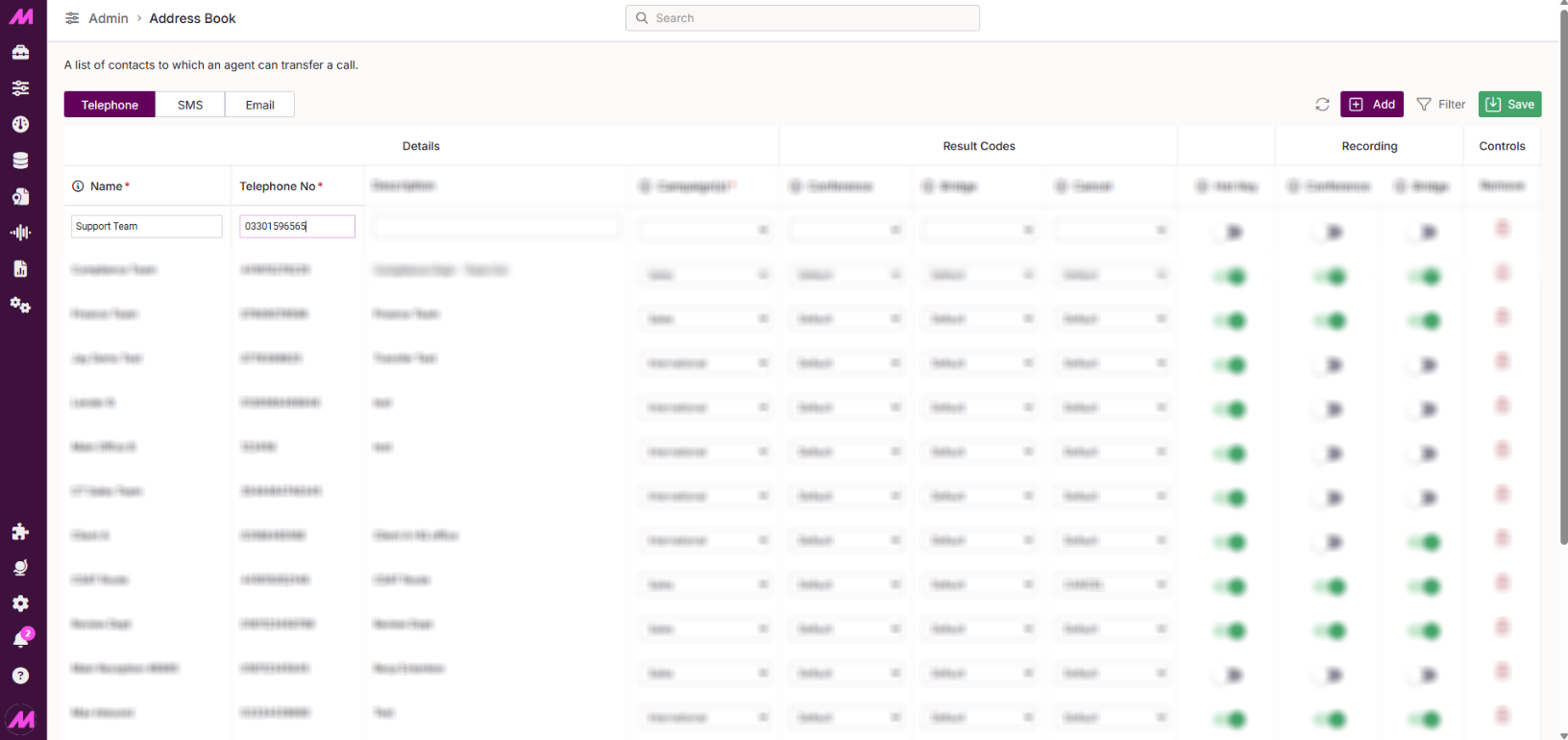
Step 4
Add the telephone number that will be dialled when the transfer is initiated. This field is required.
Step 5
Enter a description to help identify the entry and its purpose. This is particularly useful when managing a large number of address book entries.
Step 6
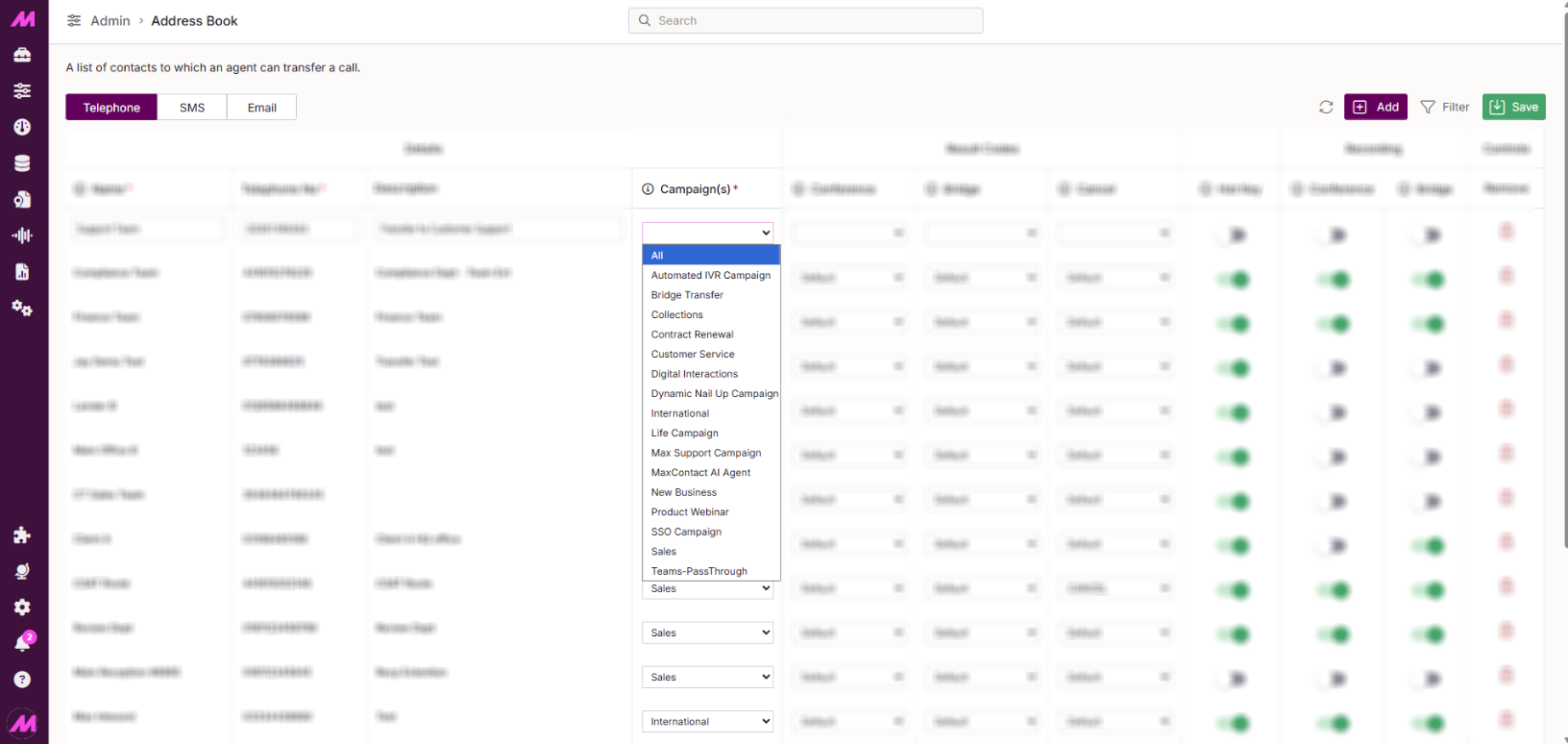
Choose the campaign this entry should be available in. Select All to make it available across every campaign on the system, or select a specific campaign to restrict it to agents logged into that campaign only. This field is required.
Step 7
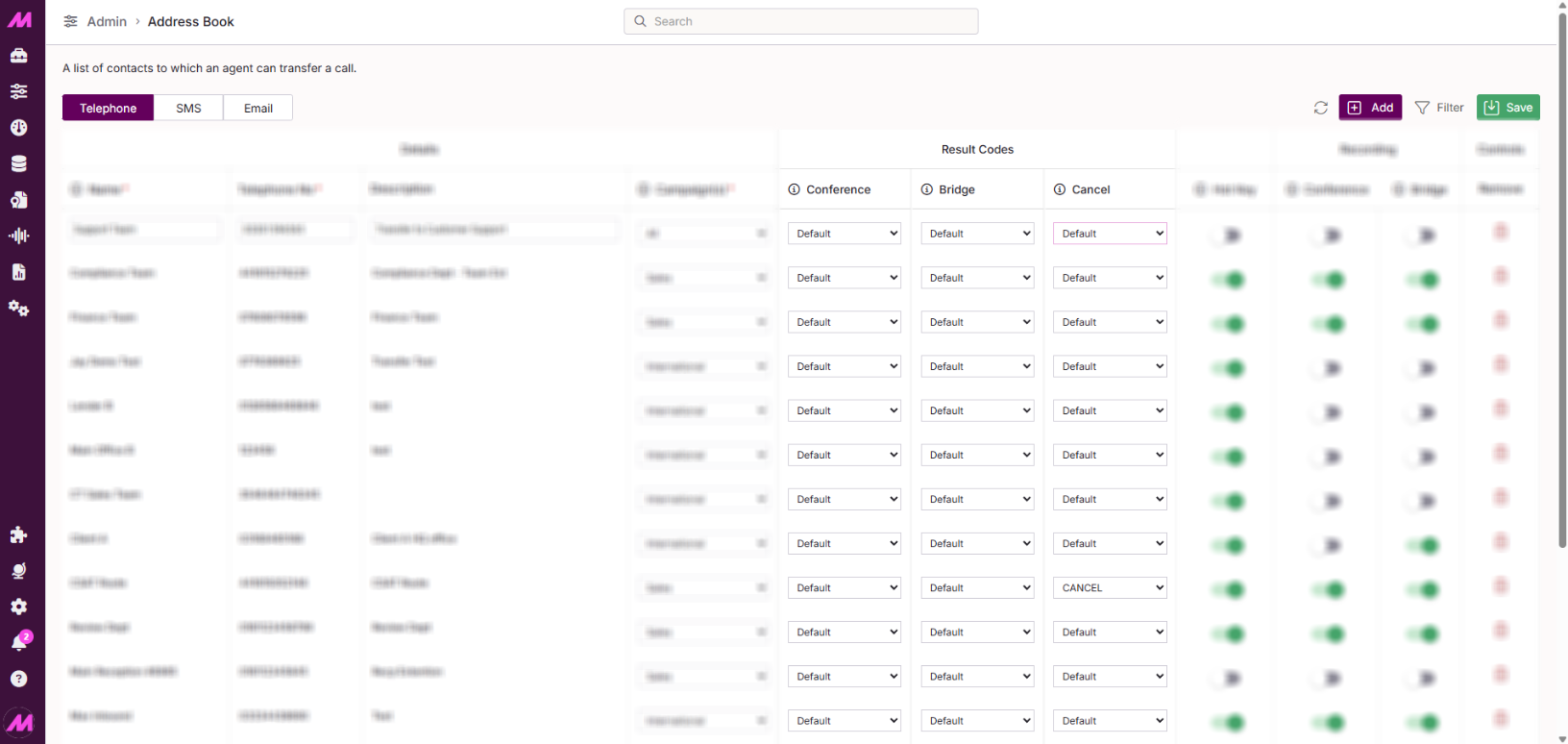
In the Result Codes section, set the result code for each stage of the transfer, or leave it as Default to use the system default. The three stages are:
- Conference. When the agent, customer, and external party are all connected. Default: BRIDGE_WARM (or HKT_WARM if Hot Key is enabled).
- Bridge. The call between the customer and the external party once the agent has left. Default: BRIDGE (or HKT_BRIDGE if Hot Key is enabled).
- Cancel. If the transfer is cancelled before completion. Default: CANCEL (or HKT_CANCEL if Hot Key is enabled).
Hover over the tooltip next to each stage name for more details. Custom result codes allow you to track transfer outcomes in reporting, which can be useful for identifying which transfers are failing or being cancelled.
Step 8
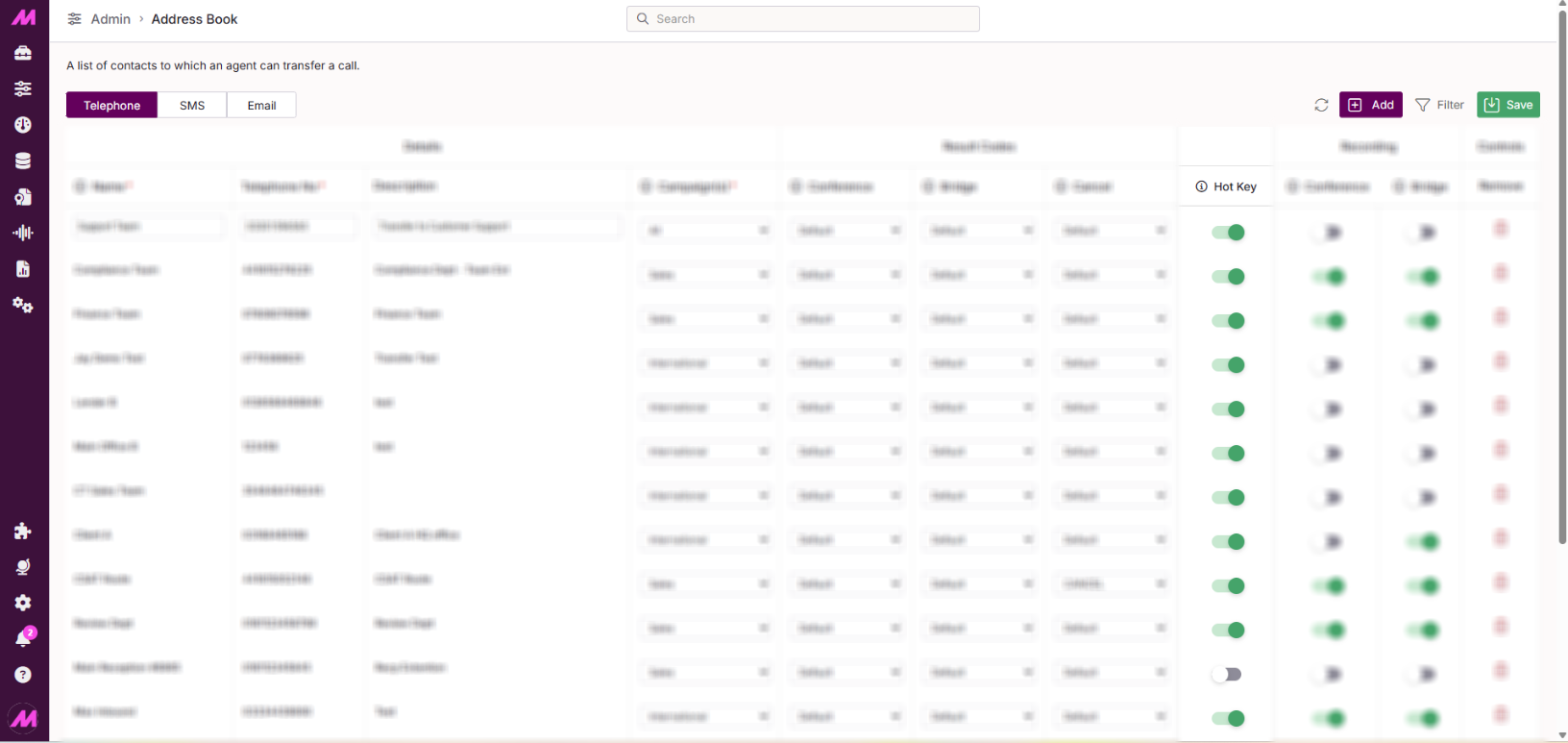
If this entry should be set up as a Hot Key transfer, enable the Hot Key toggle. When enabled, the Bridge part of the call will be assigned the call type Hot Key rather than Address Book.
This may be used when you have a warmer/closer set up, for example, where a customer is transferred to a closer and you want to track conversion rates for that bridge call separatly in reporting.
Step 9
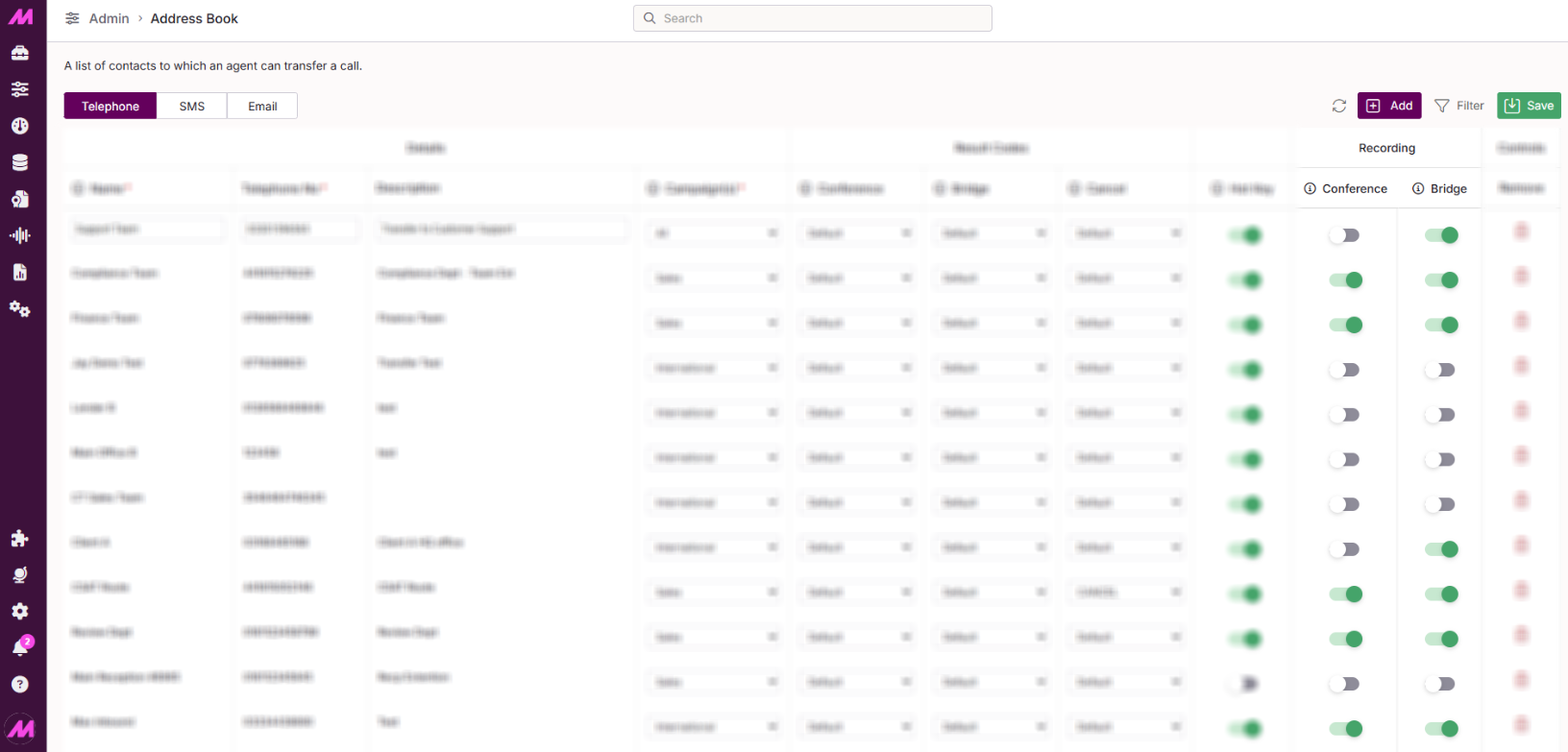
Set your recording preferences for each stage of the transfer:
- Conference recording. Enables an additional recording entry in Recording Playback for the stage when all three parties are connected.
- Bridge recording. Enables recording of the call between the customer and the external party once the agent has left.
Step 10
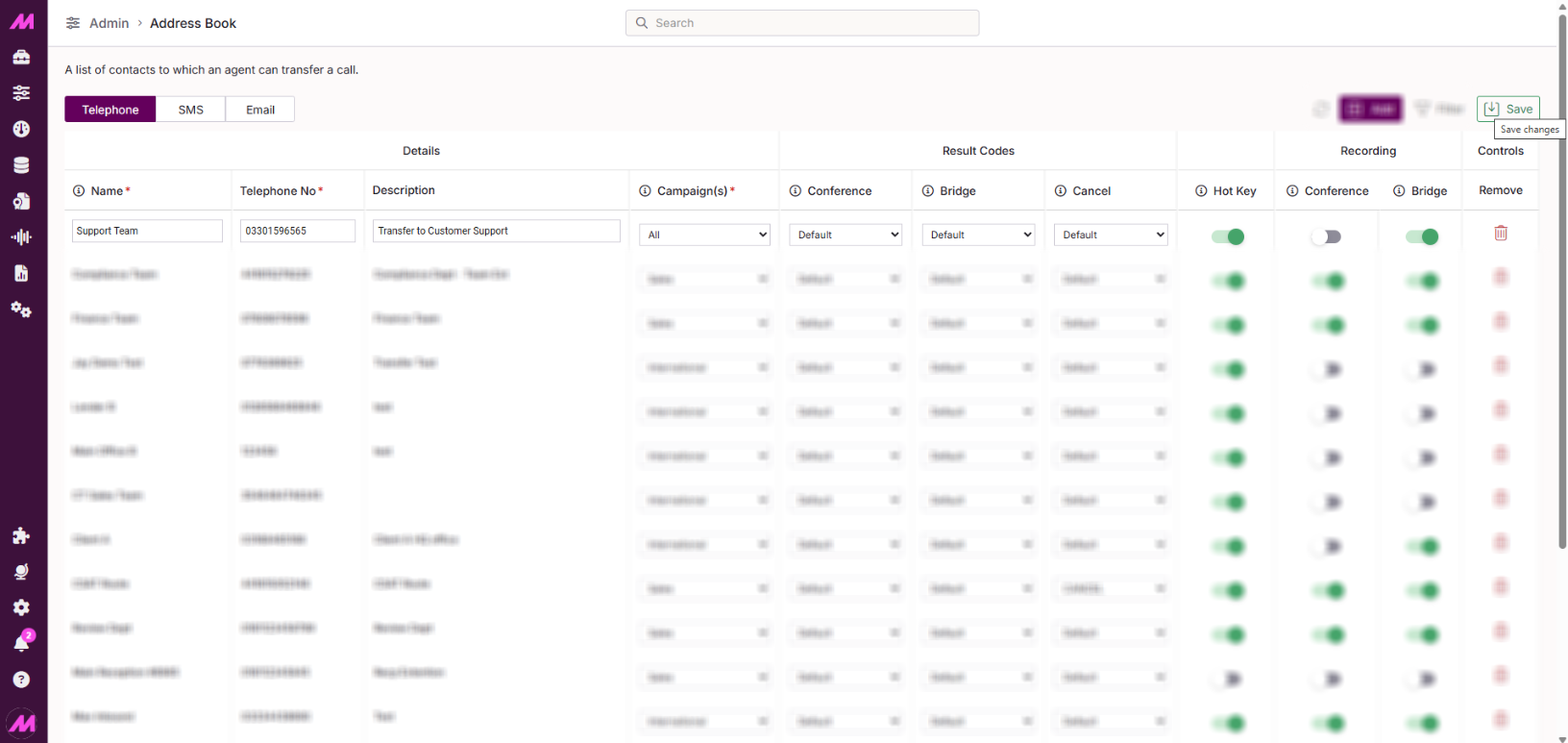
Once you're happy with the configuration, click Save. The entry will now be available to agents in Contact Hub based on the campaign(s) selected.