Users often reply to the same customer questions, saving those replies as canned responses will shorten response times and save keystrokes on repetitive typing. With canned responses, users type it once, save it and reuse it in interactions whenever they need.


Canned responses can also help ensure spelling accuracy and easily made typo mistakes are avoided. 


You can use references to group responses together to help your users find the best responses E.g. 'Complaints' as a shortcut would give the user all responses relating to a complaint.


Page options

Across the top of the page, users have various options to view and edit the page.

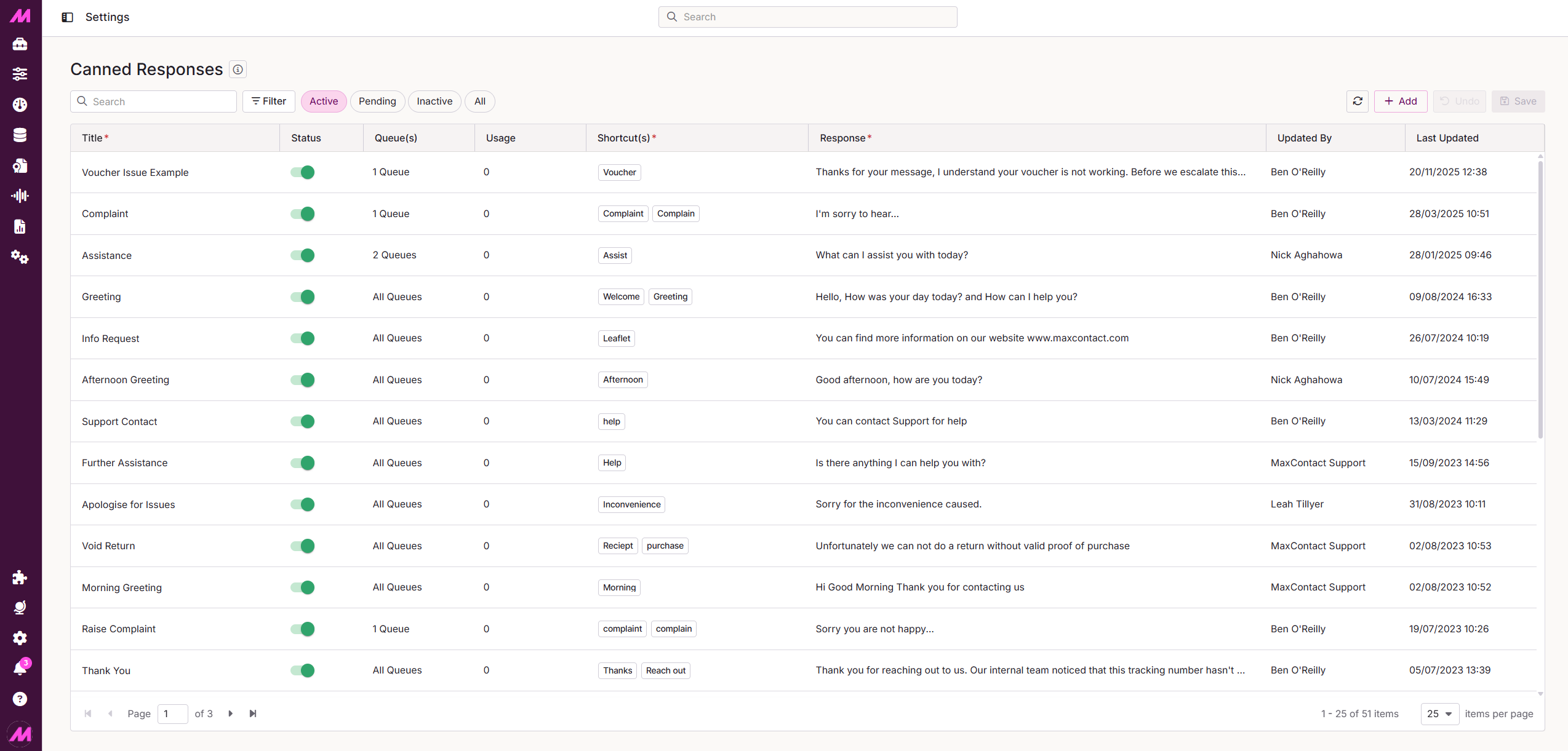
Fig.1 - The page options highlighted at the top of the screen.


ActiveFilters the table down to only canned responses that are active on the system.
Pending approvalDisplays all canned responses awaiting approval.
InactiveShows all canned responses that are inactive on the system.
AllThe table will show all canned responses active, inactive and pending.
Refreshes the page. This can be useful if there are multiple users with access to the page. Should someone make a change elsewhere, you can refresh to see the changes.
Adds a row under the column headers where you can filter based on specific options, such as typing in a response or choosing a queue.Fig.2 - The column filters visible.
Presents a dialogue box where you can create a new canned response (see below for more).

Canned response table

The table displays all the canned responses on the system and can be filtered as described earlier in this guide. You are also able to order the table by column, e.g. by updated date.


StatusThis shows the current status of the response. Only canned responses with a status of Active will be visible to your users. Make sure you review any that are pending approval on a regular basis. These can be filtered by clicking 'Pending Approval' in the page level filter.
Queue(s)Here you can see how many queues this canned response is assigned to. IF you want to see which queues those are, click on the edit button for the response within the controls column.
Shortcut(s)Here you can see the shortcuts linked to the canned response. These allow users to search for a canned response by entering ## then the shortcut. Multiple shortcuts can be separated by a space and you can have as many as you want for each response. Ensure they are relevant to the associated phrase however.
ResponseThis column shows the phrase that will be added to a users reply when using the canned response. Try to ensure these don't sound impersonal or non-descriptive, they should be helpful and always personalised.
UsageThis indicates how many times the canned response has been used in the past 90 days. Bear in mind, a canned response is counted as used once a user has selected it from their library of responses, not when they have sent it. E.g. They could select one and edit before sending.
Updated byDisplays the last user to update the response.
Updated dateShows the last date and time the response was updated.
ControlsInfo
This shows who created the response, when it was created and who approved it and when it was approved. These will be the same for responses created on this page.
Edit
Clicking here allows you to edit the status and the response itself. You can also view detail such as which queues it is assigned to.


Creating a canned response

1 - By clicking the Add button, a new dialogue box will appear with options to create a new canned response.

Fig.3 - A dialogue box for creating a new canned response.


StatusAllows you to select a status for the canned response. Users creating canned responses here will be able to set it to active and bypass the approval process (as they are deemed able to approve if they have access to the page).
Queue(s)Allows you to select or multi select the queues you want to use the canned response on. To multiselect, simply click on the queue name and it will highlight as shown in Fig.4 below

Fig.4 - Multi selecting queues.

Shortcut(s)Here you can enter the shortcut(s) that are linked to the canned response. These allow the user to search for a canned response by typing ##followed by the shortcut entered here. Multiple shortcuts need only be separated by a space and you can have as many or as few as you require.
Canned responseHere you can enter the phrase that will be added to a reply when one of your users utilises this canned response.

2 - Once you have configured your canned response, hit save on the dialogue box.

Fig.5 - DIalogue box with configurable details.


3 - Your canned response should be visible at the top of the table now. 

Because its been created on the admin page, it does not need to be approved.

Fig.6 - New canned response is added to the table.


Editing a canned response

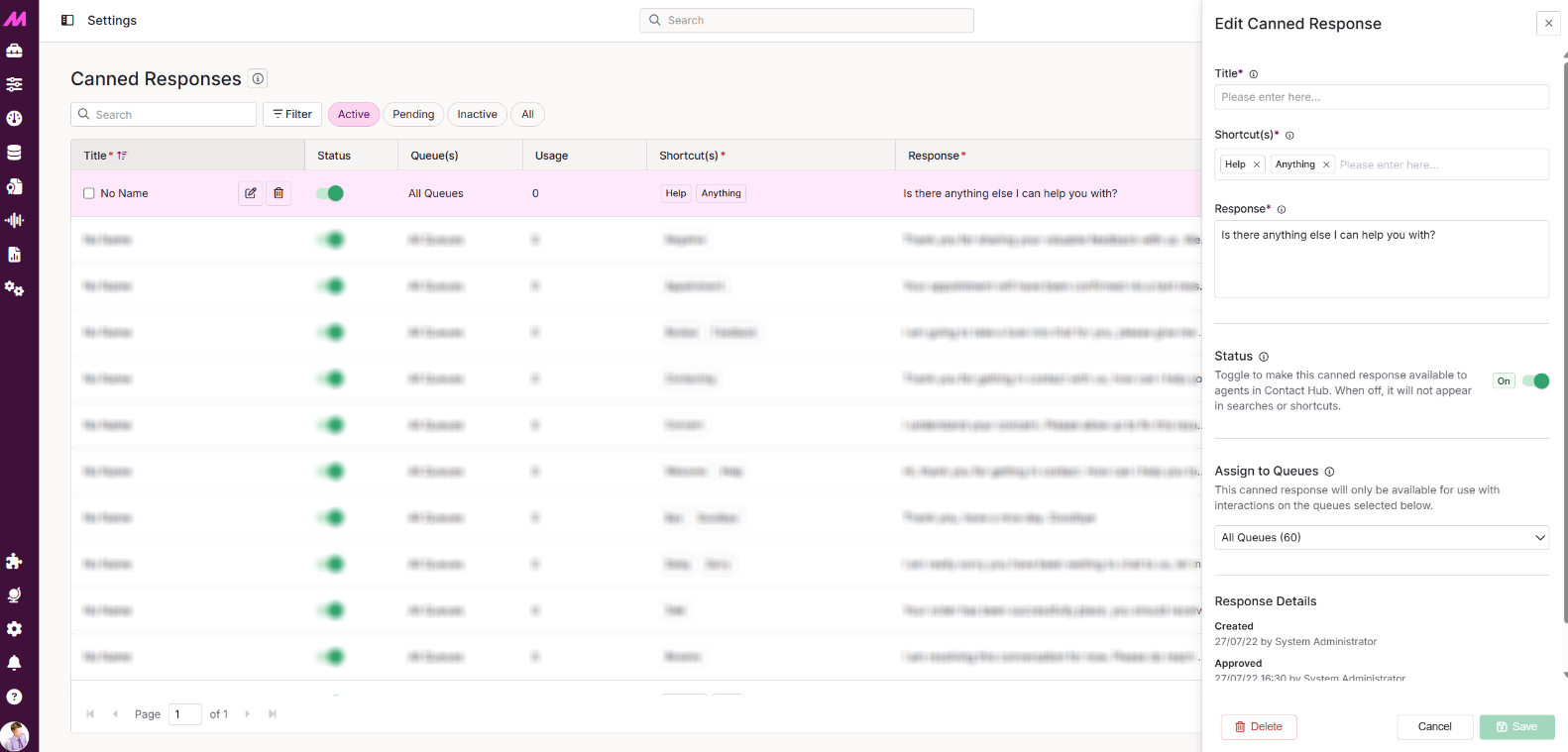
Caned responses can be edited by selecting the edit icon from the controls column. This will bring up the dialog box where you can edit the details as required.

Fig.7 - Edit button highlighted in the 'controls' column.

Fig.8 - Dialogue box for editing the response..


Default canned responses

There are 30 default canned responses for you to use/edit/ignore.


ShortcutResponse
QuestionsDo you have any more questions?
AfternoonGood afternoon, how are you today?
Afternoon HelpGood afternoon, is there anything I can help you with?
MorningGood morning, how are you today?
Morning HelpGood morning, how can I help you today?
Hey Hi HelloHello, how can I assist you today?
Hey Hi HelloHey, how are you today?
Hey Hi HelloHi, how can I help you?
Welcome HelpHi, thank you for getting in contact. How can I help you today?
Review FeedbackI am going to take a look into that for you, please give me a few moments to come back to you.
SorryI am really sorry to hear that. Let me check what I can do.
Delay SorryI am really sorry you have been waiting to chat to us, let me try and get this sorted quickly for you.
ResolveI am resolving this conversation for now. Please do reach out to us if you have more queries. We’re always happy to help you.
TransferI am transferring you to another team who will be able to handle this for you. Is that ok with you?
PaymentI can confirm that a payment has been received, you don't need to take any further action at this time. Is there anything else I can help you with?
ConcernI understand your concern. Please allow us to fix this issue for you.
Help AnythingIs there anything else I can help you with?
HelpIs there anything I can help you with?
TransferPlease give me a minute. I am going to connect you with my colleague, who is more familiar with the problem you have just described.
InconvenienceSorry for the inconvenience caused.
FeedbackThank you for chatting to me today, happy I could help. Could you do me a favor and leave a review when asked about your experience?
ContactingThank you for getting in contact with us, how can I help you today?
NegativeThank you for sharing your valuable feedback with us. We’re sorry for the inconvenience caused. Let me see what I can do to help resolve this for you.
NegativeThank you for sharing your valuable feedback with us. We’re sorry for the inconvenience caused. We’re known for creating an exceptional customer service experience, and we regret to have missed the mark. We’ll never let this happen again.
Bye GoodbyeThank you, have a nice day. Goodbye
FeedbackThanks for being patient today, I am happy I could help. Could you do me a favor and leave a review when asked about your experience?
NiceYou are welcome, have a nice day!
AppointmentYour appointment will have been confirmed via a text message, is that ok or do you want to make some changes to that date/time?
OrderYour order details will have been included in the email. Hopefully you received that email as that should have all the information you need.
SaleYour order has been successfully place, you should receive an email shortly with all the information and the tracking information.