
Single Sign-On (SAML)
Single Sign-On (SSO) lets users log into multiple systems with one set of login details, by connecting them to your organisation's active directory: a directory of users already set up with a login and password for your organisation. This reduces the number of usernames and passwords users need to remember, and gives you a central location for authentication through a single identity provider.
The main benefits are:
- Improved user experience — less time spent logging in.
- Increased security — centralised access control and credential management.
- Reduced IT costs — no need to manage credentials separately for each application.
- Increased compliance — centralised logging, auditing, and access controls.
How it works
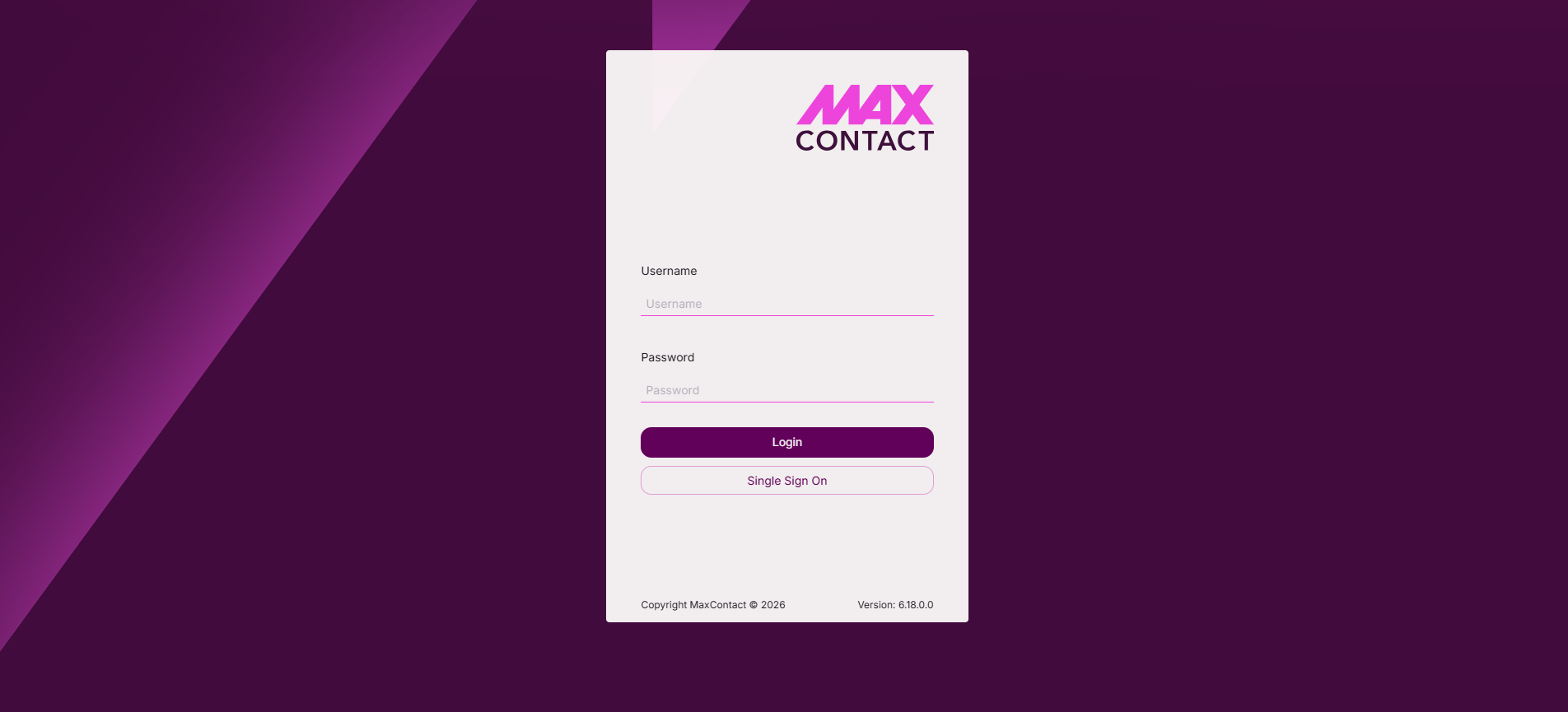
A user logs in via the identity provider (IdP) login presented within MaxContact, for example through Azure Active Directory. The IdP verifies their credentials and returns a token to MaxContact, confirming the user is valid. MaxContact then grants access without ever needing their credentials directly.
 |  |
SSO implementation
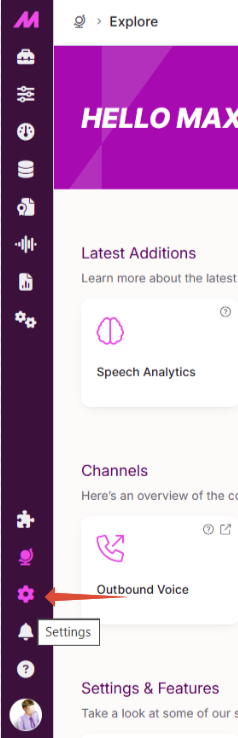
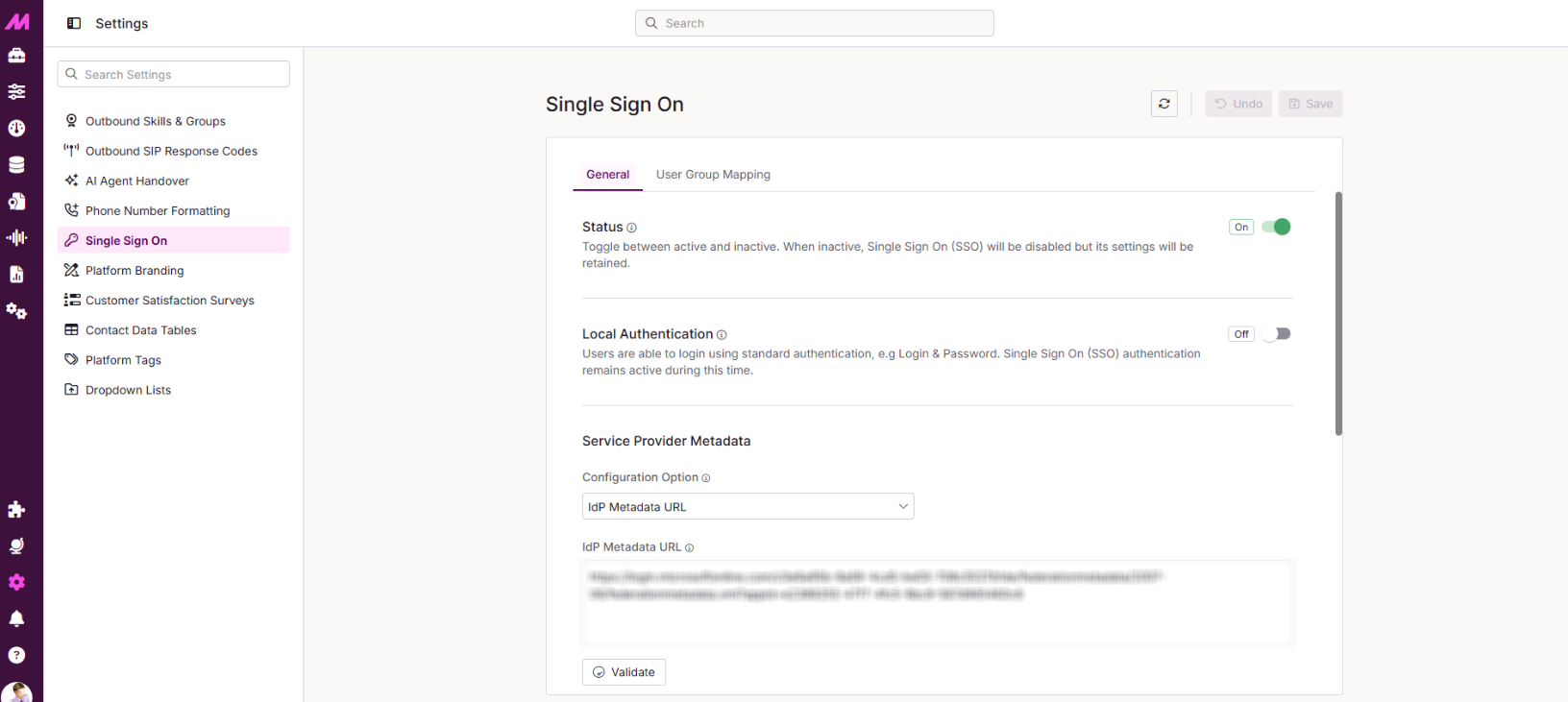
Once SSO is initialised on your system, you'll have access to the Single Sign On page, under Centralised Settings > Single Sign On. Your IT department will need to work closely with the MaxContact team to ensure this is set up correctly.
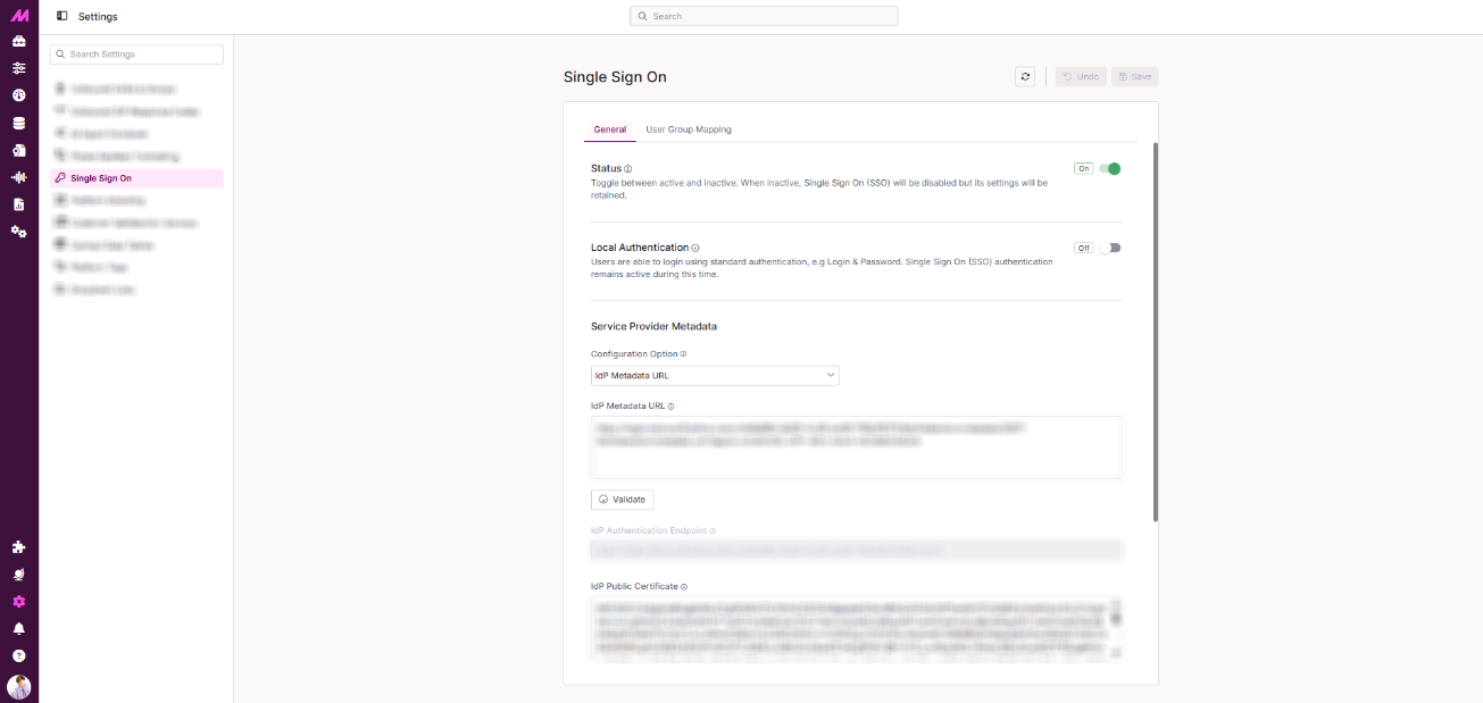
General tab
Here you can enable or disable SSO, and enable or disable Local Authentication, the standard username and password login from the CTU page.
Once you have the required details from your IT team, configure the connection via the Service Provider Metadata card. Choose one of two Configuration Options.
Manual Configuration
Enter the following details manually:
| Field | Description |
|---|---|
| IdP Authentication Endpoint | The URL on your identity provider that handles SAML 2.0 authentication requests. When a user signs in, their browser is redirected here to authenticate, and the IdP posts a SAML assertion back to complete sign-on. Enter the full URL, including https:// — for example, https://idp.example.com/saml2/sso. Check with your IdP administrator if you're unsure of this URL. Required to enable SAML 2.0 SSO. |
| Application ID | A unique identifier for your service provider registration with the IdP. Some IdPs require registering an application for each system federated via SAML SSO, assigning an ID during that process. Enter the exact Application ID assigned during registration, since this links your configuration to the correct IdP registration and is included in SAML requests to identify the target application. Check with your IdP administrator if you're unsure of this ID. |
| IdP Public Certificate | Lets MaxContact validate the integrity of SAML assertions sent by your IdP. The IdP signs each assertion with this certificate to prevent tampering, and MaxContact uses the public key within it to verify the signature. Uploading this certificate establishes trust between the two systems. Obtain this from your IdP administrator. The certificate must be in PEM format. |
IdP Metadata URL
Paste the URL of your IdP's XML metadata file into the IdP Metadata URL box and select Validate. This file contains the entity ID, endpoints, X.509 certificates, and other details needed to establish the connection.
Claim Names card
Claim names tell MaxContact what your active directory will pass through for a user's login, role or permission group, and full name. The defaults below are based on Azure Active Directory, but can be changed to match your own setup.
| Field | Description |
|---|---|
| Login | The exact claim name mapped to the Login field, commonly "NameID", "UserID", or "Username". MaxContact uses the value from this claim to populate each user's Login field after authentication. If left blank, this defaults to email address. |
| Roles/Permissions | The exact claim name used for group membership. MaxContact reads this claim after authentication to associate the user with the appropriate permission role. If left blank, this defaults to groups. |
| Full name | The exact claim name to be utilised for the User's first and last name. Our application will read this claim after authentication and use the value from this claim to populate the name fields after authentication. The first space found is used to determine where a Users first name should end and where their last name should start. Don't worry, you may not always need to customise this claim name as if none is entered this will default to displayname. |
User Group Mapping tab
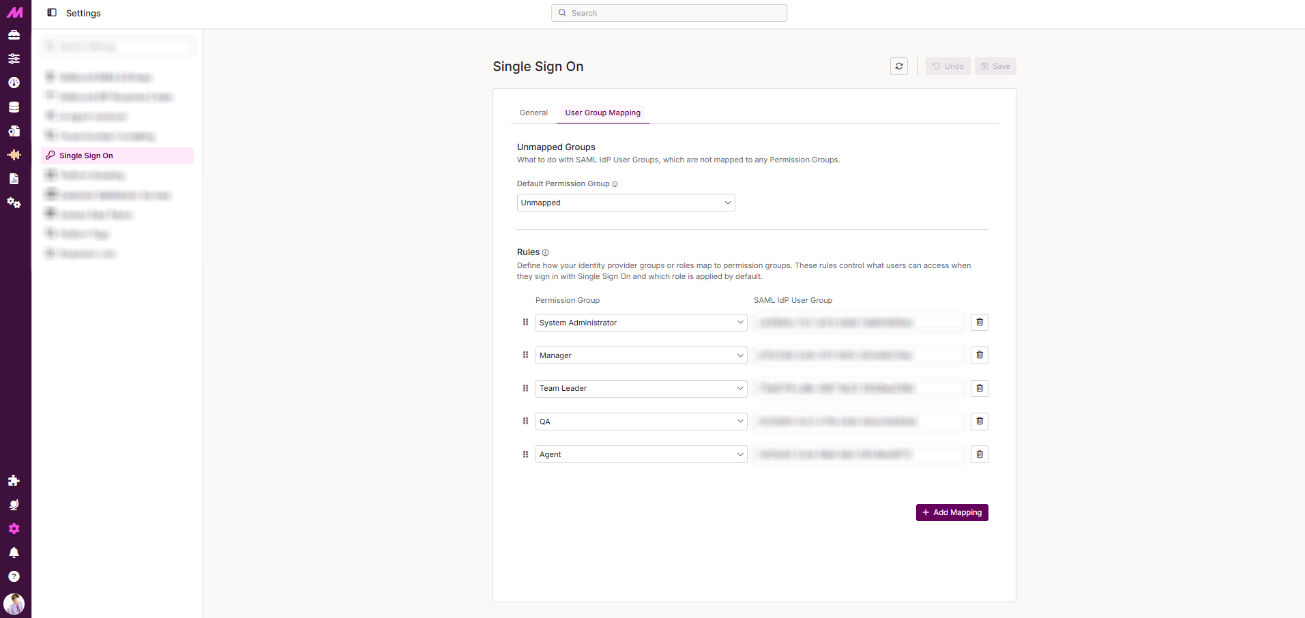
This tab lets you map the security groups your users belong to in your active directory onto permission groups in MaxContact, useful where the two use different naming conventions.
Unmapped Groups
Select the permission group that users are assigned to when their group membership doesn't match any explicit mapping defined below. Since group membership is determined by the IdP, some authenticated users may not match any of your configured mappings. Assigning an Unmapped Groups permission group gives these users general access rather than blocking them outright.
Rules
- Select the + Add Mapping button on the Rules card for each permission group mapping you need.
- Select the permission group, also known as a role, you want to assign from the dropdown. This lists every permission group created on the Permissions page.
- Paste in the corresponding IdP user group name from your active directory, using a name that's clear and easy to manage.
Additional information
Contact the MaxSupport team for any technical help setting this up.