
Field Finder allows you to filter the various fields within your screen in a readable summary, this also indicates whether any changes will affect parameters of those fields
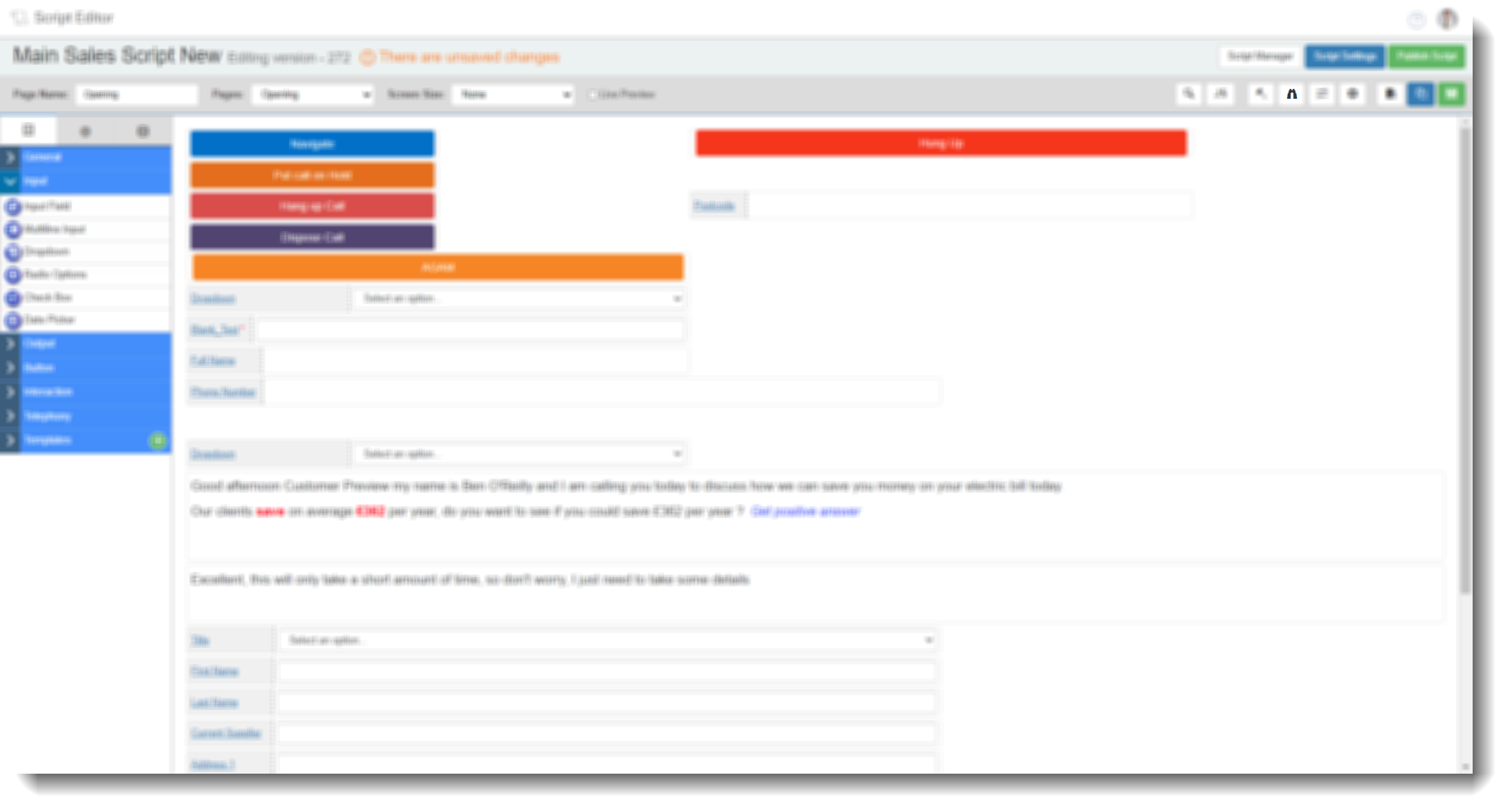
If you go to field finder in the top right of the menu bar
You can search on the following parameters
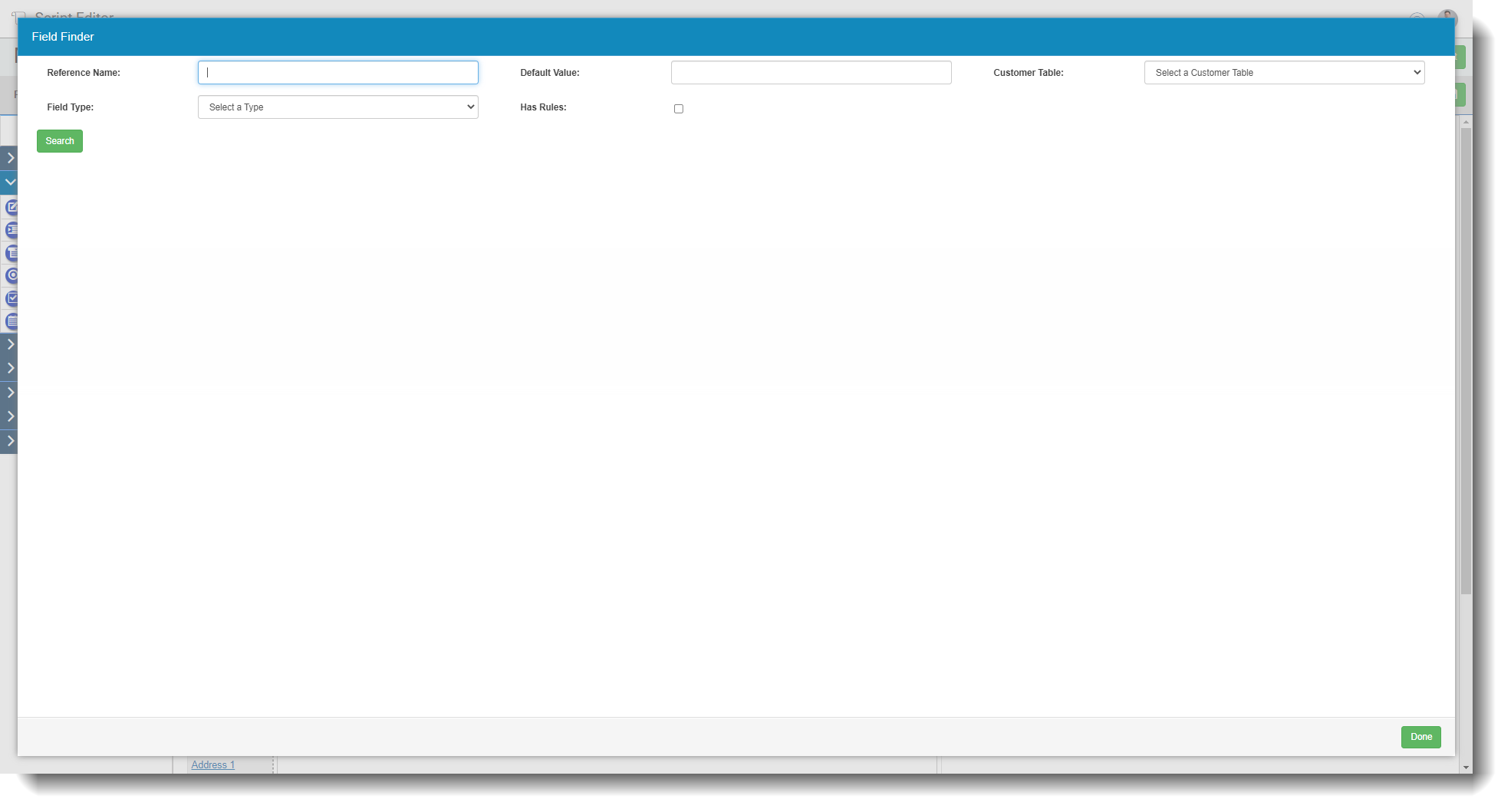
Reference Name - This is name given to the field when created, this is not the label
Default Value - If you have set default values on the field
- Customer Table - choose a specific database table to show mapped fields from
- Customer Field - This will show if a table is selected above, you can then choose a specific database field and script field would be mapped to
Field Type - Choose type of field
Has Rules - Ticked this will show only fields that are involved in any rules
Once you have searched based on the criteria above you will see various information on those fields
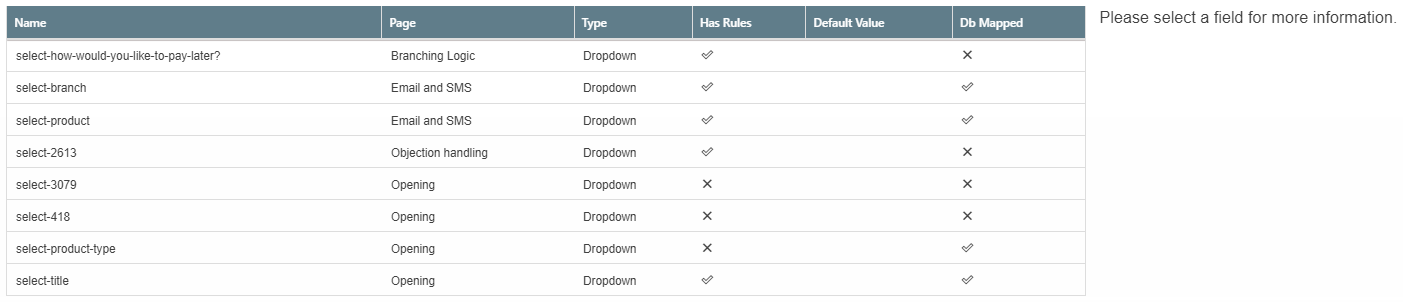
Name - Reference name of field - this is not a label
Page - The script page the field is on
Type - The type of field
Has Rules - Tick or cross to show whether or not that field is involved in any rules
Default value - default value set on the field if at all
DB Mapped - Tick or Cross to show whether or not this field is mapped to a database field
You can select a field to see more info in the right panel
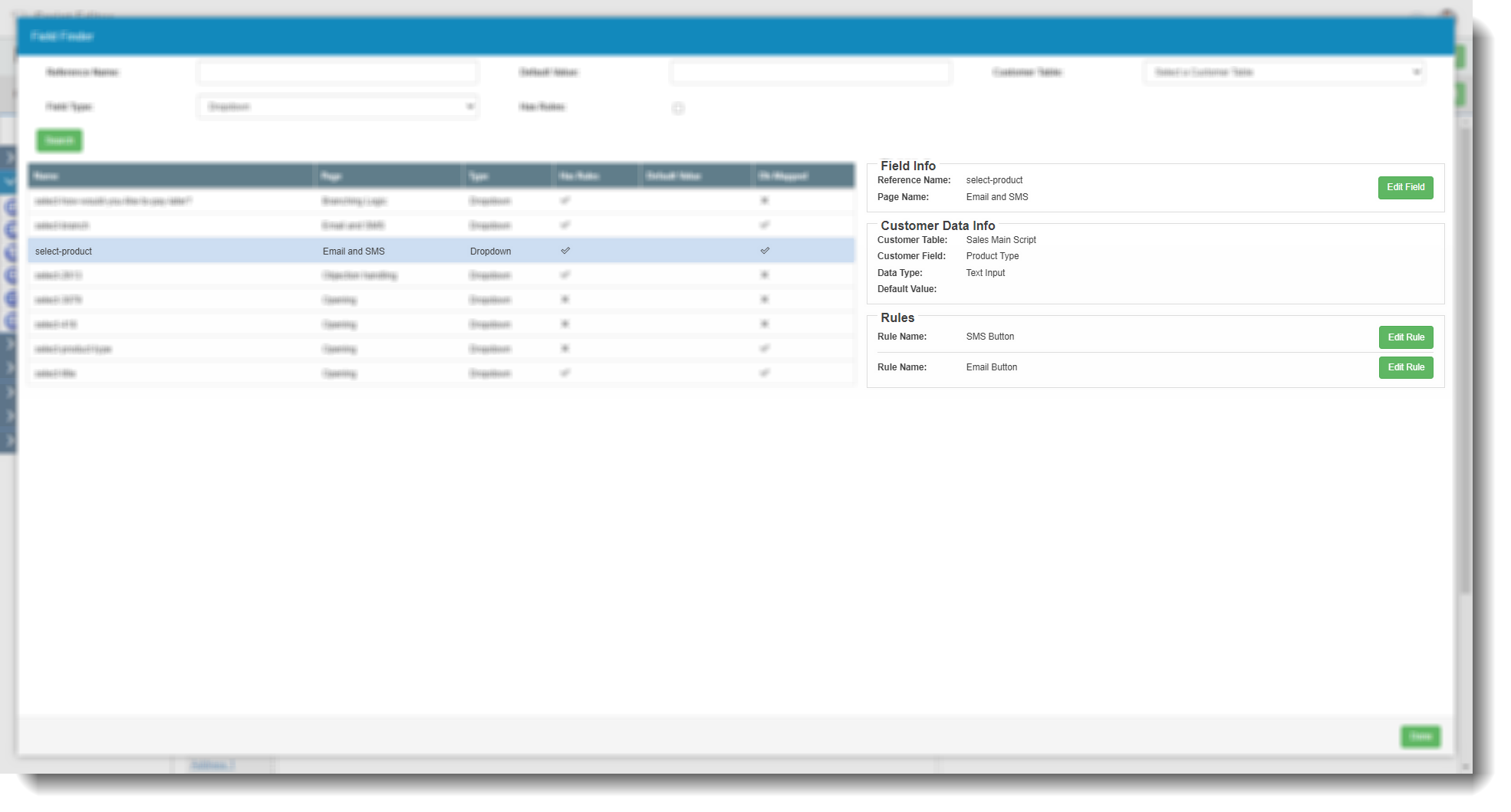
From here you can edit any field \ rule , which will take you to the edit window of the field \ rule and then bring you back to the results when finished.