
Multifactor Authentication
Multifactor authentication (MFA) prompts your users for a code from an authenticator app during sign-in, on top of their username and password. This industry-standard layered security reduces the risk of a user's credentials being hacked or misused.
Enabling MFA for a user
- Go to Management > General > CTU.
- Select the user you want to use MFA.
- Select the Multi-Factor Authentication option on their editing tab.
How users set up MFA
The first time a user with MFA enabled logs into the portal, they enter their username and password as usual, then choose one of two ways to complete MFA setup.
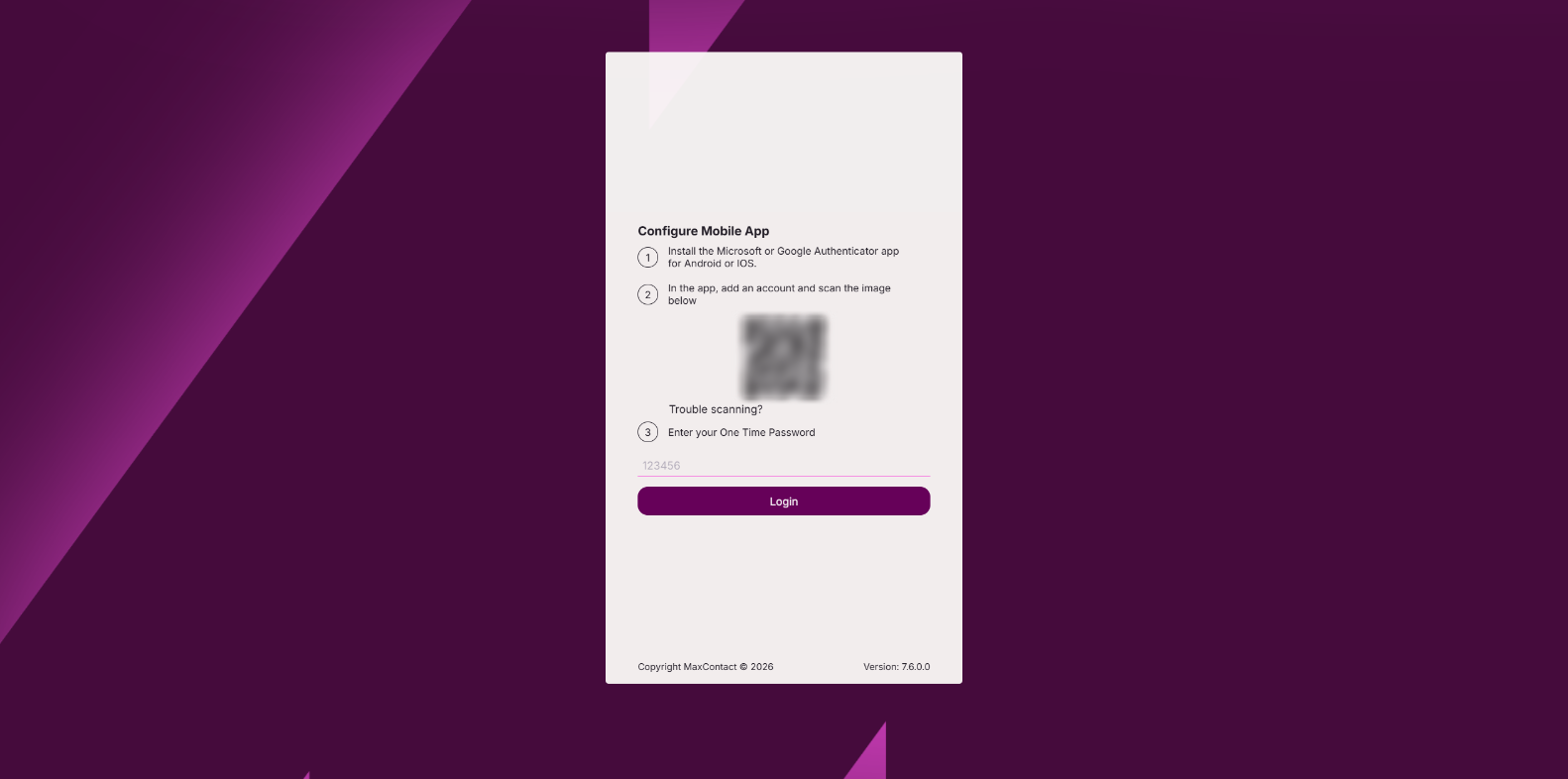
Option 1: Scan a QR code
The user is prompted to configure MFA via a QR code. They scan this with a device and set up an account within an authenticator app.
Several apps are available, but the most common are Microsoft Authenticator and Google Authenticator, both available on Android and Apple devices. Apple phones also have a built-in Authenticator app. Once installed, the user adds an account within the app and scans the QR code. The app then generates the one-time code needed to log into MaxContact.
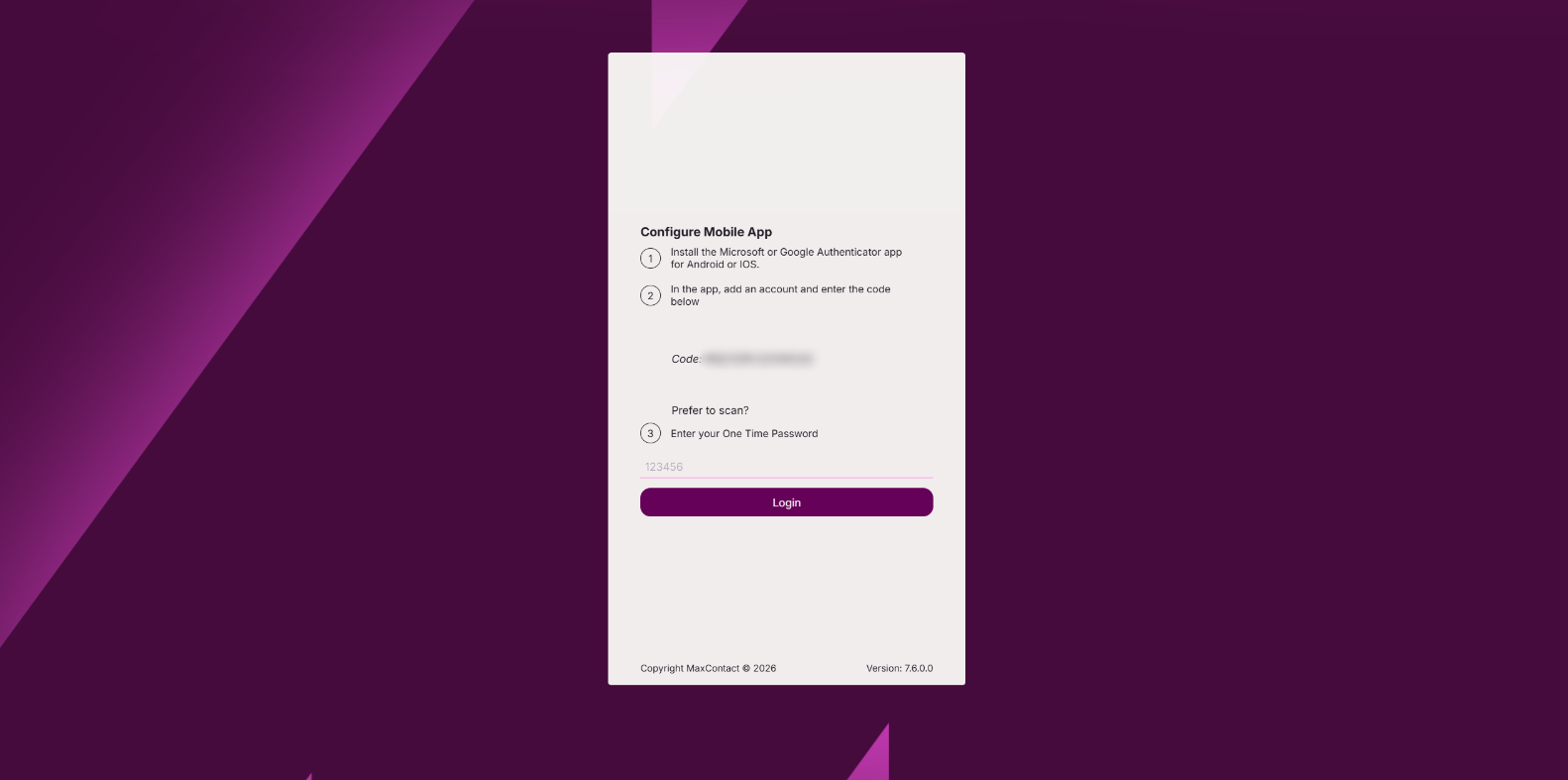
Option 2: Trouble scanning
If a user doesn't have a device to scan a QR code at their desk, they can select Trouble scanning instead. This generates a code for them to enter into a desktop app, which then provides the one-time password they need to log in.
Once setup is complete, the user is logged in. On every subsequent login, instead of the QR code prompt, they enter their username and password followed by the one-time code generated by their authenticator app, which grants them access.
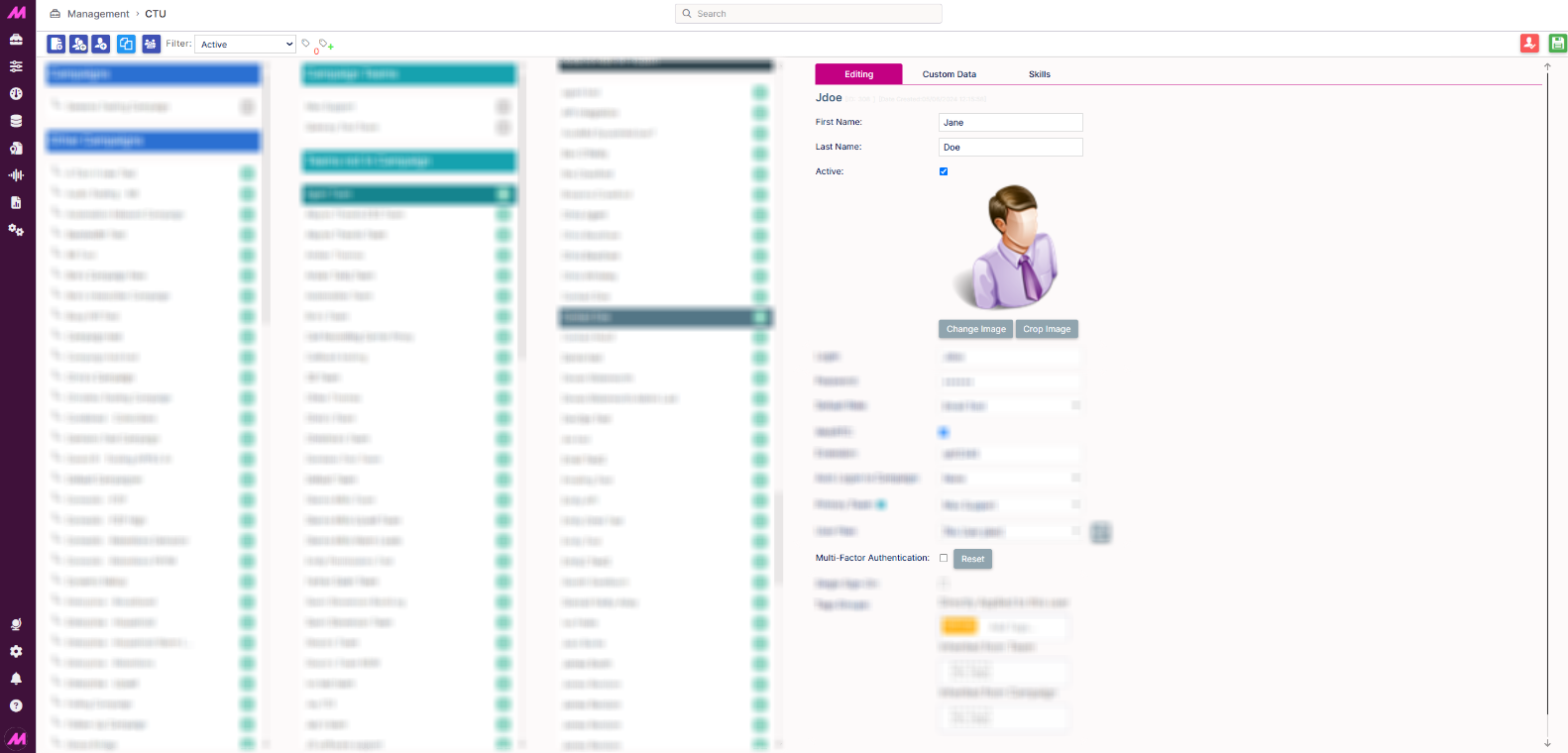
Resetting a user's MFA
Once MFA is set up on a user, admin users can reset it. This is useful for a user who needs to re-scan a QR code, for example after changing phones, or who's having issues with MFA. To reset a user's MFA, select the button next to the MFA option for that user in the CTU.
After a reset, the user sees the original setup screen again on their next login (either the QR code or Trouble scanning option), rather than being asked for a one-time code. They need to re-scan a QR code or enter a code again to regain access.