

Drag and Drop Fields — Interaction
The Interaction tab in the Field Options panel contains one field type: the Templated Response Button. This field is only relevant to scripts used alongside digital interactions — webchat, email, SMS, Facebook Messenger and WhatsApp.
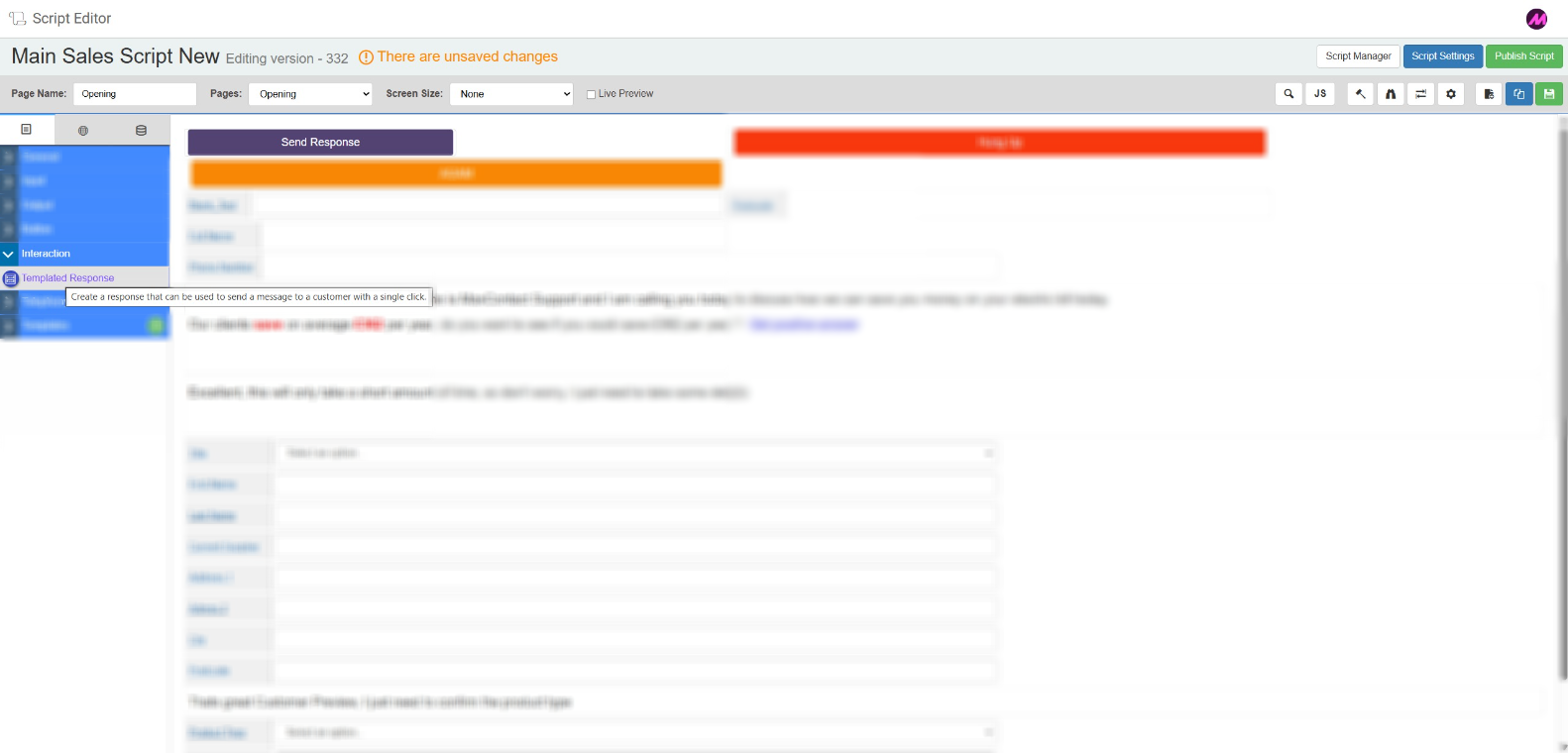
Templated Response Button
Lets agents send a pre-configured response to a customer during a digital interaction with a single button press. You can set the button to either paste the response into the reply box for the agent to review and edit before sending, or to send it instantly without any additional action.
This is particularly useful for handling common questions efficiently — agents can respond consistently without typing the same message repeatedly, while still having the option to personalise before sending if needed.
Tab 1 — Field Config
| Setting | Description |
|---|---|
| Reference name | The system-generated reference for this field. Can be edited. |
| Action | Controls what happens when the agent selects the button. Paste inserts the configured response into the reply box in Contact Hub, where the agent can edit it before sending. Instant sends the response immediately without giving the agent the opportunity to edit it first. |
| Template | The text of the response that will be pasted or sent. Write the message here, then use the Select a field dropdown and Add button to insert dynamic fill-points from global data fields or page fields within the script — for example, the agent's name or a customer reference. |
| Preview | Displays how the response will appear when populated with the selected fill-point data. |
Tab 2 — Field Style
| Setting | Description |
|---|---|
| Visible | Controls whether the button is visible on the script when it loads. |
| Font size | Sets the size of the text on the button. |
| Button text | The label displayed on the button as agents see it. |
| Colours | Colour pickers for customising the appearance of the button. |
Tab 3 — Dispose Settings
| Setting | Description |
|---|---|
| Dispose | When enabled, selecting this button will send the message and dispose of the interaction in a single action, applying the selected result code automatically. |
| Result code plan | Select the result code plan to use when dispositioning via this button. |
| Result code | Select the specific result code to apply when the interaction is disposed of via this button. |