
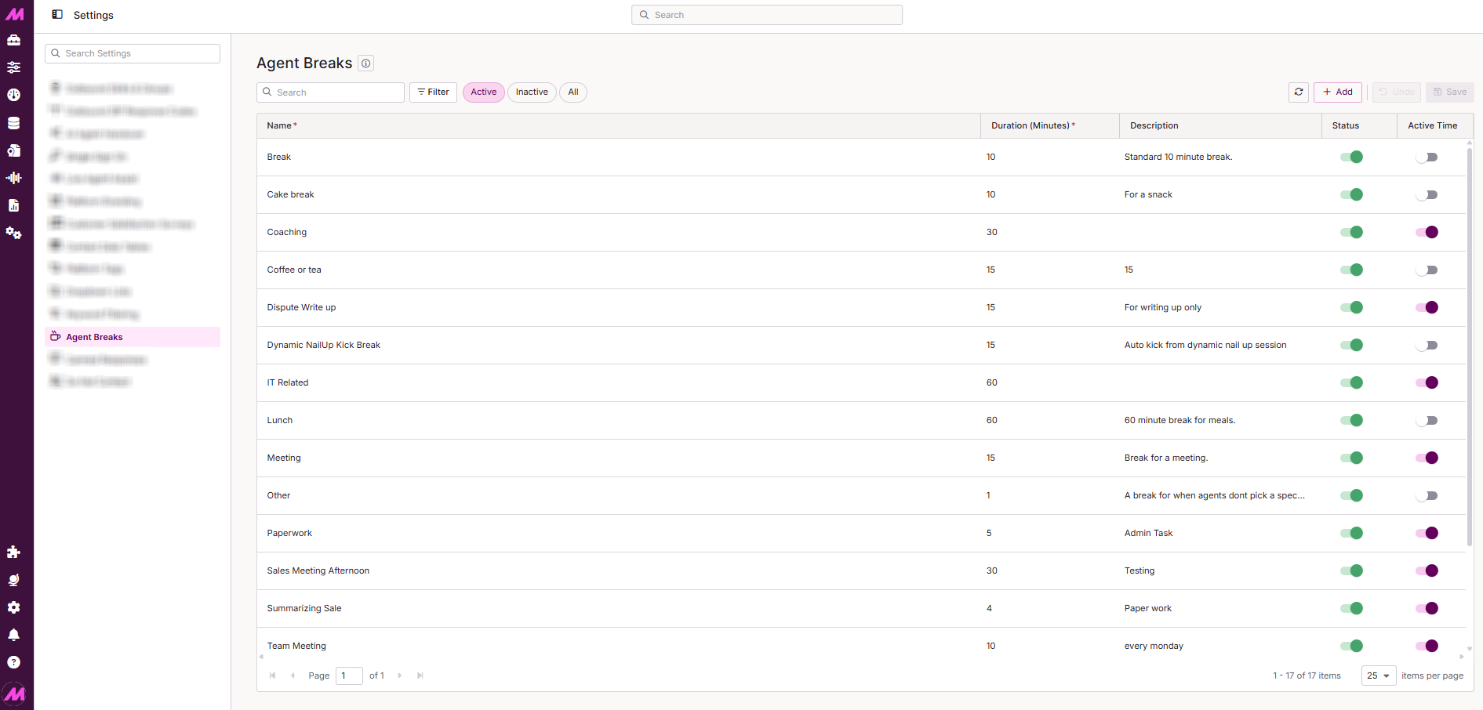
Agent Breaks
The Agent Breaks page is where you create and manage the break options available to agents in Contact Hub. Breaks apply globally across the system — they cannot be restricted to individual campaigns.
To access it, go to Centralised Settings > Agent Breaks.
Breaks can be monitored live via dashboards and wallboards, and are reportable within the reporting suite. For guidance on how agents select and manage breaks in Contact Hub, see the Breaks (Contact Hub) article.
Page controls
| Control | Description |
|---|---|
| Filter | Adds filter fields beneath the column headers so you can search and narrow down the breaks table. You can filter by duration and whether Include in Active Time is enabled. |
| Active | Shows all active breaks currently available for agents to select. |
| Inactive | Shows all breaks that have been made inactive. These are not visible to agents and cannot be selected. |
| All | Shows all breaks on the system regardless of status. |
| Refresh | Refreshes the data displayed on the page. |
| Add | Opens the dialogue box to create a new break. |
| Undo | Reverts unsaved changes. |
| Save | Saves any changes made on the page. |
Creating a break
There is no limit to the number of breaks you can create. Bear in mind that a large number of options can slow agents down when choosing — keep the list focused on the breaks your operation actually needs.
- Select Add. A new break row will appear.
- Complete the fields as described below.
- Select Save. The break is now available for agents to select in Contact Hub.
| Field | Description |
|---|---|
| Name* | The name agents will see when selecting a break. Keep it specific so its purpose is immediately clear. Must be unique, maximum 25 characters, no special characters. |
| Duration* | The target length of the break in minutes. When an agent exceeds this duration, they are alerted that they have gone over their allotted time and by how much. Can be set between 1 and 999 minutes. |
| Description | A more detailed description of what the break is for. Useful as the number of breaks grows. Maximum 70 characters, no special characters. |
| Status | Controls whether this break is available to agents. New breaks are set to active by default. Toggle off to make the break inactive without deleting it. |
| Include in active time | When enabled, time spent on this break counts as active (productive) time in reports. Use this for breaks that represent billable or productive work rather than away-from-desk time — for example, after-call admin work that needs to be reported against a campaign. |
* Required field
Editing a break
To edit a break, hover over it in the table and select it. Each field in the row will become editable. Make your changes and select Save.
To delete one or more breaks, select the tick box to the left of each break you want to remove, then select Delete.
Deactivating a break
To remove a break from the options available to agents without deleting it, open the break and toggle Status off, then save. The break moves to the Inactive view and is no longer visible in Contact Hub.
To reactivate it, switch to the Inactive view, open the break, toggle Status back on, and save.