App Registration
Microsoft Help Guide
https://docs.microsoft.com/en-us/azure/active-directory/develop/quickstart-register-app
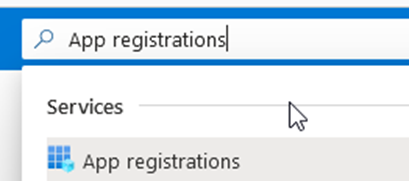
1 - Navigate to the app registration section in azure (This can be found by searching for App Registration in the top search bar)
2 - Create a new application, created as single tenant
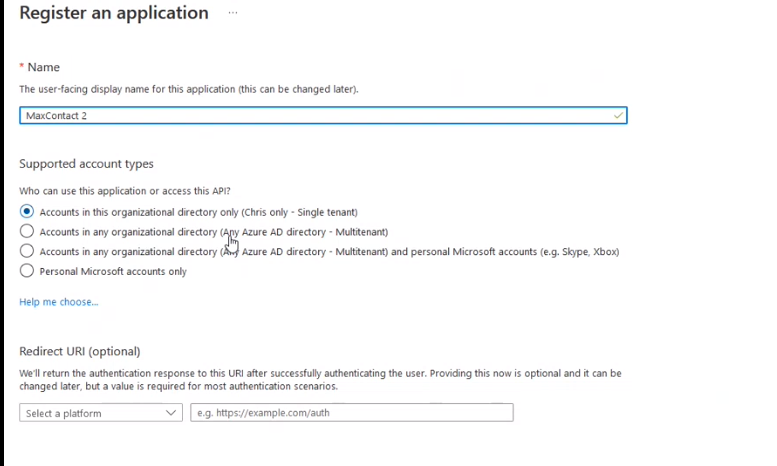
3 - Make note of the tenant id and the client id

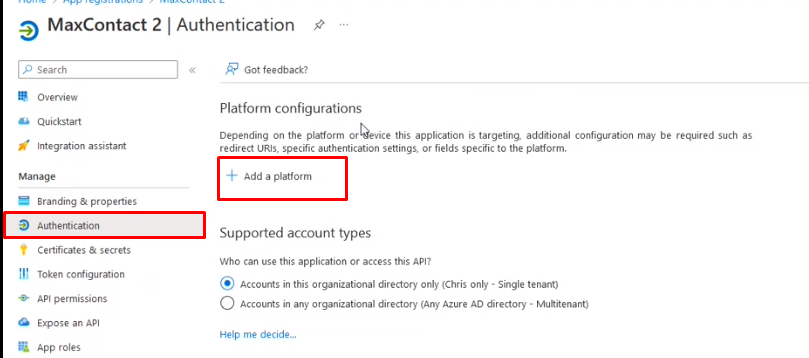
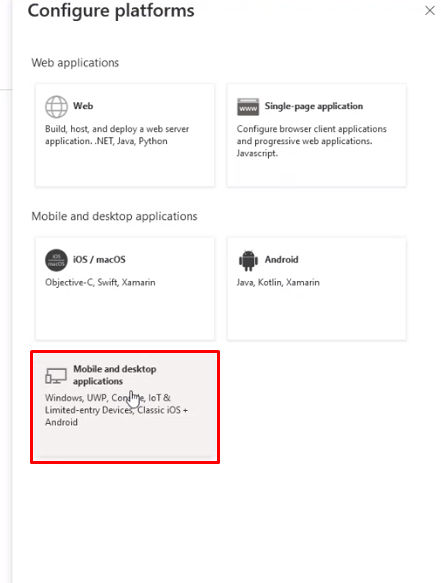
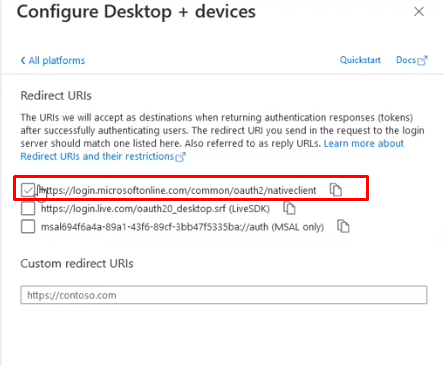
4 - Add a Platform to the App Registration selecting the type as ‘Mobile and Desktop Application’ and select the ‘Nativeclient’ Auth URL
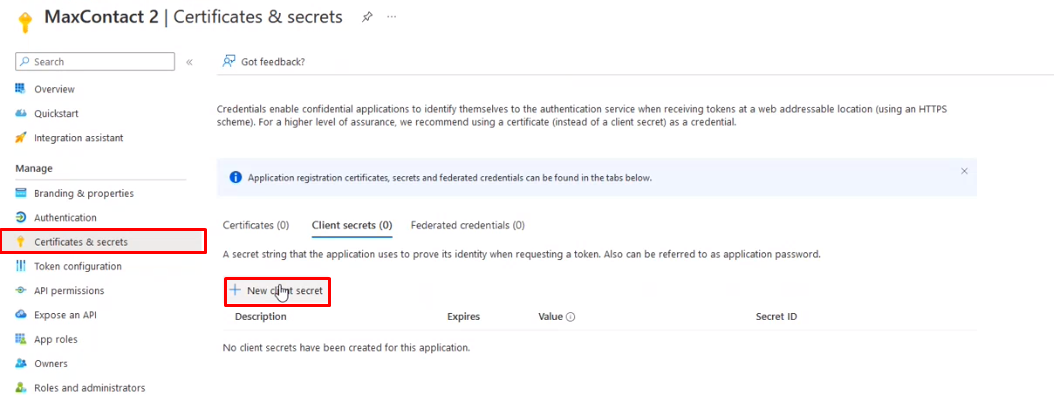
5 - Create a Client Secret and make note of the secret value (The client secret value can only be viewed once so copy this out as soon as it is created, also note the expiry set on the secret as this will affect the connection later and will require refreshing)

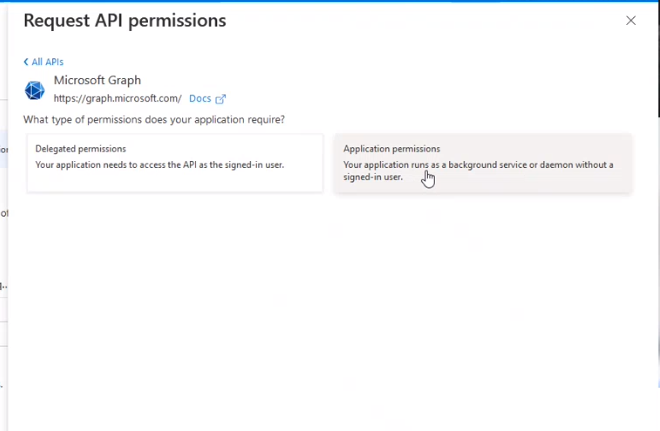
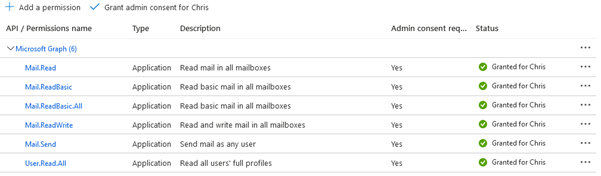
6 - Setting up Permissions on the App Registration using the Microsoft Graph API set to ‘Application permissions. the following API Permissions are required.
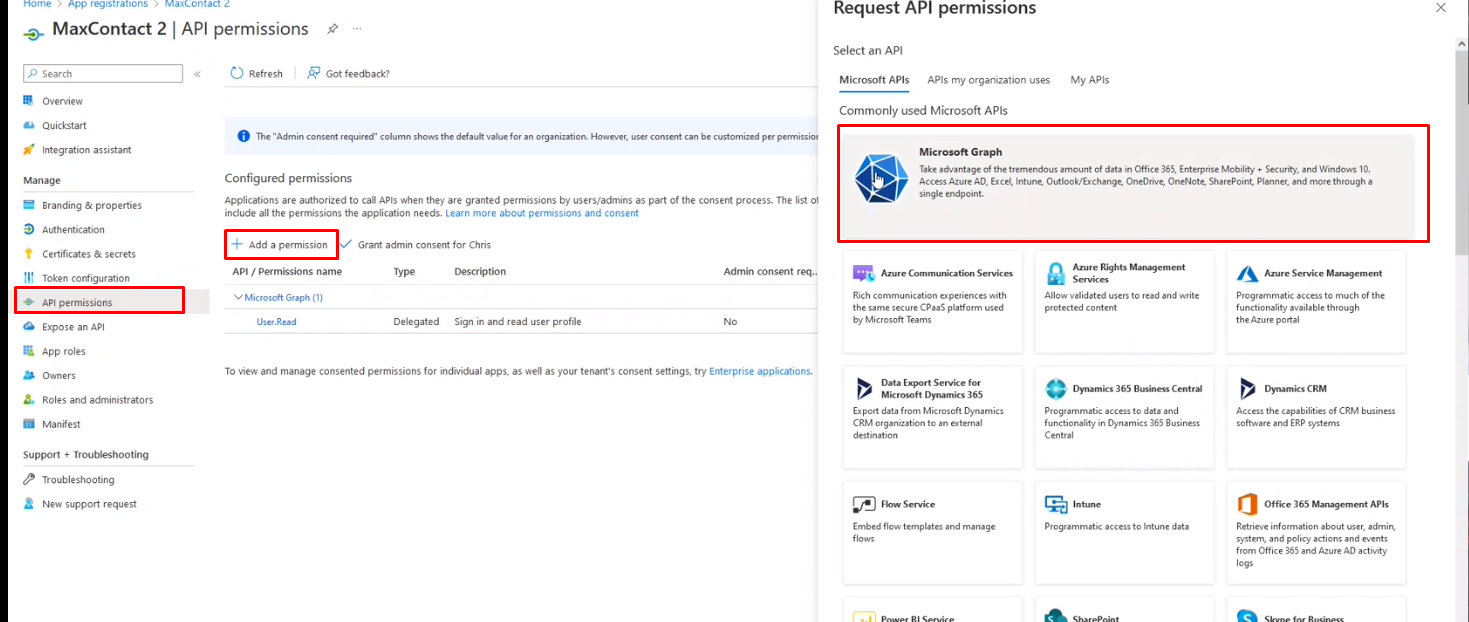
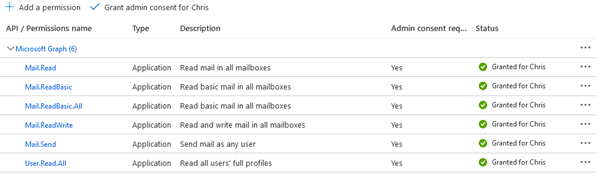
Ensure admin consent is granted for the above permissions
MaxContact Channel Configuration
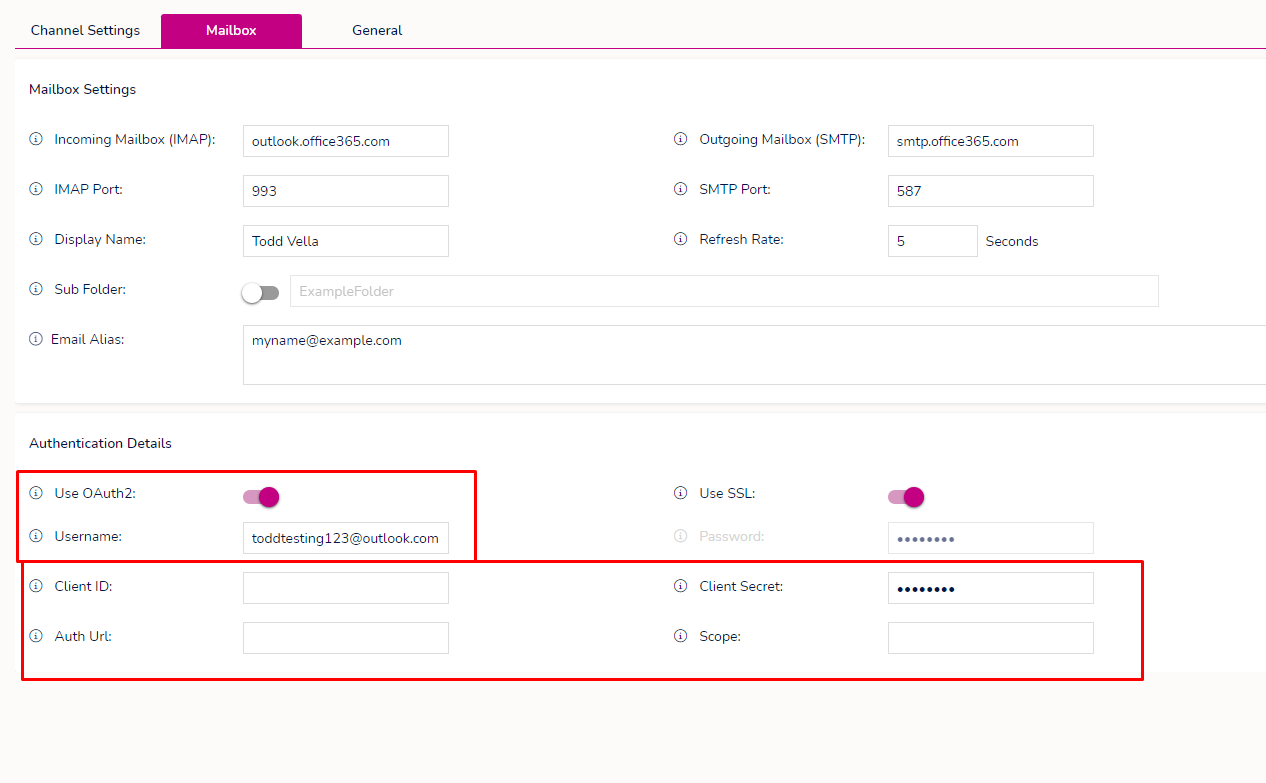
Within Maxcontact channel admin page within the mailbox settings for the channel ‘Use Oauth2’ will need to be enabled.
Below is an outline of what settings are required for the OAuth2 setup and a brief explanation of what information needs to be input.
Username: needs to be the email address you would like the OAuth2 connection to pull and send emails from.
Client ID: This is provided within the App Registration shown in the above Aure AD setup
Client Secret: This is the secret value created and noted in the above Azure AD setup (Mentioned in step 5 above)
Auth URL: https://login.microsoftonline.com/{tenantid} (Tenant ID can be found against the App registration setup in Azure AD above)
Scope: https://graph.microsoft.com/.default