
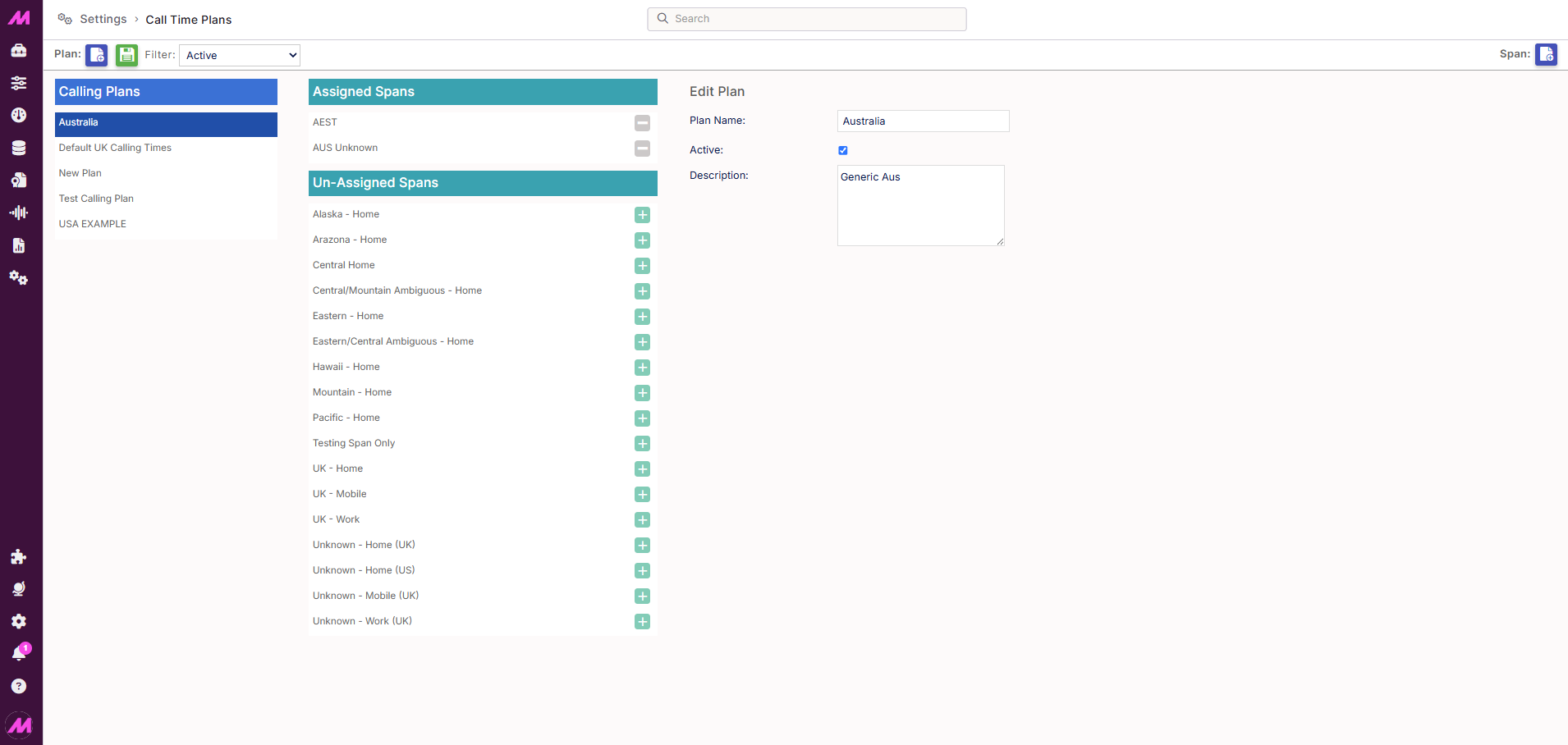
Call Time Plans
Call time plans control when leads are eligible to be dialled. They are most commonly used for international dialling, where different regions need to be called within their local acceptable hours.
A call time plan works alongside the campaign and list schedules rather than overriding them. For dialling to happen, both the campaign or list schedule and the call time plan span must be active at the same time. If the campaign is outside its schedule, no dialling will occur regardless of what the call time plan allows. If the campaign is in schedule but the call time plan span does not cover that time or day for a particular lead, that lead will not be dialled even though the campaign is running.
Call time plans are assigned to lists via the Plans tab on the Lists page. They can also be applied during a data import to assign a time zone to individual leads at the point of upload.
To access the Call Time Plans page, go to Settings > General > Call Time Plans.
Page controls
| Control | Description |
|---|---|
| Plan | Creates a new call time plan. |
| Save | Saves any changes made on the page. |
| Filter | Filters the plan list to show All, Active, or Inactive plans. |
| Span | Creates a new span and adds it to the selected plan. |
Creating a plan
Select Plan to open a new plan in the edit area. Enter a name, set it to active, and optionally add a description. Select Save to confirm. Once saved, you can add spans to the plan.
Spans
Each plan contains one or more spans. A span defines a specific window of time in which leads can be called — including which days, which hours, which time zone, and which phone type it applies to. A plan can have multiple spans, which is useful when you need to cover different regions or different phone types within the same plan.
Use the + and - icons on the span list to add or remove spans from the plan. Select a span to open and edit it.
Span settings
| Setting | Description |
|---|---|
| Span name | A name for the span. Use something descriptive that identifies the region or phone type — for example, US EST Mobile or UK Home. |
| Active | Toggle to make the span active or inactive. Inactive spans are not applied even if they are part of an active plan. |
| Time zone | The time zone the calling window applies to. The system will dial leads within the start and end times as measured in this time zone. |
| Time zone code | A comma-separated list of codes used to map imported leads to this span. Multiple codes can be entered for a single span — separate each with a comma and no spaces. When importing, the system generates a list from the codes entered here and attempts to match each lead's time zone code to one of them. See the Time zone codes section below for more detail. |
| Phone type | The type of phone number the span applies to: Home, Work, or Mobile. If the number column is mapped to a phone type on import, the span will be applied to calls of that type only. |
| Start time zone / End time zone | Select the starting and ending time zone for the span created. |
| Days & Times | The days of the week the span is active. Select each day you want included in the calling window. The calling window for this span. Drag the slider handles or enter times directly in the fields. Calls will only be made to leads covered by this span within these hours. |
Time zone codes
Time zone codes allow you to map individual leads in a data import to a specific span, so that each lead is only called within the correct local calling hours — even when a single import contains leads from multiple regions.
Each span can hold a comma-separated list of codes in the Time zone code field. When you import data, add a column to your file containing the relevant code for each lead and map that column to the Time Zone Code field during the import process. The system generates a list from all codes entered across your spans and attempts to match each lead's code to a single span. If a match is found, the lead is assigned the calling restrictions of that span.
You do not have to use time zone codes if your entire import is for the same region. In that case, simply assign the appropriate call time plan to the list — all leads on that list will dial within the plan's spans without needing individual codes on each record.
For more detail on setting up international data imports, see Importing Data for International Dialling.