
Notes Manager
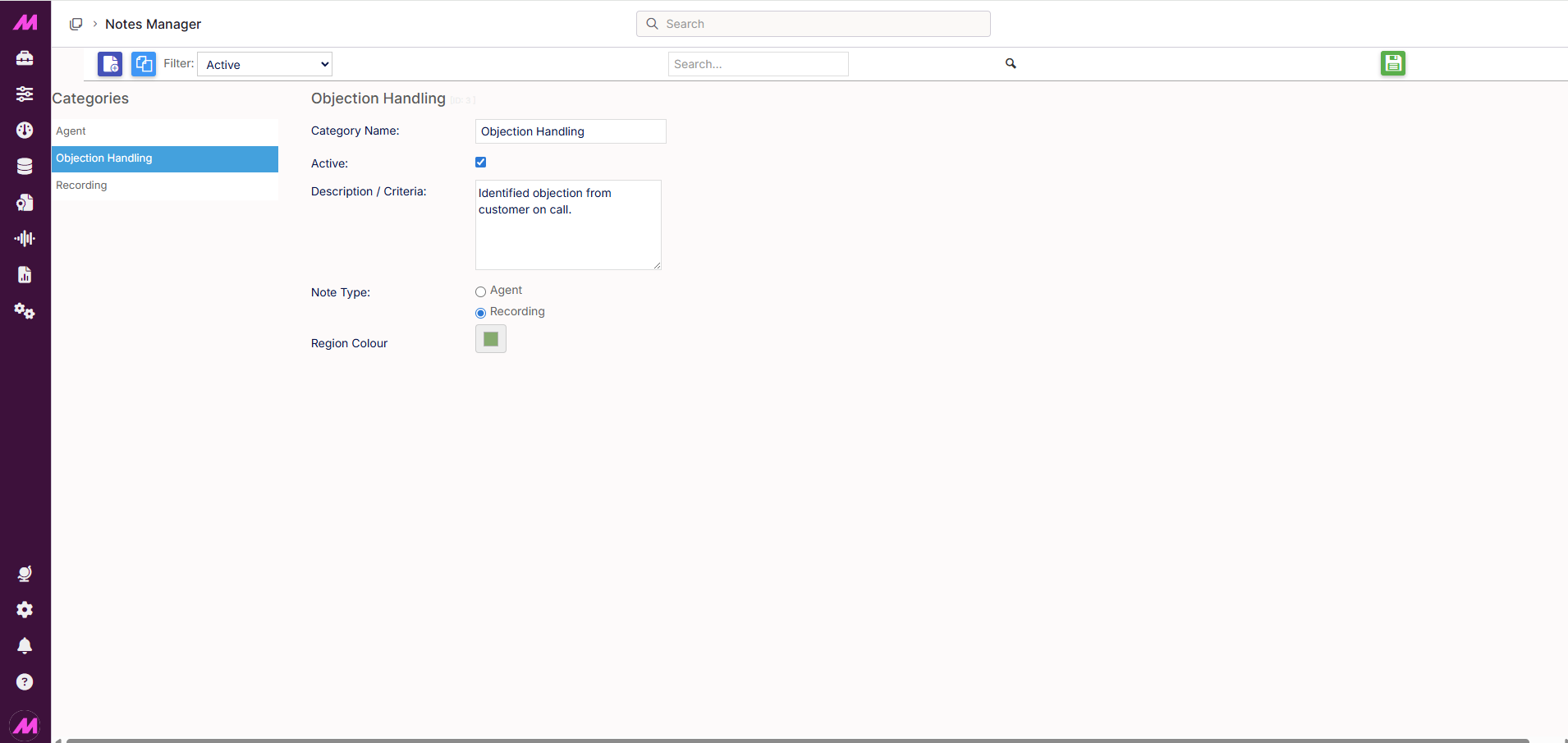
The Notes Manager is where you create and manage the note categories available when adding notes to call recordings in the QA areas of the system. Categorising notes makes it easier to filter and report on QA activity — for example, grouping notes by compliance, training, or positive feedback.
To access it, go to Quality > Quality Assurance > Notes Manager.
Note. Two default categories are included with your system: Agent and Recording. These are available immediately and can be used as-is or edited to suit your needs.
Page controls
| Control | Description |
|---|---|
| Create new | Creates a new note category. The category details panel opens on the right for you to complete. |
| Duplicate | Creates a copy of the currently selected category with all its settings. Useful when adding a new category that is similar to an existing one. |
| Filter view | Filters the category list by status. Three options are available: All, Active, and Inactive. |
| Save | Saves any changes made to the selected category. Always save before navigating away or your changes will be lost. |
Category details
Selecting a category from the list, or clicking Create new, opens the category details panel. Complete the following fields:
| Field | Description |
|---|---|
| Category name * | The name of the category, visible when adding notes in Recordings Playback, the QA Screen, and Evaluations. Keep it specific so its purpose is immediately clear. Required. |
| Active | Controls whether this category is available when adding notes. Untick to make it inactive without deleting it. Inactive categories are hidden from the note category selector but remain on the system. |
| Description / Criteria* | A free-text description of the category and the criteria for using it. Useful for keeping your QA team consistent on which category to apply in different situations. |
| Note type * | Sets whether notes in this category are applied against the Agent (forming part of their QA history) or the Recording (flagging the call independently of the agent's record). Required. |
| Region colour | The colour that notes in this category will display as on the call recording timeline. Selecting distinct colours per category makes it easy to identify different note types at a glance when reviewing a recording. |
* Required field