
Outcome Codes
Outcome codes determine what happens to a contact after an agent has handled a call or interaction. They are grouped into plans, which are assigned to lists (for voice) or channels (for digital interactions). This lets you give agents the right set of outcomes for each campaign and channel, and report on them separately. A set of default outcome codes is added to your system during onboarding to help you get started - see the Default Outcome codes article for a full list.
Outcome codes can also be assigned to IVR stages to track inbound call behaviour - such as where customers abandon, which routes they take, or to tag specific call types like voicemails.
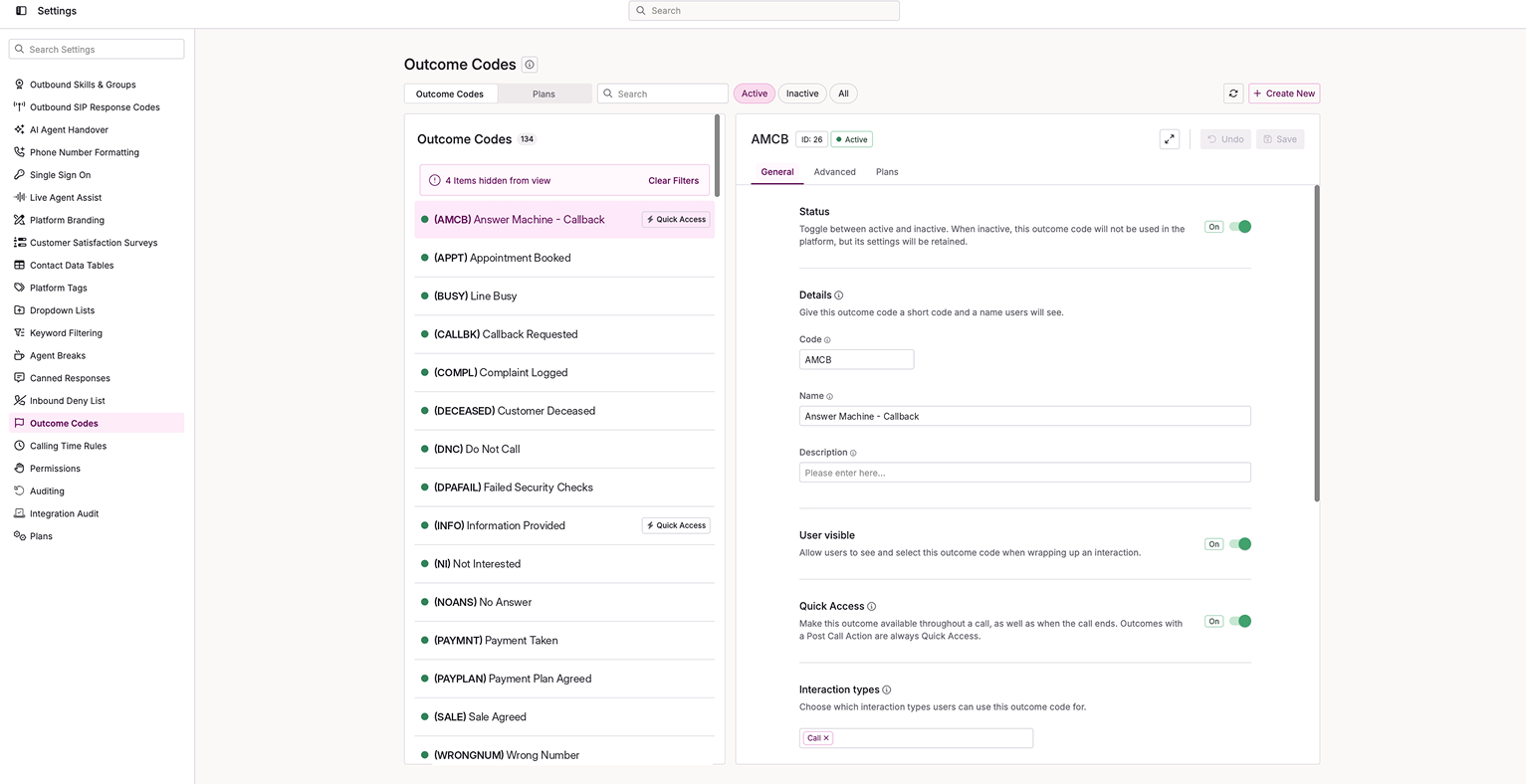
To access the Outcome Codes page, go to Settings > Outcome Codes
Page layout and controls
The page has two tabs at the top: Outcome Codes and Plans. Along the top, various controls are available to the user.
| Control | Description |
|---|---|
| Outcome Codes/Plans | Switches the main view from either the Outcome Codes list or Plans list. |
| Search | Allows you to filter search the selected tab by the name or code depending on which is selected. |
| Filter | Shows Active, Inactive or All codes/plans. |
| Refresh | Reloads the data of the page. |
| Create New | Creates a new Outcome Code or Outcome Plan, depending on the tab selected. |
| Expand | Expand the settings panel to full view. |
| Undo | Reverts any unsaved changes within the session. |
| Save | Saves the changes made within the session. |
Outcome Codes tab
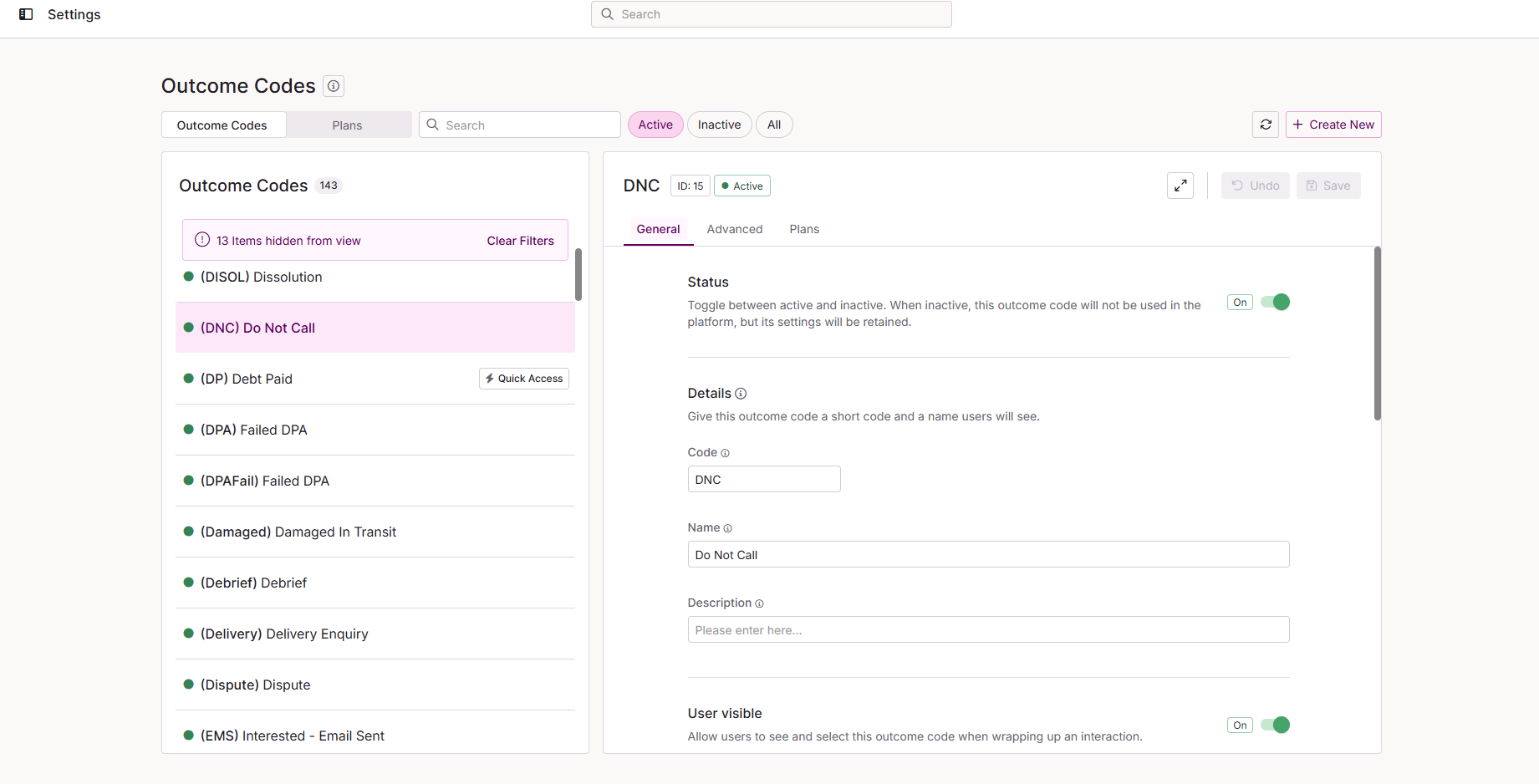
The left of the tab lists your outcome codes in the format (CODE) Name. Codes with Quick Access turned on show a Quick Access tag. System codes do not appear in the list. When you select a code, its settings open in the panel on the right.
You cannot delete or copy an outcome code. To stop a code being used, make it inactive.
Code settings panel
The header of the panel shows the code name, its ID and whether it is active or inactive. The panel has three tabs:
- General holds the main settings for the code.
- Advanced holds what happens to the contact after the code is applied.
- Plans shows which plans the code belongs to, and lets you change them.
Settings that do not apply to a code are hidden, not greyed out.
General tab
| Setting | Description |
|---|---|
| Status | Turns the code on or off. An inactive code is hidden, not deleted, so you can turn it back on with its settings intact. |
| Code | The shorthand code. Enter 2 to 10 characters, using letters, numbers and hyphens only. Each code must be unique. If the code already exists, you see Duplicate Code not allowed. |
| Name | The name users see in Contact Hub. Enter up to 40 characters. Limited punctuation is allowed. A name does not need to be unique. |
| Description | Optional longer text about the code. Enter up to 2,000 characters on one line. Limited punctuation is allowed. |
| User visible | When on, users see the code in Contact Hub. When off, users cannot see it, but you can still use it in IVRs. |
| Quick Access | When on, the code is available throughout the call, not only when the user dispositions it. Selecting a Post call action turns Quick Access on and locks it. |
| Interaction types | The interaction types the code appears on. Choose at least one. One code can cover several types, so one plan can serve voice and digital with different codes for each type. |
| Display on Script Only interactions | Restricts the outcome code to Script Only events - where an agent requests a script without requiring a call or interaction. See Script Only Interaction for more detail. |
| Contact status | Groups the outcome code into a standard status category. The selected category determines which further options (Success, Contact type) become available. |
| Success | When enabled, interactions dispositioned with this outcome code are recorded as successes on dashboards and in reports. Only available for some statuses: Person, Callback, Wrong number and Inbound. A success must count as a contact. See Success settings below. |
| Contact type | Sets how the code counts towards contact rates. See Contact type below. |
| Outcome filtering | Controls when users see the code. See Outcome filtering below. |
| Skill group | Updates the contact's skill group when the code is applied. Choose None to leave the contact's current skill group unchanged. Only visible when skill-based routing is enabled. See Assigning Skill Groups to Result Codes for more detail. |
Success settings
| Setting | Description |
|---|---|
| Collect revenue | Lets users log a revenue amount against the interaction. To see revenue live, add a Live Stats widget that shows Revenue. To report on it later, select Revenue as a field in the Custom Report Builder. |
| Success type | Fixed counts a set number of successes, which you enter in the Successes count field. Flexible lets the user enter the number of successes. |
| Successes count | The number of successes a Fixed code counts. It must be at least 1. |
Contact type
| Contact type | Description |
|---|---|
| Not a contact | The person answered but is entirely the wrong person. |
| Contact | The person is related to the target but cannot make a final decision. |
| Decision maker contact | The person is the intended target, or can make a final decision. |
Outcome filtering
| Option | Description |
|---|---|
| Display only on manual calls | The code is visible only during manual voice calls. |
| Display only on transferred calls | The code appears only when a user dispositions a transferred call. Useful for tracking transfer outcomes. |
| Keep contact with user | Only available with Display only on transferred calls. After the customer is combined with the transfer destination, the user stays in disposition mode to add notes or actions before choosing an outcome. Without it, the call is dispositioned when combined and the user returns to ready straight away. |
| Display only on inbound calls | The code is visible only on inbound calls. |
| Allowed only through scripts | The code is hidden in Contact Hub. Users can only select it from a set location in a script. |
Advanced tab
Recall behaviour
Recall sets what happens to the contact after the code is applied. Choose one option.
| Option | Description |
|---|---|
| Never recall contact | Makes the contact and all its linked numbers ineligible. This is a final outcome, although you can reactivate the contact from Lead Management. |
| Do not recall this phone number | Makes only the number used on this call ineligible. The contact stays active on its other numbers. It becomes final only if no eligible numbers remain. |
| Recall after a set time | Makes the contact eligible again after the delay you set. The delay must be at least 1. The contact is not called at that exact time. It becomes eligible and joins the queue, where higher-priority contacts, such as new imports, are dialled first. |
| Do not update | Only available when the Contact status is Inbound or Abandoned. Stops an inbound call changing the contact's existing outcome code or recall settings, which suits contacts already in an outbound campaign. A history record is still created. It applies only if this code is the final outcome. If an IVR routine changes the code, or a user selects a different code that is not also set to Do not update, the contact is updated. |
Other advanced settings
| Setting | Description |
|---|---|
| Rollover | Do not rollover is the default and leaves the contact on its current list. Rollover to list moves the contact to the list you choose. |
| Handle times | Support exception and burn tracking on voice calls. Enter each time in seconds, from 0 to 9999. Expected handle time is the expected total of talk and disposition time. Min user time is the shortest time you expect a user to spend on this outcome. Max user time is the longest time you expect a user to spend on this outcome. |
| Close interaction | Keep interaction open leaves the ticket open because you expect more correspondence. Close the interaction closes the ticket, and a new ticket is created if the customer contacts you again. Digital interactions only. |
| Call again | Lets the user call the contact straight away on another number, either an existing one or a new one. Entering a new number updates the contact record. You can combine it with Callback to schedule a callback on the other number. |
| Callback | Lets the user set a recall date and time. The callback type settings are only visible to support administrators. |
| Do not contact | Adds the customer's number to a Do Not Call list. Choose the list from the dropdown that appears when you turn it on. |
| Post call action | Routes the call through an IVR that would otherwise disconnect. Only available for person-type statuses and Answer machine. Selecting one turns Quick Access on and locks it. |
Add a code to plans
Use the Plans tab in the code settings panel to choose which plans include the code.
- Select a saved code, then select the Plans tab.
- Select the box of plans.
- Move plans between Available and Associated.
- Select Done assigning.
- Select Save.
Plan changes apply when you select Save, not as you move each plan. If the code is new and not yet saved, the tab asks you to save it first.
Plans tab
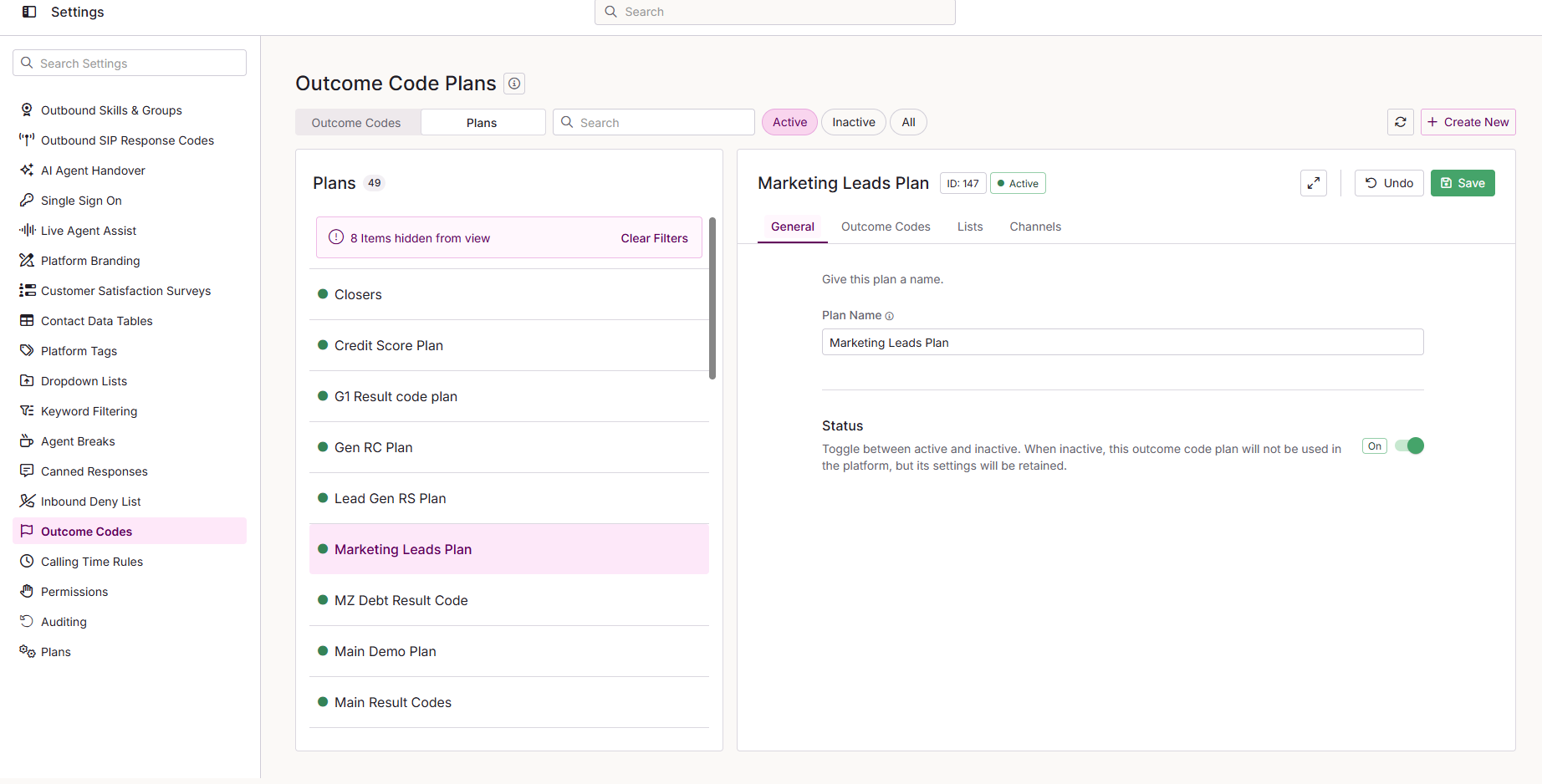
The Plans tab at the top of the page lists your outcome code plans. Use the search box to find a plan, and the Active, Inactive and All filter to choose which plans show. Each plan has the following tabs:
- General holds the plan details.
- Outcome Codes shows the codes in the plan.
- Lists shows the lists the plan is assigned to.
- Channels shows the channels the plan is assigned to. Only visible when OmniChannel is enabled.