
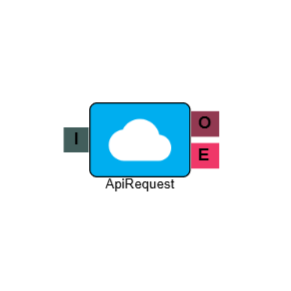
API Request
The API Request element allows you to make API calls directly within an IVR flow. Data returned from the request — such as a customer's account balance or contact details — can then be passed through the IVR and used in subsequent elements.
Connections
| Connection | Description |
|---|---|
| I – Input | The entry point for this element. Connect from the preceding element in your IVR flow. |
| O – Output | The path taken when the API request has been successfully processed. |
| E – Error | The path taken if the element encounters an error during processing. |
Settings
| Field | Description |
|---|---|
| Name | Give the element a clear name so it is easy to identify within your IVR flow. The name is referenced by other elements, so keep it as a single word with no spaces. |
| Description | Optional. Add a note to explain the element's purpose — useful in more complex flows. |
| Agent Can See This | When enabled, agents can transfer a live caller directly to this element via the IVR Transfer option. |
| Supervisor Can See This | When enabled, the element is visible in the IVR Transfer list for users with a Supervisor role. It remains hidden from all other users. |
| Result Code | Select a result code for this element, or leave it set to the default. If the default is selected, INBOUND will be applied when a call ends at this element. |
| Phrase | Select the audio file(s) to play to the caller while the API request is being processed. |
| Action | Select the type of API request to perform:
|
| Timeout (s) | Set the maximum time in seconds the element will wait for the API to respond before moving on. |
| URL | The address of the resource you want to interact with. Dynamic fields can be pulled into the URL using double curly braces — see Using API data within the IVR below for details. |
| Header | Provide the details required for the request to be authenticated, such as an API key or token. If multiple headers are needed, separate them with a comma. |
| Body | Used for POST or PUT requests. This contains the data you want to create or update via the API. For GET requests, the body can be left empty. |
Using API data within the IVR
Data returned from an API Request element can be read back to the caller or passed to other elements for routing. The two most common approaches are covered below.
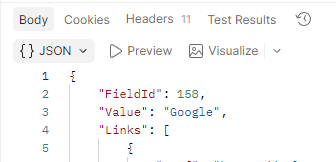 Body output of the GET request. Body output of the GET request. | 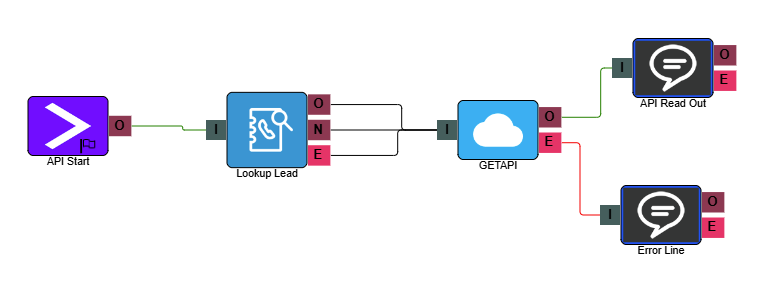 Example IVR set up for TTS to read out the API value. Example IVR set up for TTS to read out the API value. |
Reading API data back to the caller
To have a value from your API response read aloud to the caller, use a Text to Speech element with a reference to the API Request element using the following syntax:
{{Name of API Request element.Result.Name of value within the body}}
With the example above, our API Request element is named GETAPI and the value to be read out from the API body is called Value. So within the API Read Out TTS we would place the following:
{{GETAPI.Result.Value}}
 | 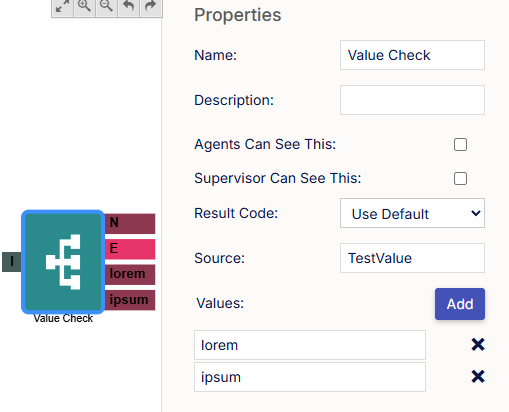 |
Using API data in other elements
To use a value from your API response in other elements — such as a Branch or Compare element — use a Set Property element to store the value first.
Within the Set Property element, configure the following:
Field | Value |
| Property Type | IVR Data - the value is created during the live call. |
| Property Name | A unique name with no spaces, for example, LeadField. |
| Value Type | DataBin - the source of the data from within the IVR. |
| Value Name | The reference to the API response value, using the format: Name of API Request element.Result.Item name from API body For example: GETAPI.Result.Value |
Once stored, you can reference the Property Name in a Branch element's Source field to route the call based on the returned value.
Example setup – MaxContact Lead Web API
The following example walks through using the MaxContact Lead Web API to retrieve a secondary data field and read it back to the caller. Before you begin, make sure the following are in place:
- The inbound call must be matched to a lead. Use a Lookup Lead or Create Lead element earlier in the flow to ensure this.
- A user account must be configured with MaxContact API permissions. A dedicated API account is recommended.
- Test your API call in a tool such as Postman before implementing it in the IVR, to confirm the response is correct.

Step 1 – Lookup Lead element
Use a Lookup Lead element to ensure the inbound call is matched to the correct lead before reaching the API Request element.
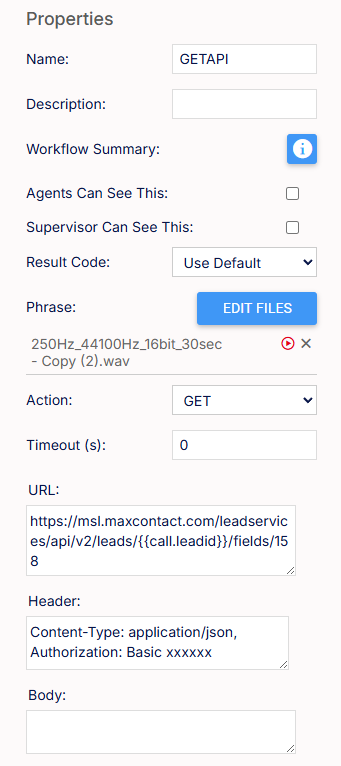
Step 2 – API Request element
Configure the element as follows:
Field | Value |
| Name | GETAPI - keep the name unique and free of spaces as it will be referenced in later elements |
| Action | GET |
| URL | https://domain.maxcontact.com/leadservices/api/v2/leads/{{call.leadid}}/fields/fieldvalue Replace domain with your MaxContact instance address, and fieldvalue with the ID of the secondary field you want to retrieve. Use the Get Lead by ID method to find the correct field ID. |
| Header | Content-Type: application/json, Authorization: Basic [base64 encoded login:password] Combine your username and password in the format login:password and Base64 encode the string before adding it here. |
| Body | Leave empty - this is a GET request. |
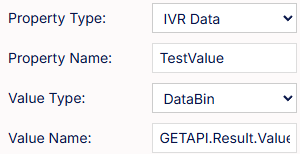
Step 3 – Set Property element
Use a Set Property element to store the API response value for use later in the flow, configured as described in Using API data within the IVR above.
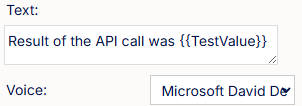
Step 4 – Text to Speech element
Reference the property created in Step 3 within a Text to Speech element to read the retrieved value back to the caller.
Appendix – Call Variables
| Variable | Description |
|---|---|
call.referenceid | Reference saved against the lead. |
call.name | First name saved against the lead. |
call.name2 | Second name saved against the lead. |
call.address | First line of address saved against the lead. |
call.city | City or region saved against the lead. |
call.postalcode | Post code saved against the lead. |
call.phonenum | The phone number of the caller. |
call.leadid | The lead ID of the caller. |
call.dnis | The DNIS or inbound number for the call. |
call.campaignid | The ID of the campaign associated with the call. |
call.listid | The ID of the list associated with the call. |