
Inbound Numbers
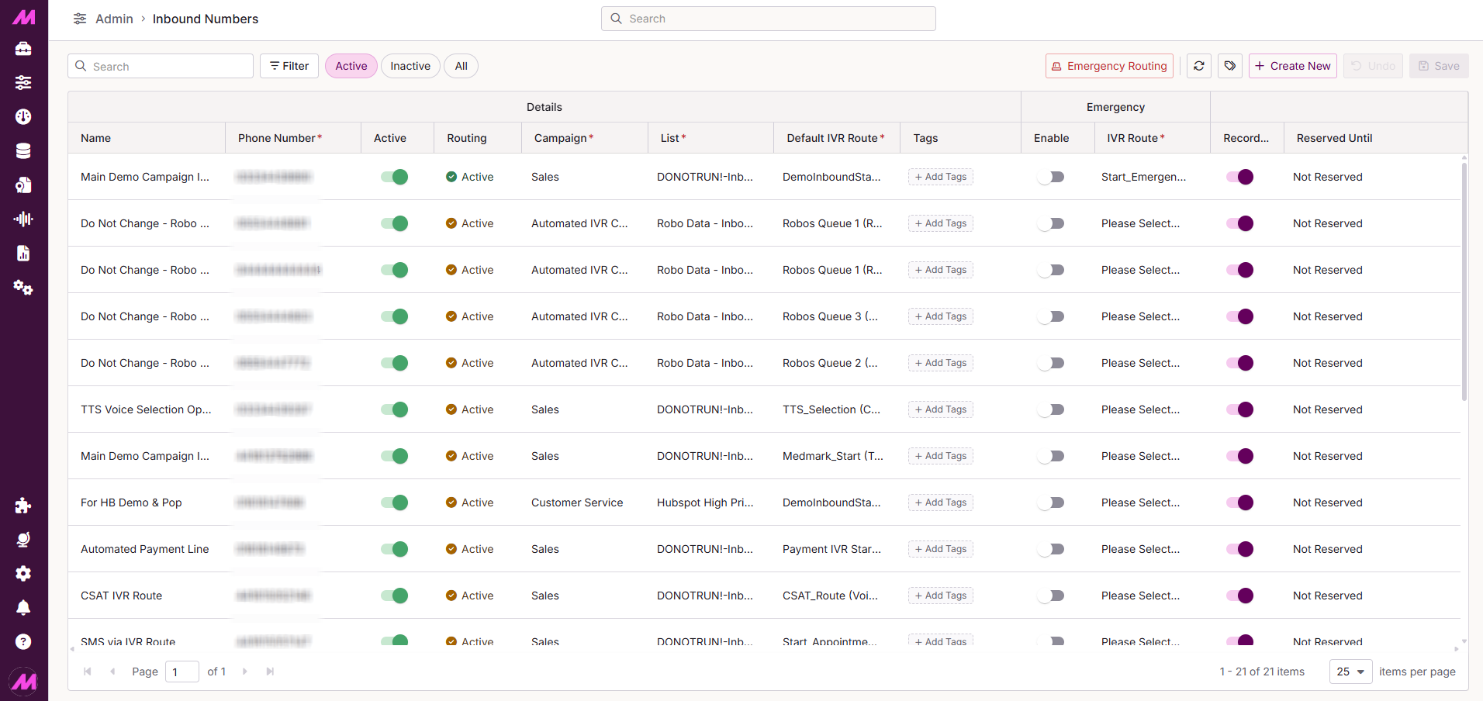
The Inbound Numbers page is where you configure how incoming calls are handled. Each inbound number on your system is pointed at a specific IVR, which determines how calls are routed. You can also manage emergency routing from this page, switching all inbound numbers to a fallback IVR with a single action if needed.
To access it, go to Admin > Telephony > Inbound Numbers.
This page is typically configured during onboarding, but you will need to return here whenever new numbers are added to your system.
Page controls
The controls across the top of the page let you manage your inbound number configuration.
| Control | Description |
|---|---|
| Filter | Allows you to filter by the following fields: Reserved Until, Campaign, Tags, Record Calls, List, Default IVR Route, Emergency IVR Route, Emergency Routing Enabled, and Routing Status. |
| Active | Shows only active inbound numbers. |
| Inactive | Shows only inactive inbound numbers. |
| All | Shows all inbound numbers regardless of status. |
| Emergency Routing | Activates emergency routing across all inbound numbers at once. See the Emergency routing section below for full details. |
| Refresh | Reloads the page to pull in any campaigns, lists, IVRs, or tags created since the page was last loaded. |
| Tags | Opens the Platform Tags page in a new tab, where you can create or manage tags to assign to inbound numbers. Visible only if tagging is enabled on your system. |
| Create New | Adds a new row to the table, ready for you to configure a new inbound number. |
| Undo | Reverts any unsaved changes made during the current session. |
| Save | Saves any additions or changes made on the page. |
Inbound numbers table
Each row in the table represents one inbound number. The columns are described below.
| Column | Description |
|---|---|
| Name | A label for the number to help identify it — for example, Main Inbound or Customer Services. |
| Phone Number* | The inbound telephone number. Must be entered with no spaces, starting with either 0, a two-digit country code, or an asterisk (*) for wildcard entries. |
| Active | Shows whether the number is currently active. |
| Routing | Shows the current routing status of the number. See the Routing status icons section below for a full reference. |
| Campaign* | The campaign that calls to this number will be associated with. This affects reporting — all calls to this number are recorded against the selected campaign. |
| List* | The default list that calls to this number will be associated with. If an incoming call doesn't match an existing lead, a new lead is created and added to this list. |
| Default IVR Route* | The IVR that determines where calls to this number are routed by default. You are selecting the IVR start element here — the IVR name appears in brackets. If your IVR doesn't appear in the list, check that it has a start element configured. |
| Tags | Any tags assigned to this inbound number. See Adding a Tag to Inbound Numbers for more detail. |
| Enable Emergency Routing | When toggled on, all calls to this number route via the Emergency IVR Route instead of the default IVR. |
| Emergency IVR Route | The IVR route calls will follow if emergency routing is activated for this number. See Emergency Inbound Routing for setup guidance. |
| Record Calls | Controls whether inbound calls to this number are recorded. This setting is subject to system-level and campaign-level recording settings — if call recording is disabled at the system level, this toggle has no effect. |
| Reserved Until | Optional. Setting a date here locks the row from editing until that date passes. Only users with the Inbound Numbers — Number Reservation Override permission can edit or delete a reserved number. Reserved rows are shown greyed out with a red padlock icon. |
*Required fields
Editing and deleting numbers
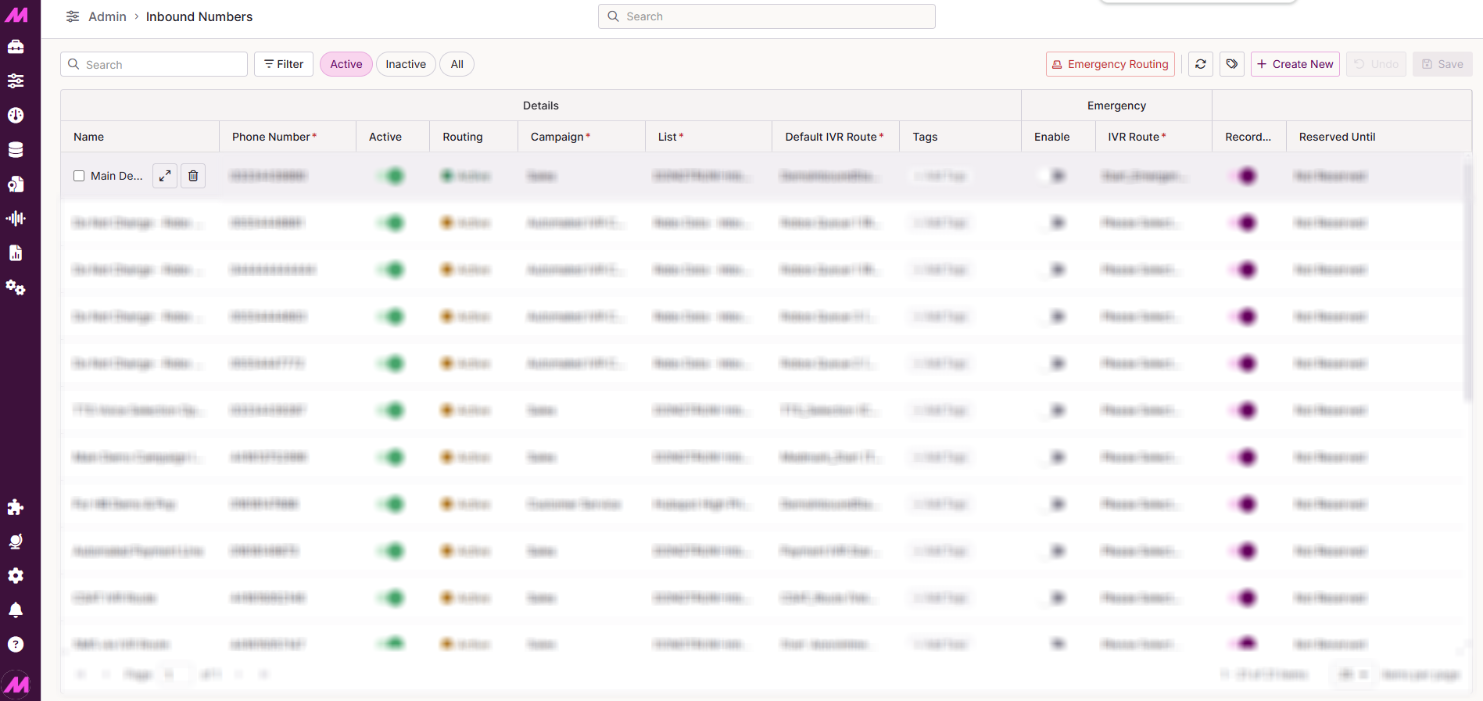
Hovering over a row reveals two options next to the name field:
| Option | Description |
|---|---|
| Expand | Opens a side panel listing all the details for that inbound number. You can edit and save changes from within this panel. |
| Delete | Removes the inbound number and all its configuration. A confirmation dialog appears before deletion. If the number is reserved, you will need the Inbound Numbers — Number Reservation Override permission to delete it. |
To delete multiple numbers at once, select the tick box to the left of each entry you want to remove, then select Delete.
Wildcard inbound numbers
A wildcard entry captures any calls made to your platform that don't match a number specifically listed in the table. To set one up, create a new entry using * as the phone number.
This is useful for catching calls to numbers that have been removed from the page — whether accidentally or because they're no longer in use — so those calls still reach you rather than being lost.
Wildcards also support partial matching:
- *123 — matches any number ending in 123
- *123* — matches any number containing 123 at any point
Once configured, you can route wildcard calls to any IVR and report on them in the same way as any other inbound number.
Emergency routing
Emergency routing lets you redirect all inbound calls to a fallback IVR — for example, an out-of-hours message or a voicemail — without reconfiguring each number individually.
Common use cases include building evacuations, system outages, or any situation where agents are unexpectedly unavailable. You can set a different emergency route for each inbound number so customers calling different campaigns or products hear an appropriate message for that service.
Emergency route examples include:
- A message played via Text to Speech or a pre-recorded audio file
- A voicemail option for customers to leave a message
- A virtual queue so customers can request a callback
- Routing to a different queue at another site
- Transferring the customer to a number outside of MaxContact
Setting an emergency route
In the Emergency IVR Route column, select your pre-built emergency IVR from the dropdown for each inbound number that needs one.
Enabling emergency routing on individual numbers
Toggle Enable Emergency Routing on for any inbound number to activate its emergency route. Toggle it off to revert to the default IVR.
Enabling emergency routing on all numbers
To activate emergency routing across all inbound numbers at once, select Emergency Routing at the top of the page. A confirmation dialog will appear — confirm to proceed. To switch it off, select the button again and confirm. All routes will revert to their default IVR.
Routing status icons
The Routing column gives you a quick visual status for each inbound number.
| Status | Meaning |
|---|---|
Emergency routing running | Emergency routing is active for this number. |
Active with emergency route | The route is active and has an emergency route configured. |
Active without emergency route | The route is active but has no emergency route configured. |
Inactive | The inbound route is inactive. |