
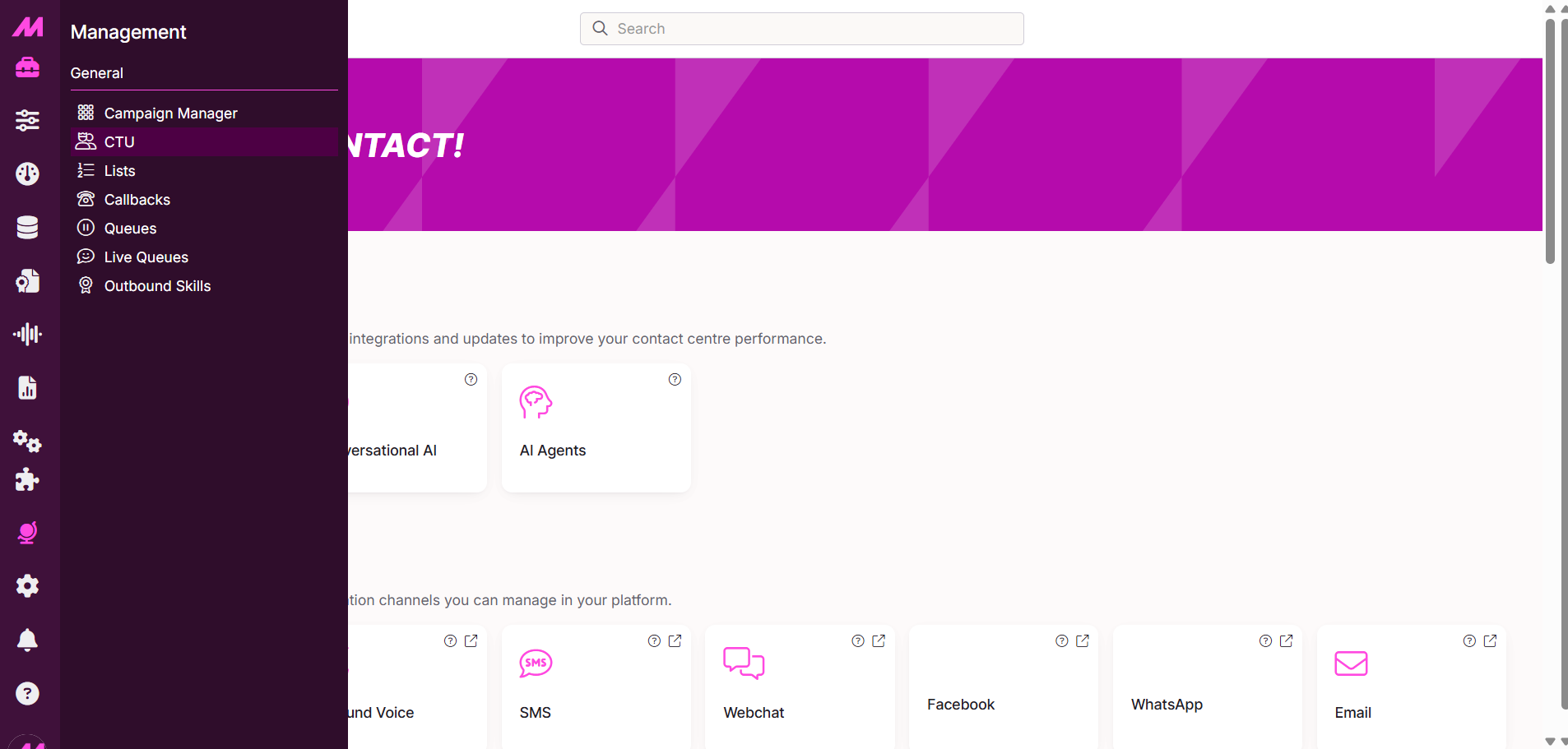
Step 1
Navigate to the CTU page, found under the Management tab.
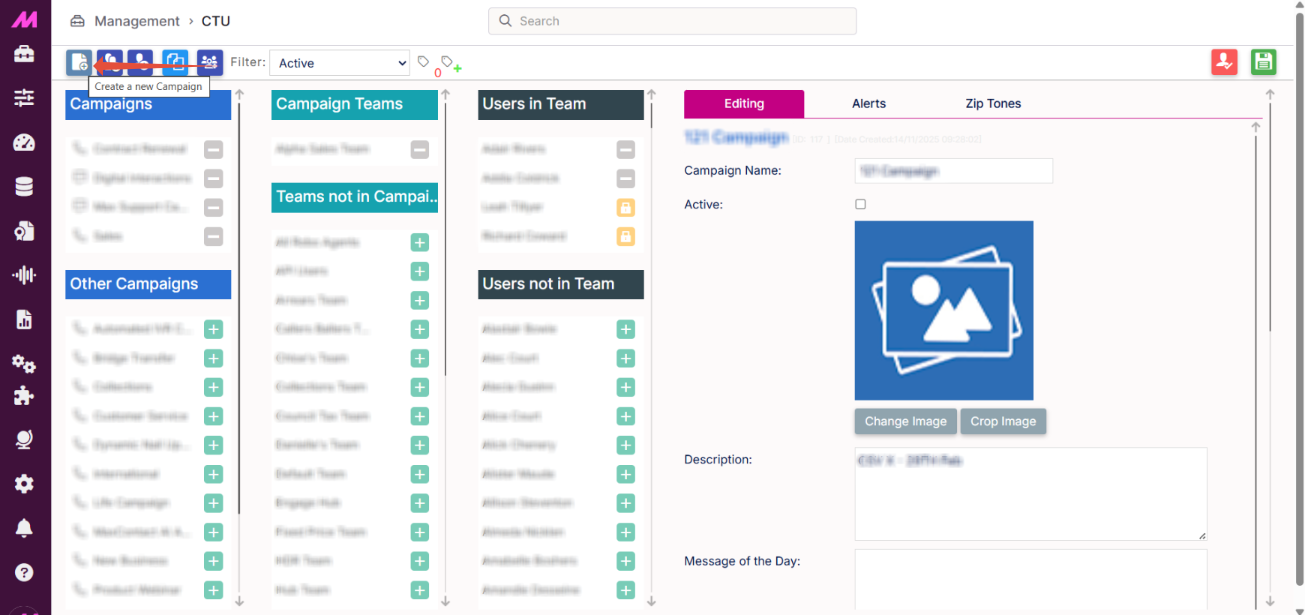
Step 2
Click Create a New Campaign in the top-left corner of the page.
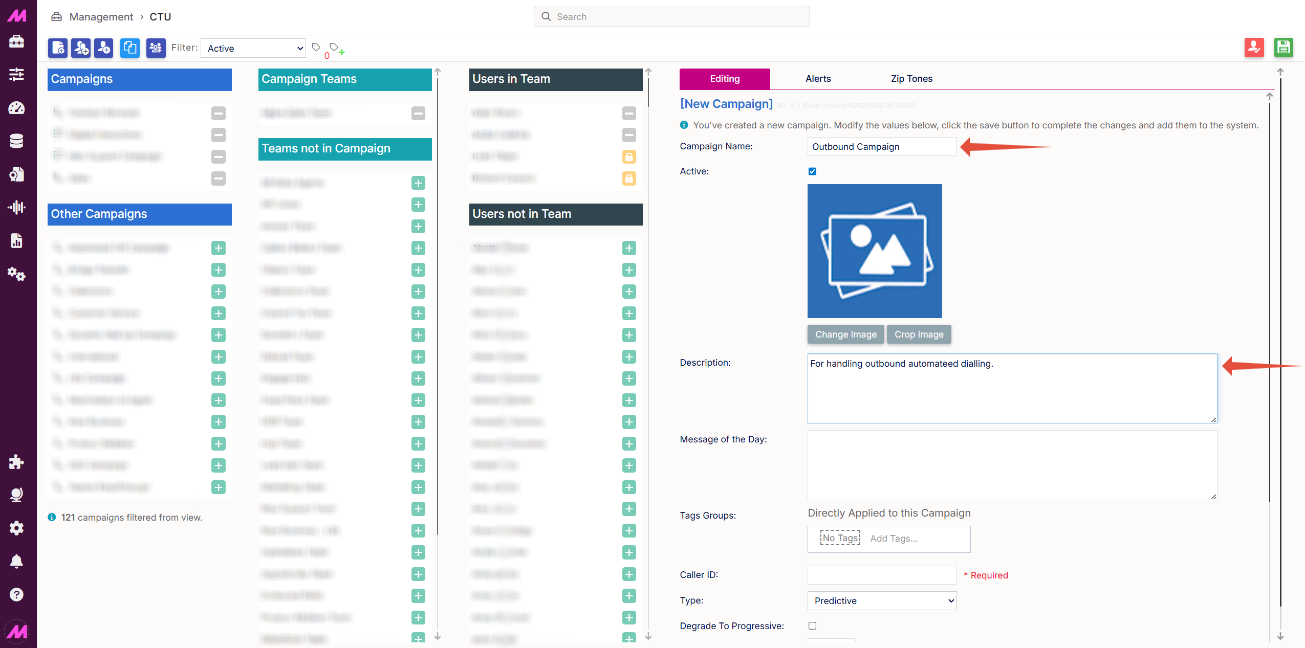
Step 3
A new campaign panel will appear on the right-hand side. Begin by entering an appropriate name and description; this is what users will see when they log in.
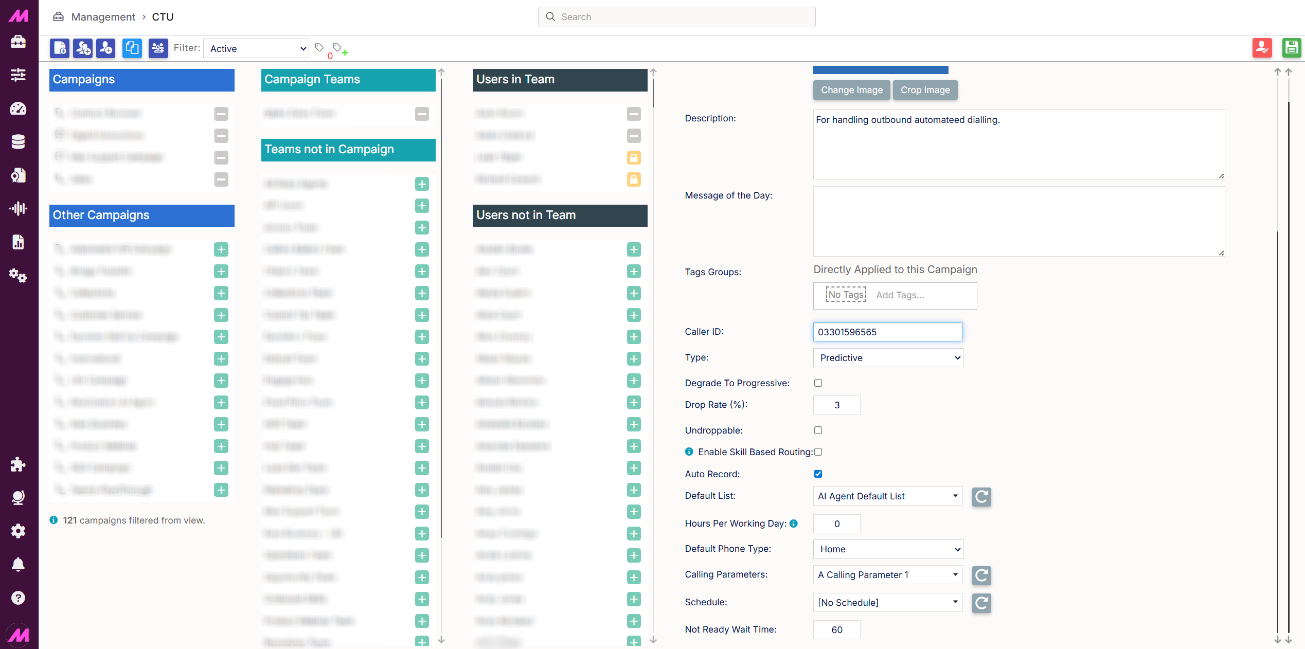
Step 4
Enter the number that will be displayed to the customer when the campaign makes an outbound call.
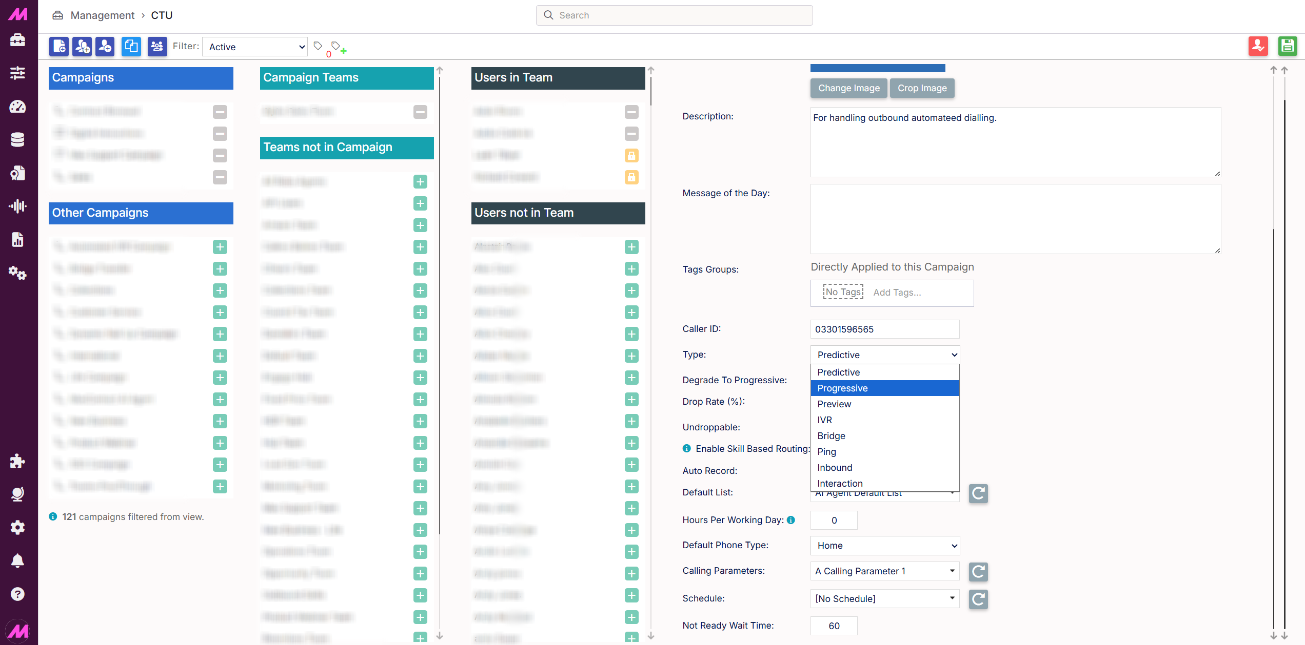
Step 5
Select the campaign type. The available options are:
- Predictive: The fastest outbound mode, dialling multiple leads per agent simultaneously.
- Progressive: Dials one lead at a time once an agent is available and ready.
- Preview: Presents lead information to the agent before dialling.
- IVR: Uses automated flows for self-service or message blasting for agent-less dialling.
- Bridge: Used to handle calls being transferred from an IVR to an external number.
- Inbound: Routes incoming calls to available agents in a queue.
- Interaction: Handles digital interactions such as chat, SMS and email, and can also process inbound calls.
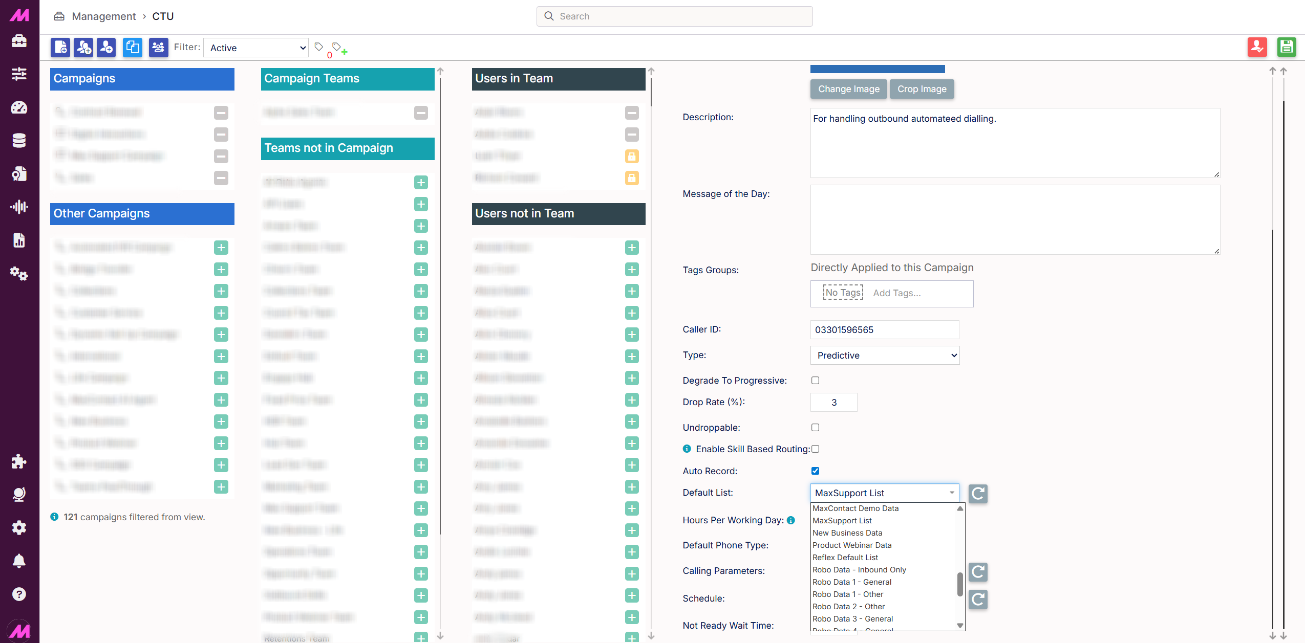
Step 6
Select the default list for the campaign. This will be where manually dialled unknown contacts are saved to.
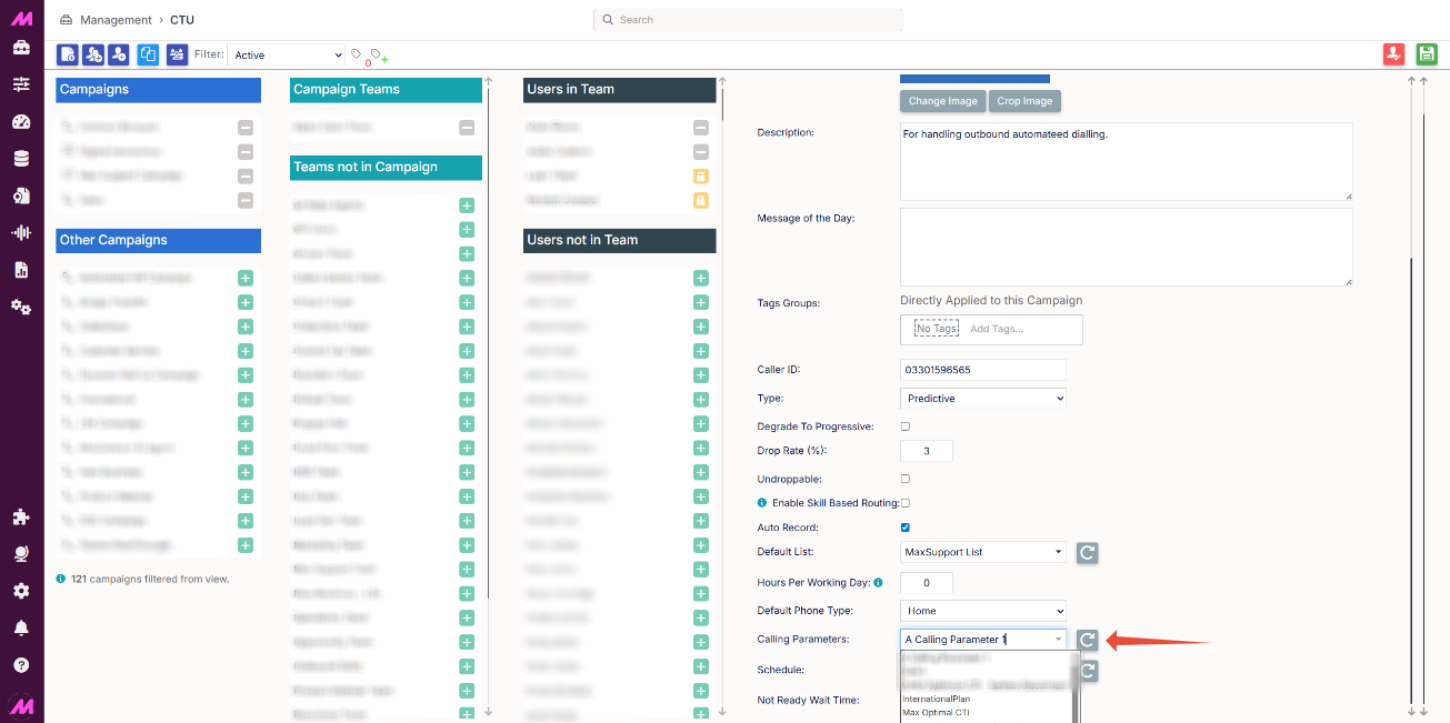
Step 7
Calling Parameters are typically configured during implementation and usually don't need to be changed from their default setting.
If you're unsure which parameter to use, refer to the settings of existing campaigns.
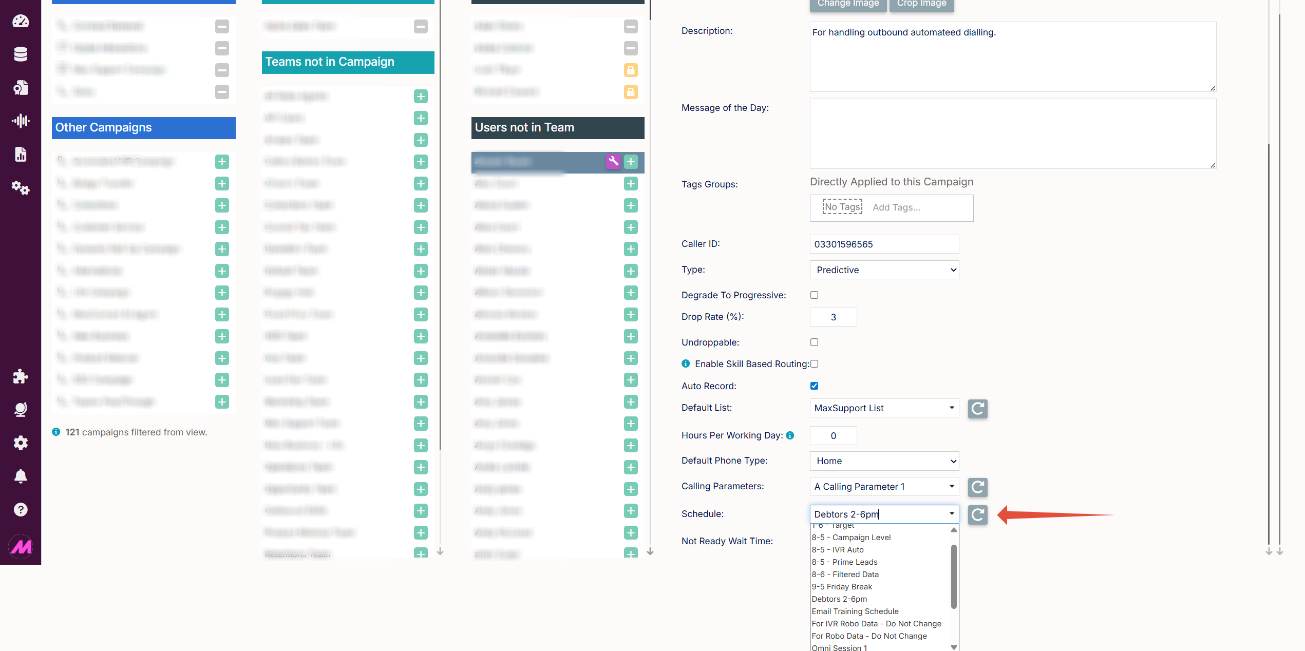
Step 8
Set the dialling schedule for the campaign.
This defines when automated outbound dialling will start and stop each day.
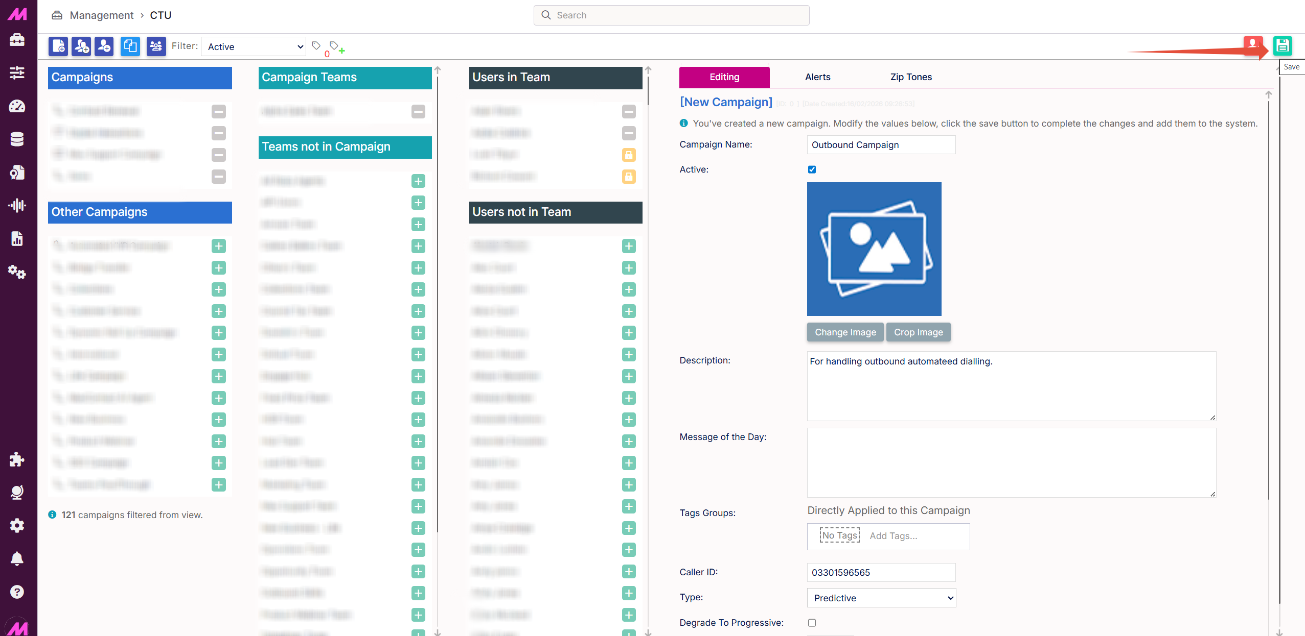
Step 9
Once you are satisfied with the campaign setup, click Save to confirm and apply your changes