

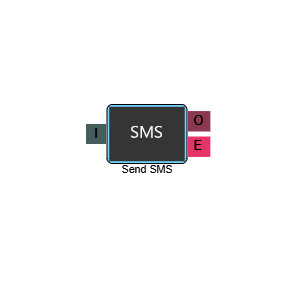
Send SMS
The Send SMS element sends an SMS message to a phone number at a defined point in the IVR flow. It works in conjunction with a configured SMS channel and a message template, and can be used to send customer-specific updates or offer an alternative to callers waiting in a queue.
A configured SMS channel is required before using this element. With a two-way SMS channel assigned, customers will be able to reply to the message and their response will be passed to an agent to handle. See SMS Channel Configuration Options for details on setting up an SMS channel.
Connections
| Connection | Description |
|---|---|
| I – Input | The entry point for this element. Connect from the preceding element in your IVR flow. |
| O – Output | The path taken when the SMS has been successfully sent. |
| E – Error | The path taken if the element encounters an error — for example, if the SMS cannot be sent. |
Settings
| Field | Description |
|---|---|
| Name | Give the element a clear name so it is easy to identify within your IVR flow. |
| Description | Optional. Add a note to explain the element's purpose — useful in more complex flows. |
| Agent Can See This | When enabled, agents can transfer a live caller directly to this element via the IVR Transfer option. |
| Supervisor Can See This | When enabled, the element is visible in the IVR Transfer list for users with a Supervisor role. It remains hidden from all other users. |
| Result Code | Assign a result code to this element to track calls that pass through it. |
| Template | Select the message template to use for the SMS. Templates are configured in Admin > Channels > Message Templates. See Message Templates for guidance on setting these up. |
| Channel | Select the SMS channel you want to send the message from. The available channels are pulled from your configured SMS channels in MaxContact. With a two-way SMS channel selected, customers will be able to reply to the message and their response will be routed to an agent to handle. |
Advanced setup — using IVR data in SMS templates
If your IVR retrieves data from a third-party system via an API element, you can pass that data directly into your SMS template using IVR fillpoints. This allows you to send personalised messages containing information that exists outside of MaxContact, such as delivery details, appointment information, or account-specific data returned by an external API.
The example below walks through sending a customer their delivery details retrieved from a third-party system.
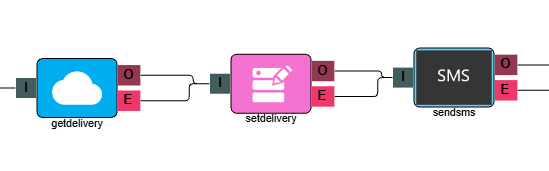
Step 1 — Retrieve the data via an API element
Add an API Request element to your IVR to pull the information from the third-party system. In this example, the element is named getdelivery. The API returns the delivery date and time into the IVR flow.
Step 2 — Store the data using a Set Property element
Add a Set Property element to store the returned data for use later in the flow. Configure it as follows.
| Field | Value |
|---|---|
| Property Type | IVR Data |
| Property Name | getdelivery.smssend |
| Value Type | DataBin — data that exists within the IVR. |
| Value Name | The name of the API element followed by .result — in this example, getdelivery.result. |
Step 3 — Add an IVR fillpoint to your SMS template
In your SMS template, create a fillpoint to pull in the custom data. In this example we would be looking to pull in the getdelivery.
This generates the fillpoint {{IvrCustomData.getdelivery}} in the template body. When the SMS is sent, this is replaced with the data returned by the API.
Step 4 — Assign the template to your Send SMS element
Select the updated template in the Template field of your Send SMS element. When the IVR reaches this element, the fillpoint will be populated with the retrieved data and the customer will receive a personalised SMS.