
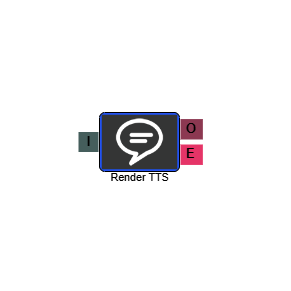
Text to Speech
The Text to Speech (Render TTS) element converts written text into spoken audio, playing it to the caller at a defined point in the IVR flow. Unlike a Play element which requires a pre-recorded audio file, TTS lets you type the message you want the caller to hear directly into the element — including dynamic content pulled from call or lead data.
Connections
| Connection | Description |
|---|---|
| I – Input | The entry point for this element. Connect from the preceding element in your IVR flow. |
| O – Output | The path taken once the text has been spoken to the caller. |
| E – Error | The path taken if the element encounters an error. |
Settings
| Field | Description |
|---|---|
| Name | Give the element a clear name so it is easy to identify within your IVR flow. |
| Description | Optional. Add a note to explain the element's purpose — useful in more complex flows. |
| Agent Can See This | When enabled, agents can transfer a live caller directly to this element via the IVR Transfer option. |
| Supervisor Can See This | When enabled, the element is visible in the IVR Transfer list for users with a Supervisor role. It remains hidden from all other users. |
| Result Code | Assign a result code to this element to track calls that pass through it. |
| Text | Enter the text you want spoken to the caller. This can be static text, dynamic content using double curly brackets {{ }}, or a combination of both. See Dynamic content below for details. |
| Voice | Select the voice to use from the dropdown. By default, two Windows voices are available. Additional voices and languages can be added — contact your account manager for further details. |
Dynamic content
The Text field supports dynamic content, allowing you to include caller or lead-specific information in the spoken message. To use a dynamic field, wrap the field name in double curly braces — for example, {{call.name}}. This is replaced at runtime with the actual value for that call.
Dynamic fields can be used on their own or within a sentence. For example:
This message is for {{call.name}}. If you are {{call.name}}, press 1.
The following fields are commonly used for dynamic content:
| Variable | Description |
|---|---|
call.referenceid | Reference saved against the lead. |
call.name | First name saved against the lead. |
call.name2 | Second name saved against the lead. |
call.address | First line of address saved against the lead. |
call.city | City or region saved against the lead. |
call.postalcode | Post code saved against the lead. |
call.phonenum | The phone number of the caller. |
call.leadid | The lead ID of the caller. |
call.dnis | The DNIS or inbound number for the call. |
call.campaignid | The ID of the campaign associated with the call. |
call.listid | The ID of the list associated with the call. |
Primary mapped fields to a lead
Formatting content
You can control how certain values — such as dates, times, numbers, and addresses — are spoken by applying a format tag within the double curly braces, separated by a colon. For example: {{call.PostalCode:SpellOut}}.
| Format tag | Applies to | Example output | Description |
|---|---|---|---|
SpellOut | Any field | M-1-2-A-P | Spells out a word or number as individual characters. Useful for postal codes or account numbers. |
Ordinal | Integers | 1st, 2nd | Expresses a number as a position (1st, 2nd, 3rd, etc.). |
LongDate | Date | Monday, June 11, 2018 | Expresses a date including day of week, month, day, and year. |
MediumDate | Date | June 11, 2018 | Expresses a date including month, day, and year. |
ShortDate | Date | June 11 | Expresses a date as month and day only. |
DayOfWeek | Date | Monday | Expresses just the day of the week. |
Day | Date | 11 | Expresses just the day of the month. |
DayOrdinal | Date | 11th | Expresses the day of the month as an ordinal value. |
Month | Date | June | Expresses just the month. |
Year | Date | 2018 | Expresses just the year. |
Time | Time | 2:33 PM | Expresses a time value in 12-hour format with AM or PM. |
Time24 | Time | 14:33 | Expresses a time value in 24-hour format. |
Telephone | Phone number | 0330 159 6570 | Expresses a string of digits as a phone number in the way a person would naturally say it. |
Address | Address | 12-49 Saint Lucie Street | Expresses a street address in the way a person would naturally say it. |
Currency | Money | £39.45 | Applies a currency symbol to a value. |