
Callback Manager
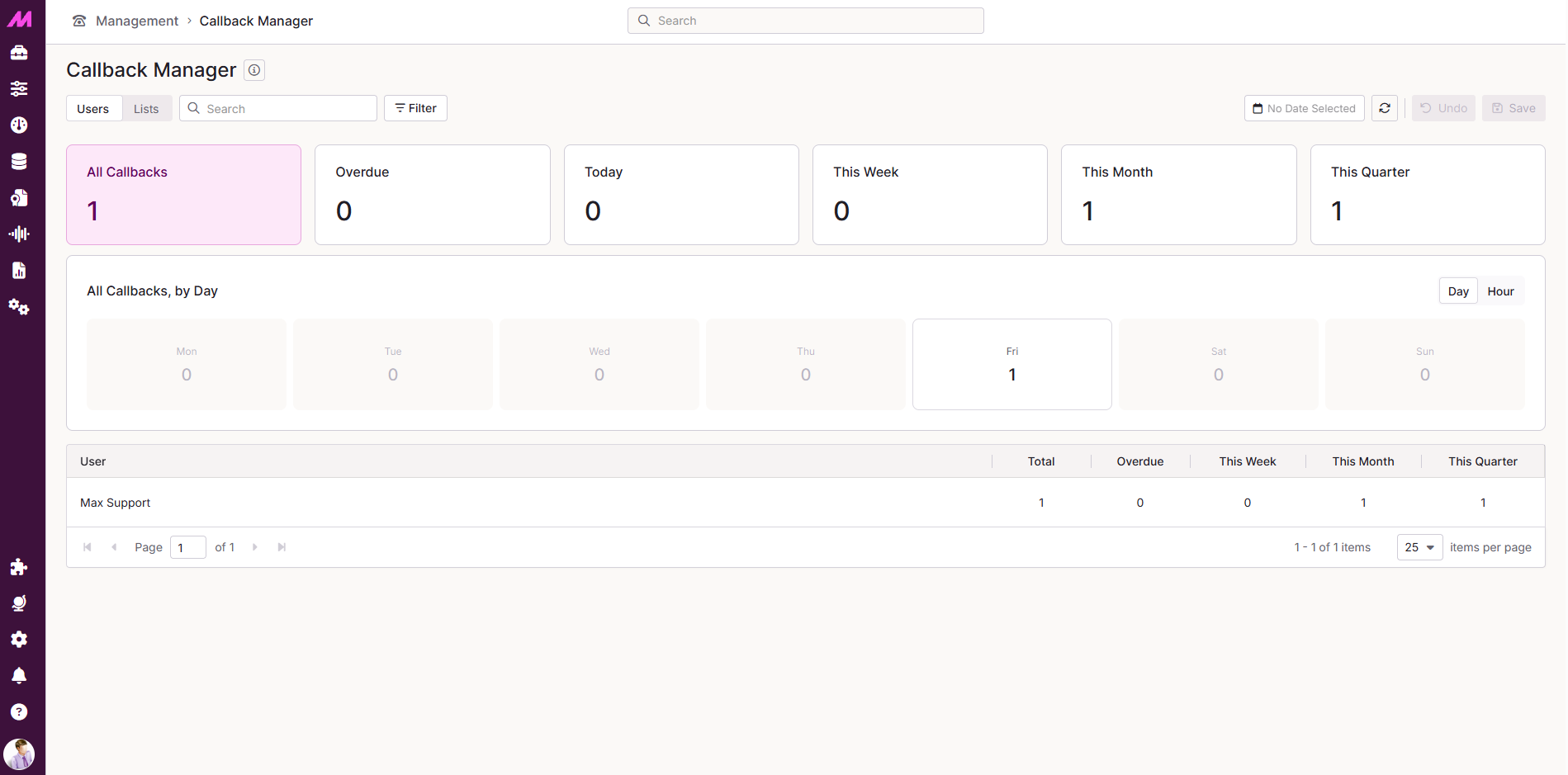
Callback Manager gives you real-time visibility of every private callback your agents have set. Use it to monitor callback volumes, check individual callback details, and reassign, postpone or make callbacks public, either one at a time or in bulk. Find it at Management > Callback Manager.
View callback totals and filter by period
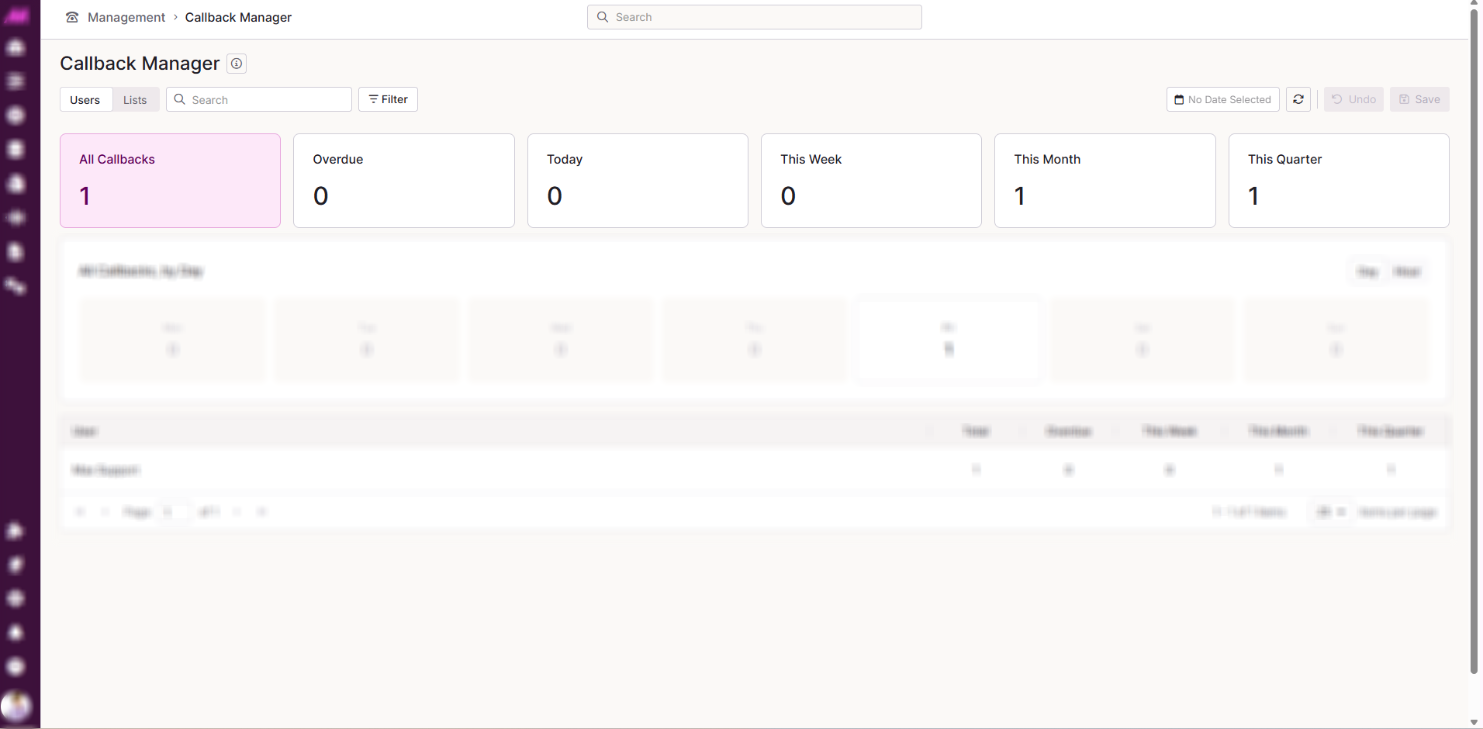
Six tiles across the top of the page show the callback totals: All Callbacks, Overdue, Today, This Week, This Month and This Quarter. Select a tile to filter the table below to that period. The selected tile is highlighted.
Below the tiles, a chart breaks down the callbacks in your selected period. The breakdown views available depend on which tile you have selected.
| Period selected | Breakdown views | What it shows |
|---|---|---|
| All Callbacks | Day or Hour | Day shows the total callbacks for each day of the week. Hour shows the total for each hour band from 08:00 to 20:00, with separate tiles for callbacks before 08:00 and after 20:00. |
| Overdue | Lateness | Shows how overdue the callbacks are. |
| Today | Hour | Shows the total for each hour band from 08:00 to 20:00, with separate tiles for callbacks before 08:00 and after 20:00. |
| This Week | Date or Hour | Day shows the total for each day, Monday to Sunday. Hour shows the total for each hour band. |
| This Month | Date, Day or Hour | Date shows the total for each week of the month, for example, Week 1 to Week 4. Day shows the total for each day of the week. Hour shows the total for each hour band. |
| This Quarter | Date, Day or Hour | Date shows the total for each month in the quarter, for example July, August and September. Day shows the total for each day of the week. Hour shows the total for each hour band. |
Filter and search for specific callbacks
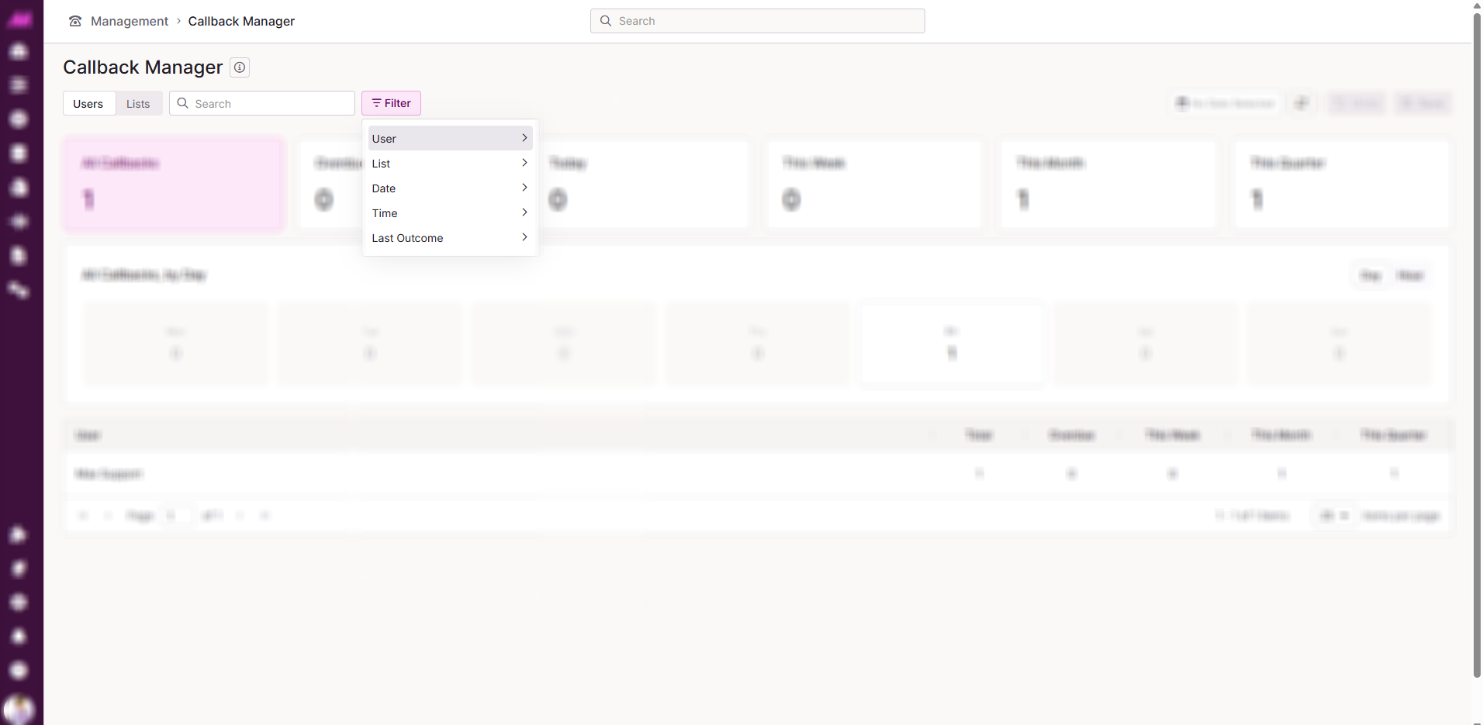
Select Filter to narrow the callback list down further. Applied filters appear as removable tags above the table.
| Filter | Description |
|---|---|
| User | Shows callbacks assigned to a specific agent. |
| List | Shows callbacks from a specific calling list. |
| Date of callback | Shows callbacks scheduled for a specific date. |
| Time of callback | Shows callbacks scheduled for a specific time. |
| Last outcome | Shows callbacks by their most recent result code. |
Use the search box to search for a callback by telephone number, and the date picker to set a custom date range.
View callback details
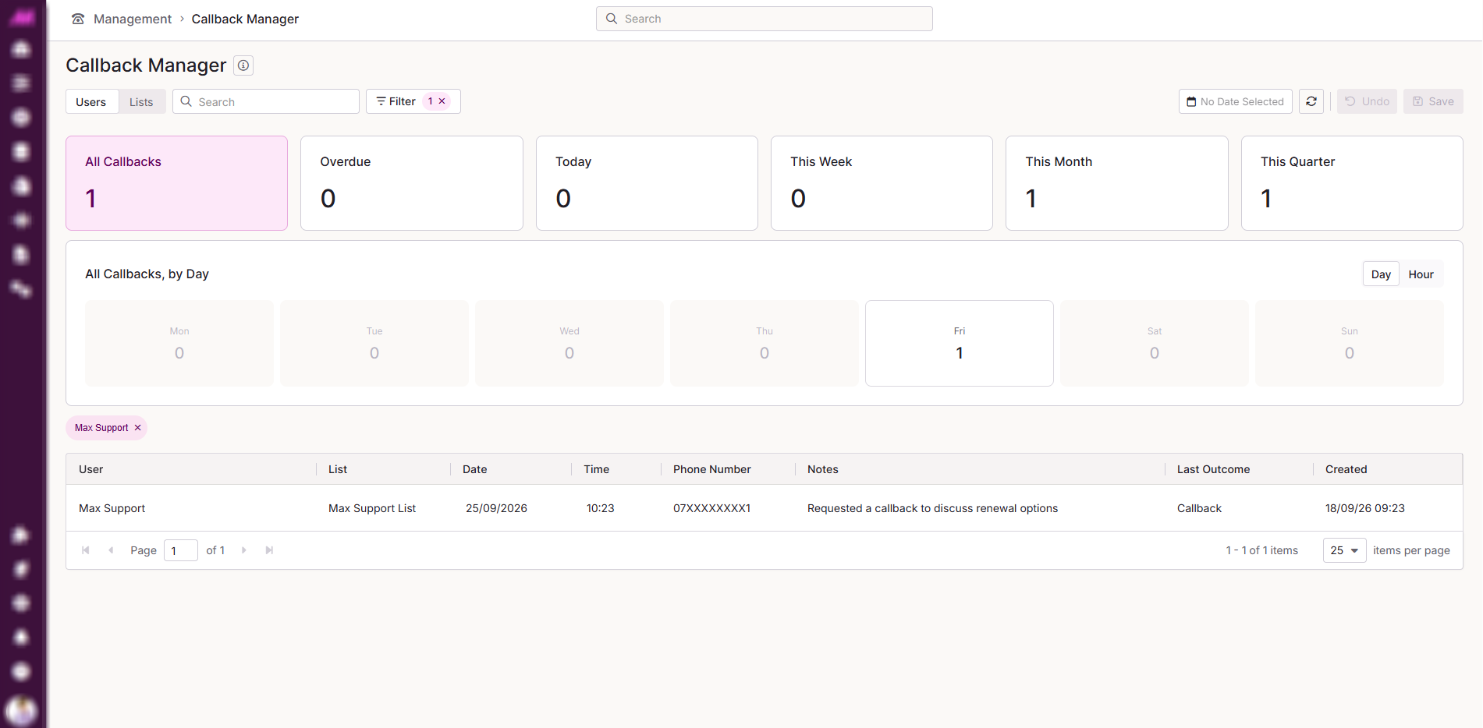
Select Users or Lists to choose whether the table groups callbacks by agent or by calling list. Select a user, a list, or apply a filter to view the individual callback records that make it up.
| Column | Description |
|---|---|
| User | The agent the callback is assigned to. |
| List | The calling list the callback belongs to. |
| Date | The date the callback is scheduled for. |
| Time | The time the callback is scheduled for. |
| Phone Number | The number to call back. |
| Notes | Any notes added against the callback. |
| Last Outcome | The most recent result code recorded against the callback. |
| Created | The date and time the callback was created. |
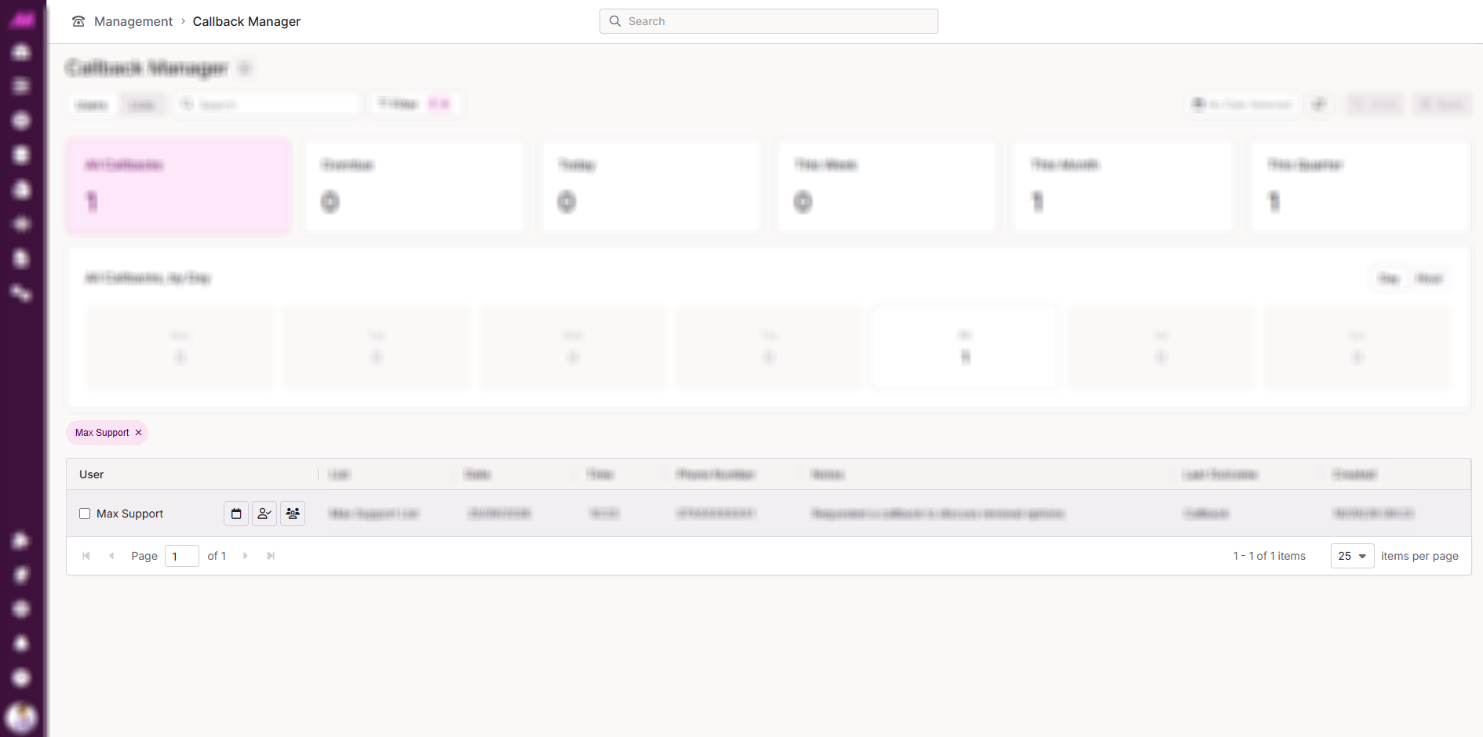
Take action on a callback
Hover over a callback in the table to reveal its available actions.
| Action | Description |
|---|---|
| Reassign | Moves the callback to another agent. |
| Postpone | Reschedules the callback to a different date and time. |
| Make public | Moves the callback into the public pool for the next available agent to pick up. |
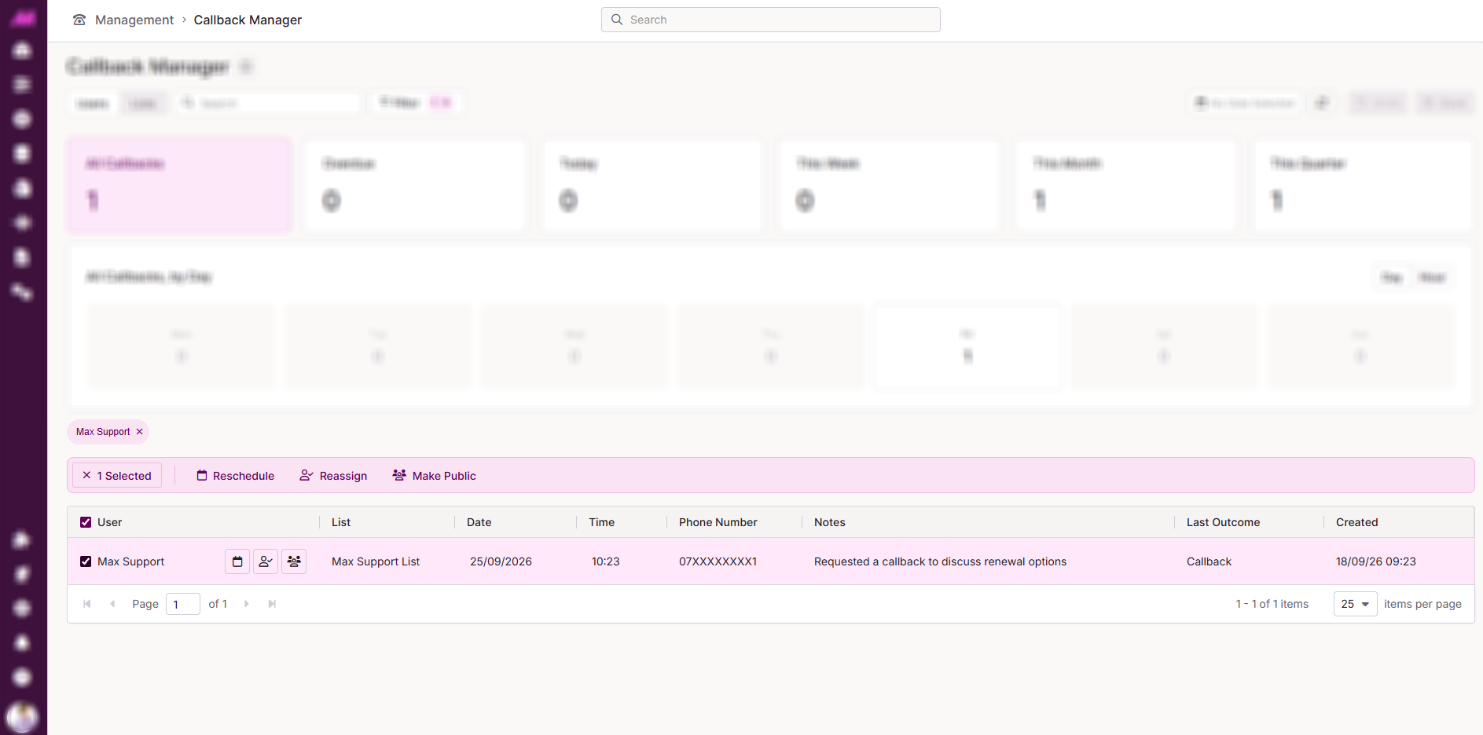
Take bulk action on callbacks
Select the tick box to the left of each callback to select more than one at a time. Select Actions, then choose Reschedule, Reassign or Make public to apply the change to every callback you have selected.
Delete callbacks
You cannot delete a callback directly. To stop a callback attempt, add the number to the Do Not Call list, or deactivate or delete the contact from Lead Search & Edit.