
Dashboard Features
This article covers two features that can be applied across your dashboards: Time in Status alerts on the Configurable Grid, and Hours Per Working Day figures for relevant stats.
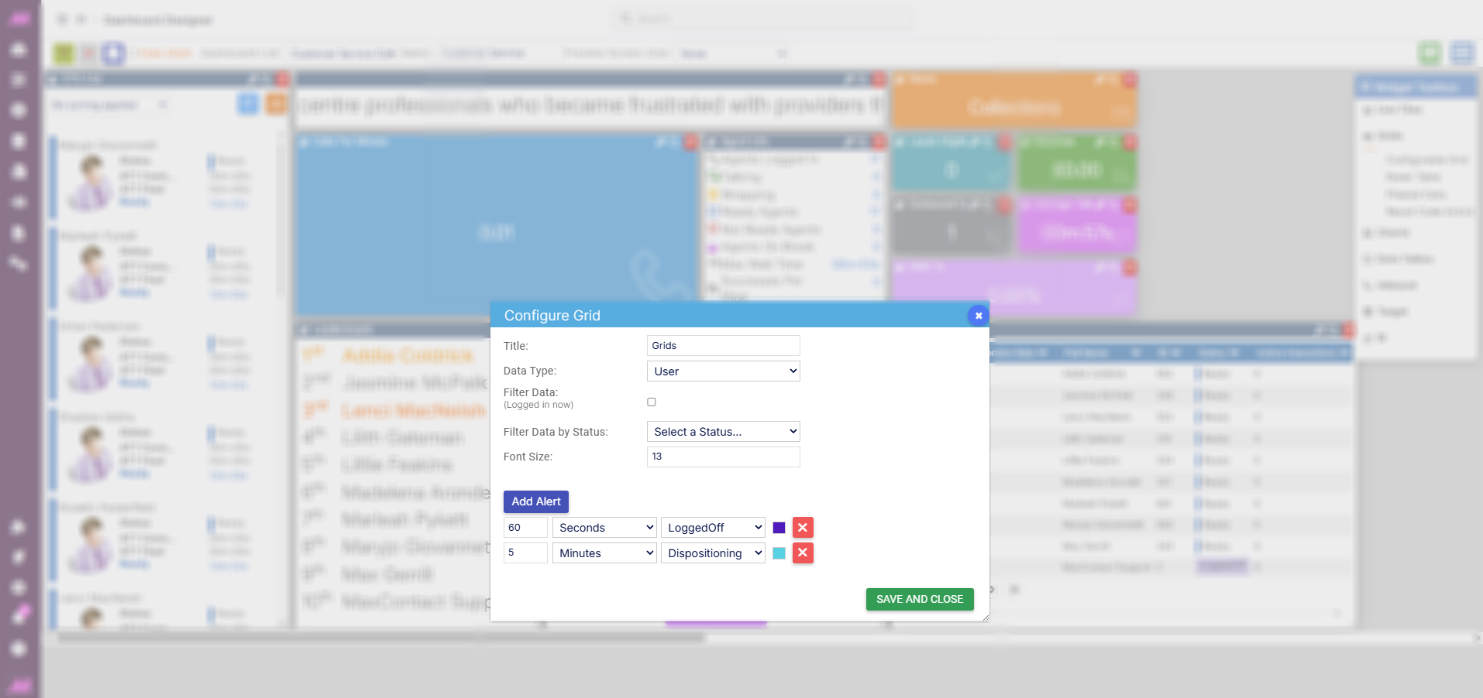
Time in Status grid alerts
The Configurable Grid can be set up to alert you when an agent exceeds a set amount of time on a particular status, shown in the Time in Status column.
Adding an alert
- Select the settings icon in the top right of the widget.
- In the dialog box, make sure Data Type is set to User. Alerts cannot be set on non-user data.
- Select Add Alert to add a new alert.
- Select the duration, the status to alert on, and the colour.
- Select Save & Close.
Alerts can be assigned to any of the following statuses: Logged off, Break, Nailing up, Not ready, Managing call-backs, Ready, Previewing, Calling, Ringing, Talking, Conferencing, Warm transferring, On hold, Dispositioning, Monitoring, Coaching, Barging, Interacting, and Interaction wrapping.
Once configured, the Time in Status bar fills with the selected colour as an agent's time in that status progresses. When the agent exceeds the configured duration, the bar flashes between the selected colour and white.
Multiple alerts
You can configure multiple alerts for each Time in Status type, each with a different duration. For example, you might want an alert for agents in Ready for more than 30 seconds, and a separate alert for agents in Wrap for more than three minutes. Configure these by selecting Add Alert as many times as needed.
If you need different alerts for different teams or areas of the business, the best approach is to use more than one Configurable Grid widget and apply dashboard filter groups using the filters in the top right of the screen. This lets you set different Time in Status alerts per group.
 |
 |
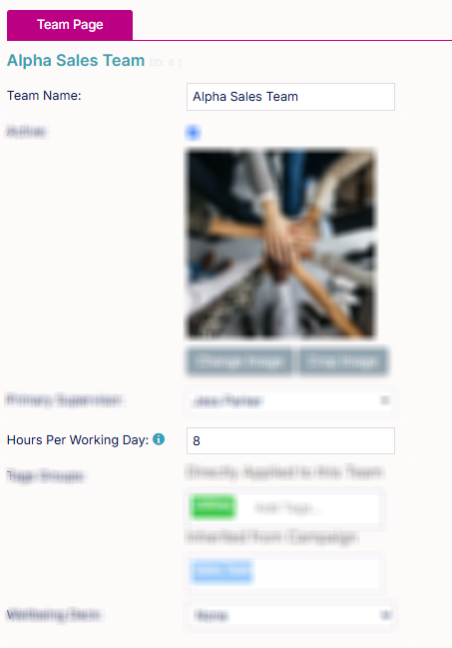
Hours Per Working Day
Once a Hours Per Working Day figure is set, you can select certain stats on dashboards that calculate figures based on it. These stats are available at campaign, team, and user level, but not at list level. A stat will not display if no figure has been entered.
The figure must be added separately to teams and campaigns (within CTU). Adding it to a team will show team-level stats but not campaign-level stats, and vice versa.
Available stats
| Stat | Description |
|---|---|
| Number of Working Days | Totals the number of working days based on the configured figure. |
| Success per Working Day | Counts each successful outcome as 1, even where multi-success result codes are used. |
| Successes per Working Day | Totals the actual number of successes, including each individual count from multi-success result codes. |