
Extract SIP Header
The Extract SIP Header element reads one or more custom SIP headers from an inbound call and stores their values for use by downstream IVR elements, agent scripts, and integrations. It is typically placed early in the IVR flow, before any branching logic that depends on the header values.
Note: SIP headers must be enabled at the platform level before this element can read them. This is done by the MaxContact support team. Contact them before building any IVR flow that depends on a header that has not yet been enabled.
See Enabling SIP headers below for details.
Connections
| Connection | Description |
|---|---|
| O – Output | The path taken when all headers have been processed with no fail-eligible warnings, or when warnings are present but Require Header is unchecked. |
| F – OnFail | The path taken when at least one fail-eligible warning is present and Require Header is checked — for example, if a header is absent or fails to decode. |
| E – Error | The path taken if no header names are configured, the DataBin storage limit (8 KB) is reached, or an unexpected system error occurs. |
Important: Make sure to connect all three ports.
Leaving the F or E ports disconnected will cause the call to disconnect if those routes are taken.
Settings
| Field | Description |
|---|---|
| Name | A short identifier for this element. This value is used as the prefix for all DataBin keys written by this element — for example, a Name of ExtractHeader produces keys like ExtractHeader.X-Account-Id. Keep it concise and free of spaces. Changing the Name after downstream elements have been built around the DataBin keys will break those references. |
| Description | A note describing the purpose of this element in the flow. |
| Encoding Type | How the header values are encoded on the SIP line. Select the option that matches what your SIP trunk provider sends. See the Encoding Types table below. |
| Require Header | When checked, the call follows the OnFail (F) path if any header is absent, not in the platform configuration, or fails to decode. When unchecked, warnings are written to the DataBin but the call always continues via the Output (O) path. Truncated values do not trigger the fail path regardless of this setting. |
| SIP X-Header Names | The list of SIP header names to extract. Click Add to add a row. You must have a minimum of 1 and can add up to 10 headers per element. |
Encoding types
| Value | Description |
|---|---|
| None | The header value is passed through as-is. Use this when the SIP trunk sends plain text values. |
| Base64 | The header value is Base64-encoded by the trunk. The system decodes it before writing to DataBin. If decoding fails, a warning is written instead. |
| URL | The header value is URL-encoded (percent-encoded) by the trunk. The system decodes it before writing to DataBin. If decoding fails, a warning is written instead. |
SIP header name rules
Each header name entered must meet all of the following:
- Starts with a letter (a–z or A–Z)
- Contains only letters, digits, and hyphens
- Maximum 63 characters
- No duplicates within the same element (case-insensitive)
Names that fail these rules are silently skipped at runtime — no DataBin entry is written and no error is raised. If every name in the element is invalid, the call proceeds via the Output (O) path with no DataBin entries written.
Variable mapping
When the element executes successfully, each extracted header value is written to the call's DataBin under a key in the following format:
{elementName}.{headerName}
Where {elementName} is the value in the element's Name field (exactly as entered), and {headerName} is the SIP header name as configured in the element. The key is case-sensitive — downstream references must use the same casing.
For example, an element named ExtractedHeader configured to read the header X-Account-Id writes the value to
ExtractHeader.X-Account-Id.
Note: The total DataBin for a call is limited to 8 KB across all elements. If this limit is reached mid-extraction, the remaining headers are not written and the call routes to the Error (E) path.
Command element integration
Extracted values can be surfaced in Contact Info using the Command element with the action type Other Call Info Append, Prepend, or Modify. This makes header values visible in the agent's Contact Hub view when the call connects.
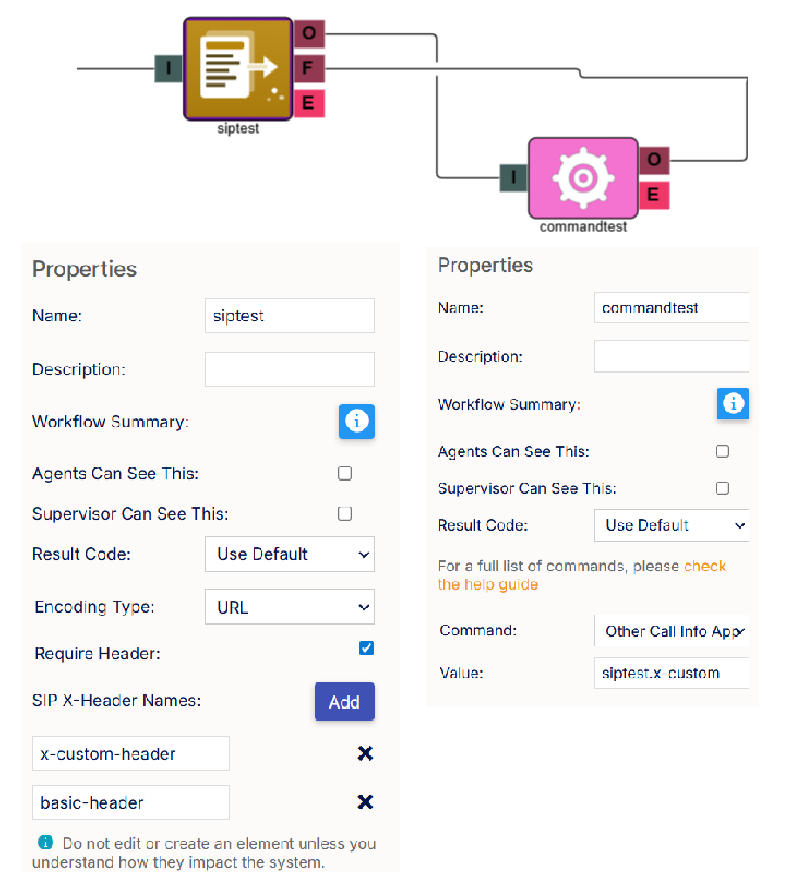
Example 1 – Append data to Contact Info
The SIP trunk sends an x-custom-header header containing customer data. To display this in the agent's Contact Info panel, configure a Command element as follows:
| Field | Value |
|---|---|
| Action | Other Call Info Append |
| Value | siptest.x-custom-header |
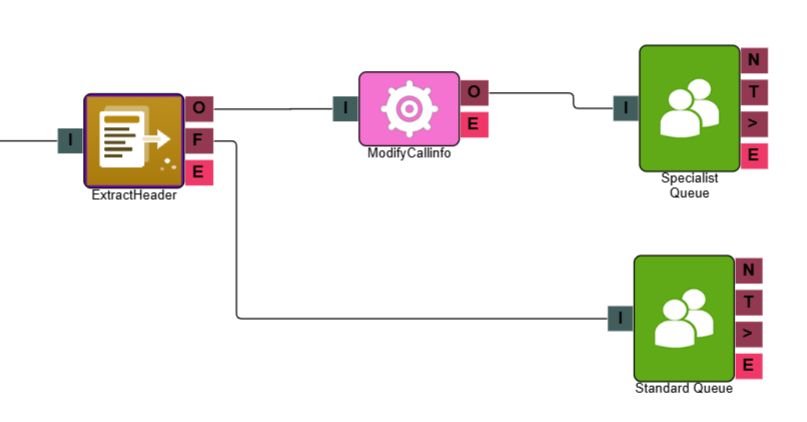
Example 2 – Route calls by campaign code and populate Contact Info
The SIP trunk passes an X-Campaign-Code header. The IVR branches on whether this is present, routing premium campaigns to a specialist queue, and stamps the campaign code into Contact Info for reporting. Configure a Command element as follows:
| Field | Value |
|---|---|
| Action | Other Call Info Modify |
| Value | {ExtractHeader.X-Campaign-Code} |
Warning message reference
When a header cannot be extracted successfully, a warning string is written verbatim into the DataBin under that header's key. Do not treat a populated DataBin entry as a success without checking its value.
| Warning | Trigger | Fail-eligible? | Recommended action |
|---|---|---|---|
| [Warning: Configured Header Not Received] | The inbound call did not carry this header. The header name is valid and in the platform configuration, but the trunk did not include it on this call. | Yes | Check whether the trunk is expected to always send this header. If it is optional, uncheck Require Header. If it should always be present, investigate the trunk configuration with the provider. |
| [Warning: Value Truncated, Header Size Limit Exceeded] | The header value was received but exceeded the platform's internal size limit (256 bytes) and was truncated. The DataBin entry contains the truncated value followed by this warning string. | No — call continues via O path | Review whether the full value is required downstream. If so, work with the SIP trunk provider to reduce the header value size. |
| [Warning: Specified Header Incorrectly Configured] | The header name is valid but is not present in the platform configuration. Only headers explicitly enabled at the platform level can be extracted. | Yes | Contact the support team to request the header be added to the platform configuration. See Enabling SIP headers below. |
| [Warning: Extraction Failed, Encoding Error] | The header value could not be decoded using the selected Encoding Type. | Yes | Verify the Encoding Type setting matches what the SIP trunk sends. If the trunk sends plain text, change to None. |
| [Warning: Extraction Failed, System Error] | An unexpected error occurred in the platform layer during extraction. | Yes | Raise a support ticket with the relevant call details, time of call, phone number. |
Enabling SIP headers
SIP headers must be added to the platform configuration before the Extract SIP Header element can read them. This is a platform-level change that cannot be made from within the IVR Builder.
If a header consistently returns [Warning: Specified Header Incorrectly Configured], contact the support team and provide the following:
- The exact SIP header name(s) to be enabled
- Your account name and MaxContact environment
- Your SIP trunk provider and trunk group, if known
- Confirmation from the trunk provider that the header is present on INVITE messages
Note: Platform configuration changes require a scheduled maintenance window and cannot be applied in real time. Allow adequate lead time when planning an implementation that depends on a SIP header not yet in the platform configuration.