
Import Lead History
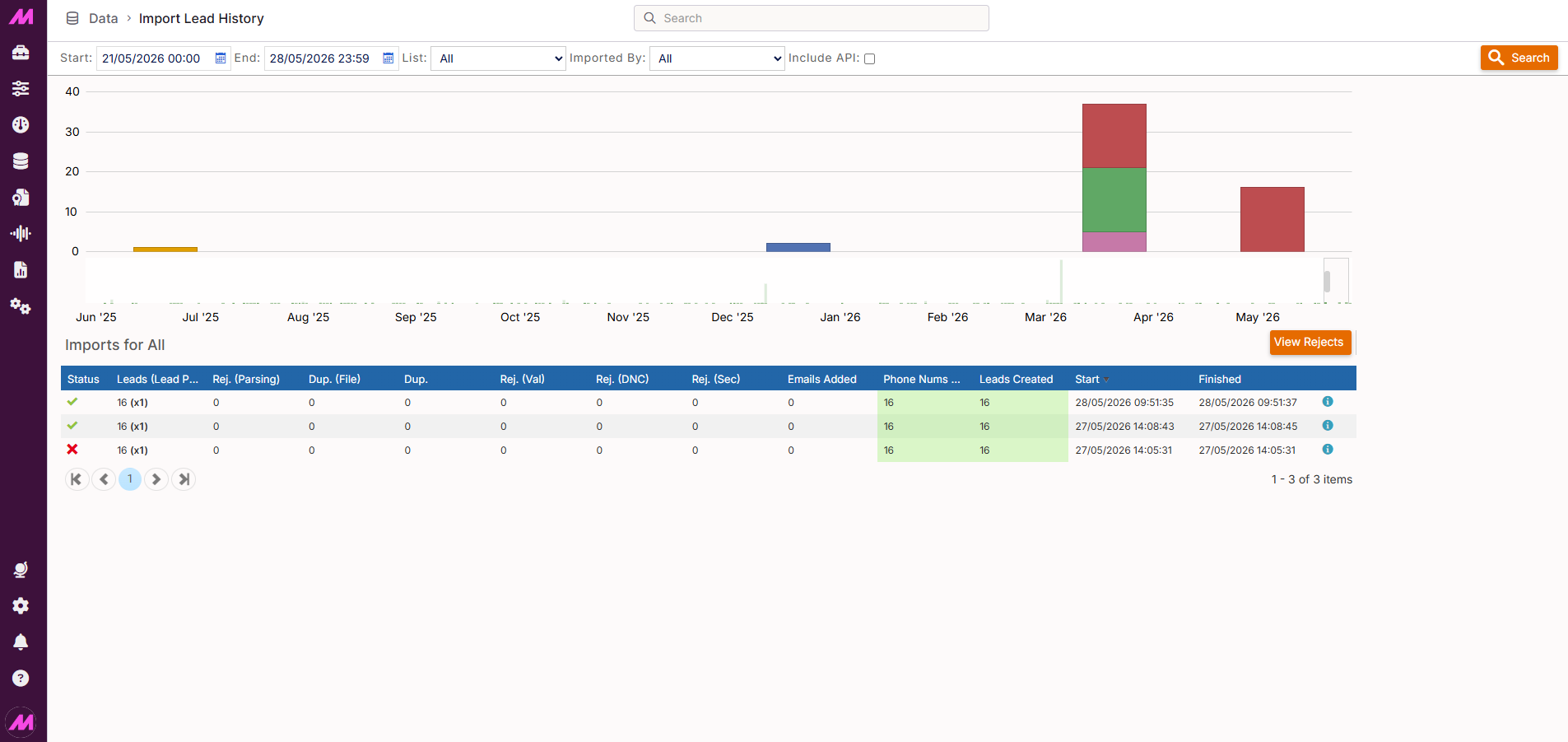
The Import Lead History page gives you a full record of all lead imports carried out on your system. You can review what was imported, when, by whom, how many records were added, and how many were rejected and why. It is also where you go to roll back an import if something has gone wrong.
To access it, go to Data > Data History > Import Lead History. You can also reach it directly after completing an import by clicking Go to import history on the Import Leads confirmation screen.
Search and filter
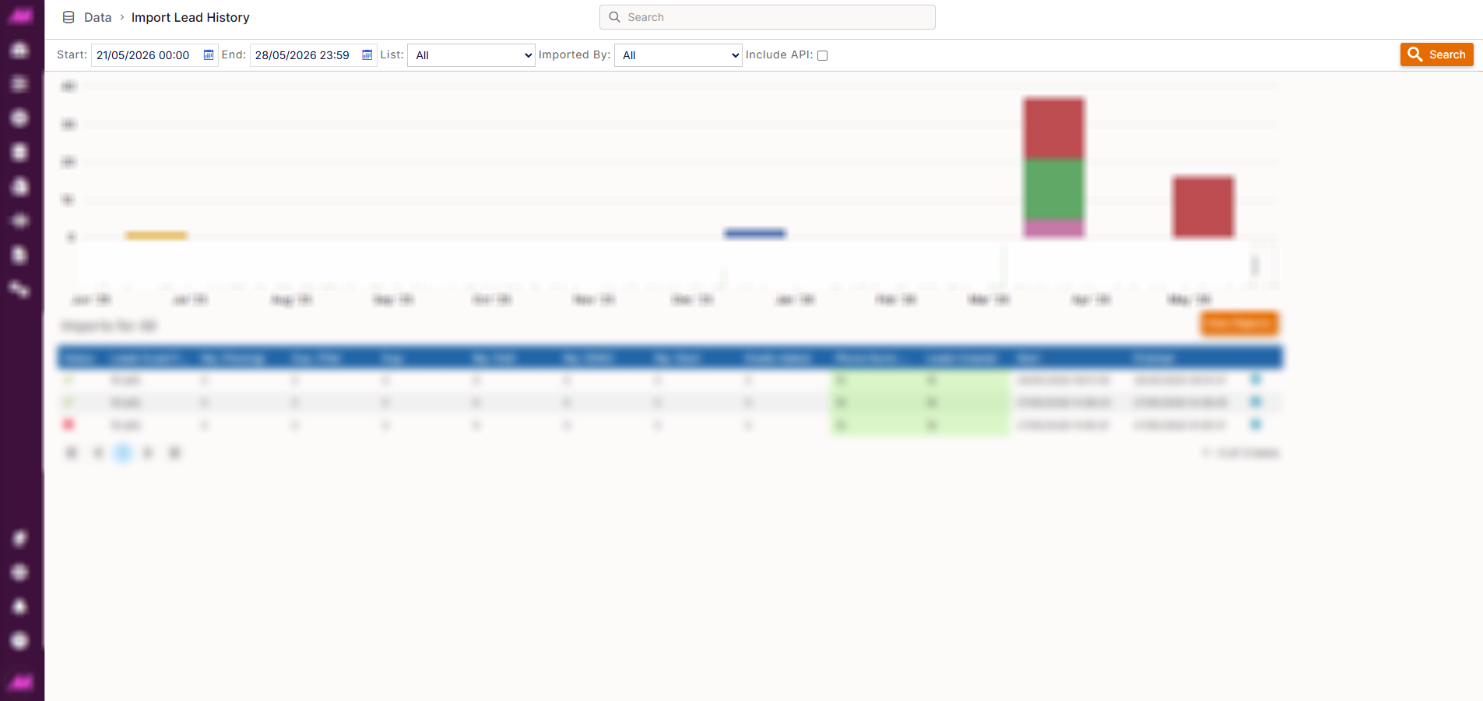
Use the search options at the top of the page to narrow down which imports are displayed.
| Option | Description |
|---|---|
| Date range | Filters imports to those that took place within the selected start and end dates. |
| List name | Filters imports by the destination list they were imported into. |
| User | Filters imports by the user who carried them out. |
| Include API imports | When checked, API-triggered imports are included in the results alongside manual imports. Untick this to show manual imports only. |
Import timeline
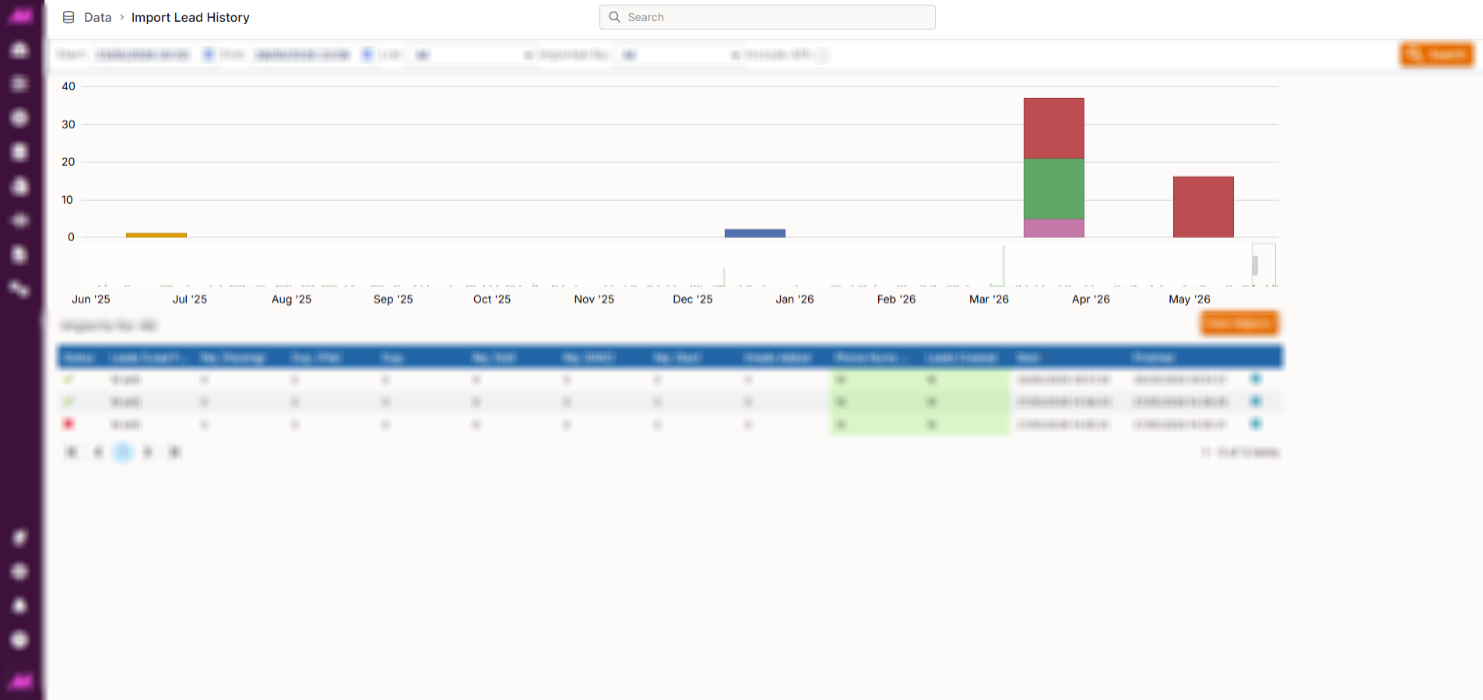
The timeline at the top of the page gives a visual overview of import activity across your selected date range. It is split into two sections: the lower section shows the full default period and the upper section shows the zoomed-in range between the two markers.
Hovering over a block on the timeline shows the list name and the number of imports made during that period. To adjust the date range shown in the upper section, drag either green flag to a new position along the lower timeline.
Imports table
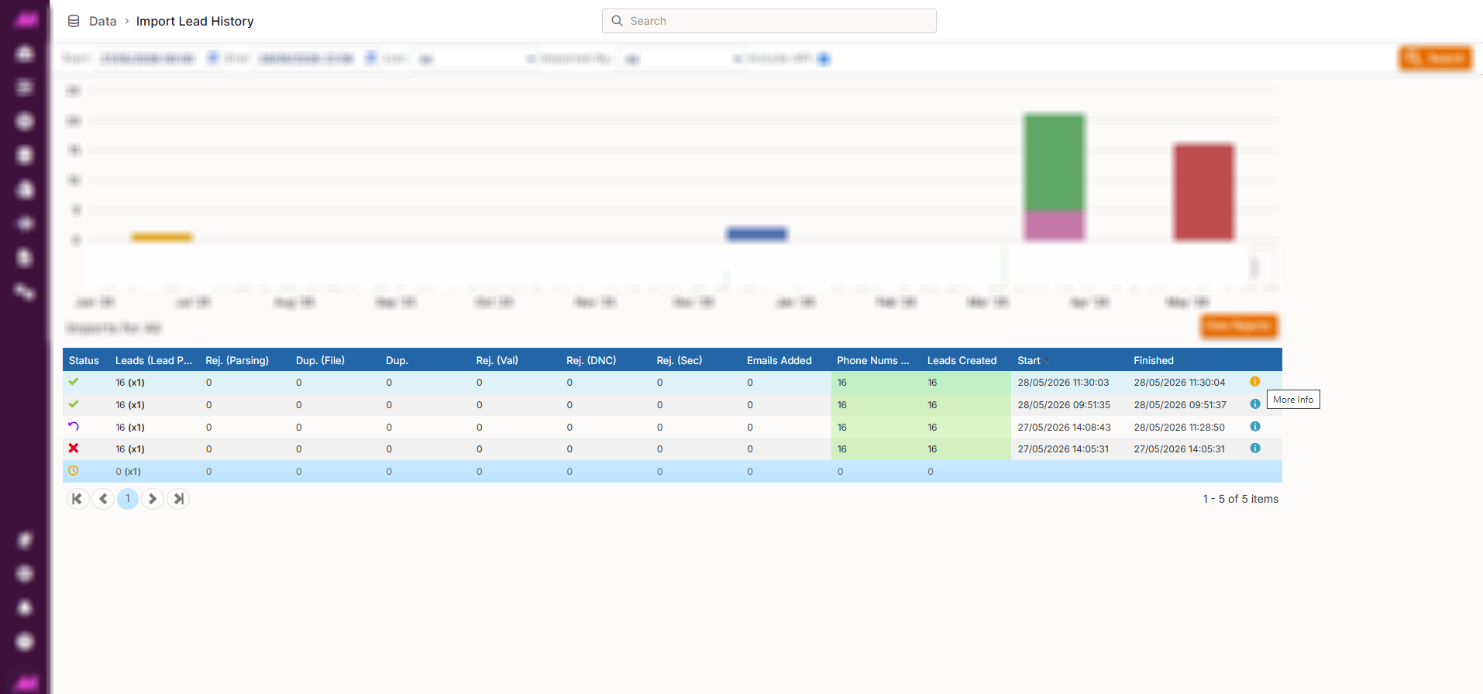
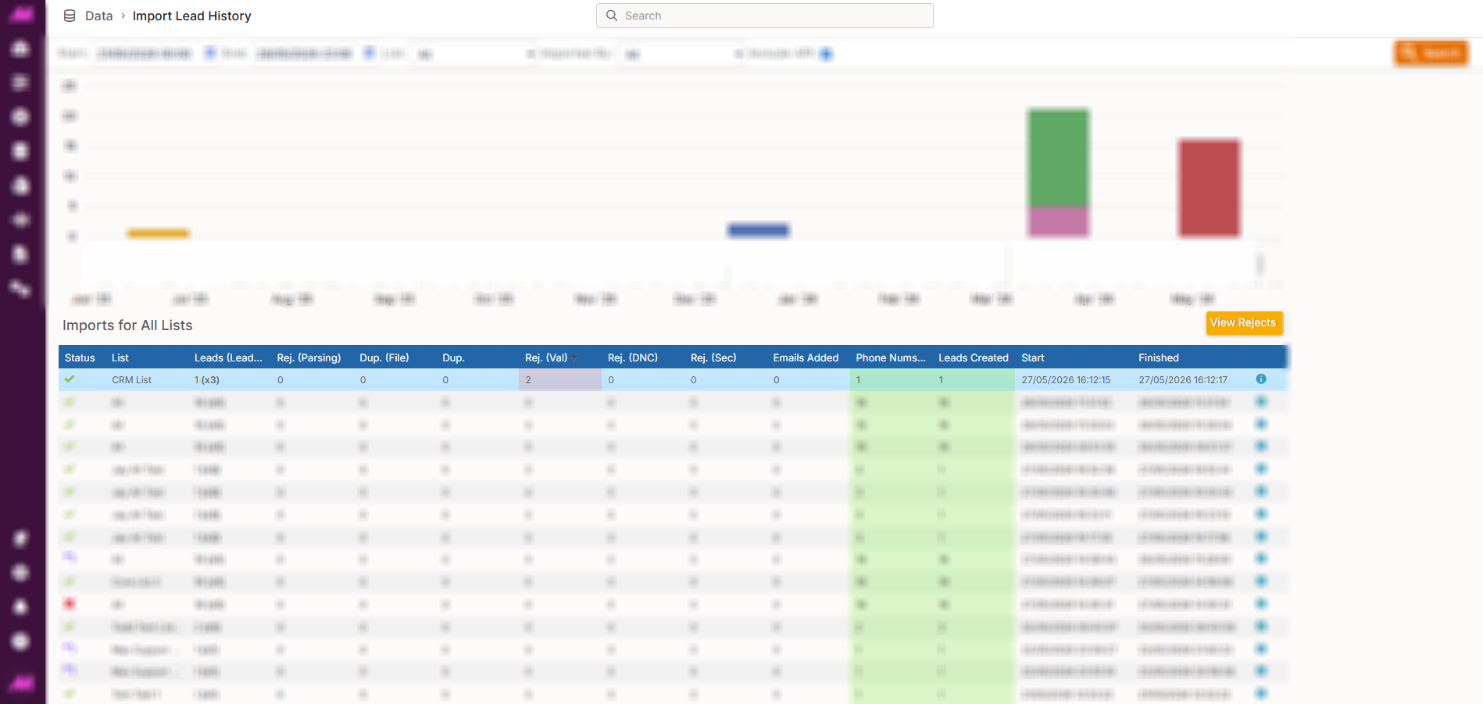
Below the timeline, a table lists all imports that match your search criteria. Each row represents one import.
Status icons
| Status | Description |
|---|---|
Completed | The import was successful and all valid records have been added to the system. |
Pending | The import is queued and awaiting processing. |
Failed | The import failed and no records were added to the system. Check the import settings and file format before attempting again. Additional information on the potential cause of failure can be found within the Import Details tab. |
Rolled back | The import has been reversed and the records have been removed from the system. |
Column definitions
| Column | Description |
|---|---|
| Status | The current state of the import. See Status icons above. |
| List | The list the records were imported into. |
| Leads (Lead Phone) | Total number of records in the import file, alongside the number of phone numbers that were mapped. |
| Rej. (Parsing) | Records that could not be read or prepared for import, typically due to formatting issues in the file. |
| Dup. (File) | Phone numbers that appeared more than once within the imported file itself. |
| Dup. | Phone numbers that already existed on the system and were identified as duplicates during deduplication checks. |
| Rej. (Val) | Phone numbers that did not meet the validation rules set during import, for example failing minimum or maximum length checks. |
| Rej. (DNC) | Phone numbers that were rejected because they matched an entry on one of the DNC categories checked during import. |
| Rej. (Sec) | Records rejected during secondary (custom table) mapping, typically due to a data type mismatch between the imported value and the field it was mapped to. |
| Emails Added | The total number of email addresses successfully added to the database. |
| Phone Nums Added | The total number of phone numbers successfully added to the database. |
| Leads Created | The total number of new lead records created by this import. |
| Start | The date and time the import started processing. |
| Finished | The date and time the import finished processing. |
| Import Details | Opens a detailed tab with information on the import selected. |
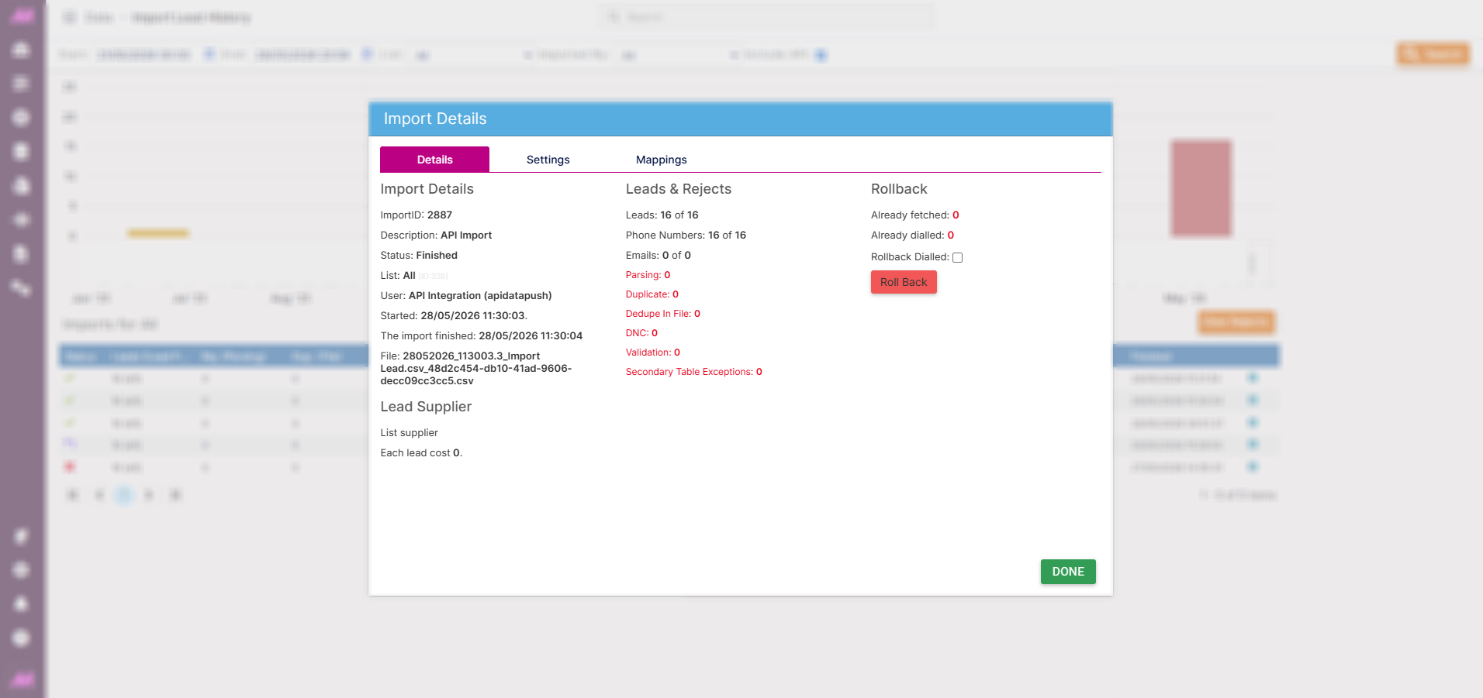
Import details
Click the More info icon at the end of any row to open the import details dialogue box. This contains three tabs.
Details tab
Shows a summary of the import and provides the option to roll it back.
Rollback. If there is a problem with an import, you can reverse it using the Rollback button. This removes all records from the import as if it never happened. A few important points to be aware of before rolling back:
- The dialogue box shows whether the dialler has already called any leads from this import. By default, those leads will not be rolled back.
- You can override this by ticking the option to include dialled leads in the rollback. If you re-import those leads afterwards, they will be assigned a new lead ID and treated as new records by the system, meaning they may be called again.
- You cannot roll back a list that is currently running in a campaign. The rollback button will first remove the list from the campaign, after which the rollback can proceed.
Settings tab
Shows a read-only view of all the settings that were applied during the original import — for example, deduplication rules, DNC checks, import expiry date, and phone number formatting. Useful for verifying how an import was configured or replicating the same settings on a future import.
Mappings tab
Shows the field mappings used during the import — which CSV column headers were mapped to which MaxContact lead fields, and any secondary table mappings that were applied. Useful when investigating rejected records or setting up a repeat import with the same structure.
Viewing rejected records
If an import shows any rejected records, select the import row in the table and click View Rejects. This opens a detailed view listing each rejected record and the reason it was not imported.
From this view, you can:
- Review the rejection reasons to identify any issues with the original file
- Click Import details to return to the dialogue box for that import
- Click Download rejects to export the rejected records as a CSV file, allowing you to correct the data and re-import
- Click Back to imports to return to the main imports table