
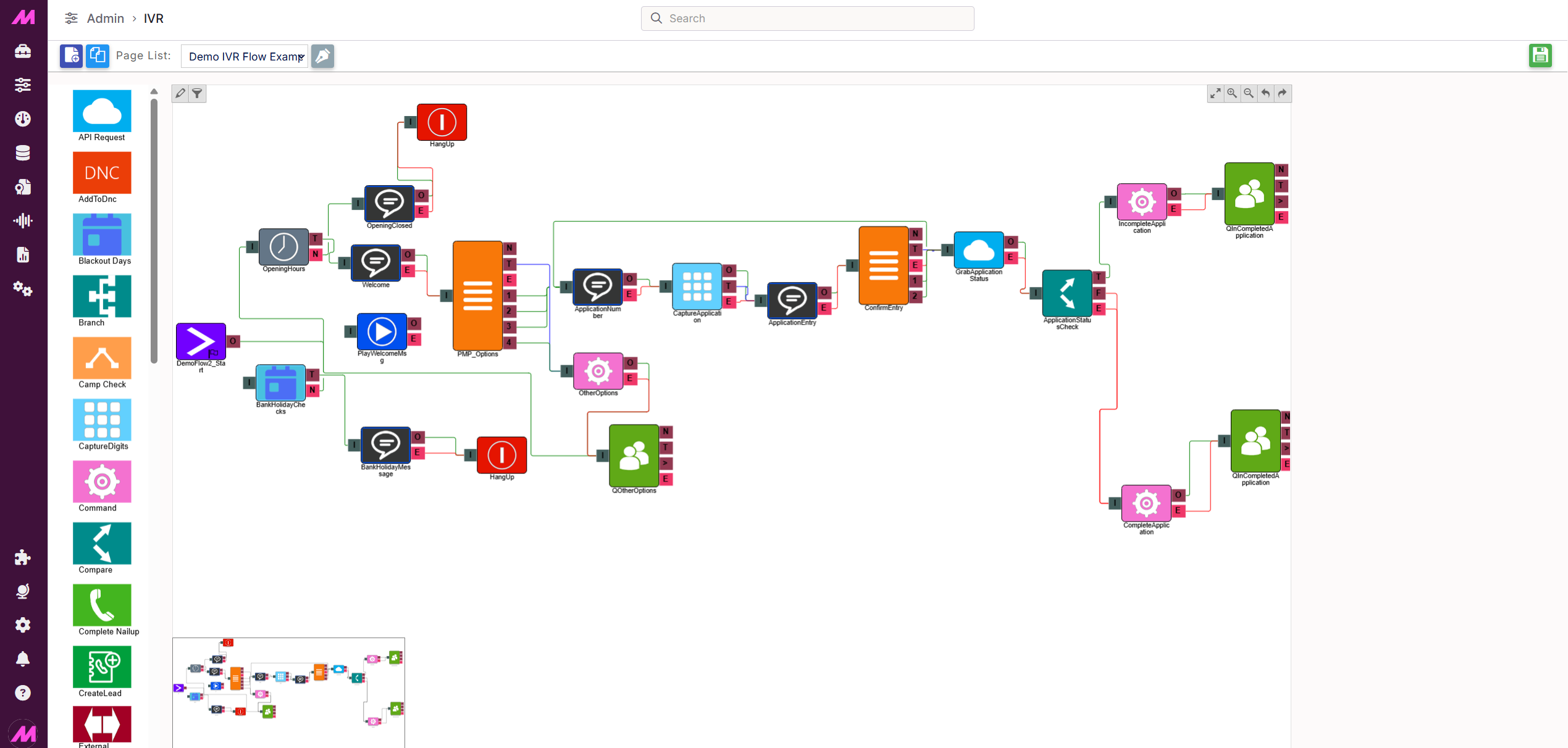
IVR Builder
The IVR Builder allows you to create and manage IVR flows for your inbound routes. Flows are built by placing elements onto the canvas and connecting them to define how calls are handled. This article covers the IVR Builder interface, including how to create and manage IVR pages, place elements, and connect them together.
Page settings
At the top of the IVR Builder page, the following options are available:
| Option | Description |
|---|---|
| New IVR | Creates a new IVR page. |
| Clone IVR | Creates a copy of the currently selected IVR page. If there are over 150 individual elements on the page a toaster message will advise cloning isn't possible. |
| Page list | Select the IVR page you want to view or edit from the dropdown. |
| Edit name | Allows you to edit the name of the currently selected IVR. |
| Save | Saves any changes made to the IVR. Always save before navigating away from the page. |
Canvas controls
Within the IVR canvas, the following controls are available:
| Control | Description |
|---|---|
| Colour Paths | Allows you to change the colours of the links between elements. |
| Filter Paths | Allows you to filter the view to show certain paths. |
| Auto Fit | Fits the entire IVR flow within the visible canvas area. |
| Zoom In | Zooms into the canvas. |
| Zoom Out | Zooms out of the canvas. |
| Undo | Undoes the last action. |
| Redo | Redoes the last undone action. |
Placing elements
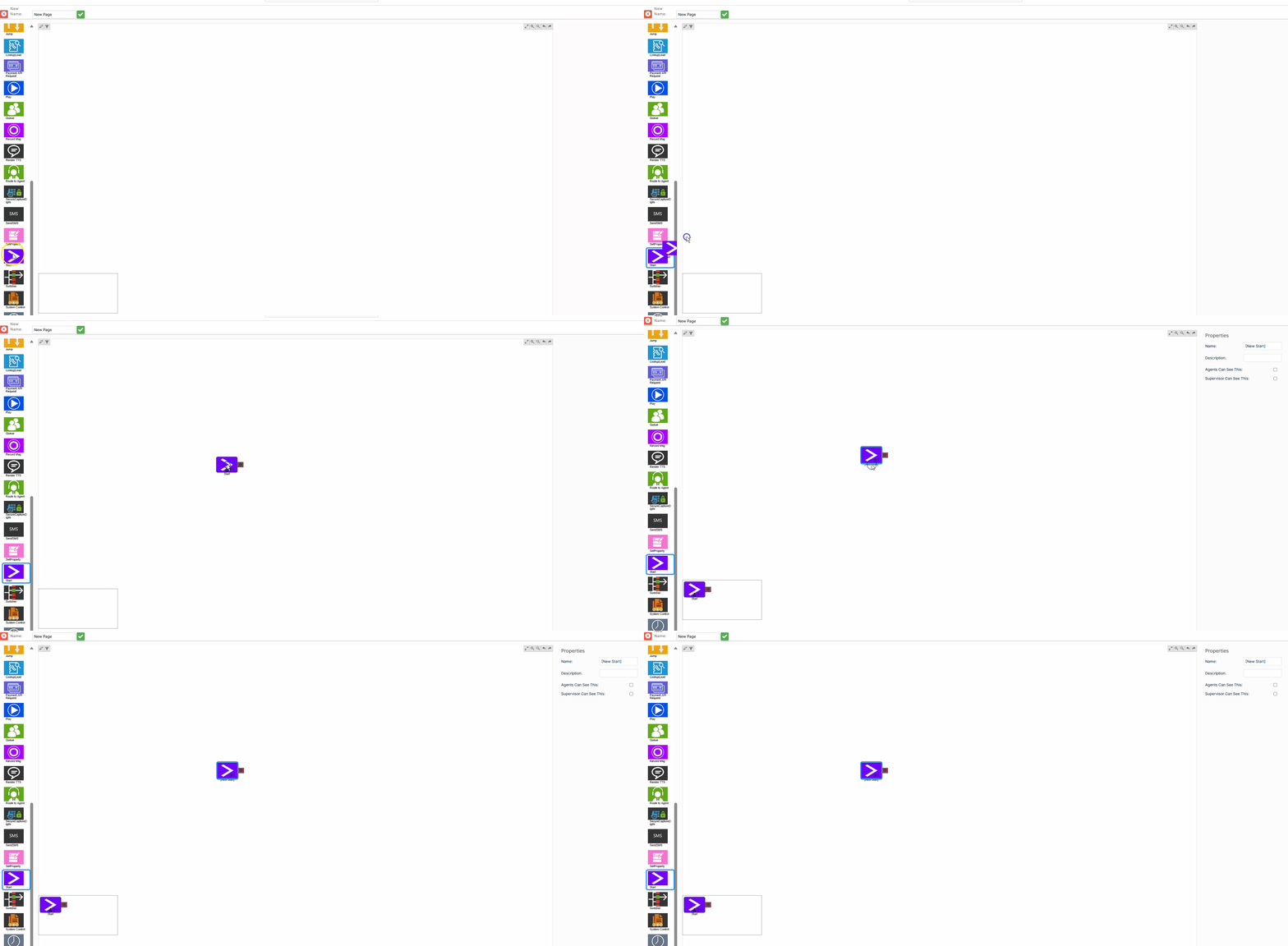
To place an element, click and drag it from the element list on the left-hand side onto the canvas. Once placed, the Properties panel on the right-hand side will populate with the settings available for that element.
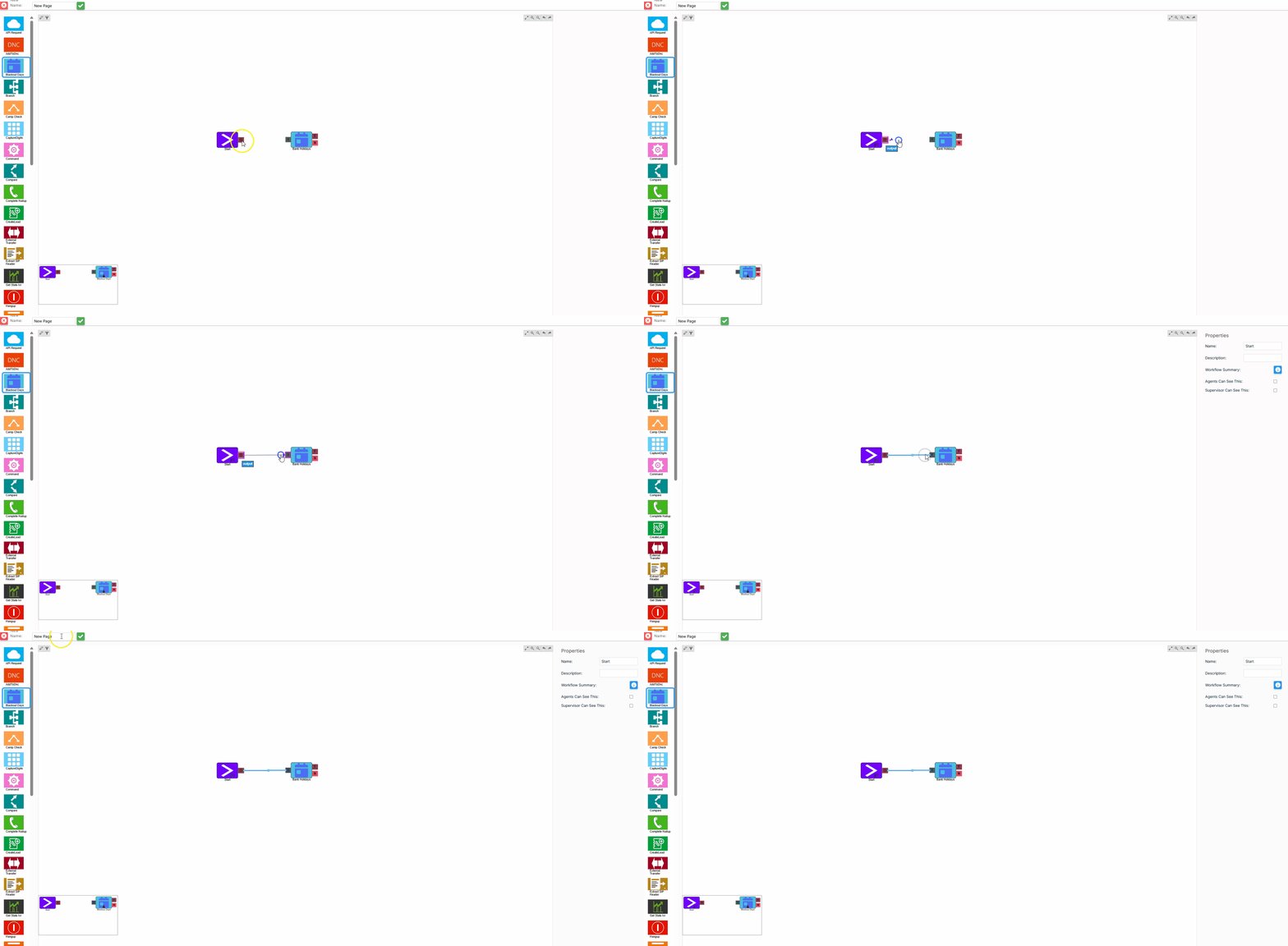
Connecting elements
To connect two elements, click and drag from one connection tab to another. Once connected, the elements remain joined even when moved around the canvas.
IVR elements
Each element available in the IVR Builder has its own dedicated article. Select an element from the list below to view its connections, settings, and examples.
| Element | Description |
|---|---|
| API Request | Makes an API call from within the IVR and stores the returned data for use in downstream elements. |
| Add to DNC | Lets callers remove themselves from your call list during an IVR interaction. |
| Blackout Days | Routes calls differently on specific configured dates, such as bank holidays or planned closures. |
| Branch Element | Routes calls based on the value of a specific data field. |
| Camp Check | Checks the current status of a campaign and routes the call accordingly. |
| Capture Digits | Prompts a caller to enter digits and captures the value for use later in the flow. |
| Command | Executes a system command at a defined point in the flow, such as updating call info or playing a value. |
| Compare | Evaluates a captured value against a condition and routes the call based on the result. |
| Create Lead | Creates a new lead record at any point in the IVR flow. |
| External Transfer | Routes a call from the IVR to a phone number outside of MaxContact. |
| Extract SIP Header | Reads one or more custom SIP headers from an inbound call and stores their values for use in the flow. |
| Get Stats | Retrieves a live statistic and stores it for use later in the flow. |
| Hang-up | Ends the call at a defined point in the flow. |
| IVR Menu | Presents a caller with a set of options and routes the call based on the key they press. |
| Jump | Transfers the call from one IVR flow to another. |
| Lookup Lead | Searches for a lead record using a value other than the caller's inbound phone number. |
| Payment Request | Connects to a payment engine to complete an IVR transaction. |
| Play | Plays one or more audio files to the caller. |
| Queue | Places a caller into a queue to wait for an available agent. |
| Record Message | Records an audio message from the caller, commonly used for voicemail. |
| Text to Speech | Converts written text into spoken audio and plays it to the caller, supporting dynamic content. |
| Route to Agent | Transfers a call directly to a specific agent. |
| Secure Capture Digits | Captures digits in a PCI-DSS compliant manner for use in payment flows. |
| Send SMS | Sends an SMS message to a phone number at a defined point in the IVR flow. |
| Set Property | Saves a value captured during the call to a specified destination for use in downstream elements. |
| Start | The entry point for every IVR flow. All inbound calls enter the flow through this element. |
| Switcher | Allows you to quickly change the active route of an IVR flow, manually or via automation. |
| System Control | Triggers a system action from within the IVR, such as starting or stopping a campaign or updating a Switcher element. |
| Time Check | Routes calls based on whether the current time falls within your configured opening hours. |