
Settings
The Settings page contains system-wide configuration options that apply across all campaigns, lists, and users. Changes made here affect the platform globally.
To access it, go to Settings > Advanced > Settings.
Email settings
Configures the SMTP email settings used by the system to send notifications and one-way script-triggered emails.
| Setting | Description |
|---|---|
| Alerts email | This is the email address that we will send notifications to i.e. data alerts |
| SMTP from | The email address that messages should be sent from. |
| SMTP server | The address of your outgoing mail server, used to send emails from the system. |
| SMTP port | The port used to send emails from your mail server. |
| Use SSL | Toggle to enable a secure SSL connection when sending emails. |
| SMTP email address | The email address used as the sender when emails are sent from scripts. |
| SMTP password | The password for the SMTP email address above. |
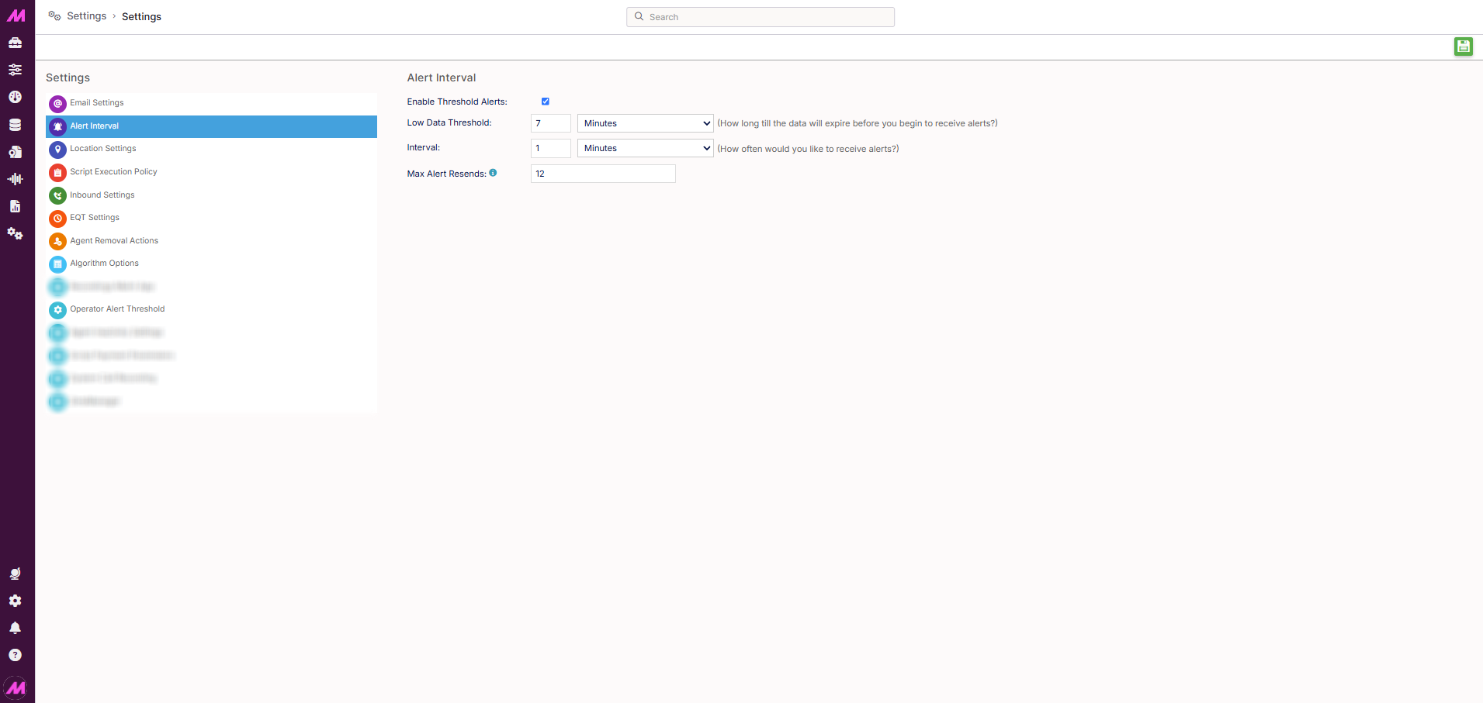
Alert interval
Controls how the system notifies you when data volumes are running low.
| Setting | Description |
|---|---|
| Enable threshold alerts | When enabled, alert emails are sent to the alerts email address when list data drops below the configured threshold. Applies to all lists that have Enable Alerts ticked in their settings. |
| Low data threshold | The amount of data remaining (in minutes, hours or days) that triggers an alert email to be sent. |
| Interval | How frequently alert emails are sent while the data remains below the threshold. |
| Max alert re-sends | The maximum number of follow-up alerts to send after the initial notification. |
Location settings
The drop down here allows you to set the geographical location of your MaxContact system.
Script Execution Policy
These settings control which script agents see in different calling scenarios. The Load Script From setting applies to manual dials and inbound calls by default. The inbound-specific settings below override Load Script From for inbound calls where a lead is or is not found.
| Setting | Description |
|---|---|
| Load script from | Controls which script is shown to an agent when a manual dial or inbound call is presented. List Associated to the Lead — shows the script assigned to the list the matched lead belongs to. Default List Assigned to the Agent's Campaign — shows the script assigned to the campaign's default list. If no lead is found, the campaign's default list script is used regardless of this setting. |
| Callback script | Controls which script is shown when an agent handles a private callback. List Associated to the Lead — shows the script assigned to the list the lead belongs to. Default List Assigned to the Agent's Campaign — shows the script assigned to the campaign's default list. |
| Setting | Description |
|---|---|
| Inbound matched script | Controls which script is shown when a lead is found for an inbound call. List Associated to the Lead — shows the script assigned to the list the matched lead belongs to. Default List Assigned to the Agent's Campaign — shows the script assigned to the campaign's default list. List Assigned to the Inbound Plan — shows the script assigned to the list configured on the inbound number entry (see Inbound Numbers). |
| Inbound not matched script | Controls which script is shown when no lead is found for an inbound call. Default List Assigned to the Agent's Campaign — shows the script assigned to the campaign's default list. List Assigned to the Inbound Plan — shows the script assigned to the list configured on the inbound number plan. |
Inbound settings
| Setting | Description |
|---|---|
| Lead lookup priority | When an inbound call is received, determines which lead the system matches first if multiple leads share the same phone number. Options: Most Recently Called — matches the lead most recently called. Most Recent Connect — matches the lead from the most recent connected call. Oldest Called — matches the lead that has gone the longest since its last call. Newest Import — matches the most recently imported lead. Oldest Import — matches the oldest imported lead. Skip Match — does not attempt to match an existing lead, meaning all inbound calls are treated as new leads. These settings apply system-wide as the default behaviour for all inbound calls. If you need different lead matching logic for specific inbound routes — for example, matching on a different priority for one campaign versus another — this can be configured at the IVR level using the Lookup Lead Element. Settings applied in the IVR will take precedence over the system-wide defaults set here. |
| In case of duplicate leads | Controls what happens when multiple leads match the inbound caller's number. First Matched Lead — the system automatically selects the first match it finds. Show Search in Agent — the agent is presented with a search bar to find and select the correct lead manually. |
| Stats list after lookup | Determines which list the call statistics are associated with after a lead is matched, such as within Record History. Matched Record's List — stats are recorded against the list the matched lead belongs to. List Assigned to the Inbound Plan — stats are always recorded against the list configured on the inbound number, regardless of where the matched lead lives. |
EQT settings
EQT stands for Estimated Queue Time. These settings control how queue time announcements are worded and when they are played to callers.
| Setting | Description |
|---|---|
| EQT skip time | If the estimated queue time is at or below this number of minutes, the EQT announcement is skipped entirely. |
| EQT under time | If the estimated queue time is at or below this number of minutes, the announcement will say "under [n] minutes" rather than stating a specific time. |
| EQT around time | If the estimated queue time is at or below this number of minutes, the announcement will say "around [n] minutes" rather than stating a specific time. |
Agent removal actions
These settings control what happens to an agent when a campaign they are logged into is paused. This does not act as an auto wrap or auto-disposition feature — it only applies when the campaign itself is paused.
| Setting | Description |
|---|---|
| Remove action delay | The time in seconds the system waits after a campaign is paused before applying the removal action to agents still in wrap or not ready. If the agent is on a live call, the system waits for the call to finish before starting the countdown. |
| Removal action | The action to take once the delay has elapsed. Options include: Do nothing Cancel Go to break Log off |
| Removal action break | The break type to assign the agent if the removal action is set to break. Only available when Break is selected as the removal action. |
| Default result code | The result code applied to any call that is automatically terminated when the removal action fires. For example, if an agent is left in wrap after a call and the campaign is paused, the call will be dispositioned with this result code after the delay has elapsed. |
Algorithm options
These settings control the Drop Prevention Queue (DPQ) behaviour used by the progressive dialling undroppable feature. The DPQ holds an agent in a ready state without dialling so they are available to receive a connected call immediately, preventing dropped calls. For more detail on how this works, see Progressive Dialling — Undroppable.
| Setting | Description |
|---|---|
| Drop prevent agents | Sets the ratio of agents that can be placed in the DPQ at any one time. The value entered represents the number of campaign agents required for every one agent that can be held in the DPQ. For example, a value of 5 means for every 5 agents in the campaign, 1 can be placed in the DPQ — so a campaign with 10 agents could have up to 2 in the DPQ at once. |
| Drop prevent time | The maximum time in seconds an agent can be held in the DPQ before the system nominates a replacement. This prevents a single agent from being held in the DPQ indefinitely, which would increase their wait time disproportionately. The replacement only occurs if another agent is in a ready state when the time elapses. |
Operator Alert Threshold
Operator Alert Threshold notifies you if a percentage of calls on a campaign are being flagged as an "operator". This helps you catch issues early, whether that's a network carrier such as O2, Vodafone, or BT experiencing problems, or a data issue such as a missing leading zero on imported phone numbers.
| Field | Description |
|---|---|
| Operator Threshold | The percentage of "operator" responses that triggers an alert once exceeded. |
| Operator Timeout | The time period the percentage is calculated over. |