
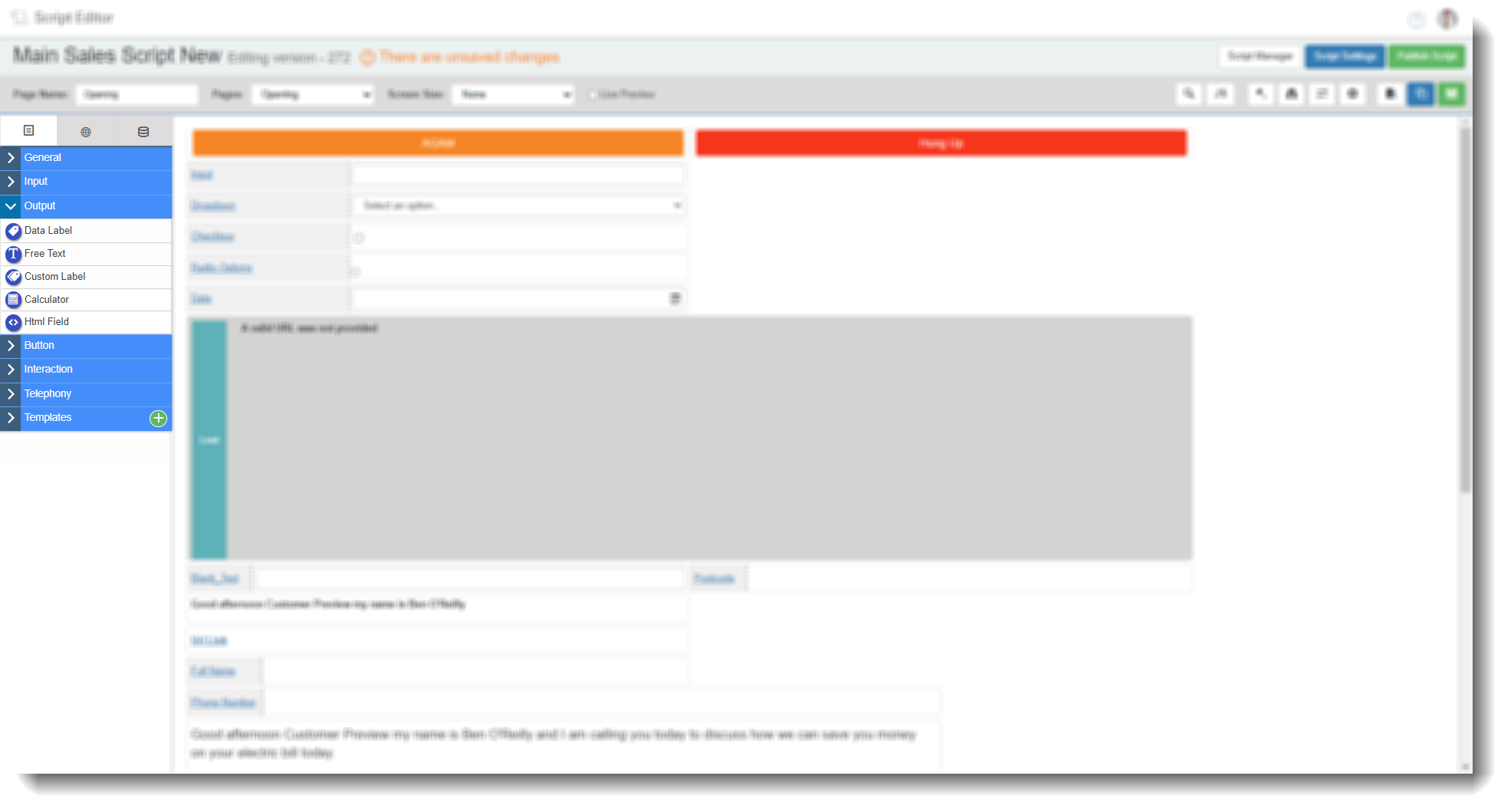
Drag and Drop Fields — Output
The Output tab in the Field Options panel contains five display field types: Data Label, Free Text, Custom Label, Calculator, and HTML Field. These fields present information to agents but cannot be edited during a call. Drag any of these onto a script page to add them, then select the edit icon to configure.
The Data Label, Free Text, Custom Label, and Calculator field types all share a common Database tab. The full Database tab settings are documented once in the Database tab section at the end of this article.
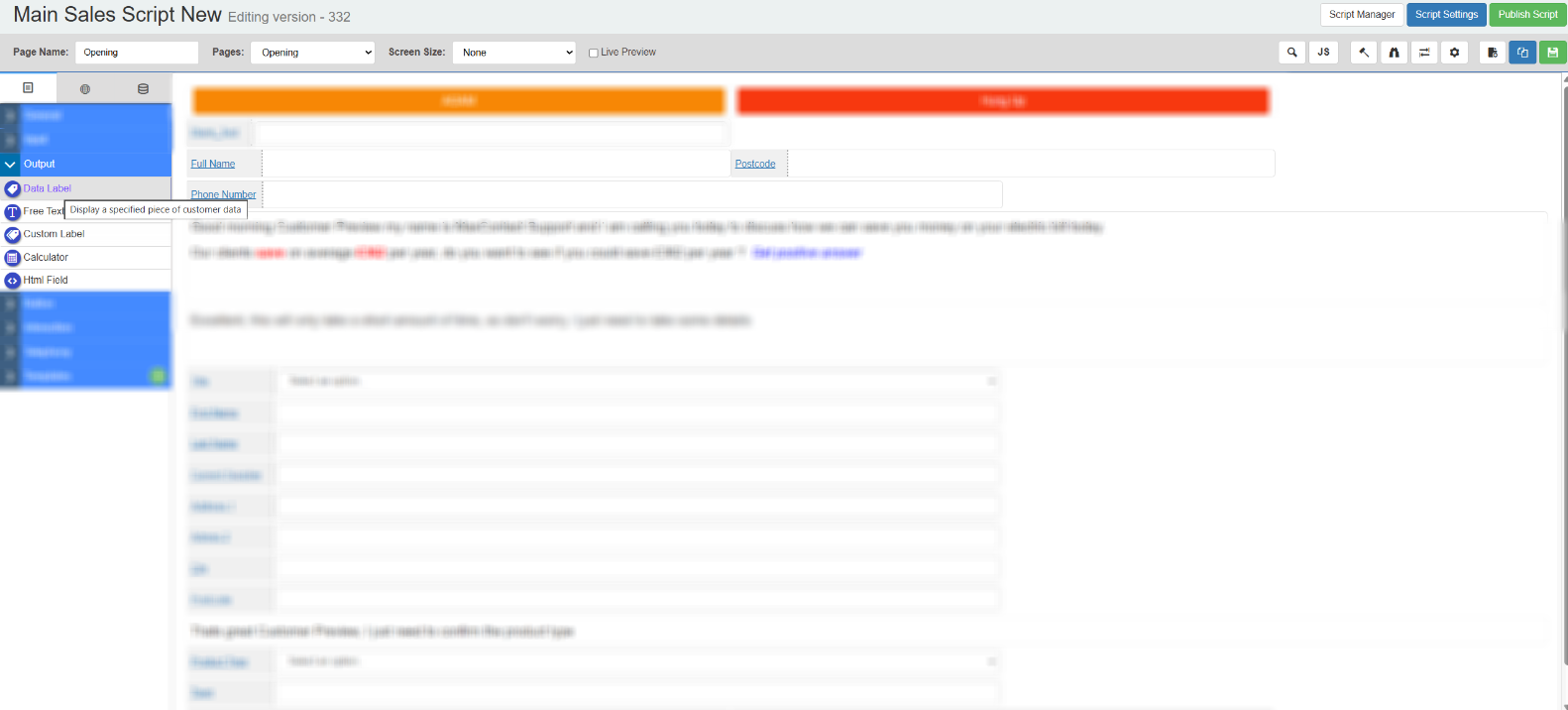
Data Label
Displays a value pulled from a database field. The data is shown to the agent but cannot be edited — this is a read-only display field.
Tab 1 — Field Config
| Setting | Description |
|---|---|
| Reference name | The system-generated reference for this field. Can be edited. |
| Label | The field name displayed on the script. Can be edited. |
Tab 2 — Field Style
| Setting | Description |
|---|---|
| Visible | Controls whether the field is visible on the script when it loads. |
| Bold label | When enabled, the field label text is displayed in bold. |
Tab 3 of the Data Label is the Database tab. See the Database tab section below.
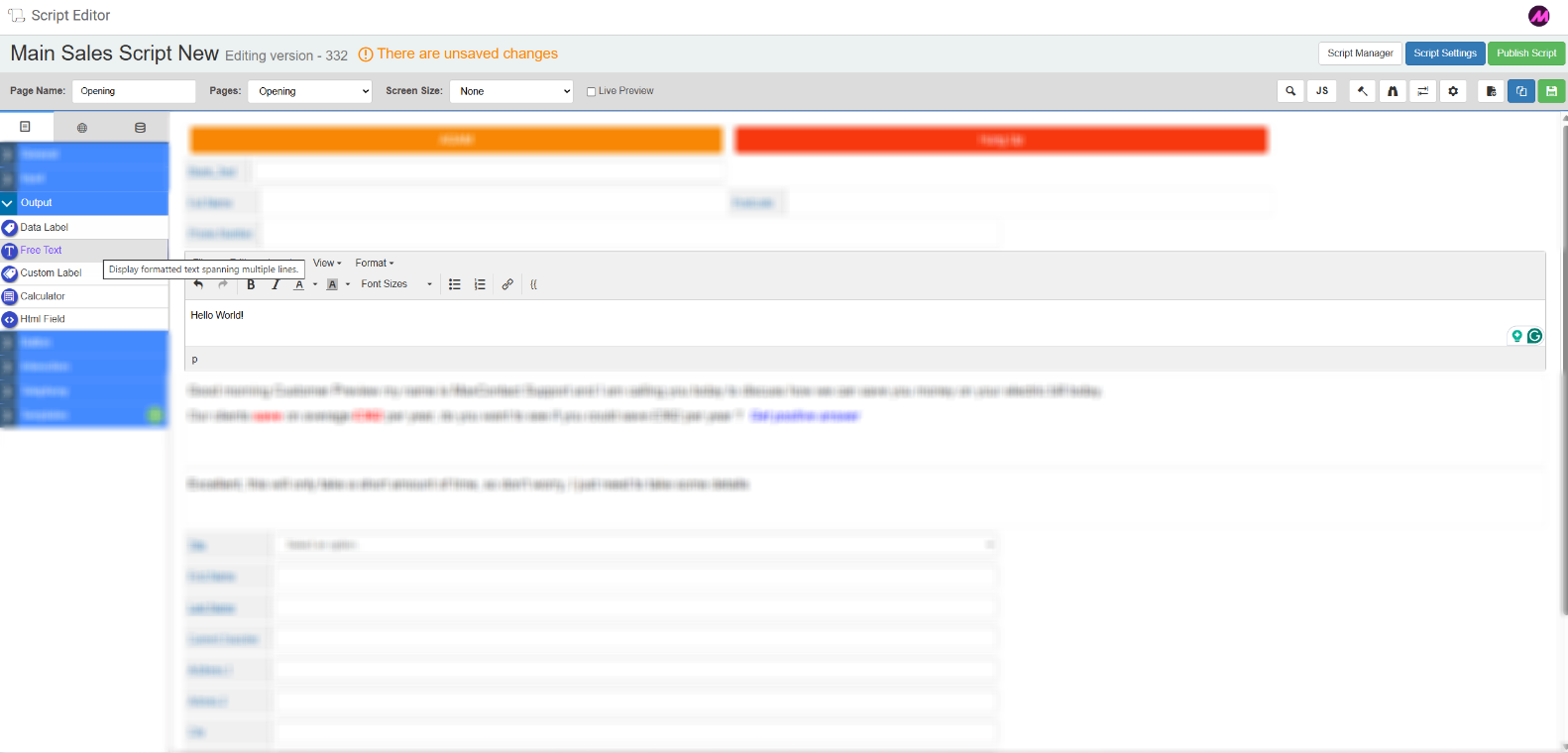
Free Text
Adds a block of static or dynamic text to the script. You can include fill-points that pull in lead data — for example, the customer's name or an appointment date captured earlier in the script.
Tab 1 — Field Config
| Setting | Description |
|---|---|
| Reference name | The name for this field. Can be edited. |
Tab 2 — Field Style
| Setting | Description |
|---|---|
| Visible | Controls whether the field is visible on the script when it loads. |
Tab 3 of the Free Text field is the Database tab. See the Database tab section below.
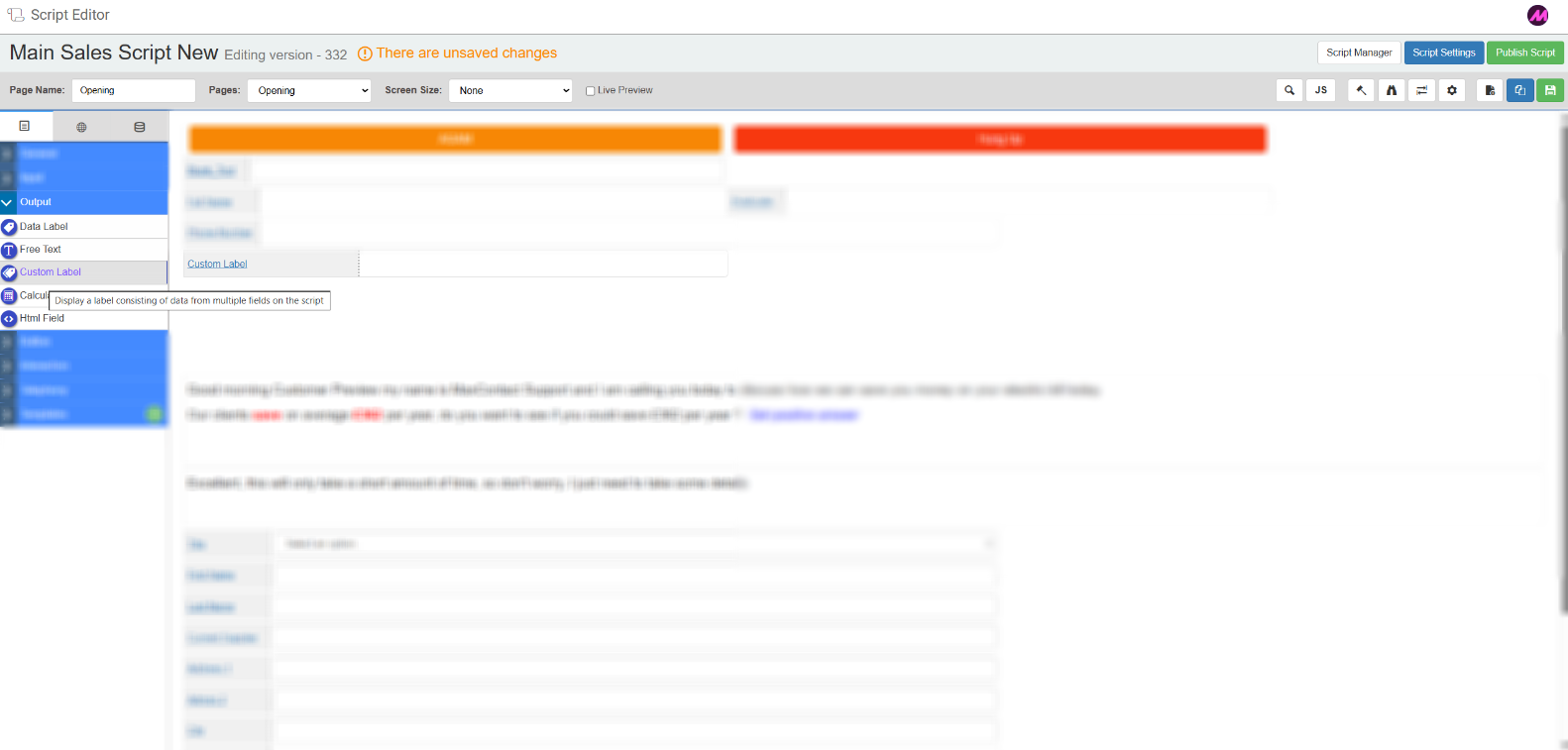
Custom Label
Lets you build a single display field that combines multiple pieces of data. Use this to present composite information — for example, a customer's full address assembled from individual address line fields, or a summary sentence that pulls in several data points at once.
Tab 1 — Field Config
| Setting | Description |
|---|---|
| Reference name | The system-generated reference for this field. Can be edited. |
| Label | The field name displayed on the script. Can be edited. |
| Template | Select from System Fields or Page Fields to insert data placeholders into the label template. These are rendered dynamically when the script loads. |
| Preview | Shows how the completed label will appear when the script is live. |
Tab 2 — Field Style
| Setting | Description |
|---|---|
| Visible | Controls whether the field is visible on the script when it loads. |
| Bold label | When enabled, the field label text is displayed in bold. |
Tab 3 of the Custom Label is the Database tab. See the Database tab section below.
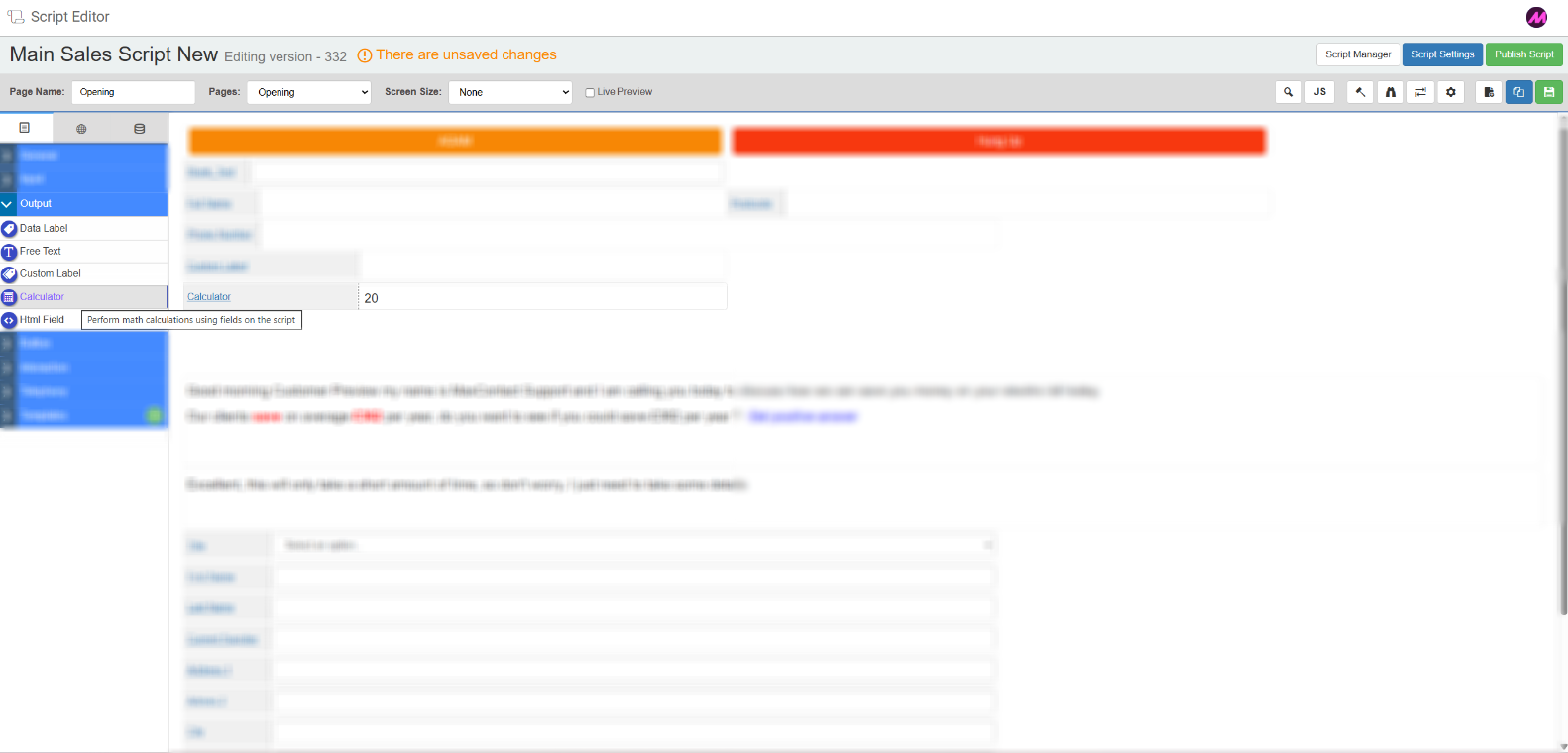
Calculator
Performs a calculation and displays the result on the script. Other script fields can be referenced in the formula, allowing the output to update dynamically as agents enter or change values during a call.
Tab 1 — Field Config
| Setting | Description |
|---|---|
| Reference name | The system-generated reference for this field. Can be edited. |
| Label | The field name displayed on the script. Can be edited. |
| Math | Enter the calculation to perform. Use the dropdown to reference other script fields as variables within the formula. |
| Preview | Displays how the calculated result will appear when the script is live. |
Tab 2 — Field Style
| Setting | Description |
|---|---|
| Visible | Controls whether the field is visible on the script when it loads. |
| Bold label | When enabled, the field label text is displayed in bold. |
Tab 3 of the Calculator field is the Database tab. See the Database tab section below.
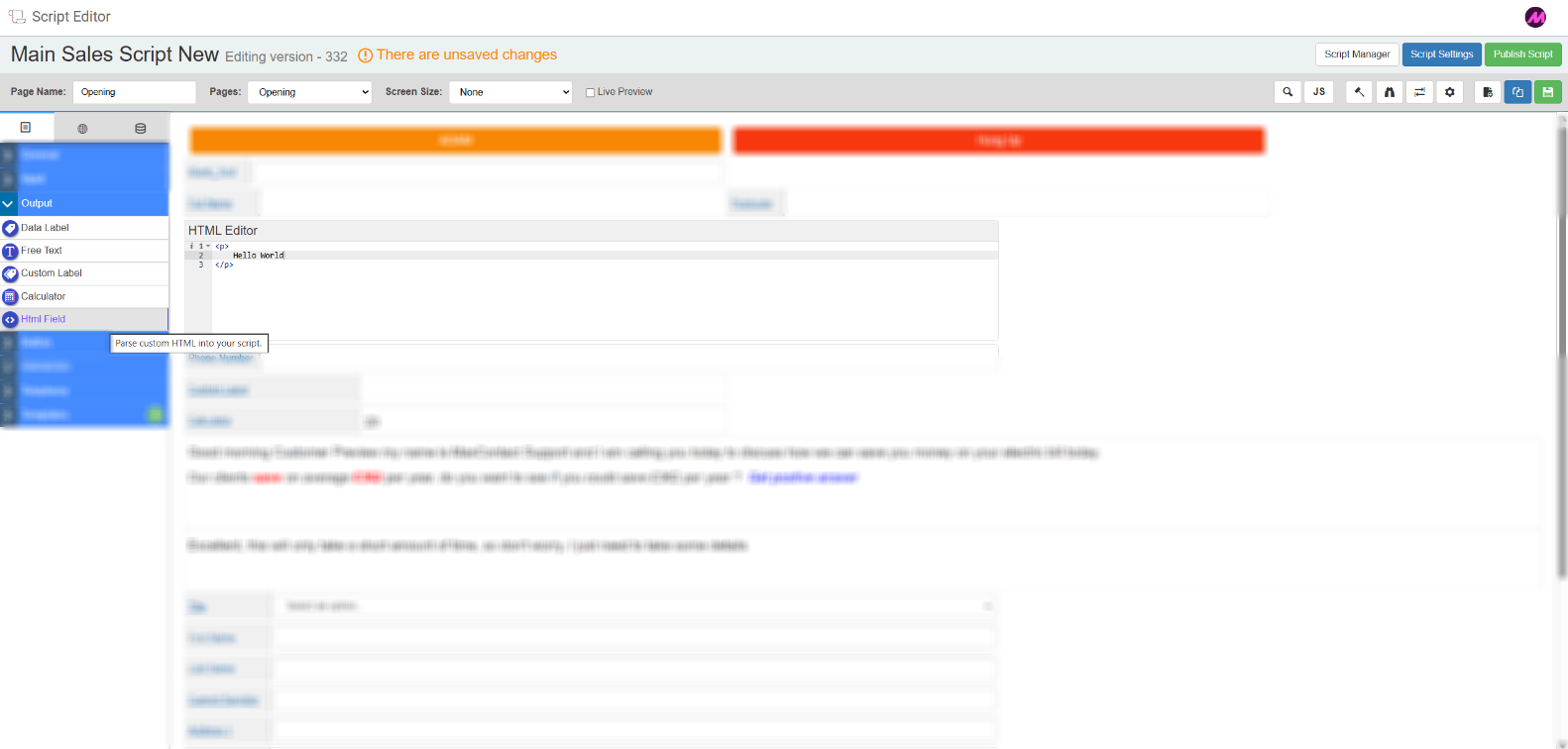
HTML Field
Lets you insert custom HTML directly onto the script page. Use this to add bespoke formatting, structure, or presentation elements that go beyond what the standard fields provide.
Tab 1 — Field Config
| Setting | Description |
|---|---|
| Reference name | The system-generated reference for this field. Can be edited. |
| Add at cursor | Select a field from the dropdown to insert a data reference at the current cursor position in the HTML code. |
| Preview | Displays how the HTML will render when the script is live. |
Tab 2 — Field Style
| Setting | Description |
|---|---|
| Visible | Controls whether the field is visible on the script when it loads. |
Database tab
The Database tab is present on the Data Label, Free Text, Custom Label, and Calculator field types. It controls how the field links to your data tables.
| Setting | Description |
|---|---|
| Use database field or global field | Choose whether to populate this field from a database column or from an existing global field on the script. |
| Duplicate script fields | Shows any other fields in the script linked to the same database column. Changes to one will affect the other. |
| Select customer data table | Select the data table you want to link this field to. |
| Choose database field | Select the specific column from the chosen table to link to this script field. |
| Create a new field | Opens options to create a new database field if the one you need does not exist. |
| Create a new table | Opens the Contact Data Tables page in a new tab where you can create a new data table. |