
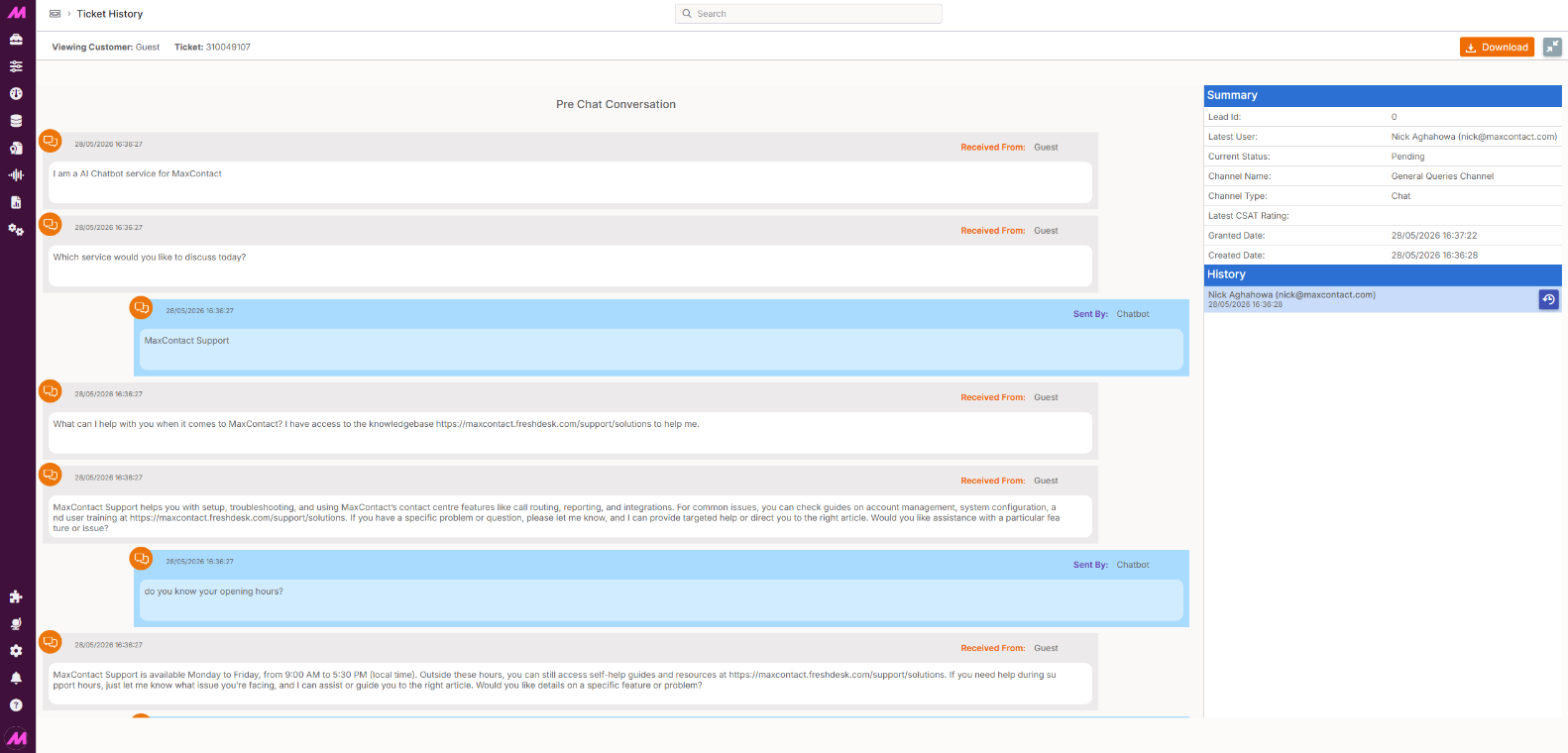
Ticket History
The Ticket History view shows the full transcript of a digital interaction — webchat, email, SMS, WhatsApp, or Facebook — along with a summary of the interaction and any previous contact history with the same customer.
It is accessed from the Record History page. For any interaction that is not a voice call, a ticket history button appears alongside the More info button in the results row. Clicking it opens the transcript in a new browser tab.
The screen is split into two panels:
- The left panel shows the full message thread between the agent and the customer in chronological order.
- The right panel shows a summary of the interaction and, where relevant, any previous interaction history with the same customer.
Interaction pane icons
A number of icons appear within the interaction pane alongside messages and at the top of the view. The table below describes what each one does.
| Icon | Description |
|---|---|
Reply | Opens the agent interface to reply to the thread. Allows you to send a follow-up message to the customer directly from the ticket history view. |
Add note | Adds an internal note to the interaction. Notes are visible to users with access to the ticket but are not sent to the customer. |
Edit message | Opens the text editor for the selected message, allowing you to modify what is stored on the database. Use this to remove sensitive information entered in error — for example, payment details or inappropriate language. An edit indicator appears next to any message that has been modified. |
Attachment | Indicates a file attached to a message. The file size is shown alongside the icon. |
Delete attachment | Permanently removes the attachment from the interaction. This action cannot be undone. Only visible to users with the relevant permission. |
Over exception | Indicates the message was flagged as over the exception threshold set on the associated result code. |
Over SLA | Indicates the message was replied to after the SLA time had elapsed. Hover over the icon to see the exact time the SLA was breached. |
Thread closed | Marks the point in the transcript where the interaction thread was closed. |
Message unable to be sent | Indicates that the message could not be sent. |
Automated message | Indicates the message was sent automatically by the system — for example, a no-response timeout message. |
Session terminated | Shows the details of when and how the session was terminated, including who or what ended it. |
Outcome | Shows the result code used to disposition the interaction. |
Expand conversation | Expands a collapsed thread to show all messages within it. |
Download transcript | Downloads a copy of the interaction transcript. Two formats are available: a plain text version and a more visually formatted PDF. |
Expand / contract | Toggles the interaction pane between its standard size and a full-width expanded view. |
Ticket history link | Takes you to the full ticket history view for this interaction, opening it in a new tab. |
Channel views
The layout of the interaction pane varies slightly depending on the channel type. Below is a brief description of what to expect for each.
| Channel | View |
|---|---|
Email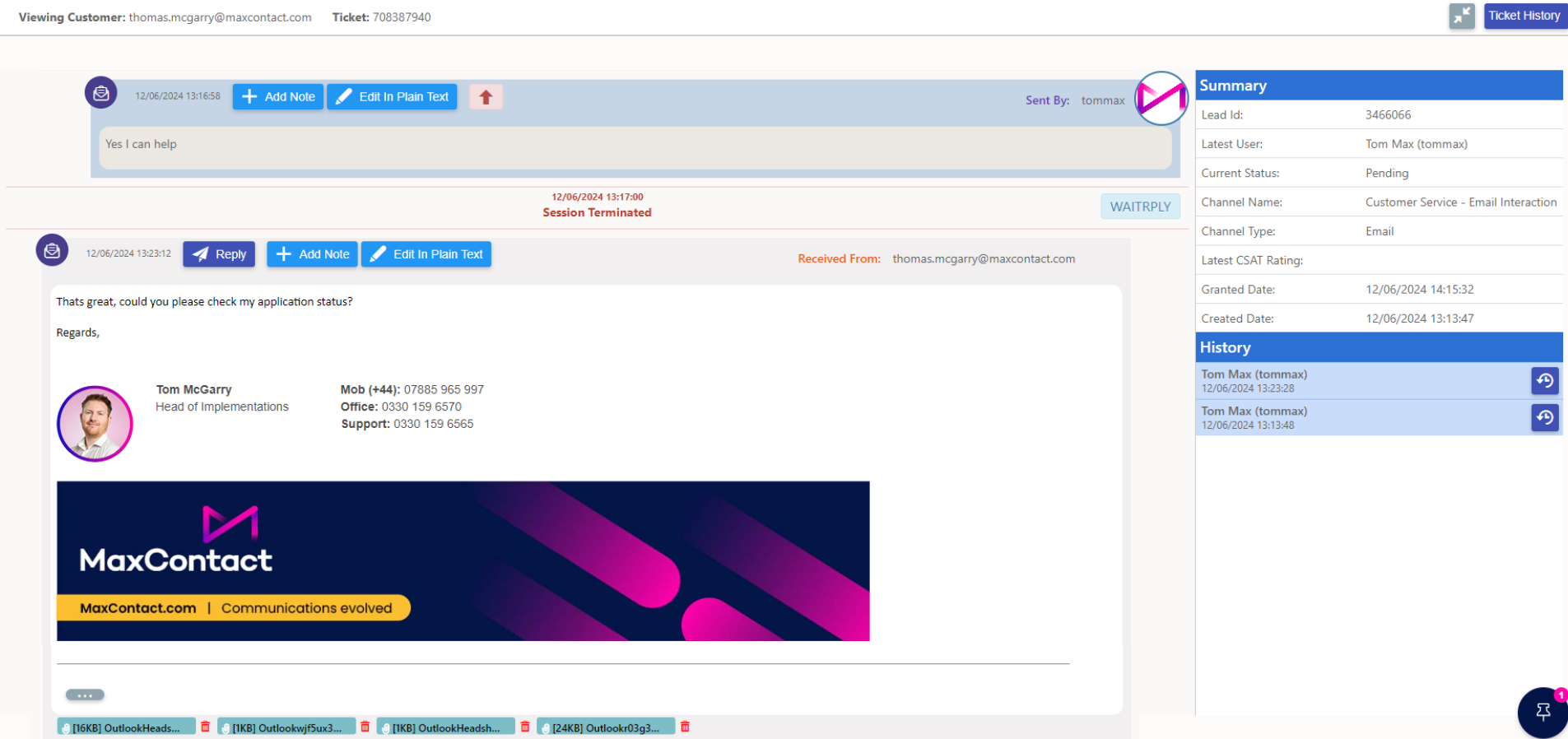 | Shows the full email thread with each message displayed as a collapsible email block. The subject line, sender, recipient, and timestamps are visible for each message. Attachments appear as downloadable files within the relevant message. |
Webchat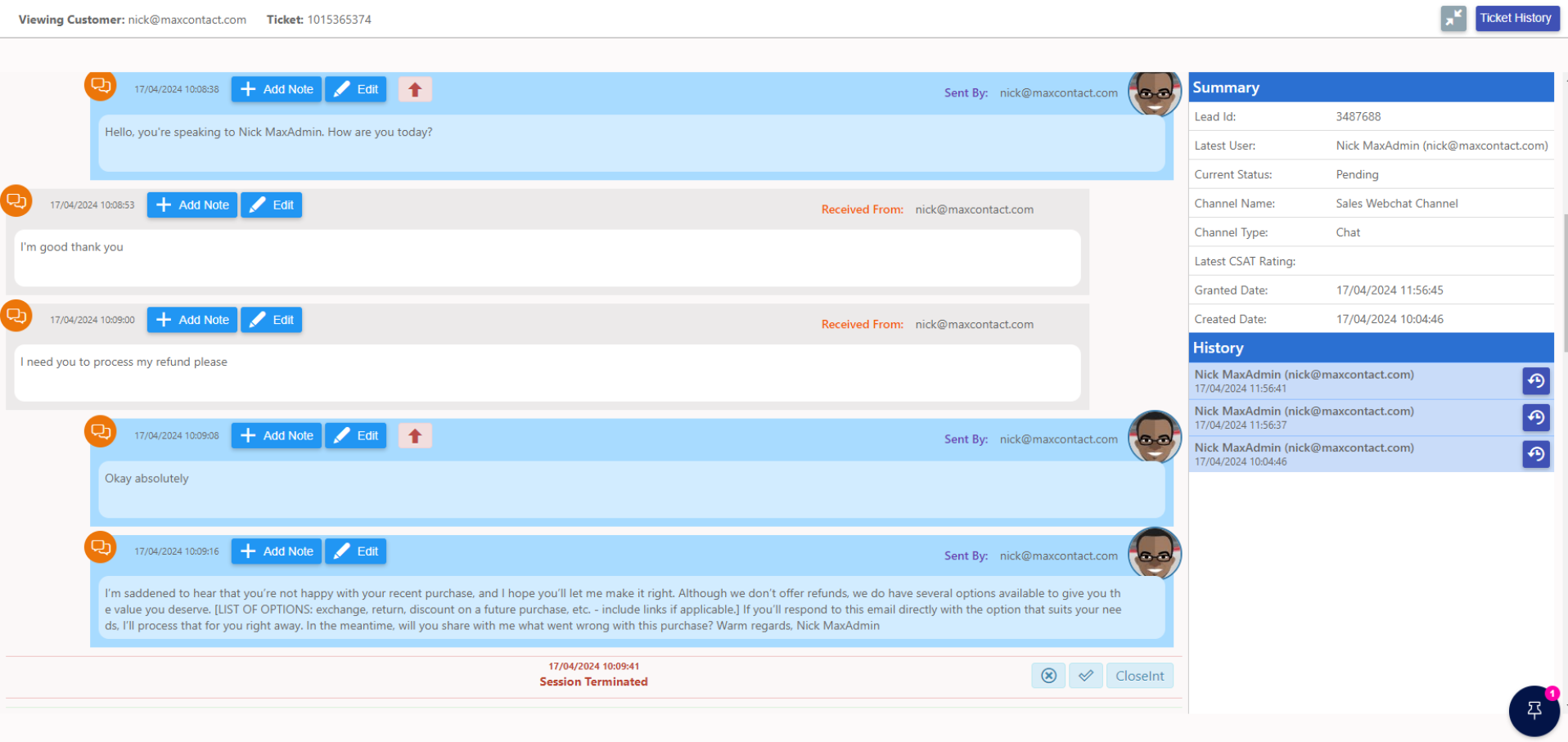 | Displays the conversation as a chat thread with messages from the customer and agent on opposite sides. Any pre-chat information submitted before the chat started is shown at the top of the thread. |
SMS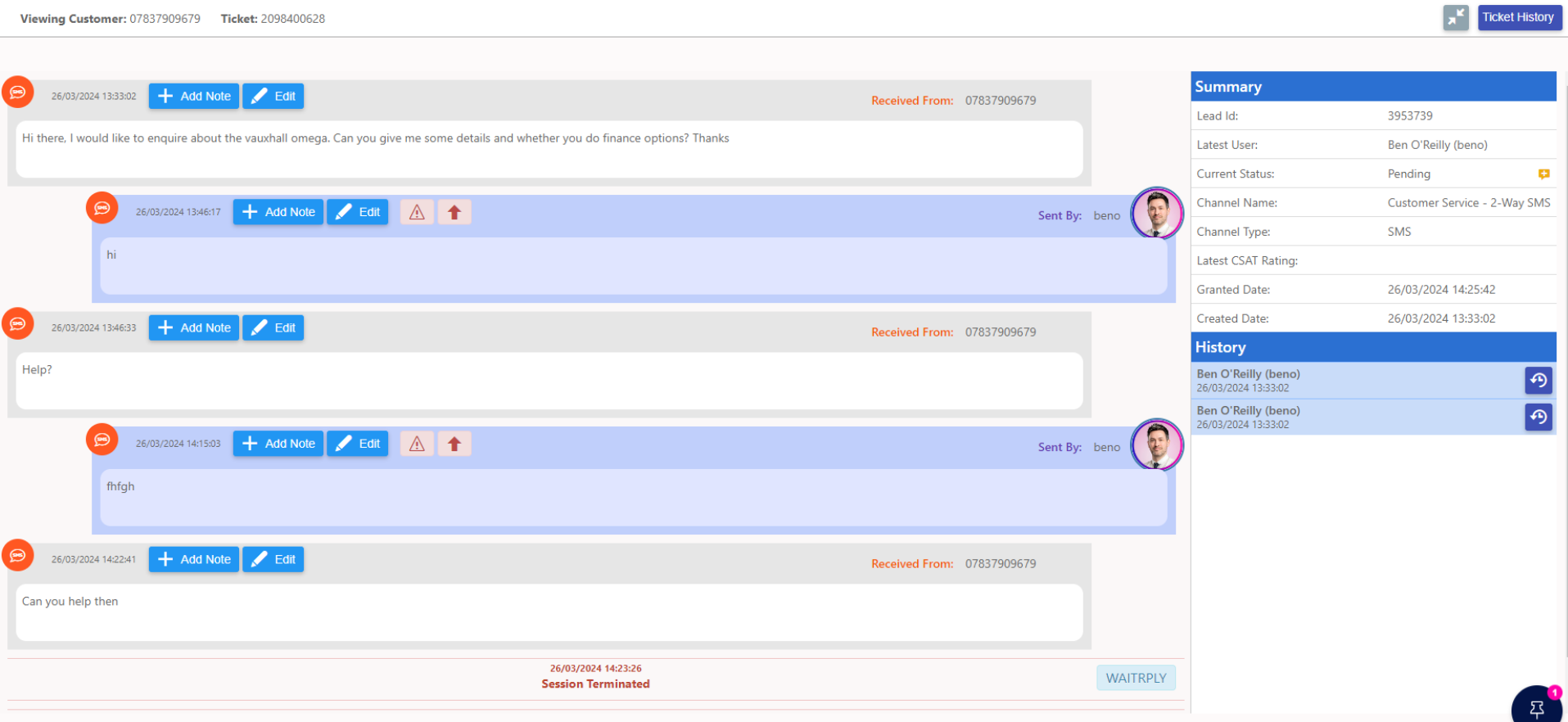 | Shows the SMS thread in a messaging-style layout. Each message is timestamped and attributed to either the agent or the customer. |
WhatsApp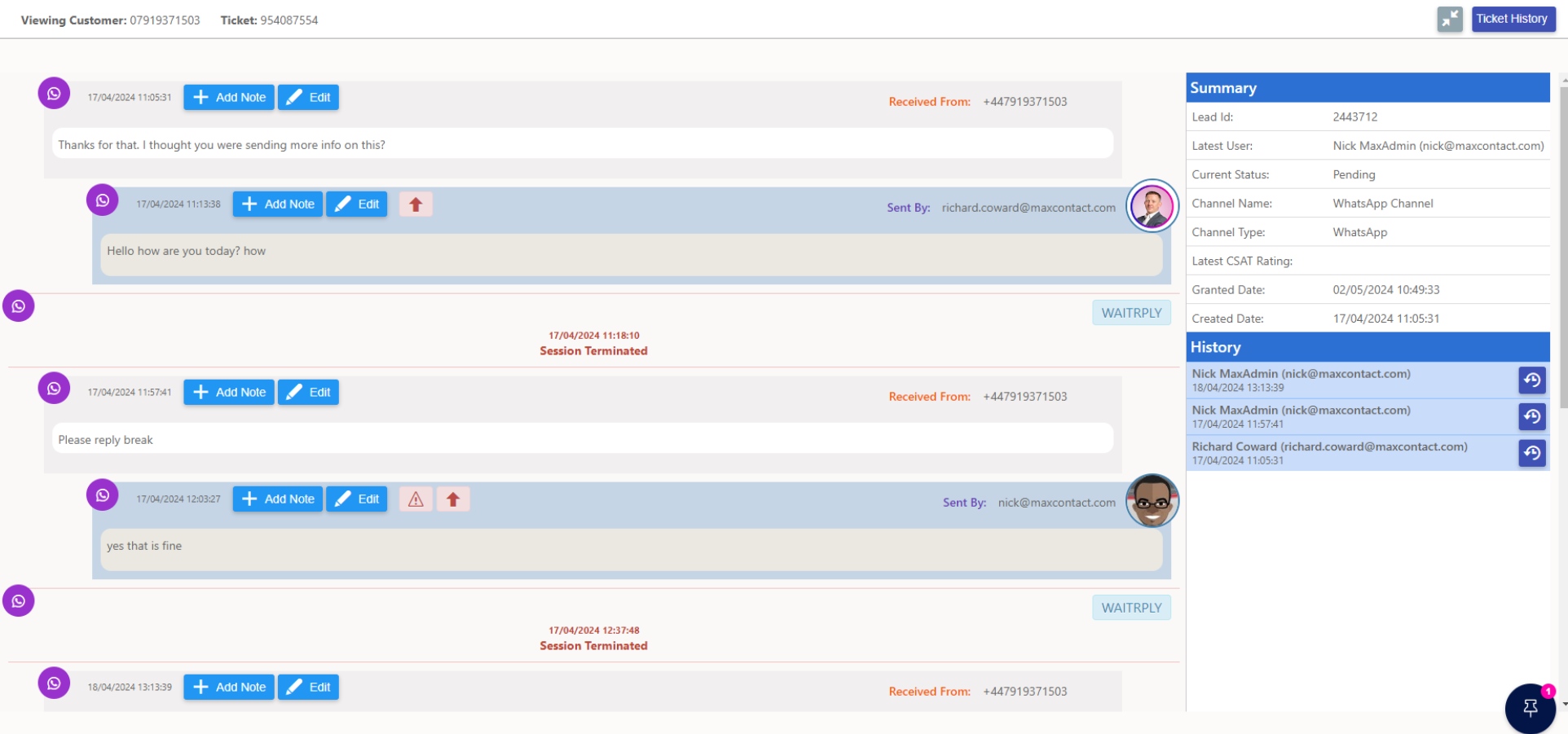 | Displays the WhatsApp conversation in a chat-style view. Media attachments such as images are shown inline within the thread. |
Facebook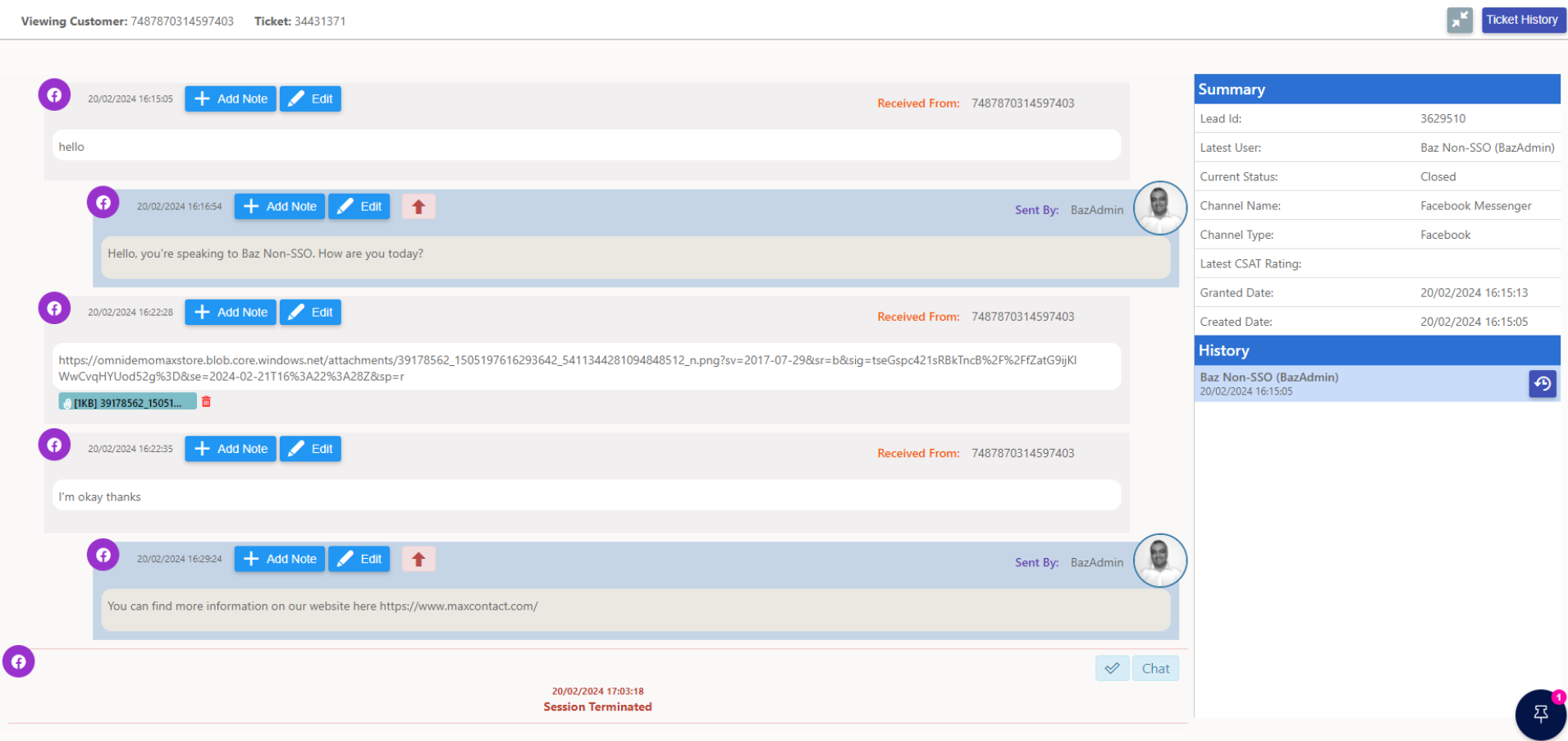 | Shows the Facebook Messenger conversation in a chat-style view, with messages attributed to each participant and timestamps displayed throughout. |