
Get Stats IVR
The Get Stats element retrieves a live statistic — such as queue wait time or the number of staffed agents — and stores it for use later in the IVR flow. Once captured, the value can be read back to the caller via a Text to Speech element, or used to influence routing decisions elsewhere in the flow.
Connections
| Connection | Description |
|---|---|
| I – Input | The entry point for this element. Connect from the preceding element in your IVR flow. |
| O – Output | The path taken when the stat has been successfully retrieved. |
| E – Error | The path taken if the element encounters an error — for example, if the stat cannot be retrieved. |
Settings
| Field | Description |
|---|---|
| Name | Give the element a clear name so it is easy to identify within your IVR flow. This name is also used when referencing the retrieved stat in a Text to Speech element. |
| Description | Optional. Add a note to explain the element's purpose — useful in more complex flows. |
| Agent Can See This | When enabled, agents can transfer a live caller directly to this element via the IVR Transfer option. |
| Supervisor Can See This | When enabled, the element is visible in the IVR Transfer list for users with a Supervisor role. It remains hidden from all other users. |
| Result Code | Assign a result code to this element. This result code is applied if the caller disconnects while in the element. |
| Stat Type | Select the type of entity you want to retrieve a stat for. The available options are: Campaign, Queue, List, Team, and User. |
| Entity Type | Select the specific entity to retrieve the stat from. The options available here are determined by your Stat Type selection — for example, selecting Campaign in Stat Type will populate this dropdown with your available campaigns. |
| Stat Selection | Select the specific stat you want to retrieve. The available stats depend on the Stat Type selected:
|
Using the retrieved stat in a Text to Speech element
Once the Get Stats element has retrieved a value, you can reference it in a Text to Speech element to read it back to the caller. Use the following syntax, replacing Element Name with the name you gave the Get Stats element:
{{Element Name.stats}}
You can also apply a format modifier to control how the value is read out:
| Syntax | Output |
|---|---|
{{Element Name.stats:stat-millitoseconds}} | Converts milliseconds to seconds and reads "[Seconds Number] seconds" |
{{Element Name.stats:stat-millitominutes}} | Converts milliseconds to minutes and reads "[Minutes Number] minutes [Seconds Number]" |
{{Element Name.stats:stat-percentage}} | Reads "[Percentage Number] percentage" |
{{Element Name.stats:stat-seconds}} | Reads "[Seconds Number] second" |
Example
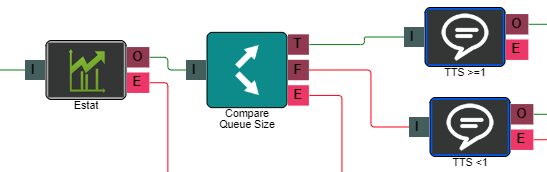
In the example above, the Get Stats element retrieves a live queue statistic and stores it for use in the flow. A Text to Speech element then reads the stat back to the caller. The output connection from the Get Stats element is also used to route the call based on the retrieved value — for example, directing callers to a different queue depending on current wait time.
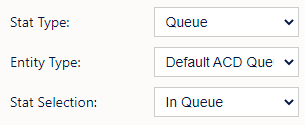 Get Stats IVR element set up Get Stats IVR element set up | 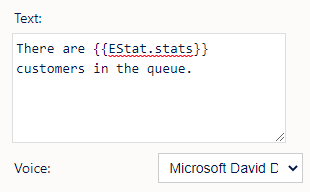 TTS element set up TTS element set up |