
Enable/Disable Call Recording
Call recording can be enabled or disabled at several levels in MaxContact: system, campaign, inbound number, queue, and manually during a call.
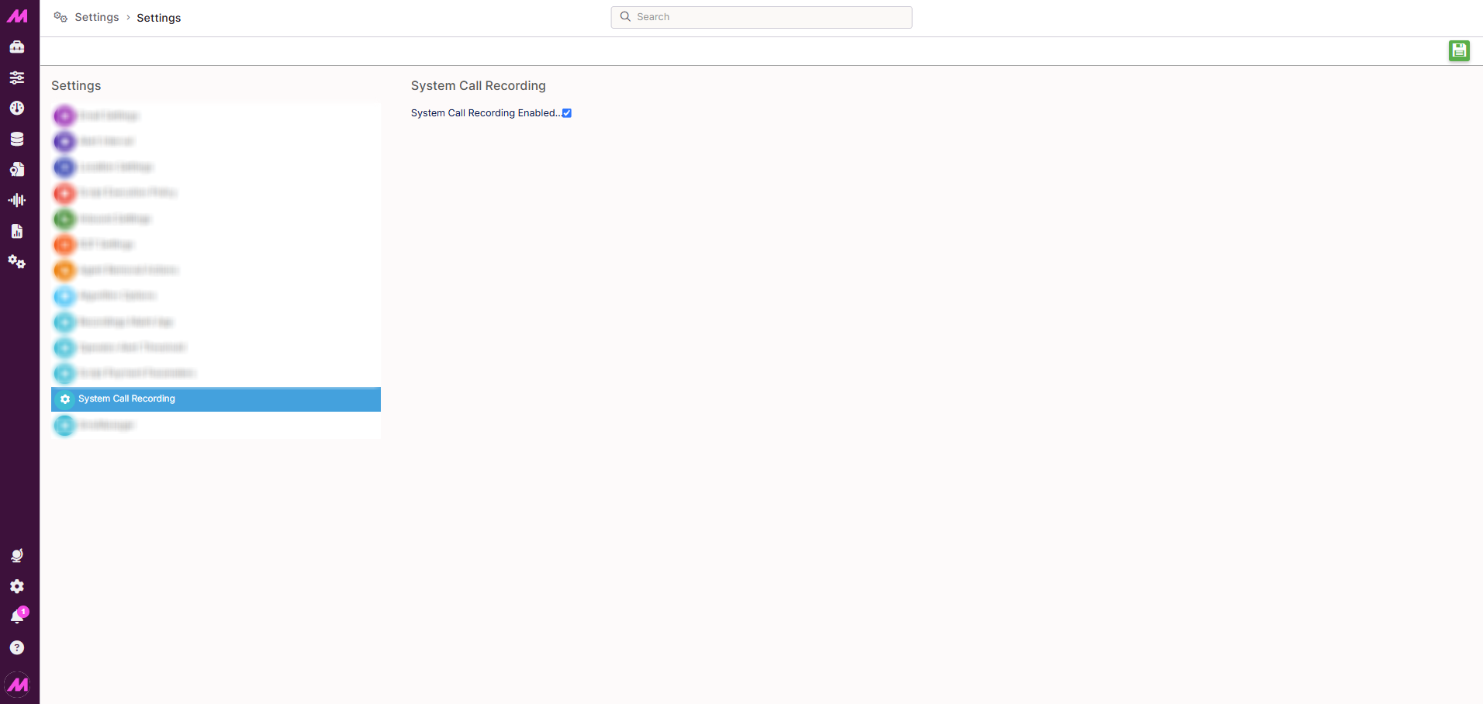
System level
By default, your platform is fully set up to allow call recording. If you want the option to turn recording on or off system-wide, contact the MaxContact Support team.
With this setting switched off, no calls of any kind are recorded, and users can't start recording manually. This is useful if you don't want any calls recorded on the platform at all.
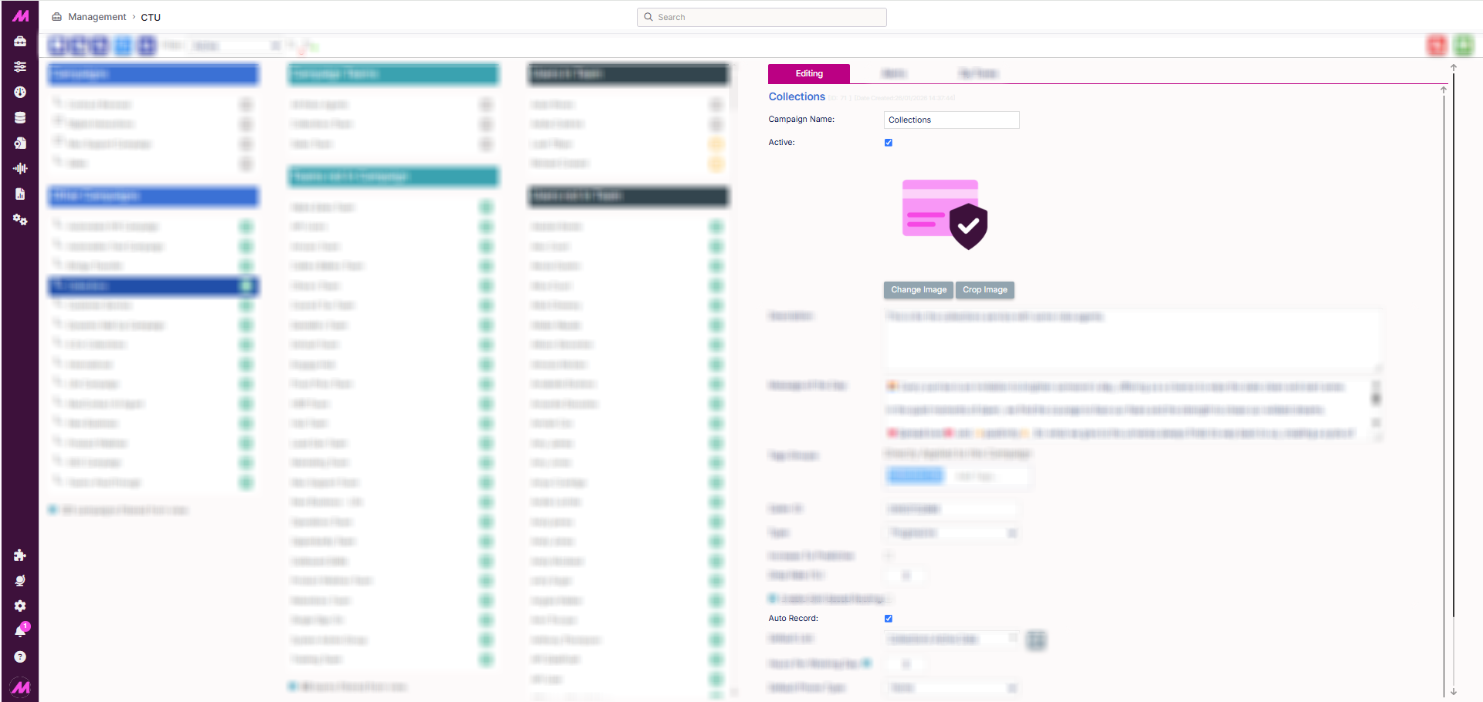
Campaign level (outbound)
On the CTU page, select the Auto Record option to enable call recording by default for a campaign, or deselect it to disable recording for that campaign.
With Auto Record enabled, all outbound calls made in that campaign are recorded, and users with the necessary permission can manually start and stop recording. Recording can also be started and stopped via scripts.
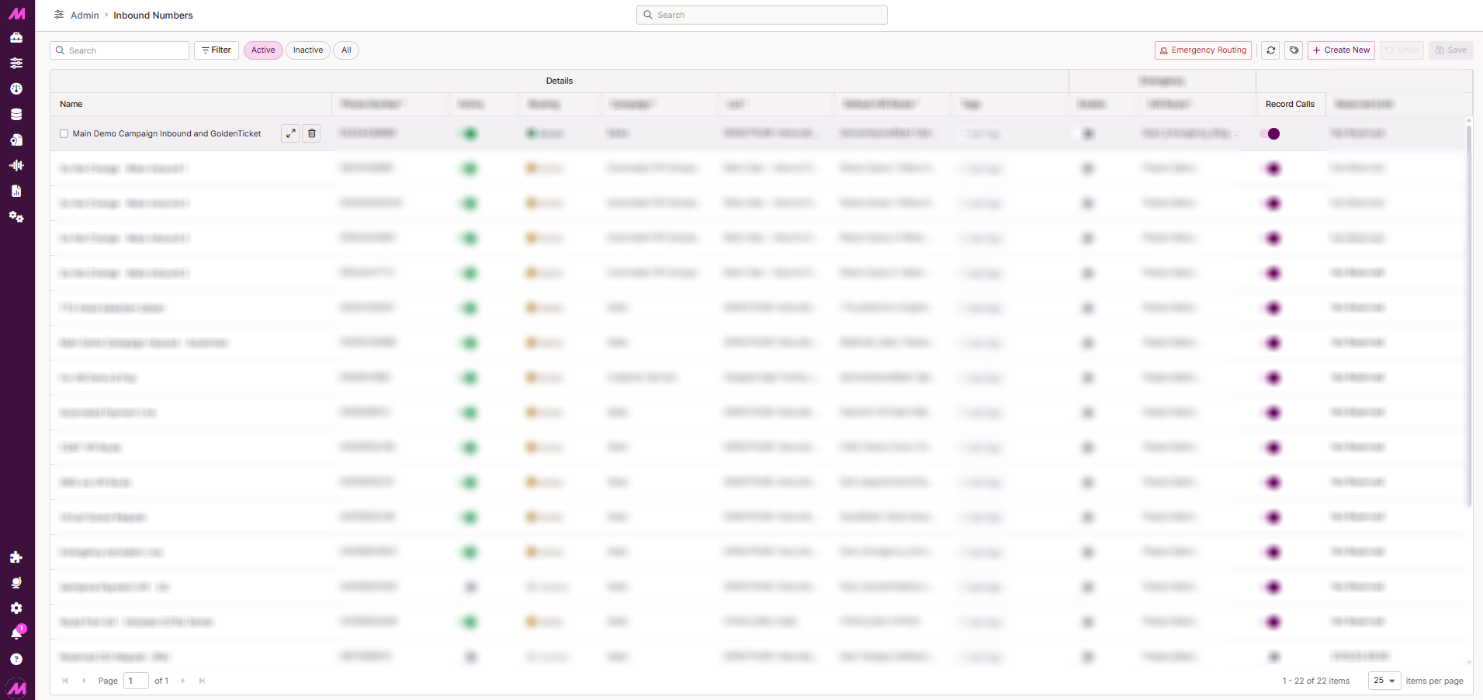
Inbound number level
On the Inbound Numbers page, the Record Calls column controls recording for each inbound number.
- Toggled on, inbound calls to that number default to being recorded, unless overridden by other system settings, scripts, or users.
- Toggled off, inbound calls to that number aren't recorded, and this can't be overridden by queue settings, scripts, or users.
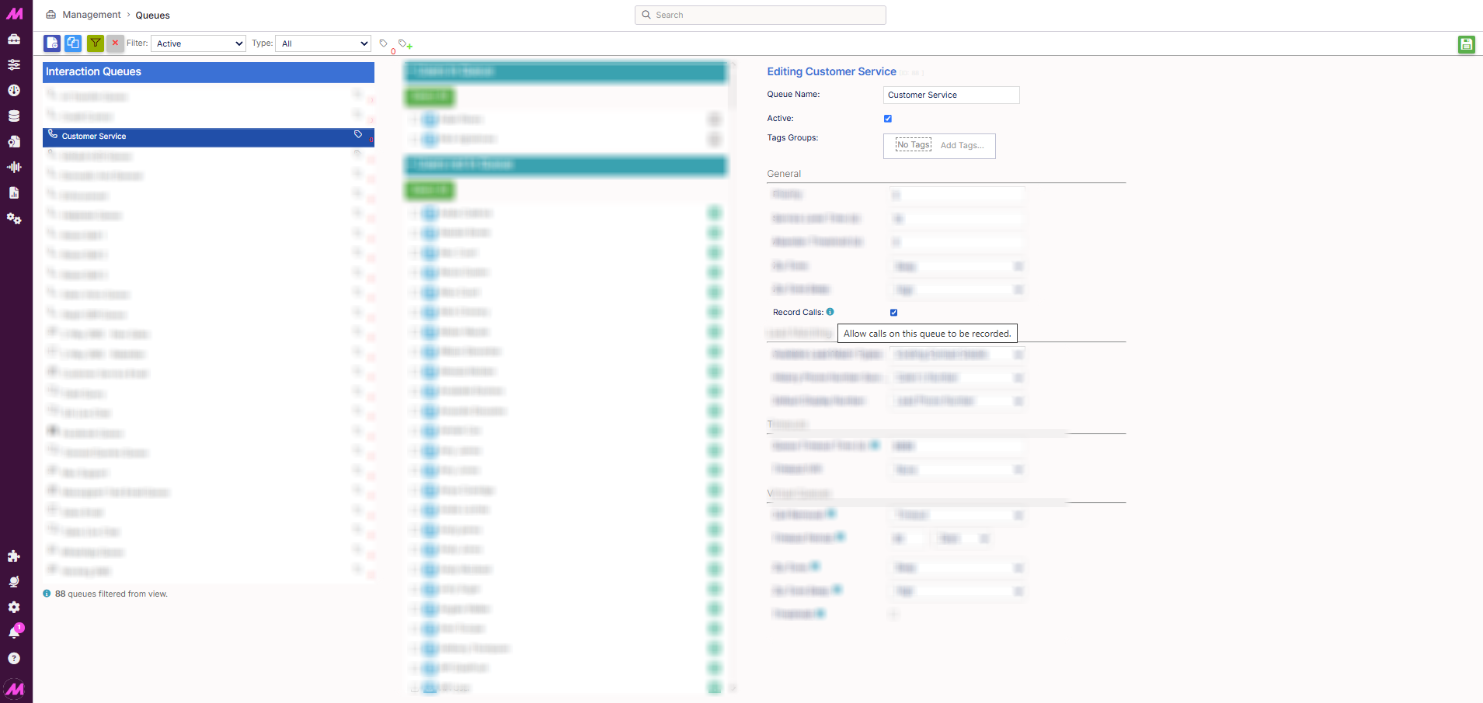
Queue level
On the Queues page for Call Queues, the Record Calls option controls recording for each queue.
- Toggled on, calls received on that queue default to being recorded, unless overridden by other system settings, scripts, or users.
- Toggled off, calls received on that queue aren't recorded, and this can't be overridden by scripts or users.
Call recording hierarchy
Each level of call recording is directly affected by the level above it when that level is set to not record. Setting the system level to off means every other setting is off too, regardless of its own configuration.
| Setting turned off | Effect |
|---|---|
| System recording | All recordings are off, both inbound and outbound. |
| Campaign recording | All outbound call recordings are off for that campaign only. |
| Inbound number recording | All inbound calls to that number are off, and any queue receiving calls from that number is off for those specific calls. The same queue still records calls arriving from other inbound numbers with recording enabled. |
| Queue recording | Calls that reach that specific queue aren't recorded. |
Other call recording controls
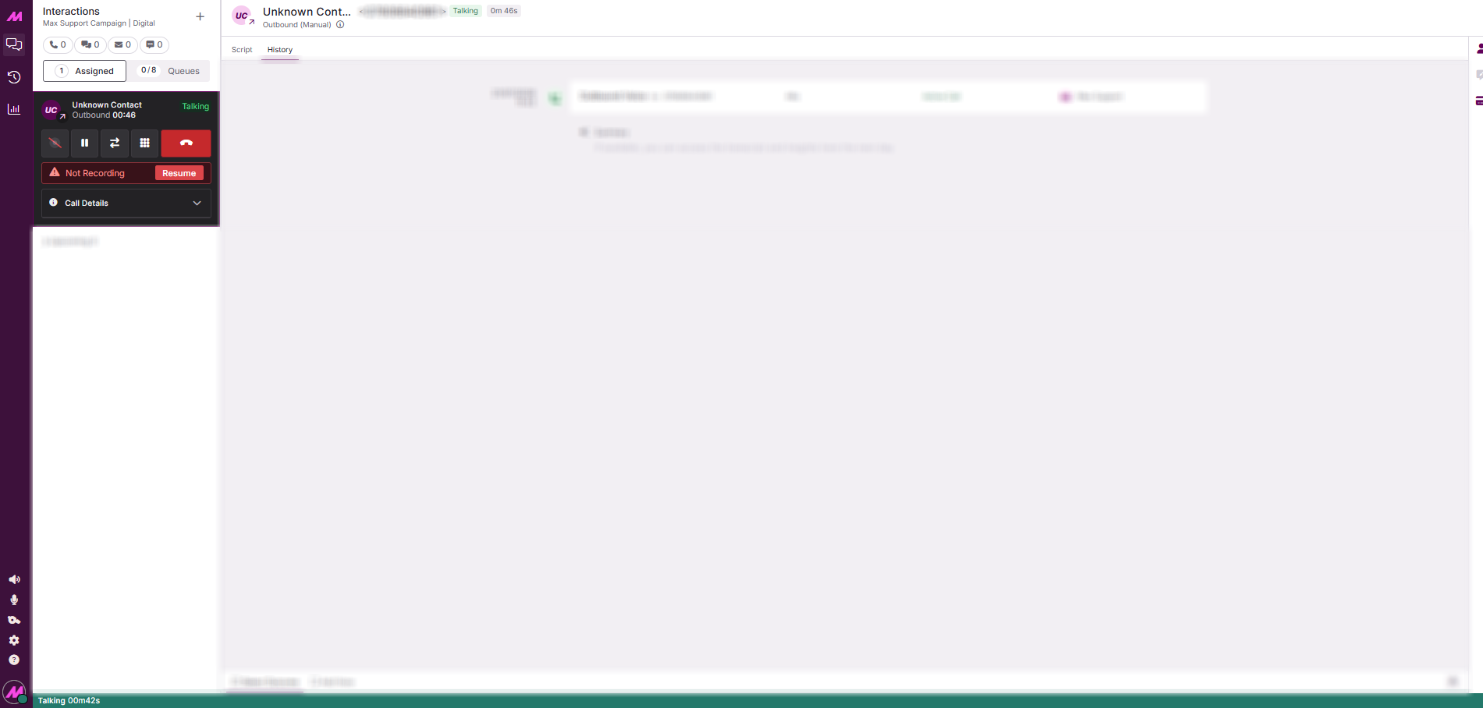 Call recording stopped by the user | 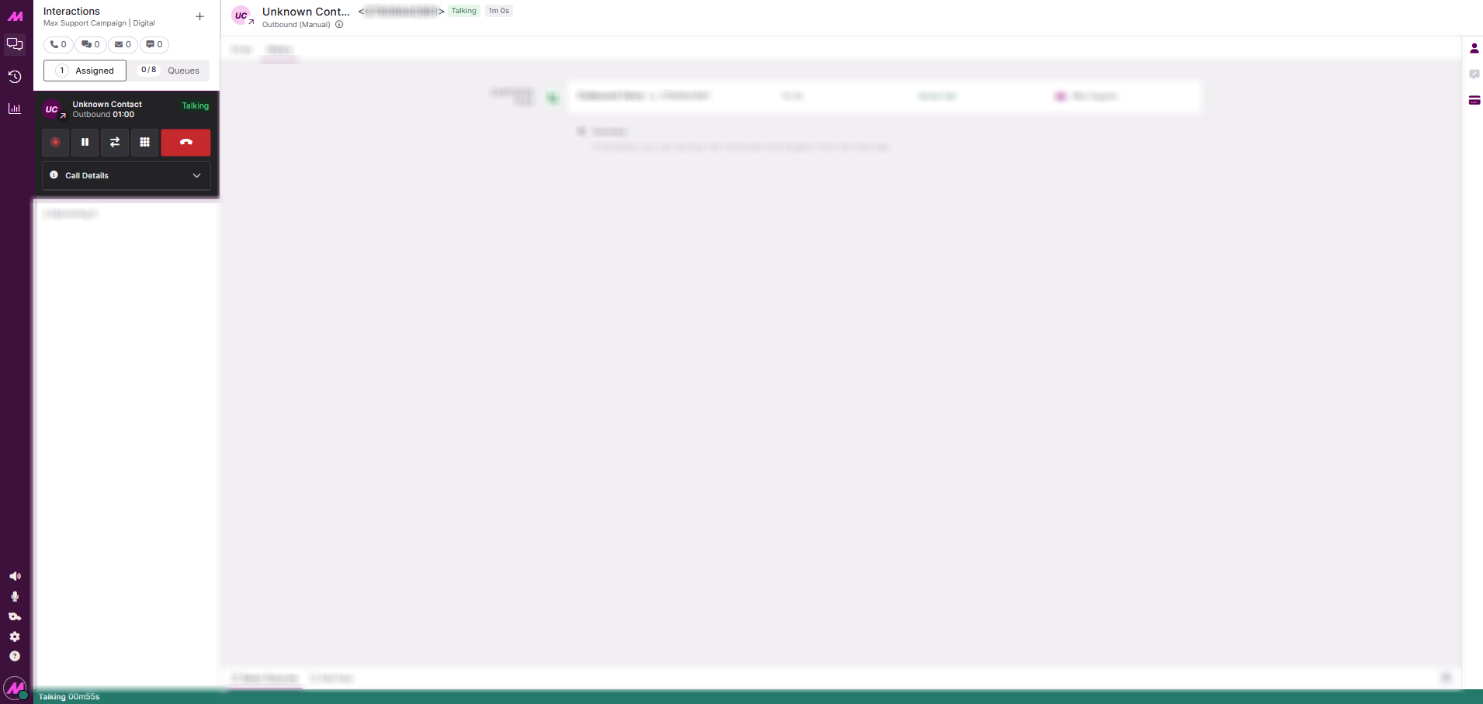 Call recording resumed by the user |
Contact Hub
On the Permissions page, under the relevant user or agent role, enable Can Stop Recording/Can Start Recording under Telephony Permissions to let a user manually stop and start call recording.
While on a call, the user selects the red dot icon to stop recording, and selects it again, now grey, to start recording once more.
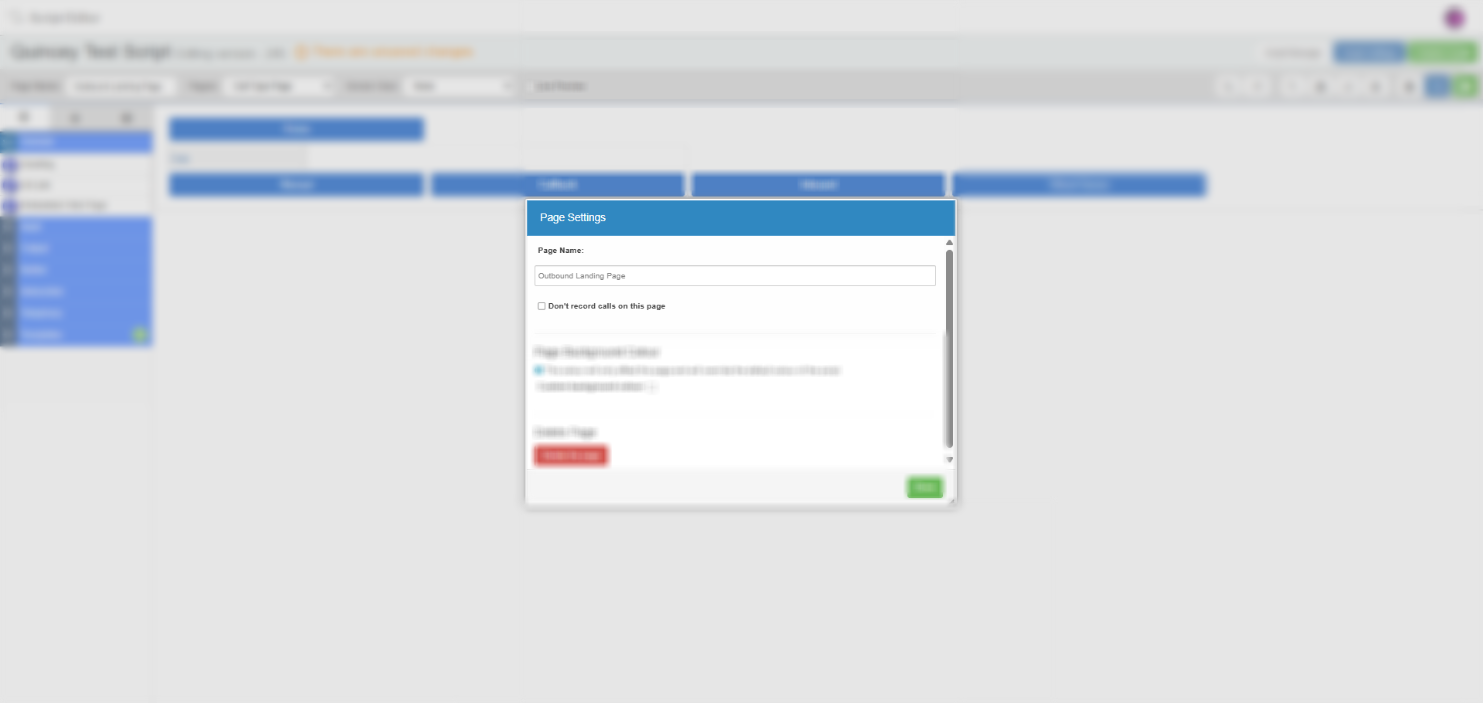
Scripts
Script pages can automatically stop call recording where required. Enable this from within the script editor, in the page settings, by selecting the relevant option.