
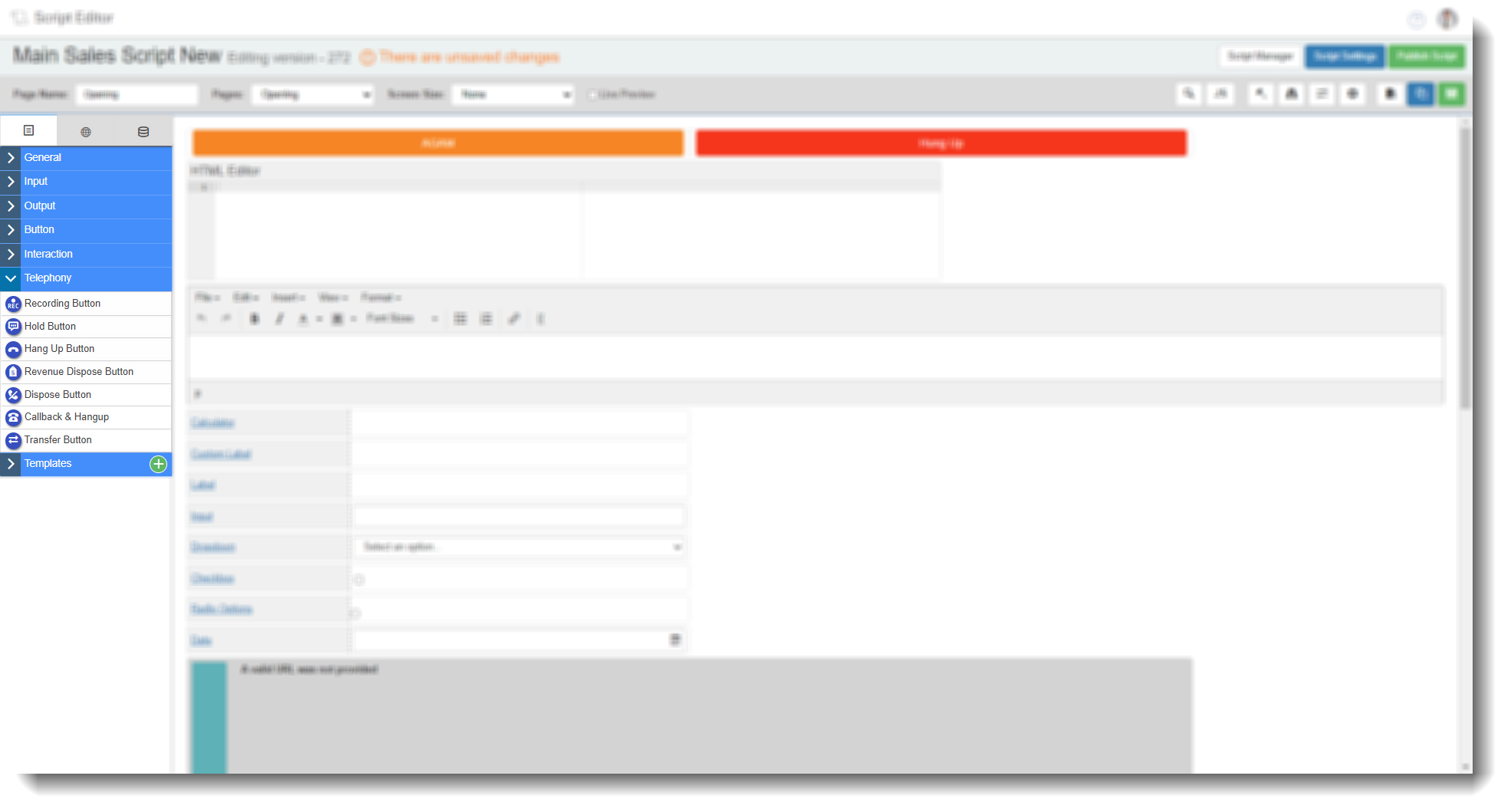
Drag and Drop Fields — Telephony
The Telephony tab in the Field Options panel contains seven field types that give agents direct call controls within the script: Recording Button, Hold Button, Hang Up Button, Dispose Button, Revenue Dispose Button, Callback & Hangup, and Transfer Button. Drag any of these onto a script page to add them, then select the edit icon to configure.
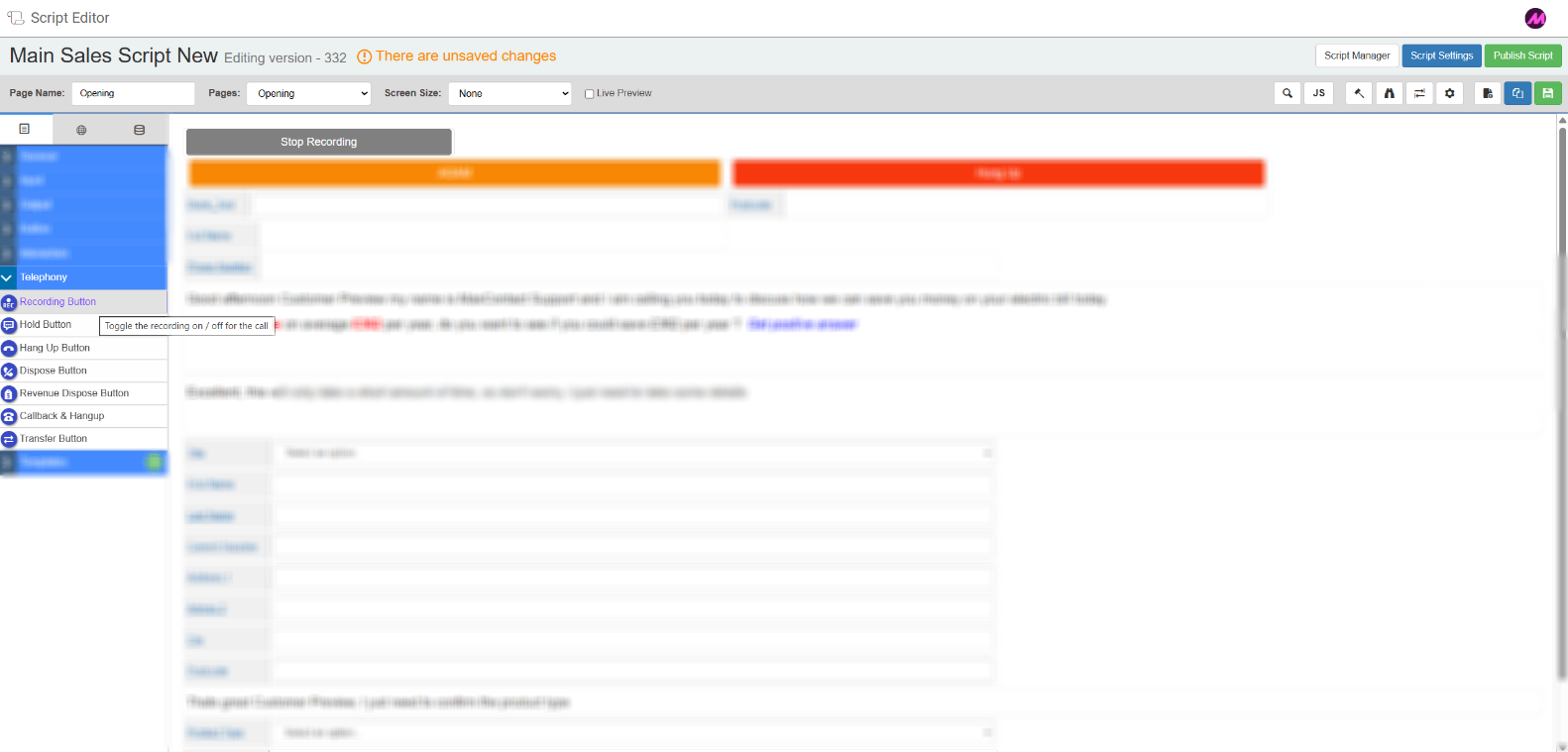
Recording Button
Toggles call recording on or off. The button label and appearance change depending on the current recording state, so agents can clearly see whether recording is active.
Tab 1 — Field Config
| Setting | Description |
|---|---|
| Reference name | The system-generated reference for this field. Can be edited. |
| Call | Select whether the button controls recording on the customer call or a transfer call. Typically used on the customer call to pause recording during sensitive sections of a conversation, such as taking a payment. Can also be applied to a transfer call where needed. |
Tab 2 — Field Style
| Setting | Description |
|---|---|
| Visible | Controls whether the button is visible on the script when it loads. |
| Font size (px) | Sets the size of the text on the button. |
| Recording state | Sets the button text and colours displayed when recording is currently active. |
| Not recording state | Sets the button text and colours displayed when recording is currently inactive. |
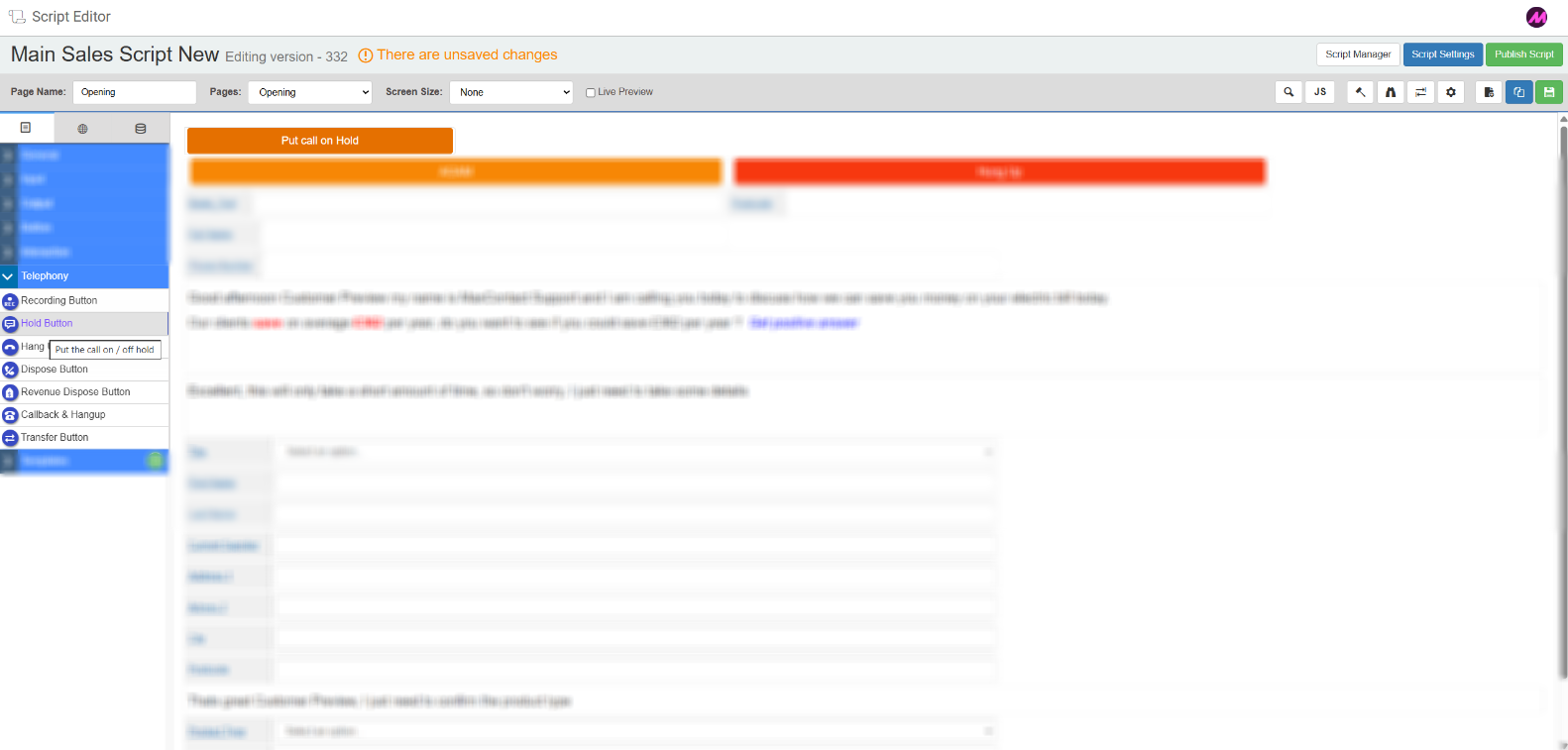
Hold Button
Places the selected call on hold. The button label and appearance change depending on whether the call is currently on hold or active.
Tab 1 — Field Config
| Setting | Description |
|---|---|
| Reference name | The system-generated reference for this field. Can be edited. |
| Call | Select whether the button applies to the customer call or a transfer call. Typically used to place the customer on hold. Can also be configured to hold the transfer leg — for example, to pause a connected third party while the agent speaks to the customer. |
Tab 2 — Field Style
| Setting | Description |
|---|---|
| Visible | Controls whether the button is visible on the script when it loads. |
| Font size (px) | Sets the size of the text on the button. |
| Active state | Sets the button text and colours displayed when the call is active and not on hold. |
| On hold state | Sets the button text and colours displayed when the call is currently on hold. |
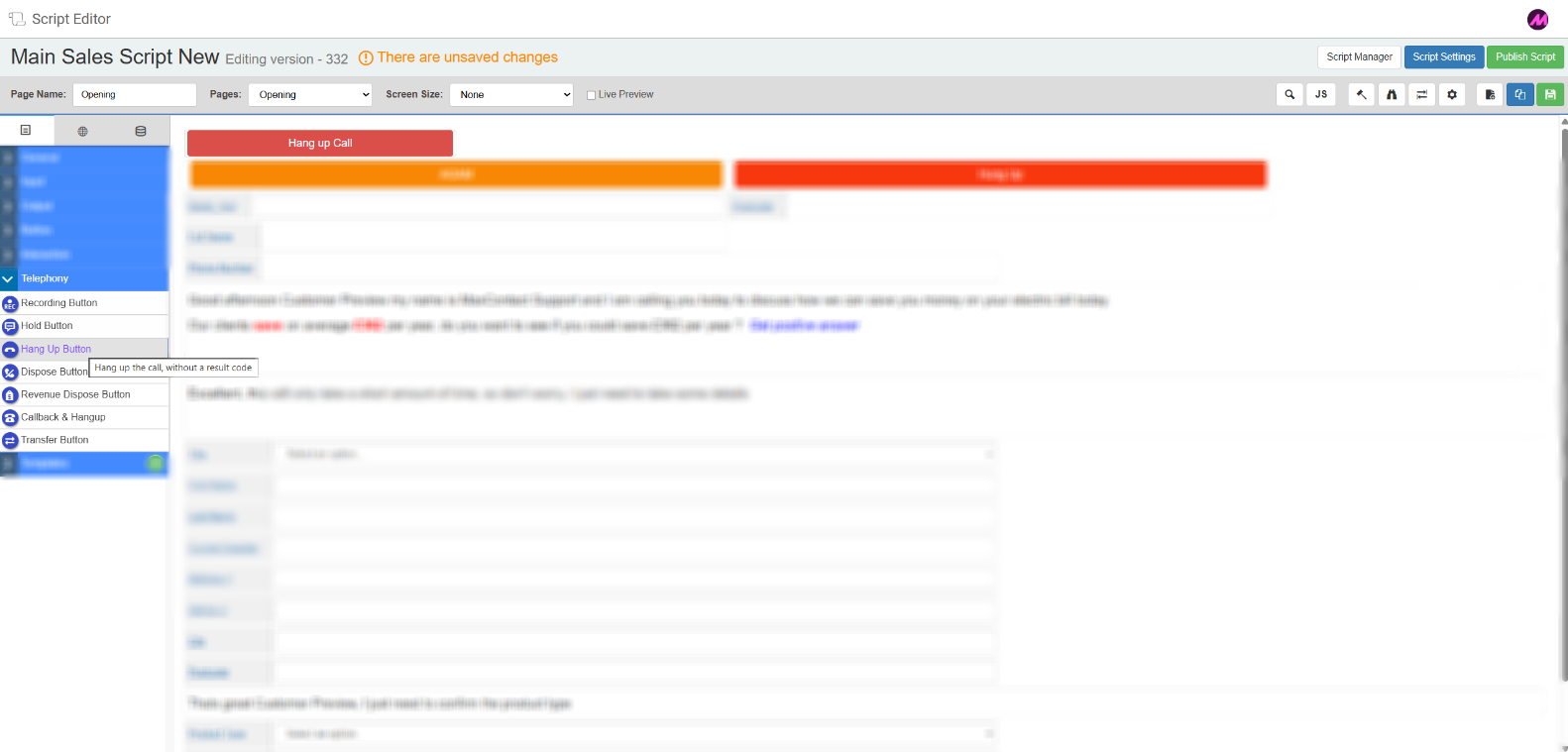
Hang Up Button
Ends the selected call leg directly from the script without the agent needing to use the Contact Hub call controls.
Tab 1 — Field Config
| Setting | Description |
|---|---|
| Reference name | The system-generated reference for this field. Can be edited. |
| Call | Select whether the button hangs up the customer call or the transfer leg. Can be configured to end a transfer where the other party is busy or does not answer, without affecting the customer call. |
Tab 2 — Field Style
| Setting | Description |
|---|---|
| Visible | Controls whether the button is visible on the script when it loads. |
| Font size (px) | Sets the size of the text on the button. |
| Active state | Sets the button text and colours displayed while the call is active. |
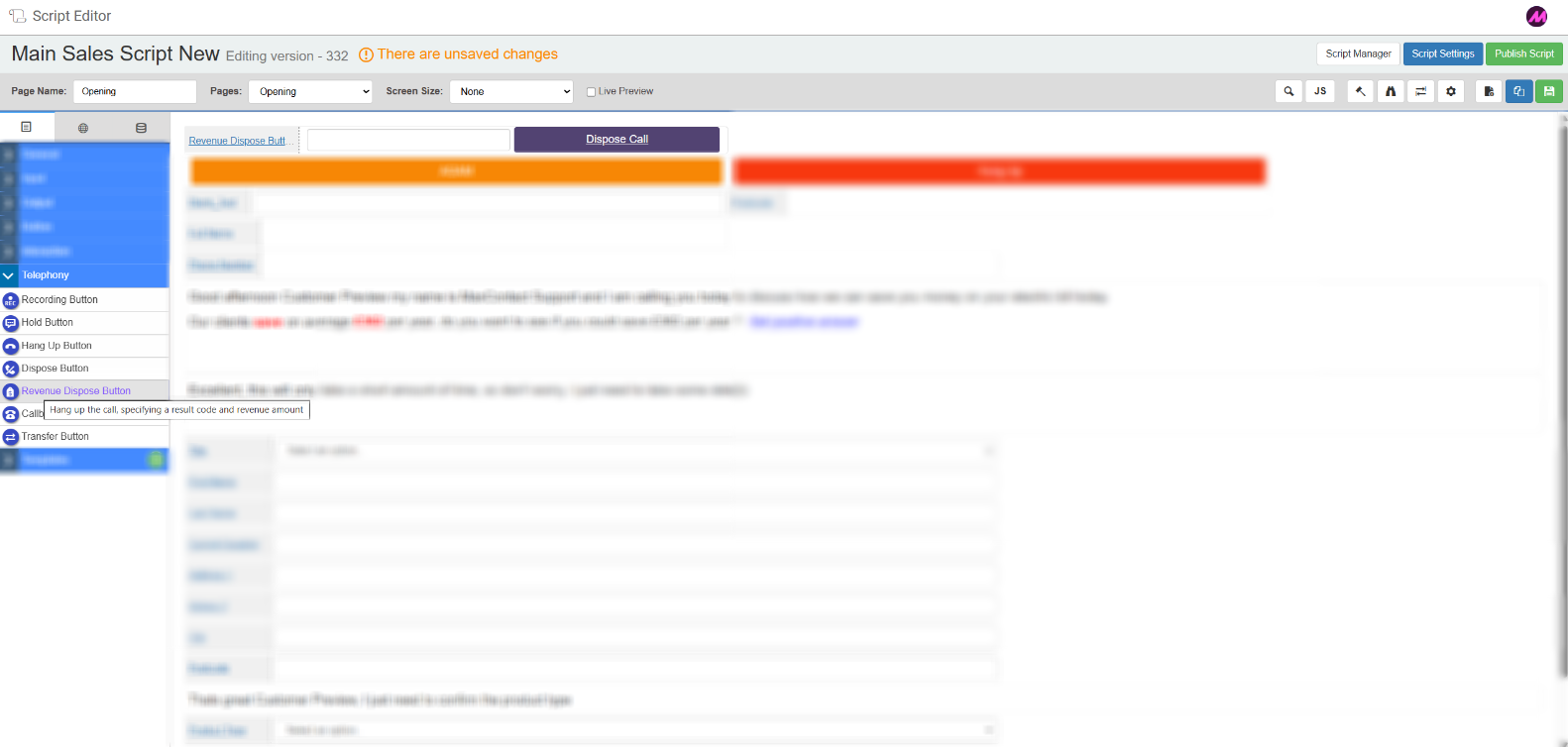
Revenue Dispose Button
Hangs up the call, applies a result code, and saves a revenue amount against the call entry in a single action. Use this on scripts where agents are recording sale values or payment amounts to capture revenue data without additional steps during wrap-up.
Tab 1 — Field Config
| Setting | Description |
|---|---|
| Reference name | The system-generated reference for this field. Can be edited. |
| Call | Select whether the button disposes of the customer call or a transfer call. Select using the radio button options in the configuration window. |
| Result code plan | Select the result code plan to draw the result code from. |
| Result code | Select the result code to apply when the button is used. |
Tab 2 — Field Style
| Setting | Description |
|---|---|
| Visible | Controls whether the button is visible on the script when it loads. |
| Font size (px) | Sets the size of the text on the button. |
| Button text | The label displayed on the button as agents see it. |
| Background colour | Sets the background colour of the button. |
| Border colour | Sets the border colour of the button. |
| Font colour | Sets the colour of the button label text. |
Tab 3 — Database
The Database tab for the Revenue Dispose Button contains the same settings as the Database tab described in the Drag and Drop Fields — Input article. Use these settings to link the revenue amount field to a data table column so the value is saved against the lead record.
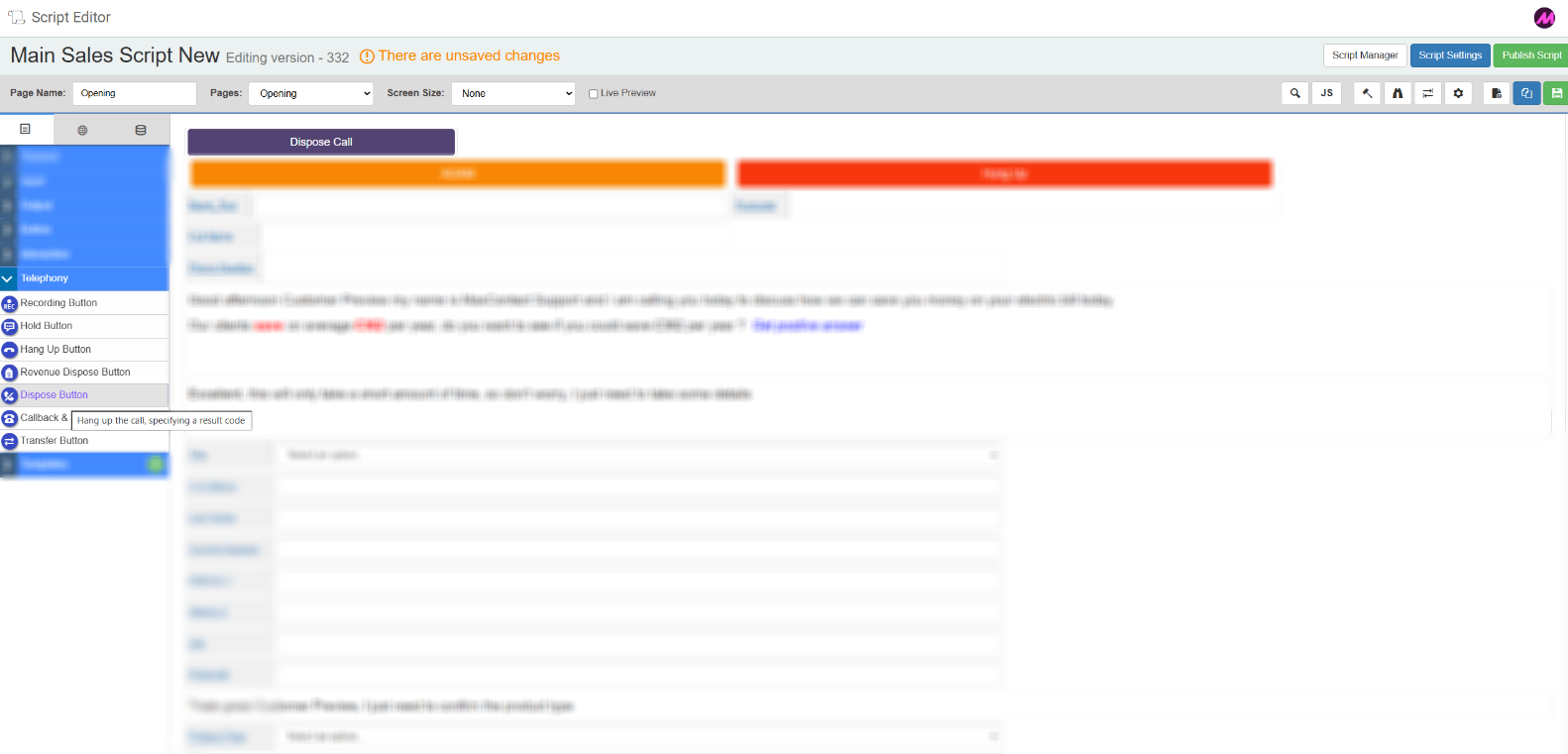
Dispose Button
Dispositions the call with a pre-set result code directly from the script, taking the agent to the disposition screen. Useful when you want to streamline a specific outcome — for example, a one-button disposition for a successful sale or a common no-answer code.
Tab 1 — Field Config
| Setting | Description |
|---|---|
| Reference name | The system-generated reference for this field. Can be edited. |
| Call | Select whether the button dispositions the customer call or a transfer. Can be used to disposition a transfer call where the other party is busy or does not answer. |
| Result code plan | Select the result code plan to draw the result code from. |
| Result code | Select the specific result code to apply when the button is used. Once a code is selected, the button label updates automatically to display the result code name. |
Tab 2 — Field Style
| Setting | Description |
|---|---|
| Visible | Controls whether the button is visible on the script when it loads. |
| Font size (px) | Sets the size of the text on the button. |
| Active state | Sets the button text and colours displayed while the call is active. |
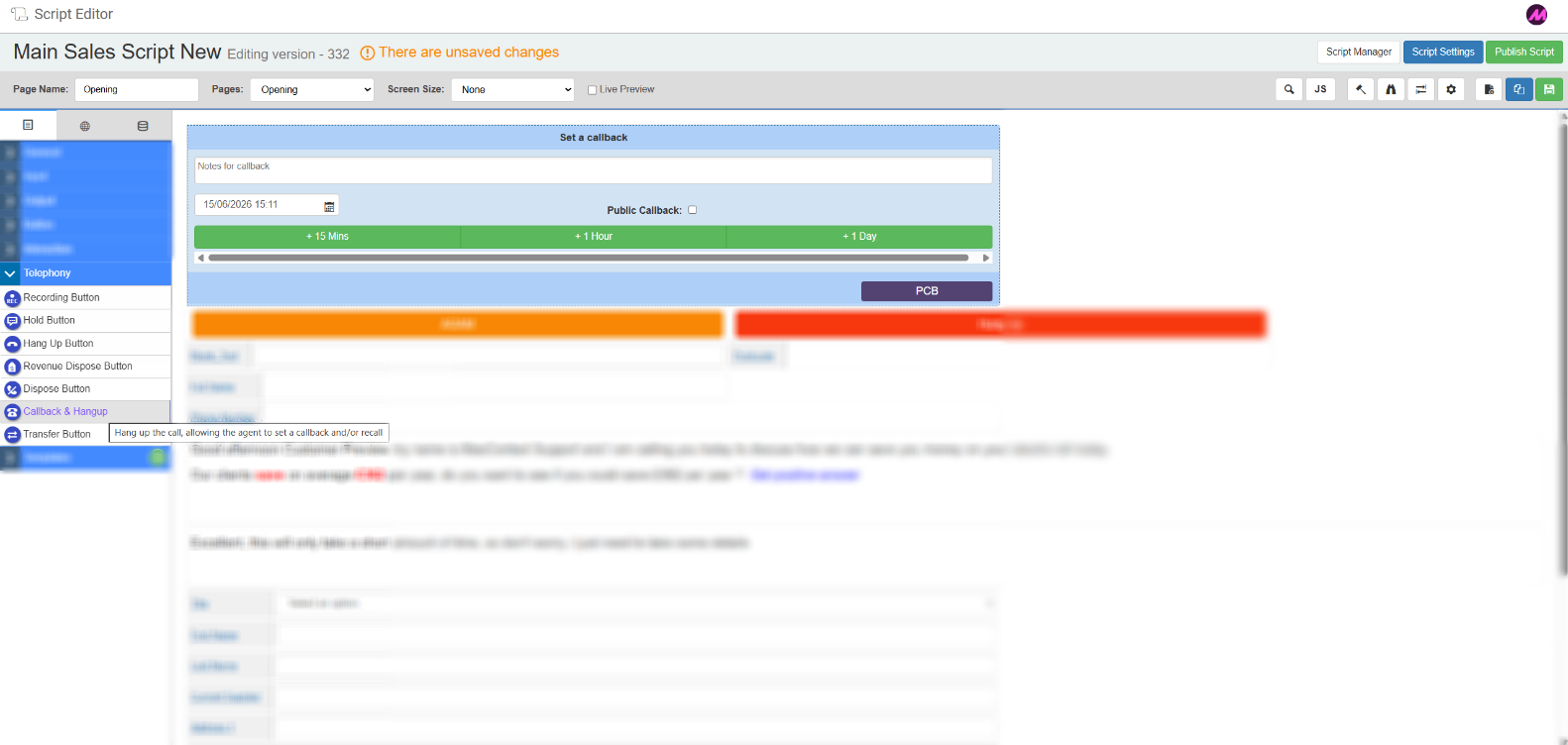
Callback & Hangup
Schedules a callback and hangs up the call in a single action. The result code is applied automatically, streamlining the wrap-up process when an agent needs to call the customer back at a later time.
Tab 1 — Field Config
| Setting | Description |
|---|---|
| Reference name | The system-generated reference for this field. Can be edited. |
| Call | Select whether this button applies to the customer call or a transfer. This field is only used for customer calls. |
| Callback Type | Sets the type of callback the button creates. Public - places the callback back into the dialling list to be called at the scheduled time and passed to the next available agent. Private - assigns the callback to the agent who set it, allowing them to manage it from within Contact Hub. Agent Chooses - lets the agent decide at the time of scheduling whether to make it public or private. |
| Result code plan | Select the result code plan to draw the result code from. |
| Result code | Select the result code to apply when the callback is scheduled and the call is ended. |
Tab 2 — Field Style
| Setting | Description |
|---|---|
| Visible | Controls whether the button is visible on the script when it loads. |
| Font size (px) | Sets the size of the text on the button. |
| Active state | Sets the button text and colours displayed while the call is active. |
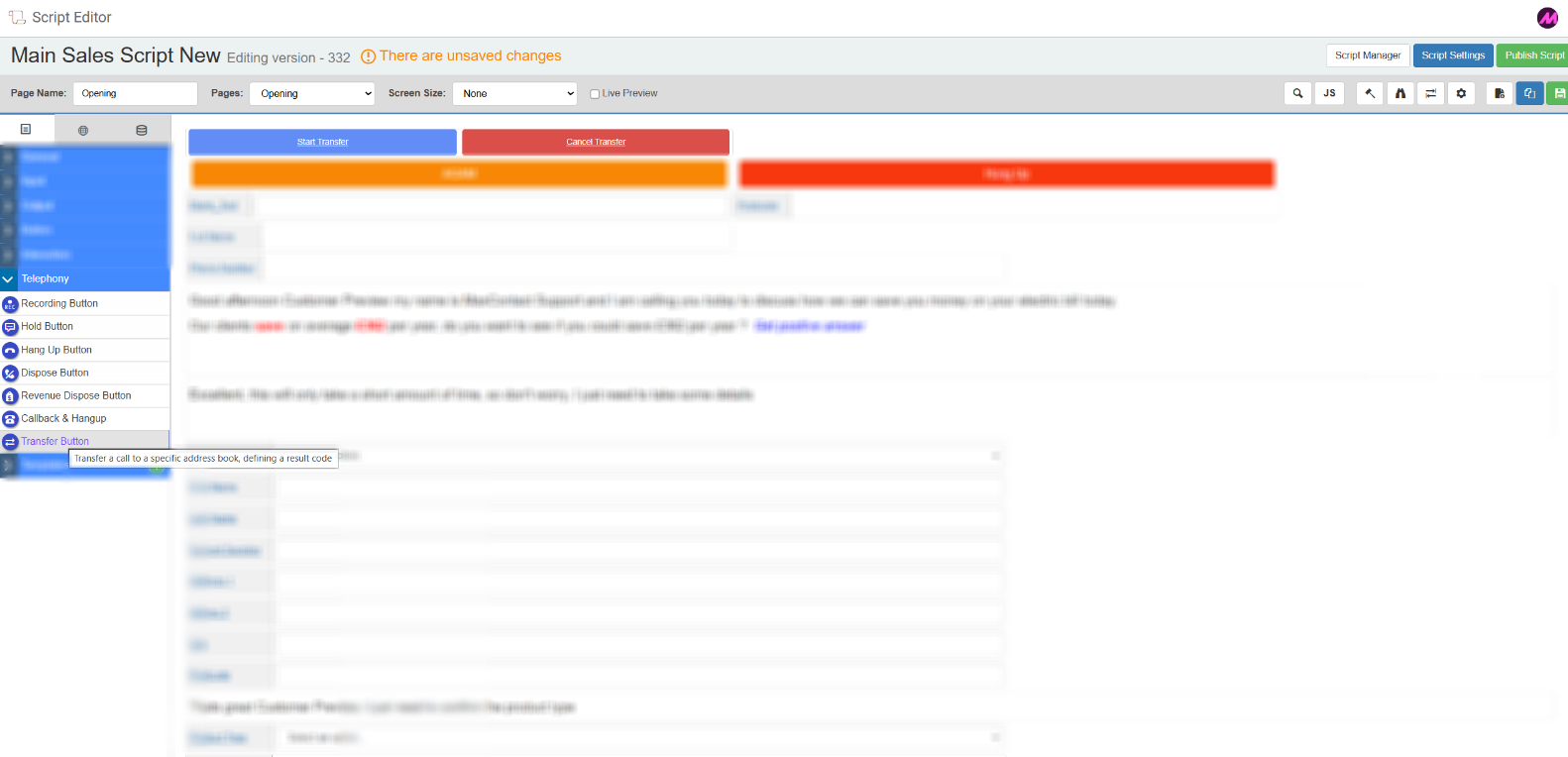
Transfer Button
Initiates a call transfer to a destination in the Address Book, directly from the script. The button renders as up to three separate controls — Start Transfer, Cancel Transfer, and Complete Transfer — each of which can be independently styled or removed.
Tab 1 — Field Config
| Setting | Description |
|---|---|
| Reference name | The system-generated reference for this field. Can be edited. |
| Transfer type | Select Warm or Cold. A warm transfer does not place the customer on hold by default — they can hear both agents talking during the handover. A cold transfer places the customer on hold while the agents speak before the handover is completed. |
| Address Book | Select the Address Book entry to transfer the call to. Address Book entries are managed in Admin > Address Book. |
| Result code plan | Select the result code plan to draw the result code from. |
| Result code | Select the result code to apply when the transfer completes. |
Tab 2 — Field Style
The Transfer Button Field Style tab has three sub-sections, one for each stage of the transfer. Each sub-section has the same settings.
| Sub-section | Setting | Description |
|---|---|---|
| Start Transfer | Font size (px) | Sets the size of the text on the button. |
| Button text | The label displayed on the button at this stage. | |
| Background, border and font colour | Colour pickers for customising the button appearance at this stage. | |
| Remove button | Removes this stage's button from the script. Use this if you don't want agents to be able to start a transfer from this script page. | |
| Cancel Transfer | Font size (px) | Sets the size of the text on the button. |
| Button text | The label displayed on the button at this stage. | |
| Background, border and font colour | Colour pickers for customising the button appearance at this stage. | |
| Remove button | Removes this stage's button from the script. Use this if you don't want agents to be able to cancel a transfer once it has started. | |
| Complete Transfer | Font size (px) | Sets the size of the text on the button. |
| Button text | The label displayed on the button at this stage. | |
| Background, border and font colour | Colour pickers for customising the button appearance at this stage. | |
| Remove button | Removes this stage's button from the script. Use this if you don't want agents to be able to complete a transfer from this script page. |