Views
Training Team
Modified on: Mon, 3 Aug, 2026 at 12:27 PM

Page Filters
Conversation Analytics filters let you tailor the data shown on each page, filtering by time period, campaign, call outcome, and more. Use them alongside full or partial period comparisons to accurately track real-time progress or review historical performance.
Opening the filters
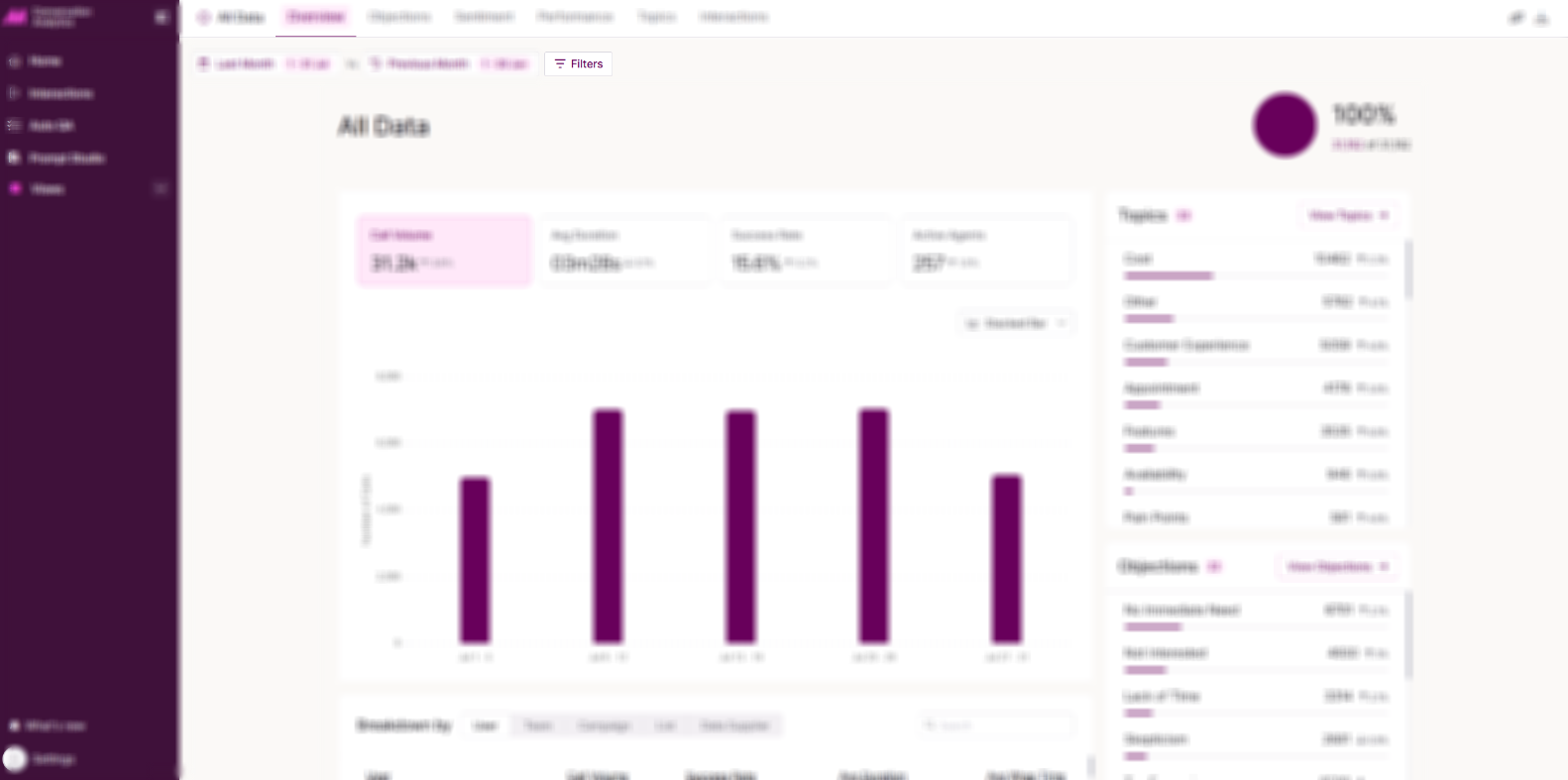
Most pages across Conversation Analytics has a filter button. Selecting it opens the filter pane.
Time period
Time Period changes the date range you're viewing across every page. Choose from the preset options, or select Custom Period to choose a specific date range. You can also choose whether comparisons use a Full Period or a Partial Period.
Note. The period comparison setting controls how data is compared for a time period that isn't fully complete yet, such as the current week.
- Full period always compares against the complete time period, for example the full week, regardless of how much of the current period has passed.
- Partial period only compares the part of the current period that's already occurred, for example the first 3 days. This lets you compare real progress so far, rather than projecting from incomplete data.
Filters
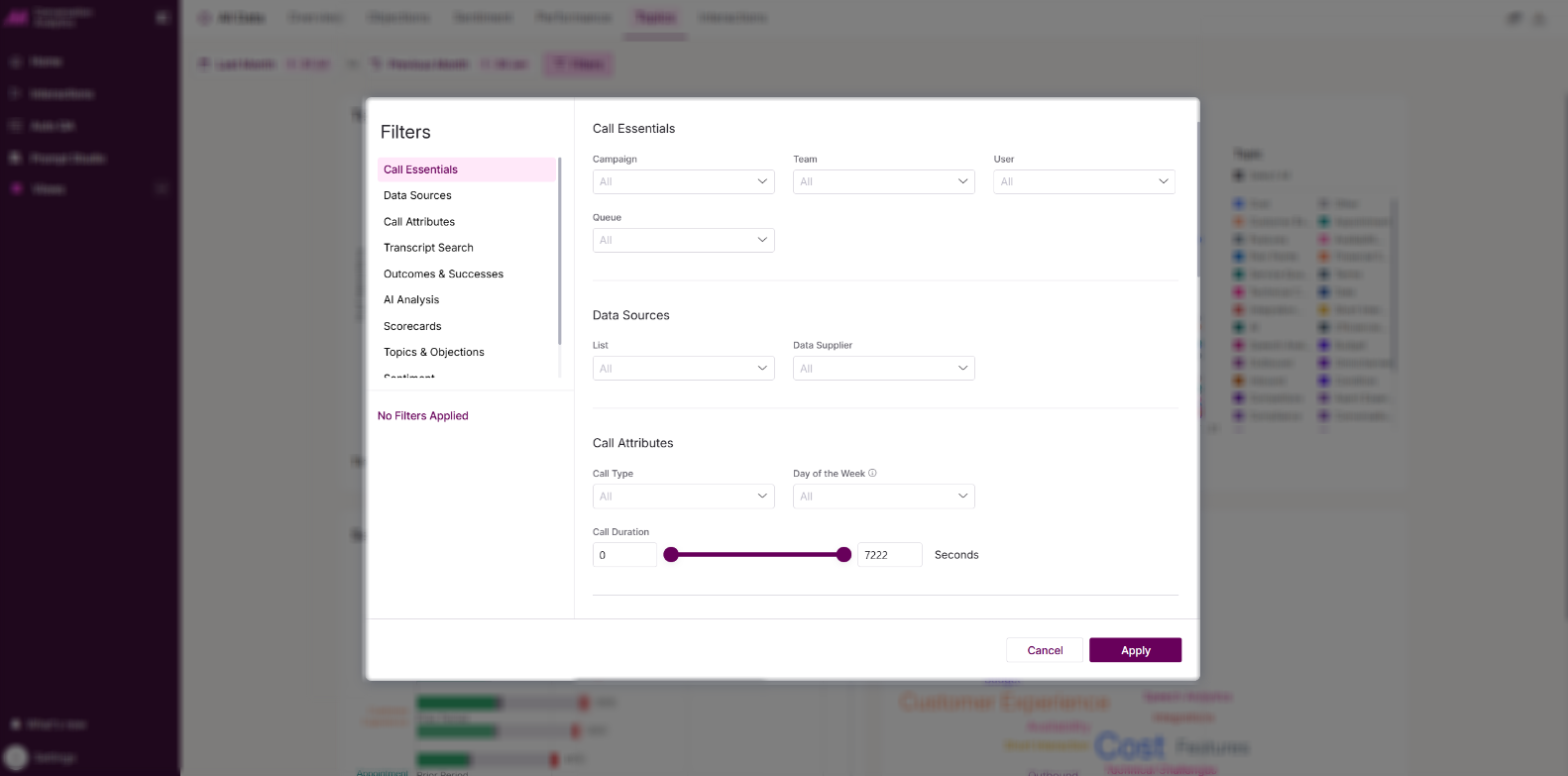
The Filter window lets you set different attributes to customise your view and narrow down which calls are shown.
Call Essentials
| Filter | Description |
|---|
| Campaign | The campaign or campaigns associated with the calls. |
| Team | The team or teams associated with the calls. |
| User | The user or users associated with the calls. |
| Queue | The queue or queues associated with the calls. |
Data Sources
| Filter | Description |
|---|
| List | The list or lists the call was carried out from. |
| Data Supplier | The supplier or suppliers of the lead on import. |
Call Attributes
| Filter | Description |
|---|
| Call Type | Whether the call was Inbound or Outbound. |
| Day of the Week | Show or hide specific days. |
| Call Duration | How long the call duration can be, up to a set number of seconds. |
Transcript Search
Search within call transcripts for specific words or phrases that contain, do not contain, or are similar to your search term. Searches can also be grouped together to create a combination of searches.
Outcomes & Successes
| Filter | Description |
|---|
| Show successful calls only | A toggle. Enable this to only show calls with an outcome marked as successful. |
| Outcome | Select to only see calls dispositioned with a particular result code or codes, from your MaxContact result codes. |
AI Analysis
| Filter | Description |
|---|
| Has AI Analysis | Calls shorter than 30 seconds aren't processed by the AI engine. Use this filter to include or exclude these calls. |
Scorecards
| Filter | Description |
|---|
| Is Scored | Choose whether to see all calls, only those that have been scored, or only those that haven't. |
| Scorecard | Select a specific scorecard. |
| Result | With a scorecard selected, choose to show calls with any result, those that passed, failed, or autofailed, or filter by score using greater than, equal to, or less than a set value. |
Topics & Objections
| Filter | Description |
|---|
| Topics | Select a topic or topics that have been mentioned in the call. |
| Objection | Select an objection or objections that have been mentioned in the call. |
Sentiment
| Filter | Description |
|---|
| Dominant Sentiment | Filters calls by the overall sentiment of the call. |
| Peak Sentiment | Sentiment at the most intense moments of the call. This highlights the strongest emotional points, not the overall tone. |
| End Sentiment | Sentiment at the end of the call. This reflects the final detected sentiment, not the overall tone. |
Contact Info
| Filter | Description |
|---|
| First Name | The contact's first name, usually set on import through the primary mapped data of a lead. |
| Last Name | The contact's last name, usually set on import in the same way. |
| Phone Number | The observed phone number for the call. |
| Post Code | The contact's postcode, usually set on import in the same way. |
| Reference | The contact's reference, usually set on import in the same way. |
Select Apply once you're happy with your selection.
Related articles
