
Assigning Skill Groups to Leads via Data Imports
Leads need a Skill Group assigned to them for Outbound Skill-Based Routing to work. You can assign one to every lead in an import, assign a different Skill Group per lead, or use both together.
Manual imports
Go to Data > Import Leads and complete the Details stage: upload your CSV file, add any notes, choose the destination list, and select a supplier and cost if required. Select Next to continue to the Settings stage.
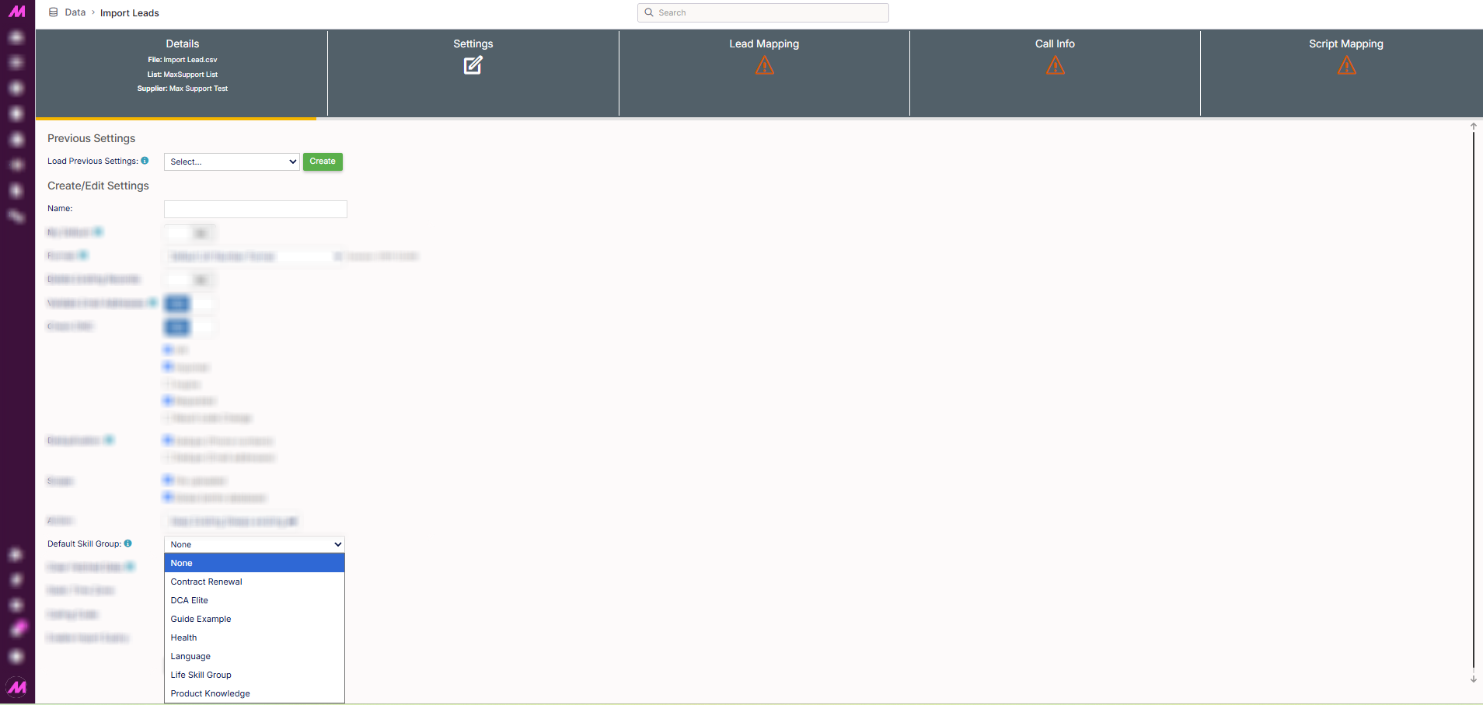
Option 1: Assigning a default Skill Group
On the Settings tab, find the Default Skill Group field and select the group you want applied to every lead in this import.
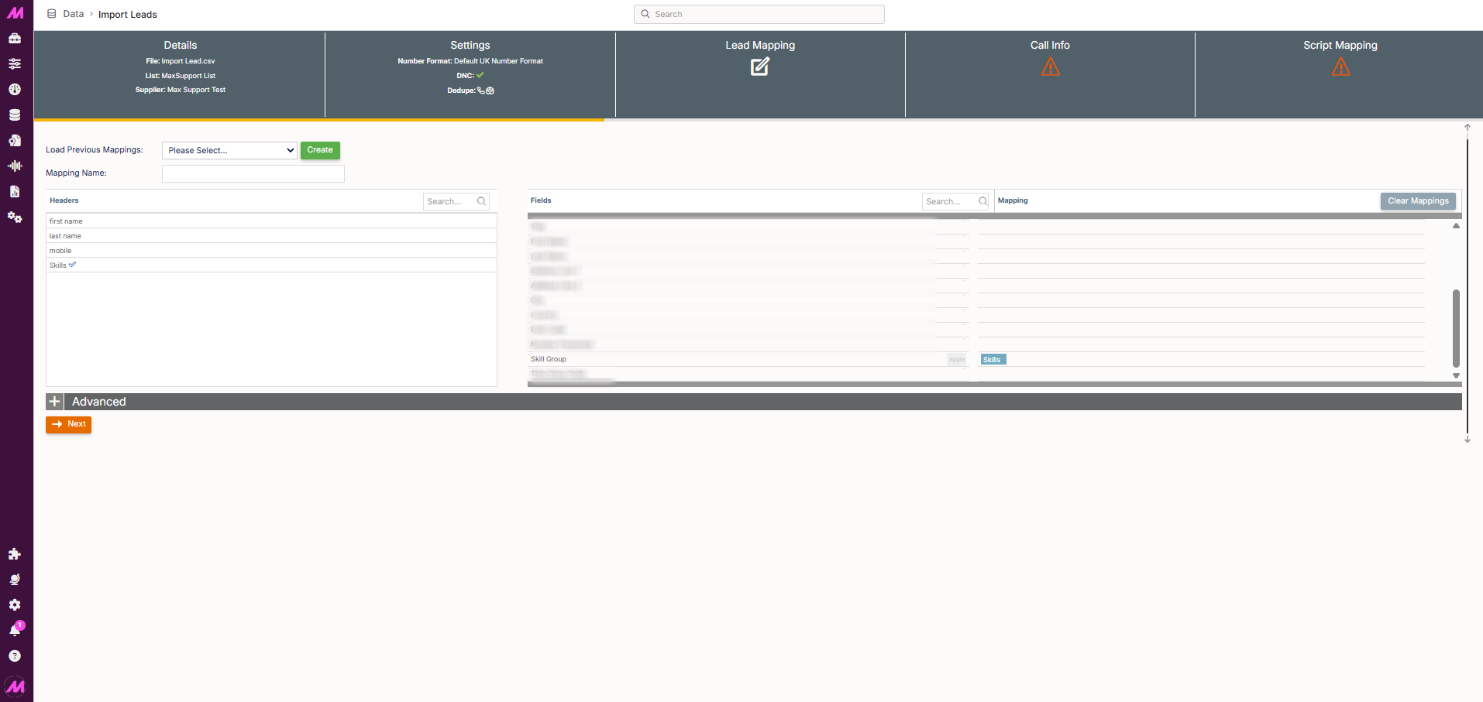
Option 2: Assigning a Skill Group per lead
Add a Skill Group or Skill Group ID column to your CSV before importing. The column name itself doesn't matter, so long as it's something memorable. During the Lead Mapping stage, map this column to the SkillGroup field.
If a lead's Skill Group field is blank or unmapped, what happens depends on your default:
| Default Skill Group | Result |
|---|---|
| Set to None | The lead is imported with no Skill Group. |
| Set to a specific group | The lead is imported with that default Skill Group applied. |
API imports
Go to Data > Import API Mapping, then select an existing mapping to edit or create a new one. Most of this configuration is set up as part of your onboarding for API imports.
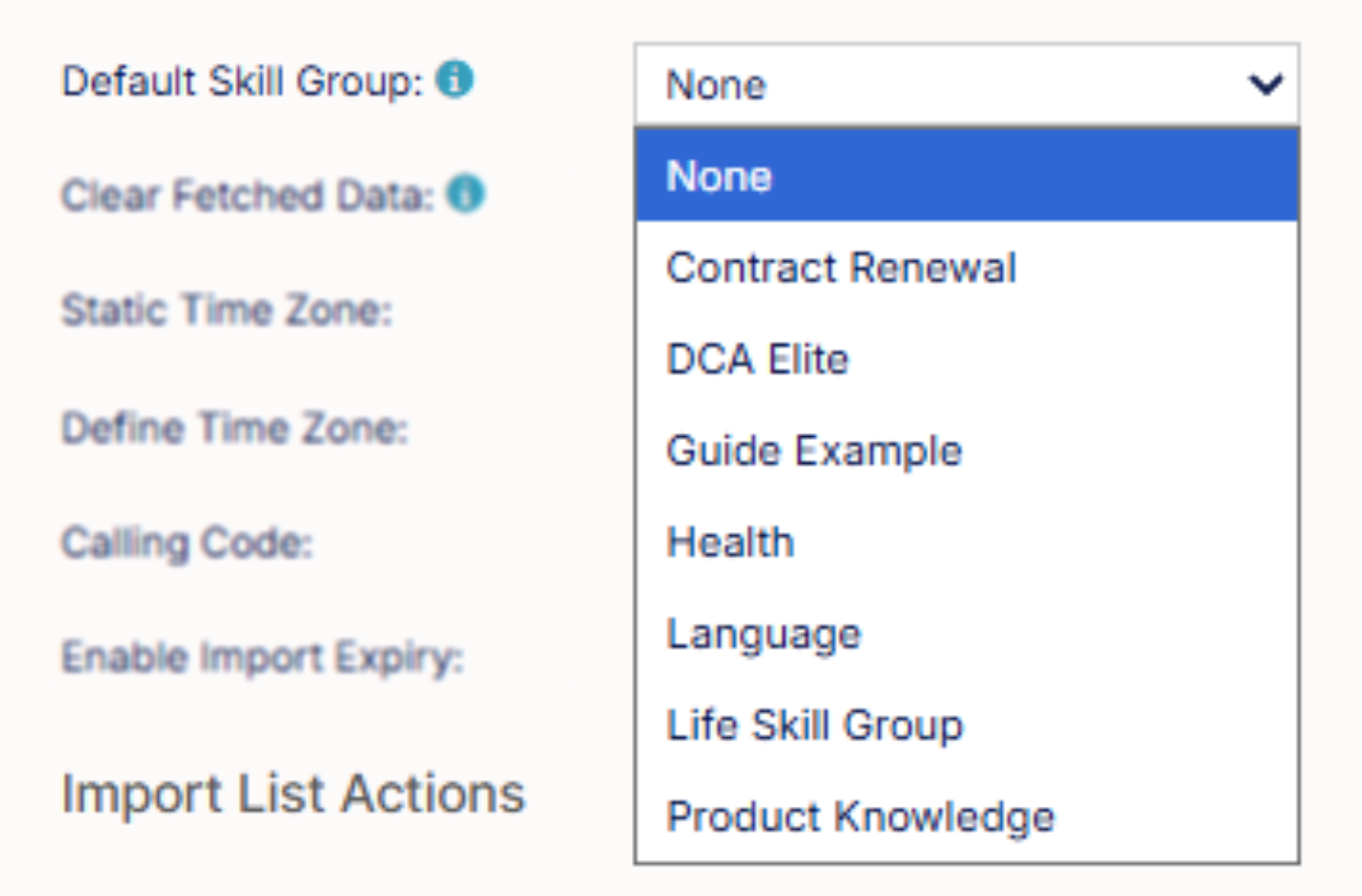
Option 1: Assigning a default Skill Group
Select the default Skill Group you want applied to every lead in this import.
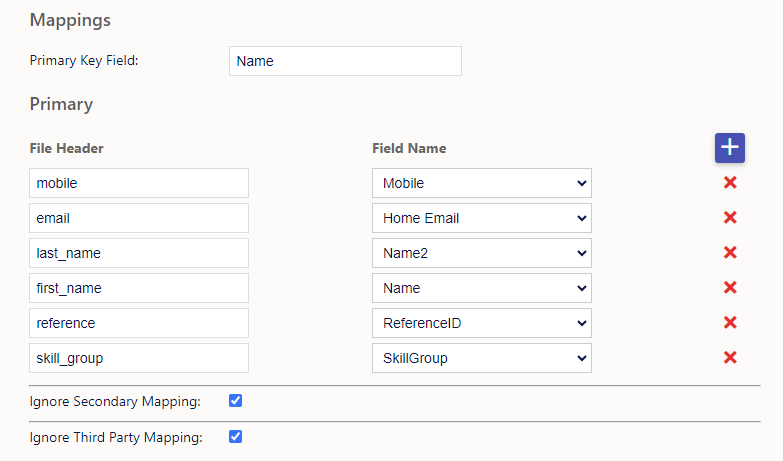
Option 2: Assigning a Skill Group per lead
Map your incoming data to the Skill Group field. This lets different contacts in the same import be assigned different Skill Groups.
If a lead's Skill Group field is blank or unmapped, the same behaviour applies as with manual imports: leads import with no Skill Group if the default is set to None, or with the default Skill Group applied if one is set.