Dashboard & Widgets - Inbound
Training Team
Modified on: Tue, 30 Jun, 2026 at 12:07 PM
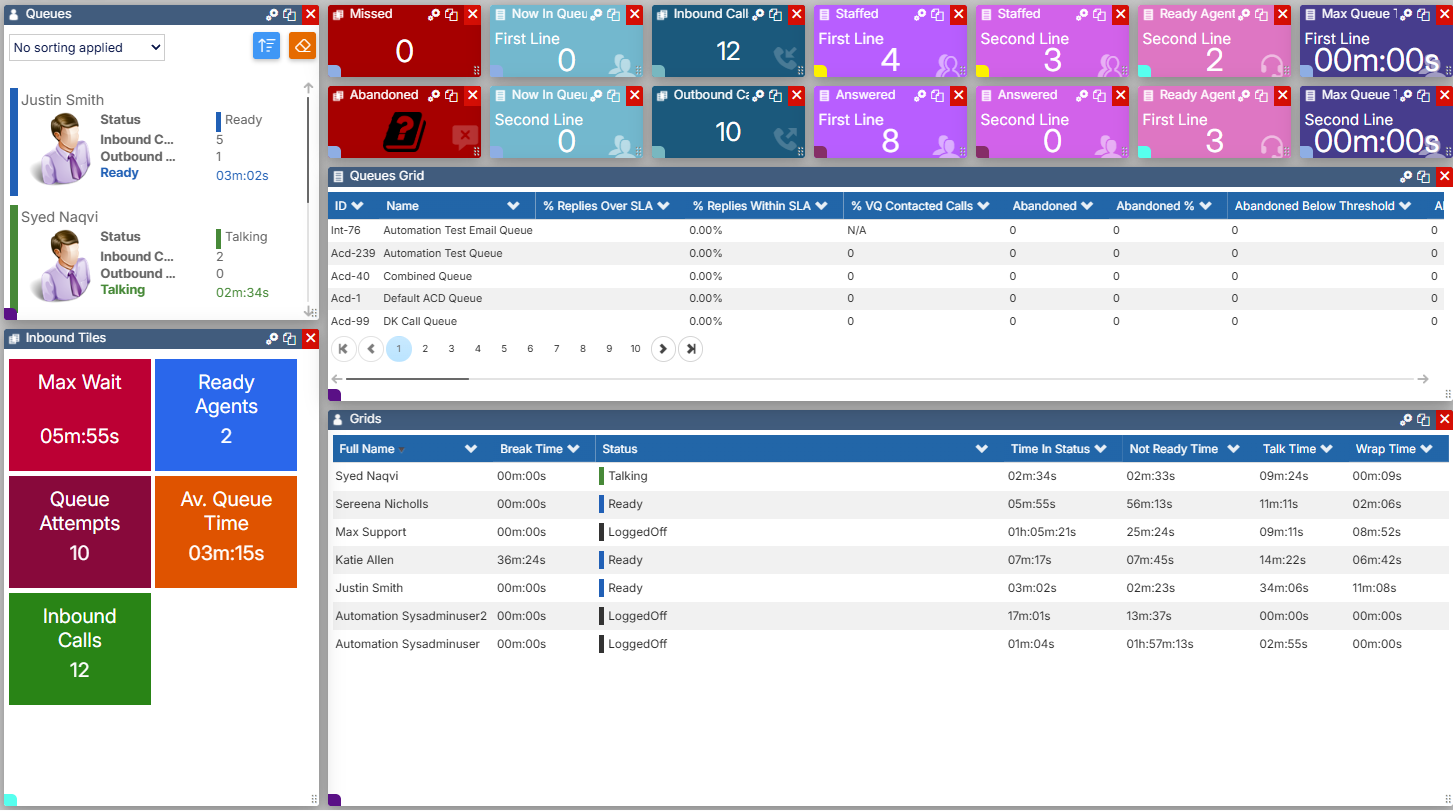
Dashboard Widgets — Inbound
Inbound widgets display statistics related to inbound queues and calls on dashboards and wallboards. This article covers each Inbound widget type and the settings available within them.
| Widget | Description |
|---|
| Inbound Blocks | Displays a configurable set of inbound stats as individual blocks, with optional threshold alerts. |
| Queue Grid | Displays inbound queue statistics in a table, filterable by queue. |
| Inbound Stat Tile | Displays a single inbound statistic, with optional threshold alerts. |
Inbound Blocks
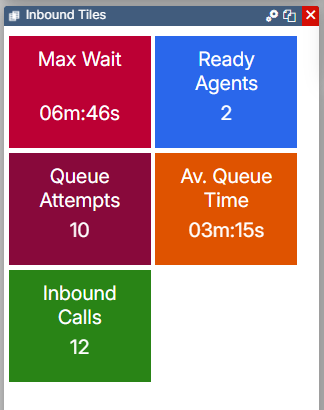
The Inbound Blocks widget displays a set of inbound statistics. Select the settings icon to configure it.
| Setting | Description |
|---|
| Data Choices | Select which stats are displayed. Select the cross next to a stat to remove it, or select within the white area to add a new one from the list. |
| Stat alert | Enable to set a threshold alert on the widget. When triggered, the widget flashes on the dashboard and plays a selected audio file. See the alert settings below. |
Alert settings
| Setting | Description |
|---|
| Threshold | The value at which the alert is triggered. |
| Alert on every change | When enabled, the alert fires each time the stat changes while it is at or above the threshold, rather than only when it first reaches it. |
| Audio file | The audio played when the alert triggers. Audio files must be no longer than 2 seconds and in .wav format. |

Queue Grid
The Queue Grid shows inbound queue data in a table rather than as individual widgets. It shows information for all your inbound queues, and the filters can be used to select which queue you want to see statistics for. Select the settings icon to configure it.
| Setting | Description |
|---|
| Title | The name or label of the grid. |
| Font size | Sets the size of the font used for the stats on the grid. |
Inbound Stat Tile
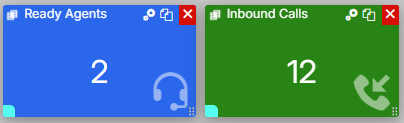
The Inbound Stat Tile displays a single inbound statistic. Select the settings icon to configure it.
| Setting | Description |
|---|
| Data to Display | The statistic to display on the widget. |
| Font Size (px) | Sets the size of the stat displayed on the widget. |
| Background colour | Sets the background colour of the widget. |
| Stat Alert | Enable to set a threshold alert on the stat. When triggered, the widget flashes on the dashboard and plays a selected audio file. See the alert settings below. |
Alert settings
| Setting | Description |
|---|
| Threshold | The value at which the alert is triggered. |
| Alert on Every Change | When enabled, the alert fires each time the stat changes while it is at or above the threshold, rather than only when it first reaches it. |
| Audio File | The audio played when the alert triggers. Audio files must be no longer than 2 seconds and in .wav format. |
Related articles
