
Custom Report Builder
The Custom Report Builder lets you create your own reports using data from across the system. Once built, custom reports can be run on demand from the Report Viewer or scheduled for automated delivery via the Report Scheduler.
To access it, go to Reporting > Reporting Suite > Custom Report Builder.
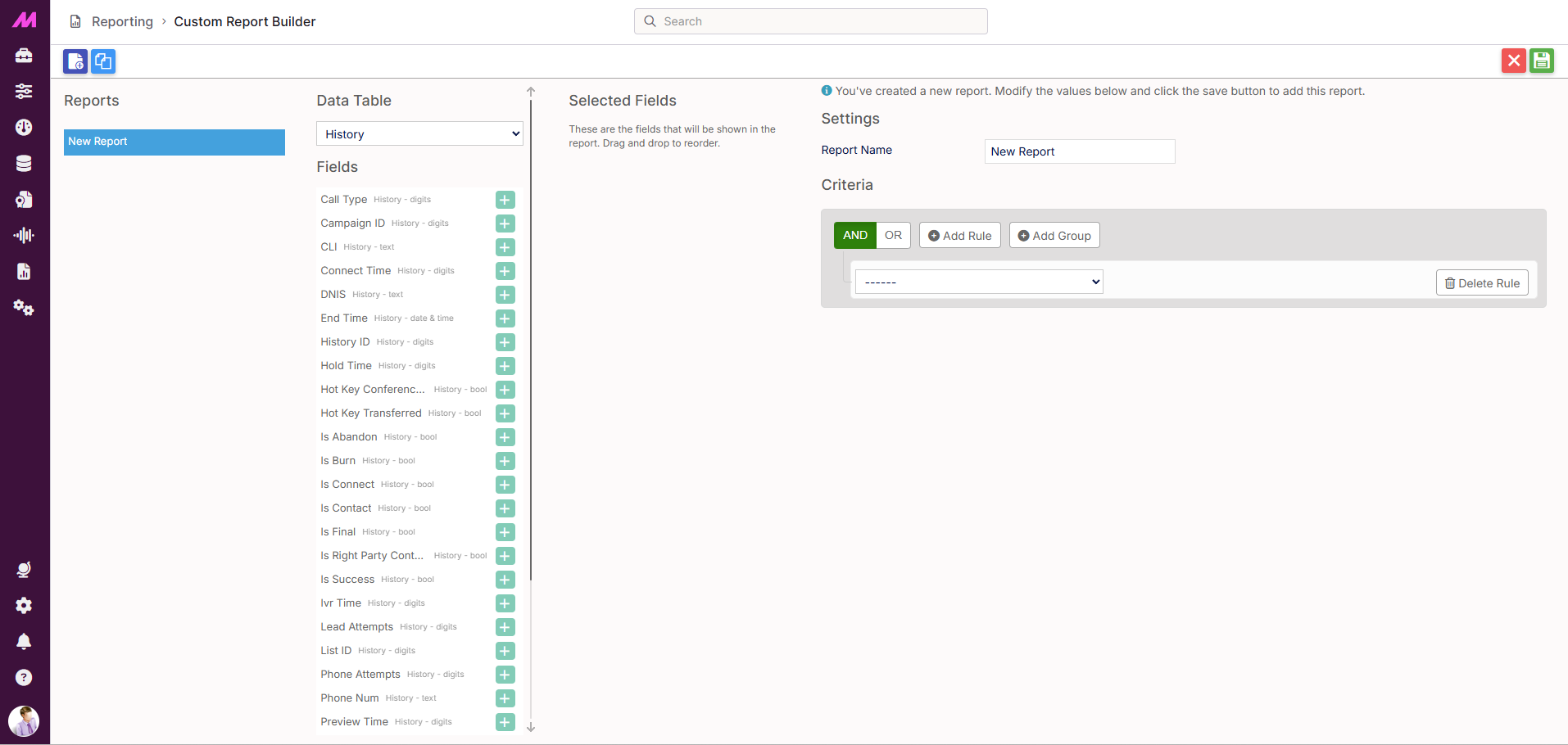
The left-hand panel lists all existing custom reports on the system. Clicking a report loads it into the builder on the right. To start from scratch, click Create new report at the top of the screen.
Note. For a full reference of every default field available in the builder across all data tables, see the Custom Report Builder Fields article.
Building a report
A custom report is built in three steps: selecting your data table, choosing your fields, and configuring settings and rules.
Step 1: Select a data table
The Data Tables panel lists the available data sources. Select one to populate the Fields list with all the columns available from that table. The following tables are available by default, along with any custom data tables created on your system:
- Queue
- User
- Team
- List
- Campaign
- History
- Supplier
- Lead
Step 2: Select your fields
Once a data table is selected, the Fields panel lists all available columns from that table. Click the + icon next to any field to add it to the report. Added fields appear in the Selected Fields section.
Within Selected Fields you can:
- Drag and drop fields to reorder the columns in your report
- Click the – icon next to a field to remove it
Step 3: Settings and criteria
The Settings and Criteria section is where you name the report and apply rules to filter the data it returns.
| Setting | Description |
|---|---|
| Report name * | The name that will identify this report in the Report Viewer and Report Scheduler. Required. |
| Rules | Filter the data returned by the report. Rules let you define conditions such as "only show data where the postcode starts with M1" or "only show records where the date of birth is after 01/01/1980". Multiple rules can be combined using AND or OR logic. |
| History join type | Only visible when one or more fields from the History data table have been selected. Controls how history records are joined to lead records in the report output. Two options are available: Join Latest History To Lead — returns one row per lead, showing only the most recent history entry. Join Lead To History — returns one row per history entry, showing all history records for each lead. Use this when you need to see the full call history rather than just the latest call. |
* Required field
Saving and deleting a report
Once you have configured your fields and settings, click Save in the top right corner of the screen to save the report. Save and Delete buttons appear whenever unsaved changes are present.
To delete a report, click Delete. A confirmation dialogue will appear before the report is removed. Deletion cannot be undone.
Running and scheduling a custom report
Once saved, custom reports are available in the Custom tab of the Report Viewer, where they can be run on demand or scheduled for automated delivery via the Report Scheduler.