
Contact Data Tables
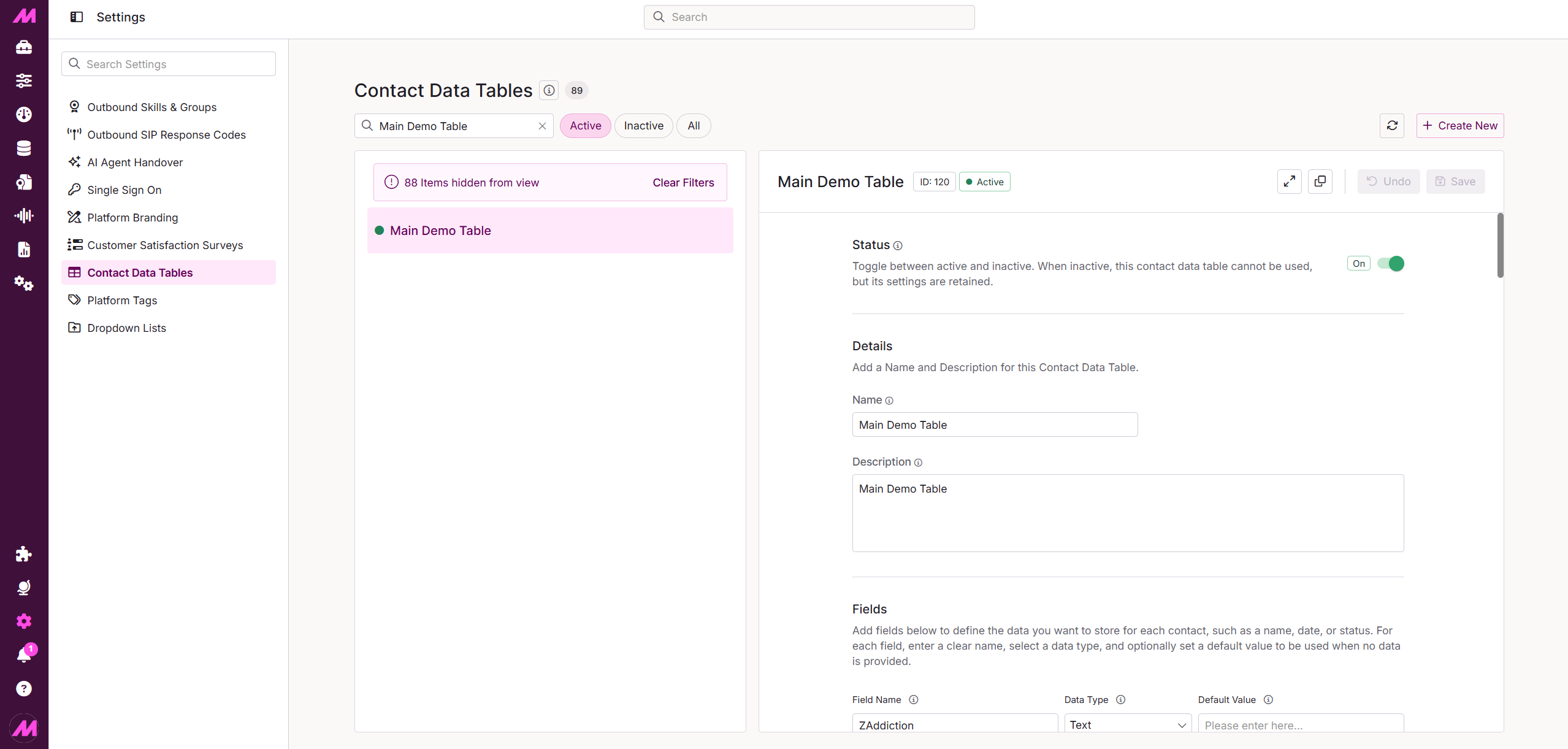
Contact Data Tables allows you to create and manage the secondary data tables used across MaxContact. Tables house custom data fields that are registered against leads in the database, and can be used across scripts, custom data fetching, list management rules, and more.
Fields can be created for any data you need to capture — such as date of birth, contact details, or contract expiry dates.
Note: This page was previously named Table Manager. It can be accessed via the Contact Data Tables tab on the main Settings page.
Page options
 | Switch between views to display active, inactive, or all tables. |
 | Refresh the page to load any changes made by another user. |
 | Create a new table. You must save before navigating away from the page. |
 | Expand the view of a selected table. |
 | Clone an existing copy of a selected table. |
 | Undo any unsaved changes. Changes made before the last save cannot be undone. |
 | Save changes to existing surveys or save a newly created survey. |
Table list
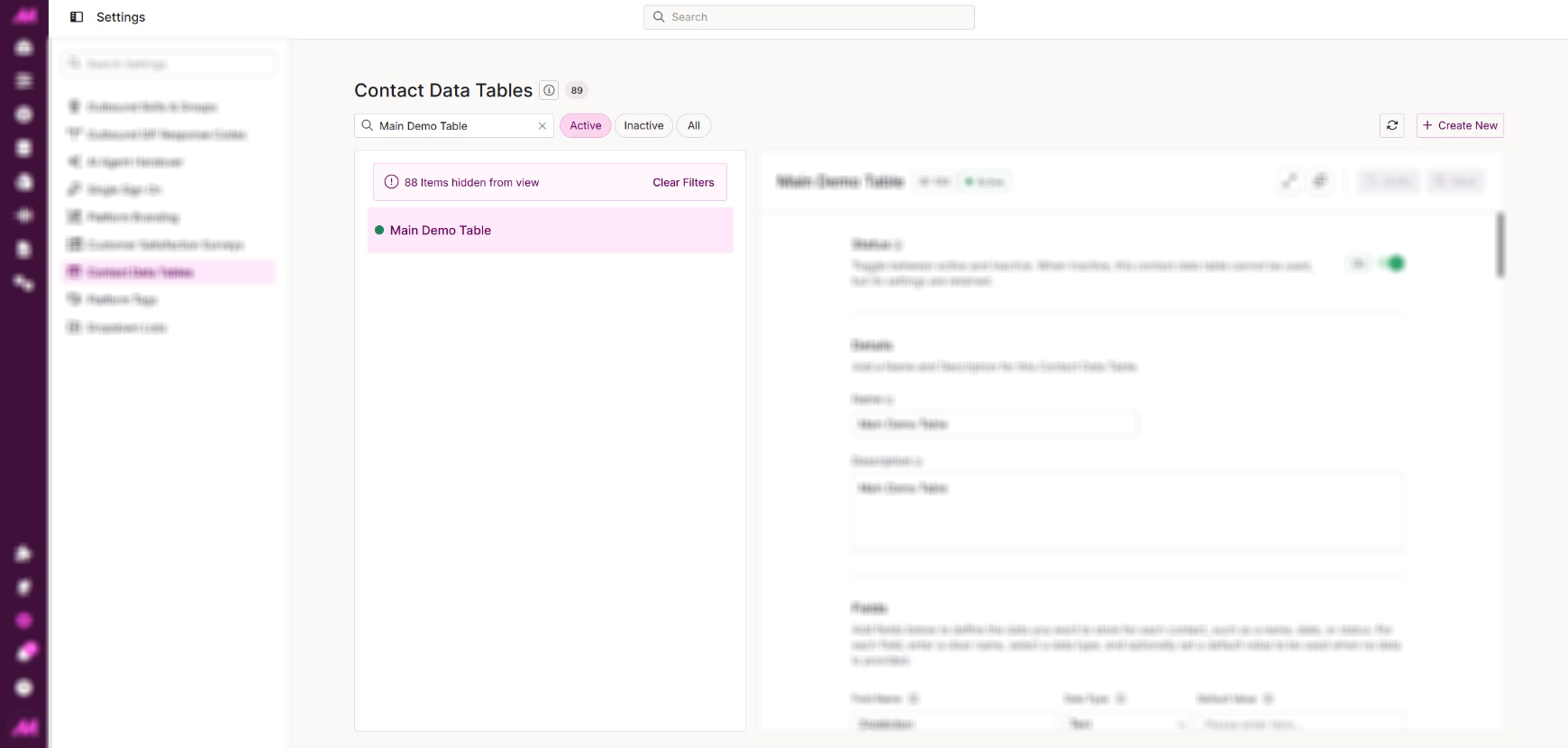
The left-hand panel displays all tables on the system, filtered by your selected view. Inactive tables are greyed out. Select a table to open its details in the right-hand panel.
Table details
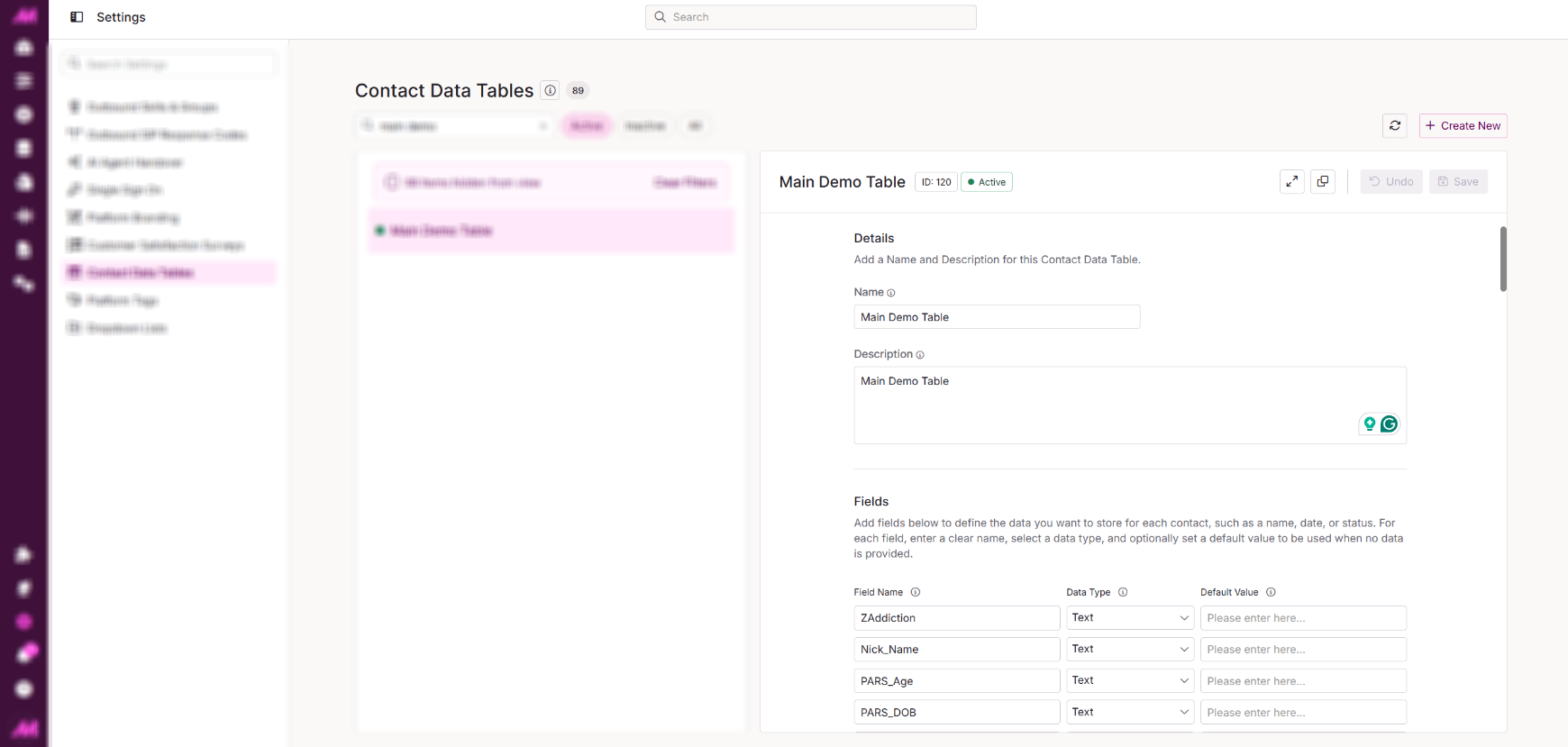
| Field | Description |
| ID | The system ID for the table. |
| Active | Toggle to make the table active or inactive. Inactive tables are hidden from the default view and cannot be used, but are not deleted and can be reactivated at any time. |
| Name | The name of the data table. Use a specific name that makes its purpose clear to all users, particularly when it appears in scripts or the import process. Maximum 50 characters. |
| Description | A description of the table's purpose. As the number of tables grows, a clear description helps users identify the right table quickly. Maximum 50 characters. |
| Field | Description |
| Field Name | The name of the field. Use a specific name that makes its purpose clear when the field appears in scripts or other areas of the system. |
| Data Type | The data type for the field. Setting a data type ensures only suitable data can be entered, helping maintain consistent data quality. Available data types include:
|
| Default Value | An optional default value for the field. If set, ensure it matches the selected data type. Leave blank if no default is needed. |
| + Add | Adds another field to the table. There is no limit to the number of fields a table can contain. |