
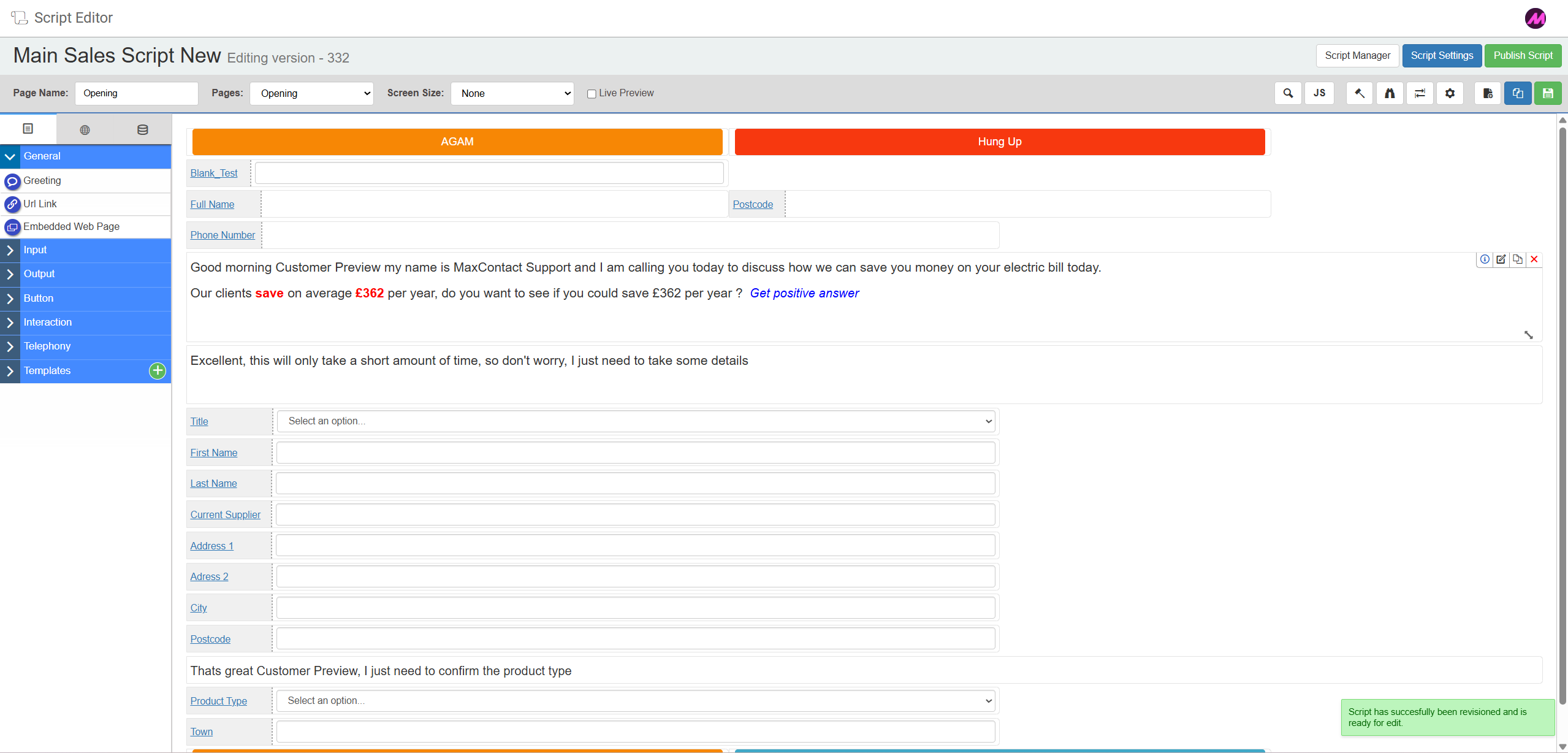
Script Editor — Creating a Script & Main Script Options
The Script Editor is where you build and manage the pages and fields that make up an agent script. This article covers how to create a new script and explains the options available once you are inside the editor.
Creating a new script
- Go to Admin > General > Script Editor.
- Select New Script in the top-right corner of the page.
- Enter a name for the script in the dialog box and confirm. The Script Editor will open on the new script.
Option buttons
The option buttons run across the top of the Script Editor and control script-level actions.
| Option | Description |
|---|---|
| Script Manager | Returns you to the Script Manager page. |
| Script Settings | Opens a dialog box where you can edit the script name, set the first page loaded for inbound and outbound calls, and choose a default background colour for the script. |
| Publish Script | Publishes the script immediately with no confirmation dialog — make sure the script is correct before selecting this. Publishing does not automatically apply the script to any lists or campaigns unless it has been previously published and assigned to them. |
Script options
The script options toolbar sits within the editor and controls page-level actions and tools.
| Option | Description |
|---|---|
| Page name | Displays the name of the page currently shown in the editor. |
| Pages | A dropdown listing all pages in the script. Select a page to navigate to it in the editor. |
| Screen size | Lets you preview how the script will appear at different screen resolutions, including a sample Contact Hub view. |
| Live preview | When enabled, shows how the finished script will appear to agents, including all rules and navigation buttons. Combine with a screen size option for a more accurate preview. |
| Lead search | Allows you to search for a lead by phone number, reference, postcode, or name. Selecting a result populates the script fields with that lead's data, letting you see how real information will appear during a call. |
| JavaScript | Opens the JavaScript editor, where you can enter custom logic to manipulate the page, script, or advanced configuration. See Advanced Scripting — Javascript for more detail. |
| Rules | Opens the rules editor, where you can create conditional logic for the page and its fields. See Advanced Scripting — Rules for more detail. |
| Field Finder | Lets you search for fields within the script. You can filter by reference name, default value, customer table, field type, and whether the field has rules applied. See Advanced Scripting — Field Finder for more detail. |
| Tab Ordering | Sets the order in which agents move through fields when pressing the Tab key. See Advanced Scripting — Tab Ordering for more detail. |
| Page Settings | Opens settings for the current page. You can rename the page, toggle call recording on or off for that page, change the background colour, and delete the page. See Advanced Scripting — Script & Page Settings for more detail. |
| Add page | Adds a new blank page to the script. |
| Clone page | Creates a copy of the current page. |
| Save | Saves changes to the current page. |