
Call Reviews
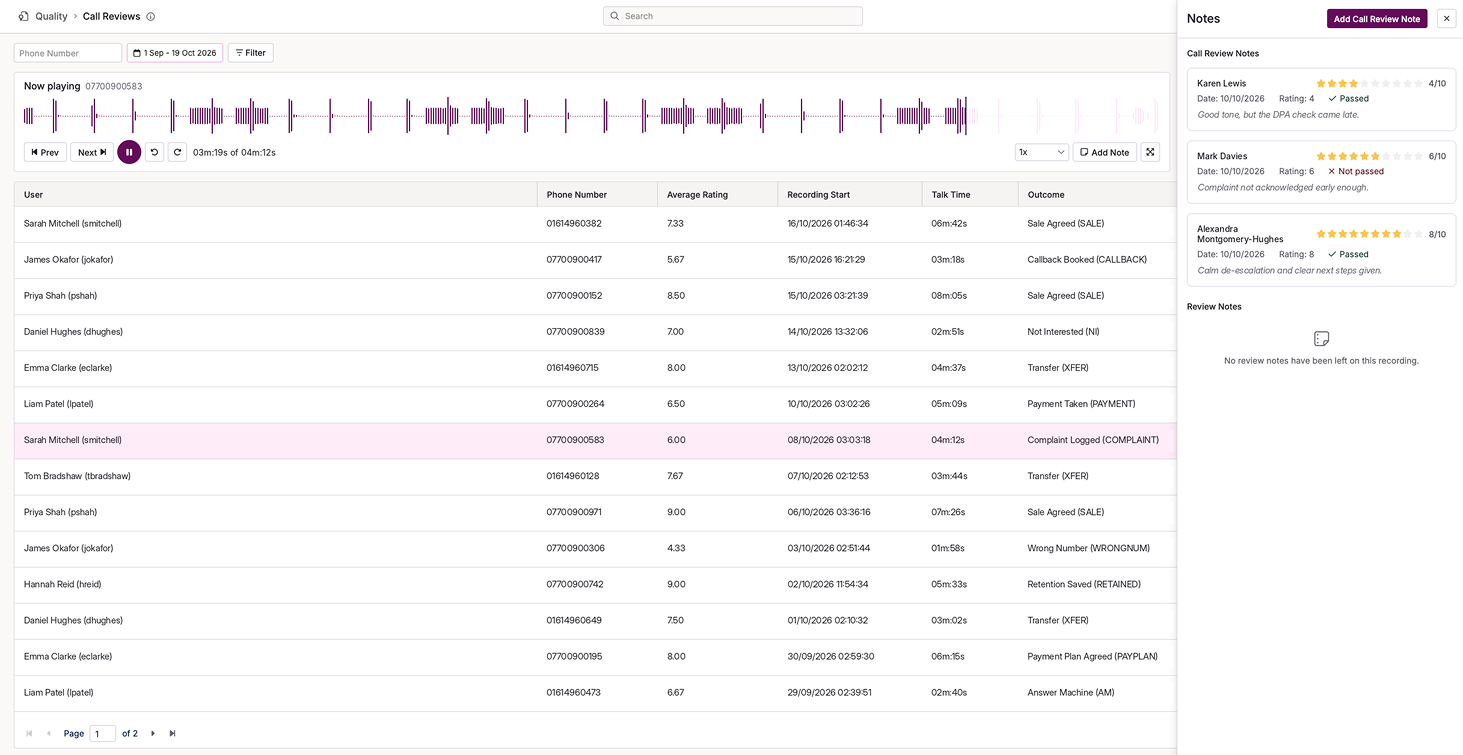
Call Reviews shows the calls that have been given a rating or had a review note added. Unlike Recordings Playback, which shows every call, this page shows only calls that have already been assessed. Use it to find, play and follow up on those calls. Find it at Quality > Call Reviews.
You can add ratings and notes from Recordings Playback, Coaching, or the CTU widget on a dashboard.
Search for calls
The start date, end date and phone number fields are always on screen. The date and time criteria filter by when the call was made, not when the note or rating was added.
Select Filter to narrow your results further. Where a filter has a list of values, you can select more than one.
| Filter | Description |
|---|---|
| User | Shows calls handled by specific agents. |
| Campaign | Shows calls made or received in specific campaigns. |
| Reference ID | Filters by the reference ID imported against the contact record. |
| Average rating | Filters by the average rating applied to the call. |
| Exceptions only | When ticked, returns only calls flagged as exceptions. Exceptions are based on the talk time thresholds set on the outcome codes. |
| Outcome | Filters by call outcome. Each outcome shows its description and its code. |
| Category | Filters by note category. Categories are set up separately and group notes by type, such as compliance, training or positive feedback. |
| Recording Length | Filters by recording duration, within the range you set. There is no All option. To include recordings of any length, remove the filter. |
View your results
The results table lists the calls that match your search. Dates show in one format: dd/mm/yyyy hh:mm:ss. The Outcome column shows the outcome description and its code.
After a search, no call is selected. Select a call to open it.
Play a call
Select a row in the results table. The recording plays automatically.
To move between calls, select Prev or Next, or use the arrow keys.
Review notes
When you select a call, its review notes open in a side panel. Each note appears as a card, in sequence, with the name of the person who added it. A card shows the note text and its rating.
You cannot edit existing notes from this page. You can only view them.
Add a note
- Select the call you want to review, so it plays.
- Select the 'Add Call Review Note' button in the review notes panel.
- Enter a description. Notes can be up to 1,000 characters.
- Choose a rating of at least 1 and set the Category.
- Save the note.
If a note cannot be saved, an error message tells you why. If you close the note before saving, a warning asks you to confirm that you want to discard it.