
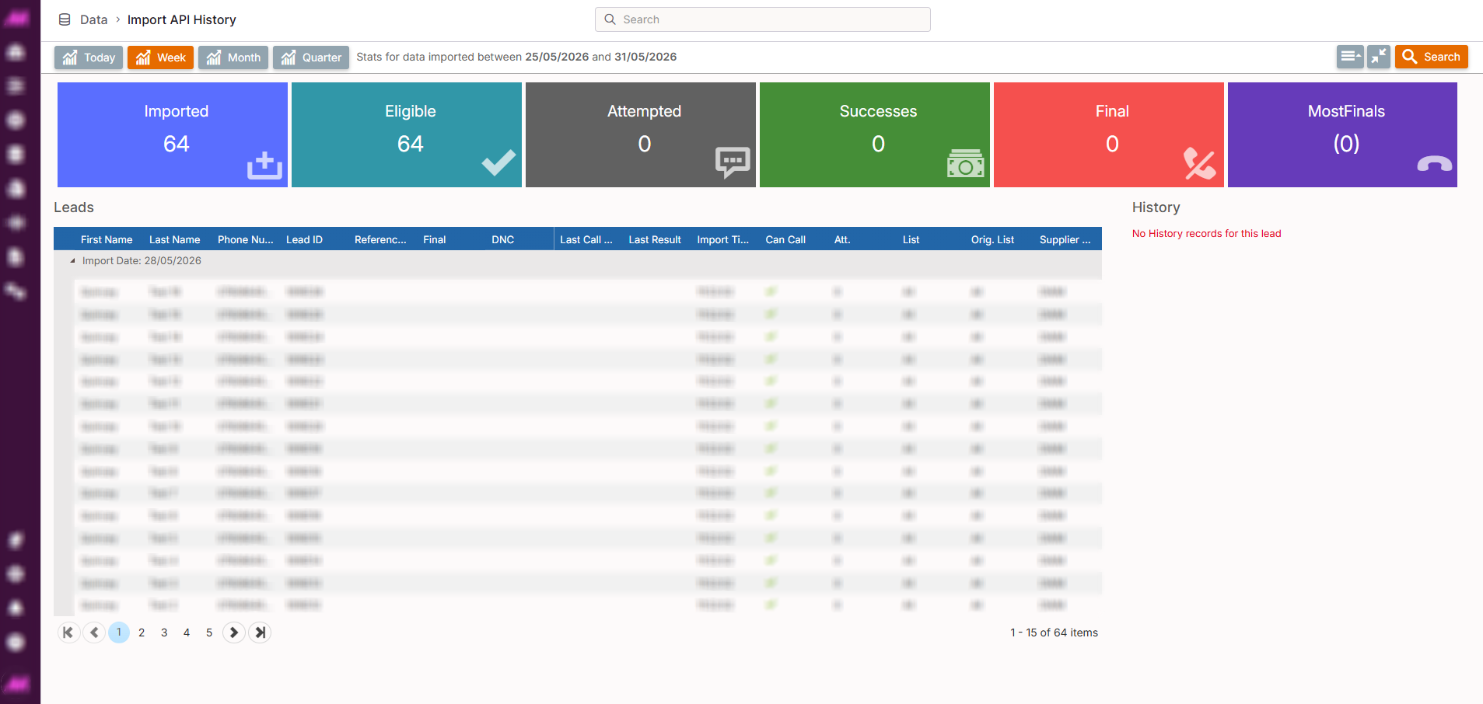
Import API History
The Import API History page lets you review all leads that have been imported into the system via API. Unlike Import Lead History, which focuses on the import itself, this page focuses on the leads — showing their current eligibility, call history, and outcomes. It is particularly useful for monitoring the performance of API-imported data and investigating individual records.
To access it, go to Data > Data History > Import API History.
Filtering
Use the time span buttons and advanced search options to control which records are shown.
Time span buttons
The buttons at the top of the page filter the results to a preset period. Selecting Day, Week, Month, or Quarter updates the table immediately to show records imported within that period.
Page controls
| Control | Description |
|---|---|
| Advanced search | Opens the advanced search options panel. See the Advanced search options section below. |
| Expand | Stretches the results table to fill the full width of the screen, giving more space to view the columns. |
| Search | Applies any criteria entered in the advanced search panel to the results table. |
Advanced search options
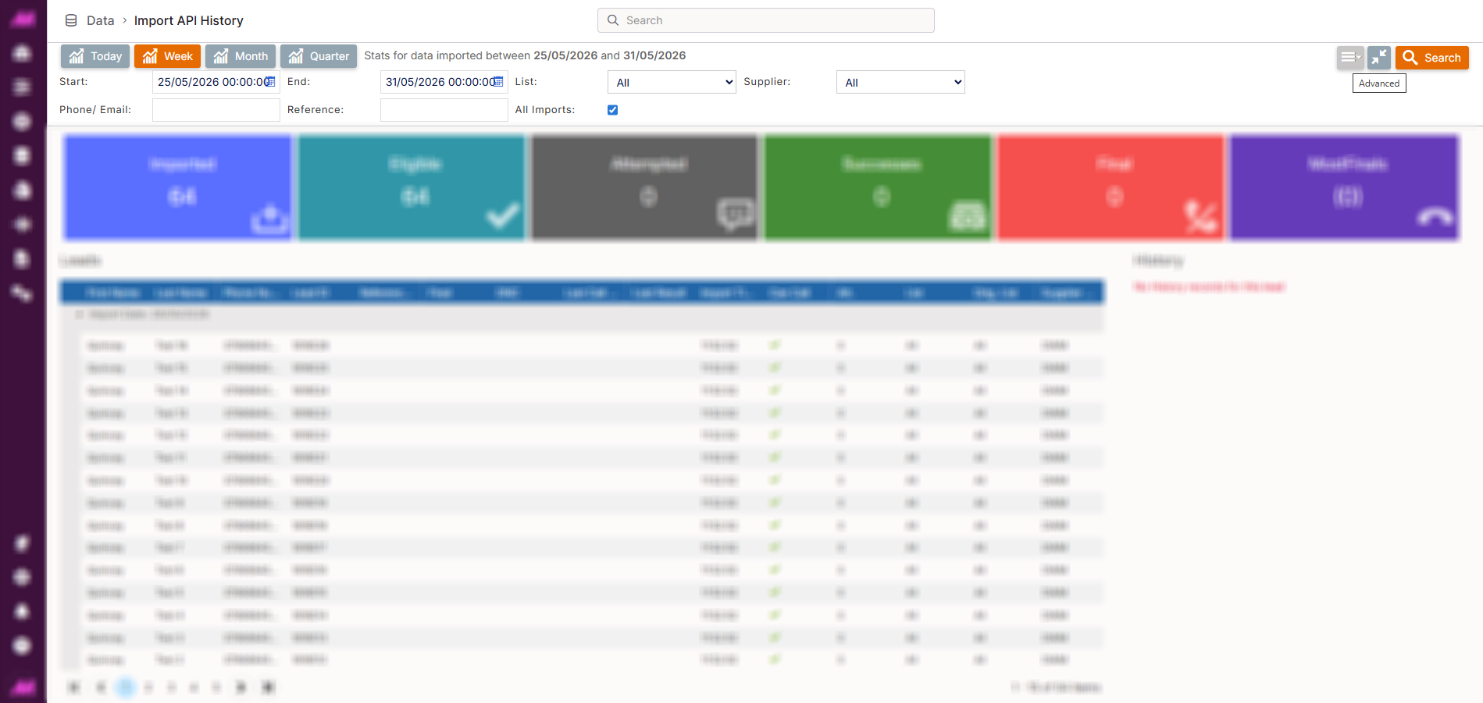
| Field | Description |
|---|---|
| Start date | The start of the date range to search within. |
| End date | The end of the date range to search within. |
| List | Filters results to a specific destination list. |
| Supplier | Filters results by the supplier assigned to the import. |
| Phone/Email | Searches for a specific phone number or email address within the results. |
| Reference | Searches for a specific reference value — for example, a CRM reference number imported with the lead. |
| All imports | When ticked, the search criteria are applied across all imports regardless of the time span selected. When unticked, the search is limited to imports within the currently selected time span (Day, Week, Month, or Quarter). |
Note. If leads have moved from their original import list to a different list (e.g. using List Data Manager), the results will reflect their current list rather than where they were originally imported. For example, if 10 leads are imported into List A and 5 are later moved to List B, filtering by List A will return 5 results rather than 10. To find all leads from a specific import regardless of their current list, use the All imports option and search by Supplier or Import time instead.
Stats
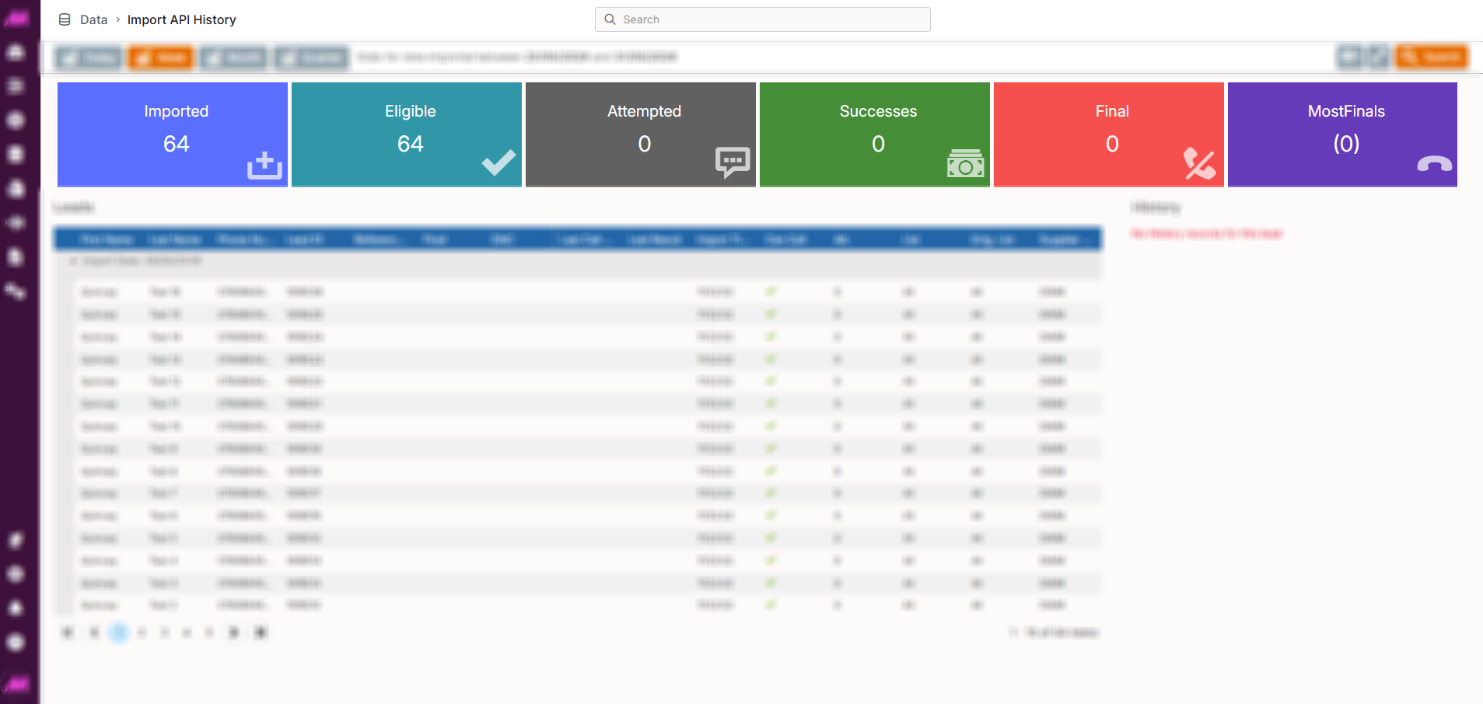
The stats section displays headline figures for all records matching your current search criteria.
| Stat | Description |
|---|---|
| Imported | Total number of leads imported within the current search criteria. |
| Eligible | Number of leads from the search results that are currently eligible to be dialled. |
| Attempted | Number of leads from the search results that have had at least one call attempt. |
| Successes | Number of leads from the search results that have reached a result code marked as a success. What counts as a success is defined by your result code configuration. |
| Final | Number of leads from the search results that have been given a final result code and will not be automatically called again. |
| Most finals | The agent with the highest number of finals within the search results, along with their total final count. |
Results table
The results table lists all leads matching your search criteria. Each row represents one lead record.
| Column | Description |
|---|---|
| First name | The lead's first name. |
| Last name | The lead's last name. |
| Phone number | The phone number associated with this lead record. If an email address has also been imported, this will be shown here. |
| Lead ID | The unique system ID assigned to this lead on import. |
| Reference ID | A reference value imported with the lead, typically a CRM reference number or similar identifier. |
| Final | Indicates whether this lead has been given a final result code. |
| DNC | Indicates whether this lead's number is on the Do Not Call list. |
| Last call date | The date and time of the most recent call attempt on this lead. |
| Last result | The result code applied to the most recent call on this lead. |
| Import time | The date and time this lead was imported into the system. |
| Can call | Indicates whether this lead is currently eligible to be dialled. |
| Attempts | The total number of call attempts made against this lead. |
| List | The list this lead currently resides on. |
| Original list | The list this lead was originally imported into. |
| Supplier name | The supplier assigned to this lead at the point of import. |
Call history panel
Selecting a lead in the results table opens its call history in the right-hand panel. This shows a summary of every call made to that lead, with the following detail for each entry:
| Field | Description |
|---|---|
| Agent name | The agent who handled the call. |
| Reference ID | The reference value associated with the lead at the time of the call. |
| Call start | The date and time the call started. |
| Call end | The date and time the call ended. |
| Result code | The result code applied to this call. |
| Result code description | The description of the result code as configured in your system. |
Note. The call history panel only appears if the selected lead has a call history on the system. Leads that have not yet been attempted will show no history.