Command Element
Quincey Bernard
Modified on: Thu, 11 Jun, 2026 at 9:23 AM
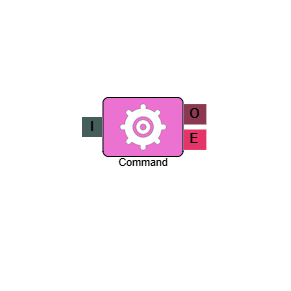
Command
The Command element executes a system command at a defined point in the IVR flow. It can be used to perform a range of actions — from updating call information in Web Agent, to playing values back to the caller.
Connections
| Connection | Description |
|---|
| I – Input | The entry point for this element. Connect from the preceding element in your IVR flow. |
| O – Output | The path taken when the command has been successfully executed. |
| E – Error | The path taken if the element encounters an error. |
Settings
| Field | Description |
|---|
| Name | Give the element a clear name so it is easy to identify within your IVR flow. |
| Description | Optional. Add a note to explain the element's purpose — useful in more complex flows. |
| Agent Can See This | When enabled, agents can transfer a live caller directly to this element via the IVR Transfer option. |
| Supervisor Can See This | When enabled, the element is visible in the IVR Transfer list for users with a Supervisor role. It remains hidden from all other users. |
| Result Code | Assign a result code to this element to track calls that pass through it. |
| Command | Select the action you want the element to perform. The available options are:- Other Call Info Append — adds information as text to the end of the call info shown in Contact Hub.
- Other Call Info Prepend — adds information as text to the beginning of the call info shown in Contact Hub.
- Other Call Info Modify — changes the current call info shown in Contact Hub.
- Update Call Property — updates a specific field on the call record. Selecting this displays two additional fields: Old Value (a dropdown of available fields to update) and New Value (the value you want to update the field to).
- Write To History — splits the call in record history so there are two separate entries — one for each part of the call. Useful when a call is transferred to an IVR to pass to another department.
- Add To Virtual Queue — adds the call to the Virtual Queue.
- Play Digits — plays the caller's phone number back to them one digit at a time.
- Play Number — plays a number back to the caller.
- Play EQT — plays the Estimated Queue Time to the caller.
- Play Currency — plays a currency value back to the caller. Selecting this displays a Value field where you enter the name of the field containing the currency value to play.
|
Related articles
