
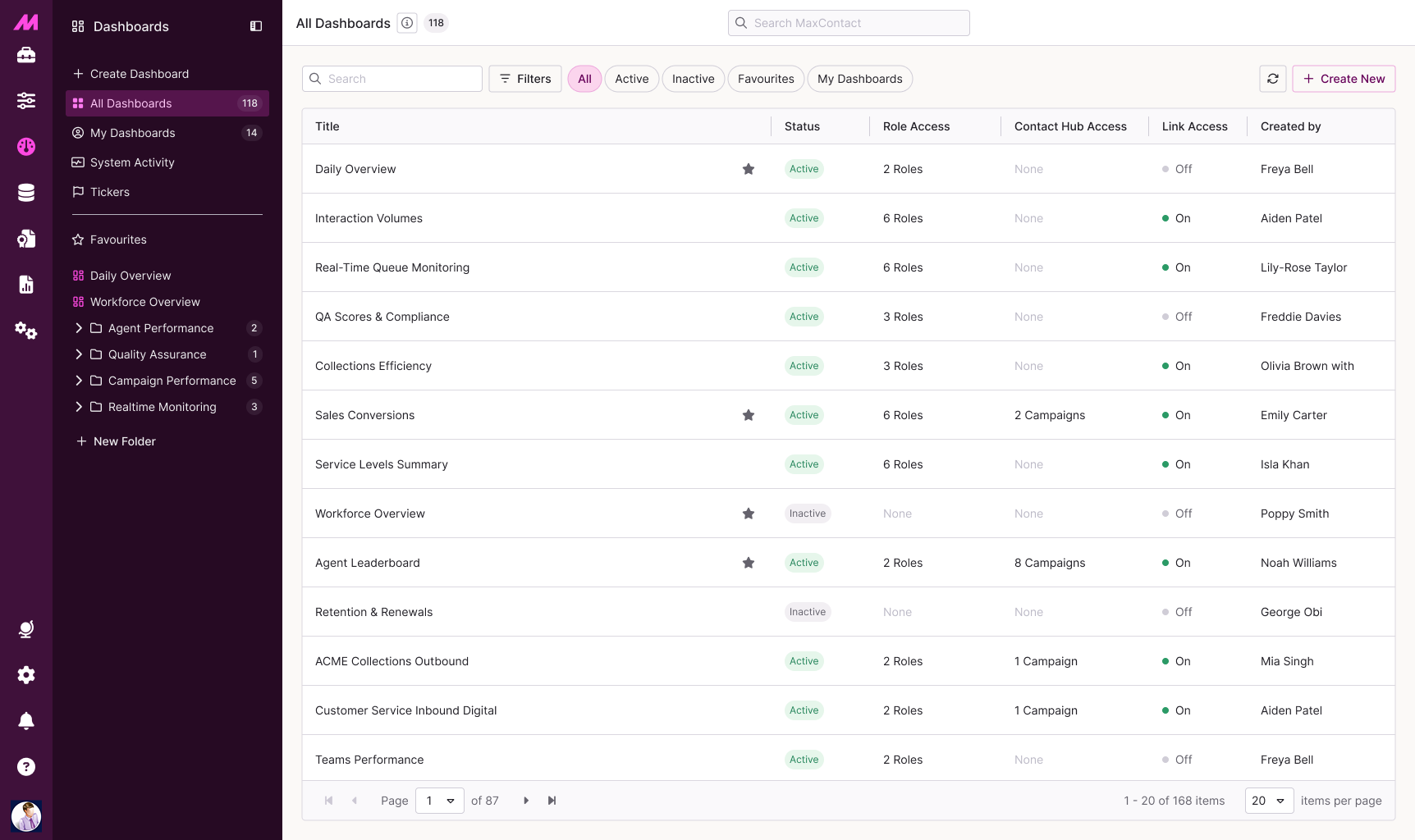
Dashboard Management
The Dashboard Management panel gives you everything you need to create, organise, and control access to your dashboards in one place. By default, the panel opens on hover. If you'd prefer it to stay open, select the expand option in the top-right corner — this is available when in the All Dashboards or My Dashboards view.
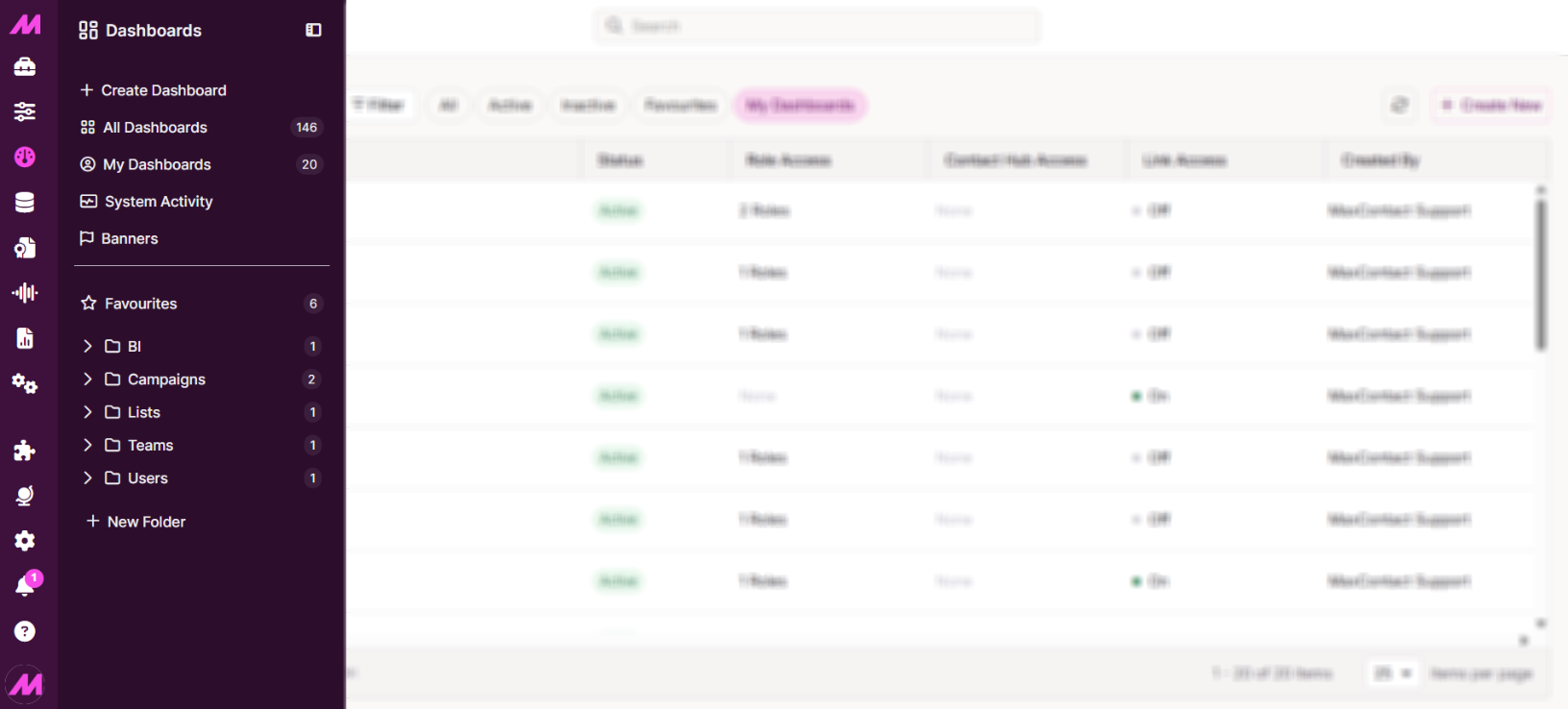
Panel options
| Option | Description |
|---|---|
| Create Dashboard | Opens the Dashboard Designer so you can start building a new dashboard. |
| All Dashboards | Displays every dashboard currently set up on your MaxContact system. |
| My Dashboards | Shows only the dashboards that you have personally created. |
| System Activity | View current call and agent activity across your system. See System Activity for more detail. |
| Banners | Create and manage banners of text to display within your dashboards. See Banners for more detail. |
Favourites and folders
You have full control over how your dashboards are organised through favourites and folders. Both are entirely personal to you and not visible to other users.
Any dashboard you favourite will appear in your Favourites view. From there, you can place favourited dashboards into folders, which you can create, name, and manage however works best for you.
- Folders are sorted in alphabetical order.
- A dashboard can only be placed in one folder at a time.
Filters and view options
Use the view filters to control which dashboards are shown in the panel.
| Filter | Description |
|---|---|
| All | Displays all active and inactive dashboards. |
| Active | Displays all published dashboards. |
| Inactive | Displays all unpublished dashboards. |
| Favourites | Displays your favourited dashboards. |
| My Dashboards | Displays dashboards you have created. |
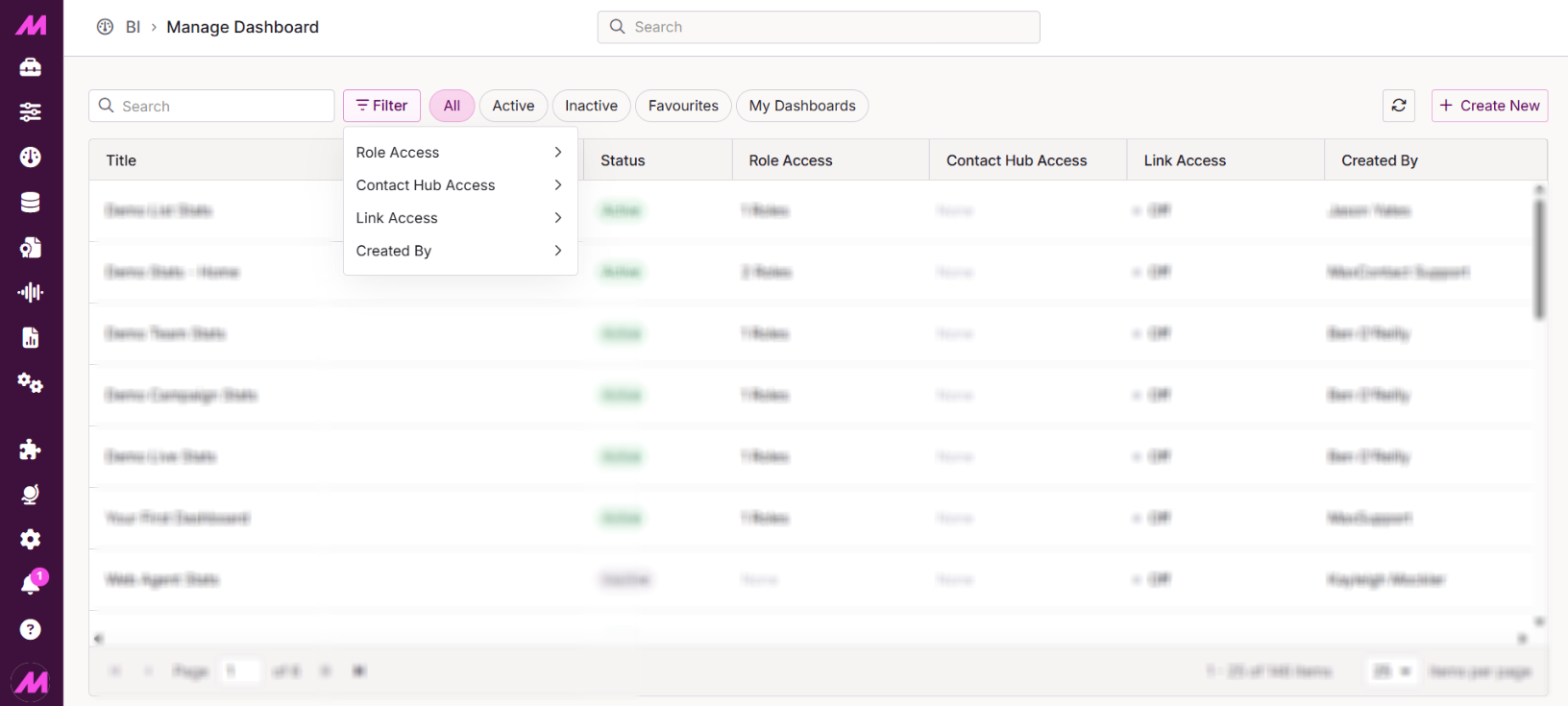
For more refined searching, use the Advanced Filter option to filter by the following.
| Filter | Description |
|---|---|
| Role Access | Filters by which Management Hub roles the dashboard is published to. |
| Contact Hub Access | Filters by whether the dashboard is published to a Contact Hub campaign. |
| Link Access | Filters by whether the dashboard is available via a shareable link. |
| Created By | Filters by which user originally created the dashboard. |
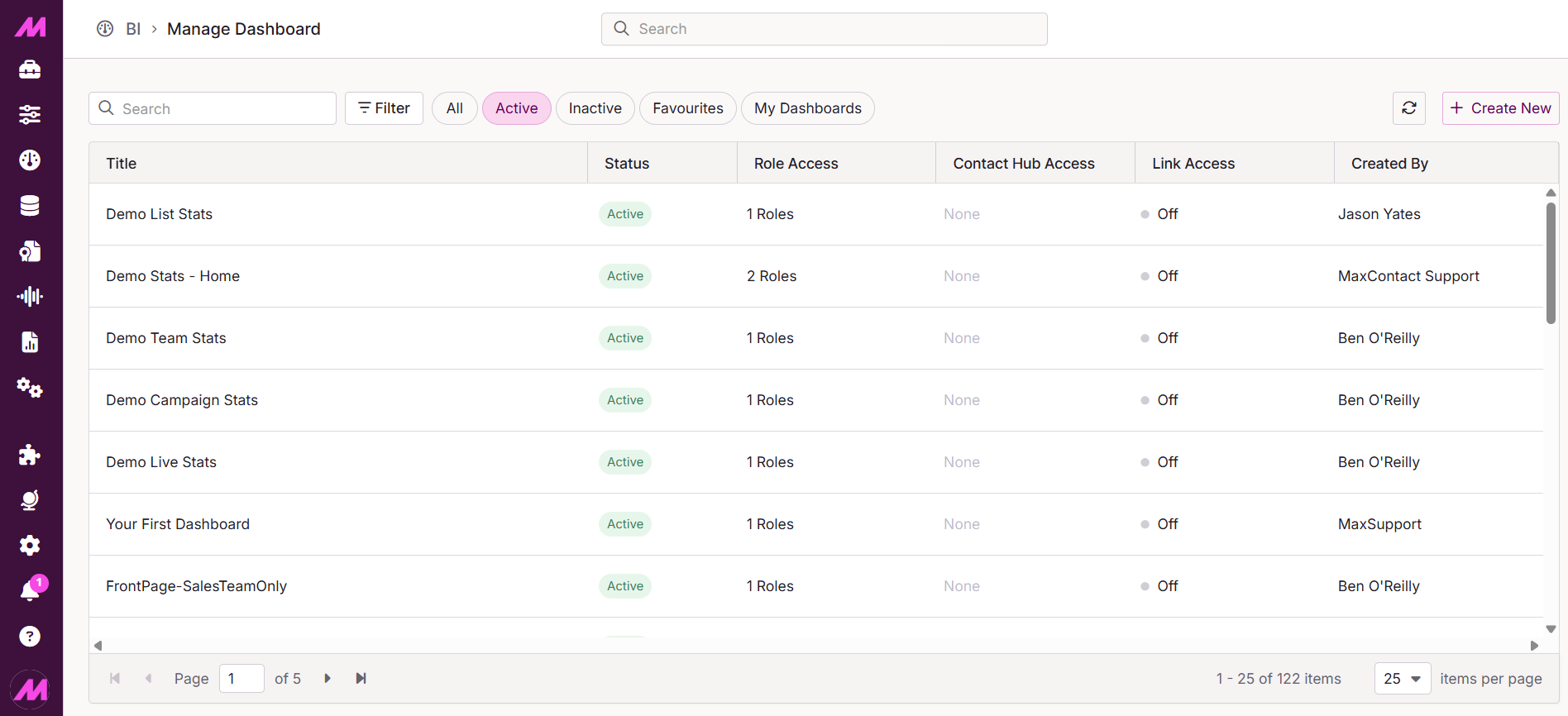
Table view
The table displays all dashboards matching your current filter and shows the following information.
| Column | Description |
|---|---|
| Title | The name of the dashboard. |
| Status | Whether the dashboard is Active (published) or Inactive (unpublished). |
| Role Access | The number of Management Hub roles with access to the dashboard. |
| Contact Hub Access | The number of Contact Hub campaigns the dashboard is published to. |
| Link Access | Whether the dashboard is enabled for sharing via a link. |
| Created By | The user who originally created the dashboard. |
Dashboard view
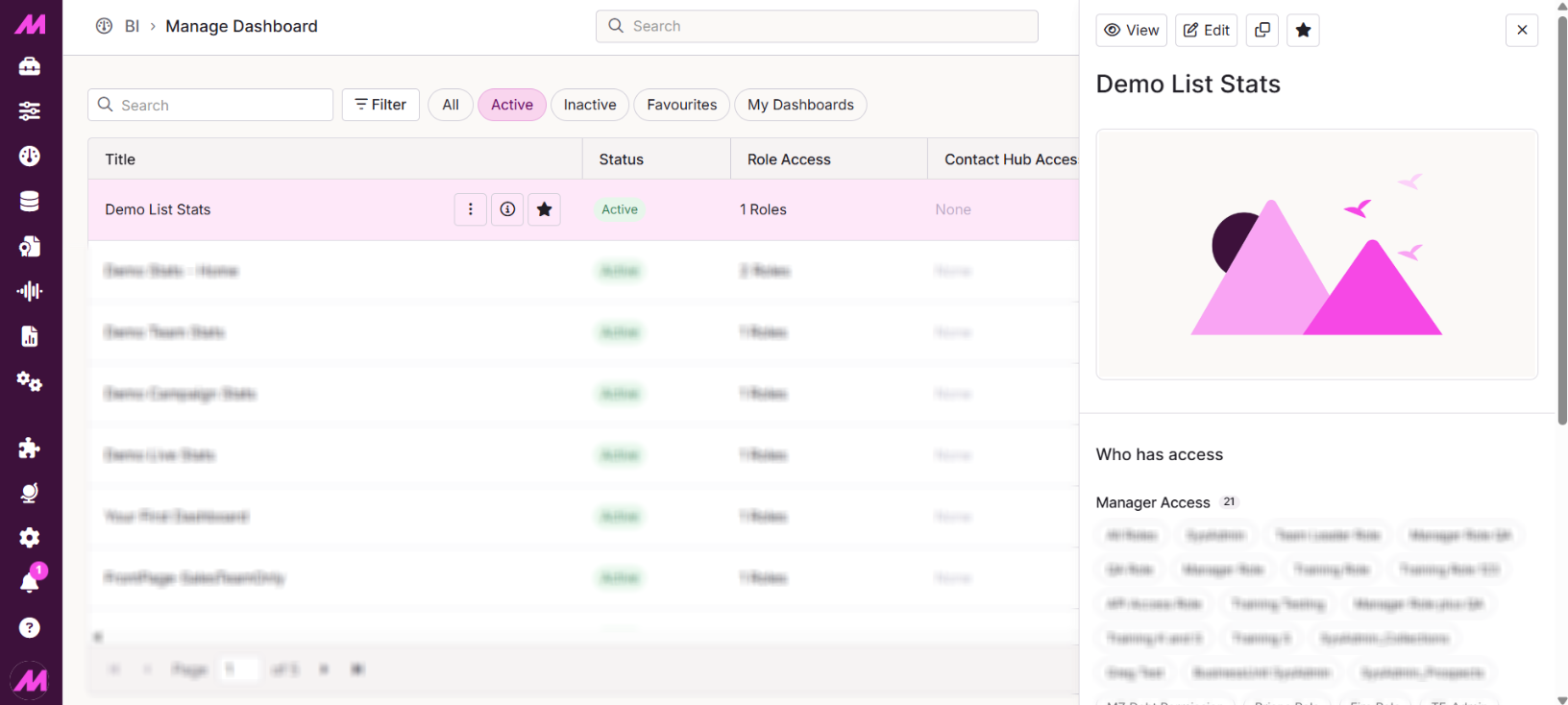
Selecting a dashboard opens a right-hand panel with further detail and management options. Along the top you will find options to View, Edit, Duplicate, or Favourite the selected dashboard. Scrolling down shows the roles with access in Management Hub, any Contact Hub campaigns it is published to, and whether link access is enabled.
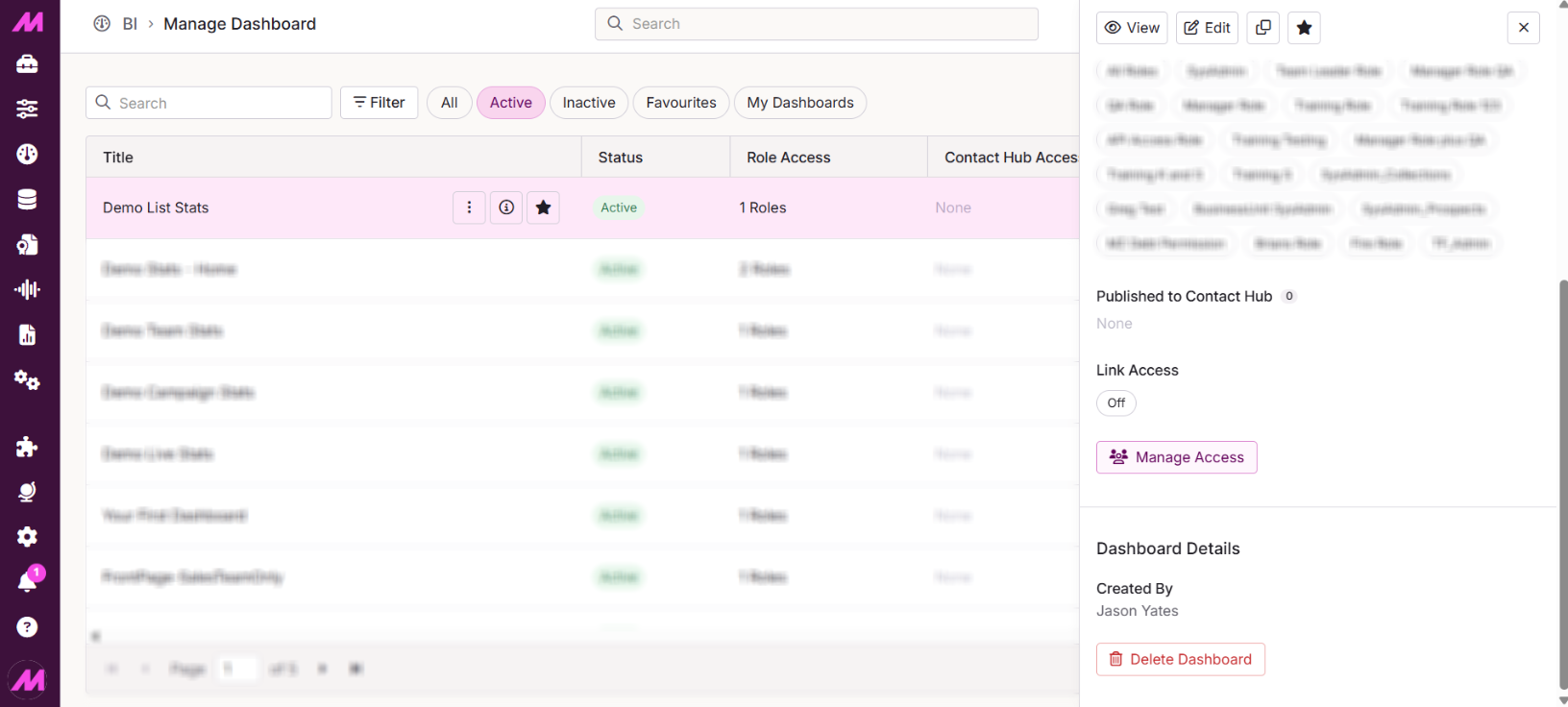
To publish, unpublish, delete, or adjust access, select Manage Access.
Managing Access
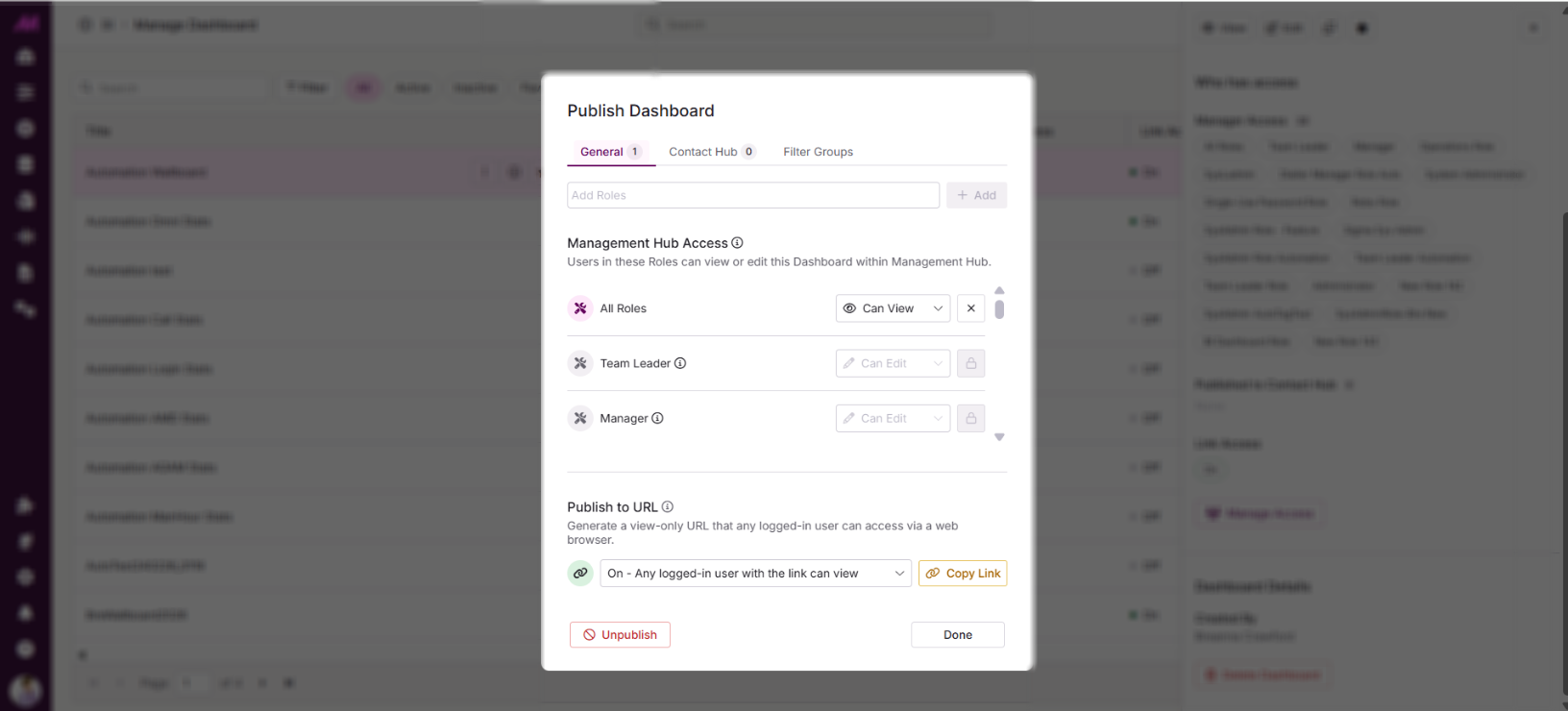
The Manage Access window has three tabs.
| Tab | Description |
|---|---|
| General | Add or remove Management Hub role access. Adding a role grants view or edit access to all users with that role; removing it removes access for the same. You can also toggle Link Sharing on or off to control whether the dashboard can be viewed via a shared link. |
| Contact Hub | Search for and add campaigns using the Add Campaigns field. An All option is available to publish the dashboard system-wide across all Contact Hub campaigns. |
| Filter Groups | Use the Only show assigned Campaigns, Teams & Users checkbox to ensure users only see data relevant to what they have been assigned. Widgets showing information outside their assignment will appear blank. You can also define which stats are displayed by default and what users can adjust using filters — these mirror the filter options in Dashboard Designer Settings and can be updated here at any time. For example, you can configure a dashboard to display data from a single campaign only, or restrict views to specific teams by unchecking Allow Campaign Selection, List Selection, or User Selection. |