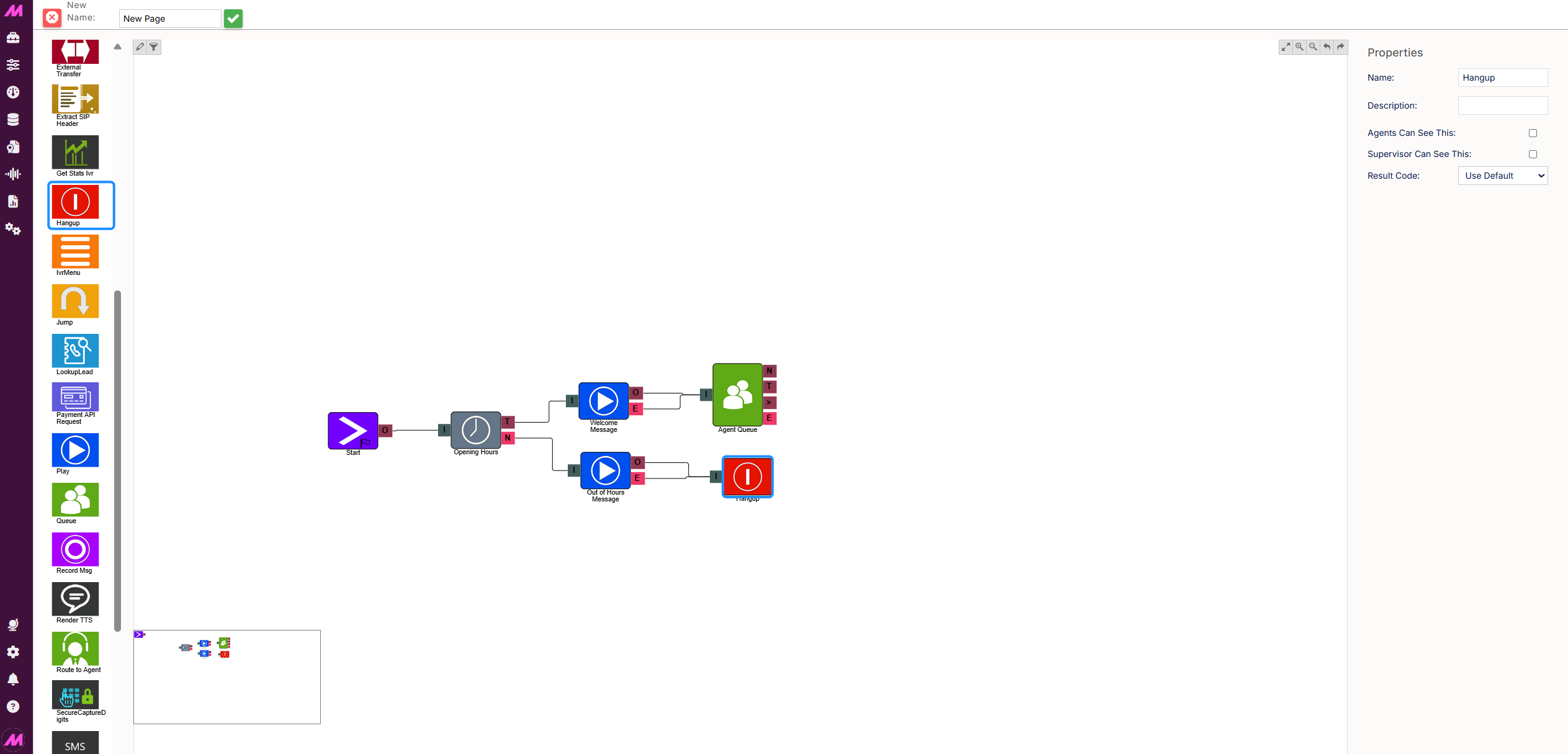
To begin creating an IVR routine, navigate to ADMIN > Telephony > IVR.


The IVR page allows you to create and edit as many different IVRs as you want giving you the ability to build bespoke inbound routes for your services and customers.


For more complicated IVRs we offer full training and will assist you in building your IVRs during onboarding.


To create an IVR, you simply drag the elements you require onto the centre of the page, connect them up and ensure any settings for each element are correct (displayed on the right hand side when selecting the element.


Page settings

Fig.1 - The IVR page settings


At the top of the IVR Editor page, you can select from the following options;

Clicking here will create a new IVR page.


Clicking here will allow you to clone the IVR page.
Page listHere you can select the IVR page you want to view/edit. 
Clicking here allows you to edit the IVR name.
Saves any changes.


Within the 'IVR Pane' in the centre of the screen, you can use the following options;

Colour Paths - Allows you to change colours of the links between elements.
Filter Paths - Allows you to filter the view to show certain paths.
Auto Fit
Zoom In
Zoom Out
Undo
Redo


Placing Elements

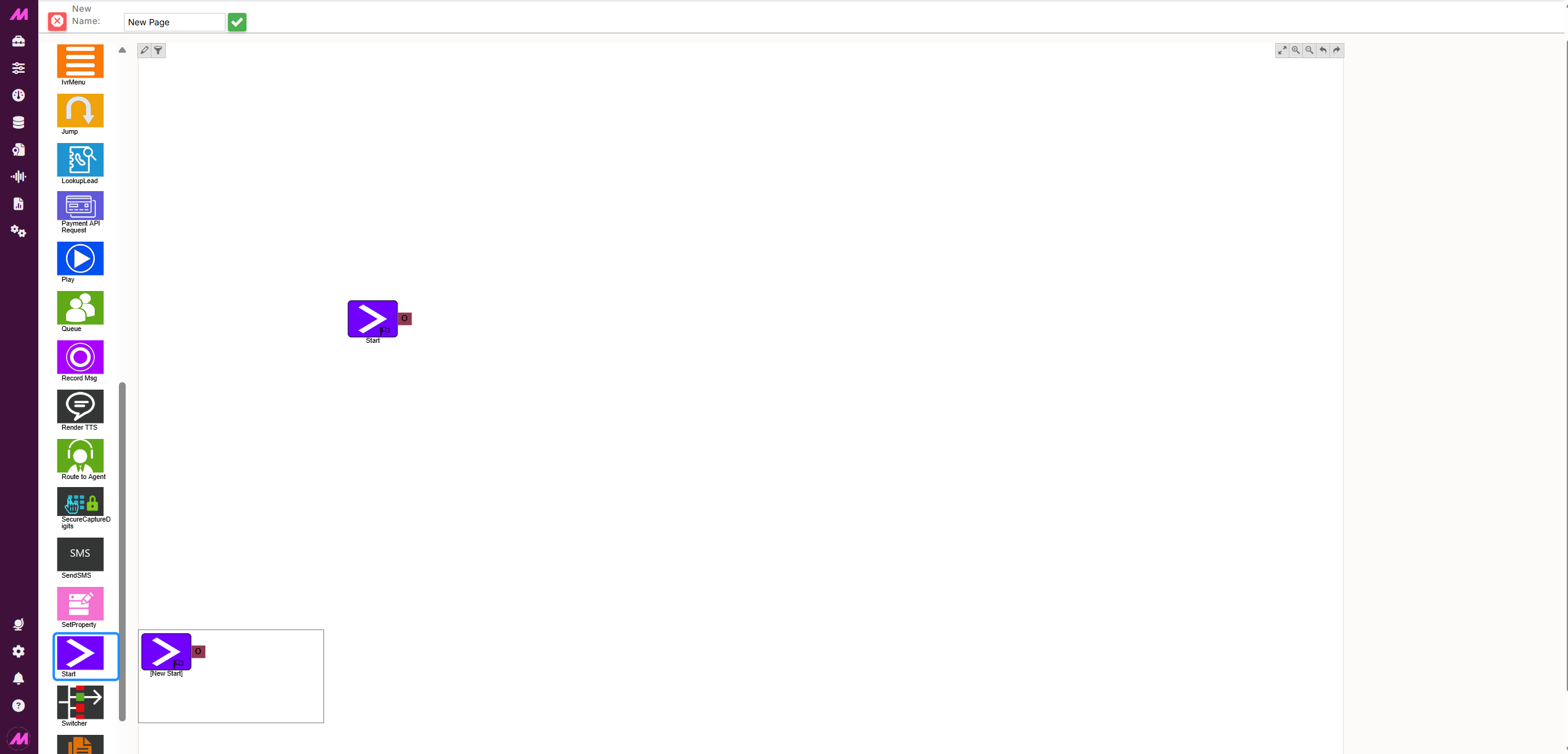
When selecting elements, all you need to do is click and drag the required element from the left hand menu onto the white space of the page.

Fig.2 - A start element dragged into the page.


Once the required element has been placed, the 'Properties' pane on the right hand side of the screen will be populated with the options available for that particular element.


Connecting Elements

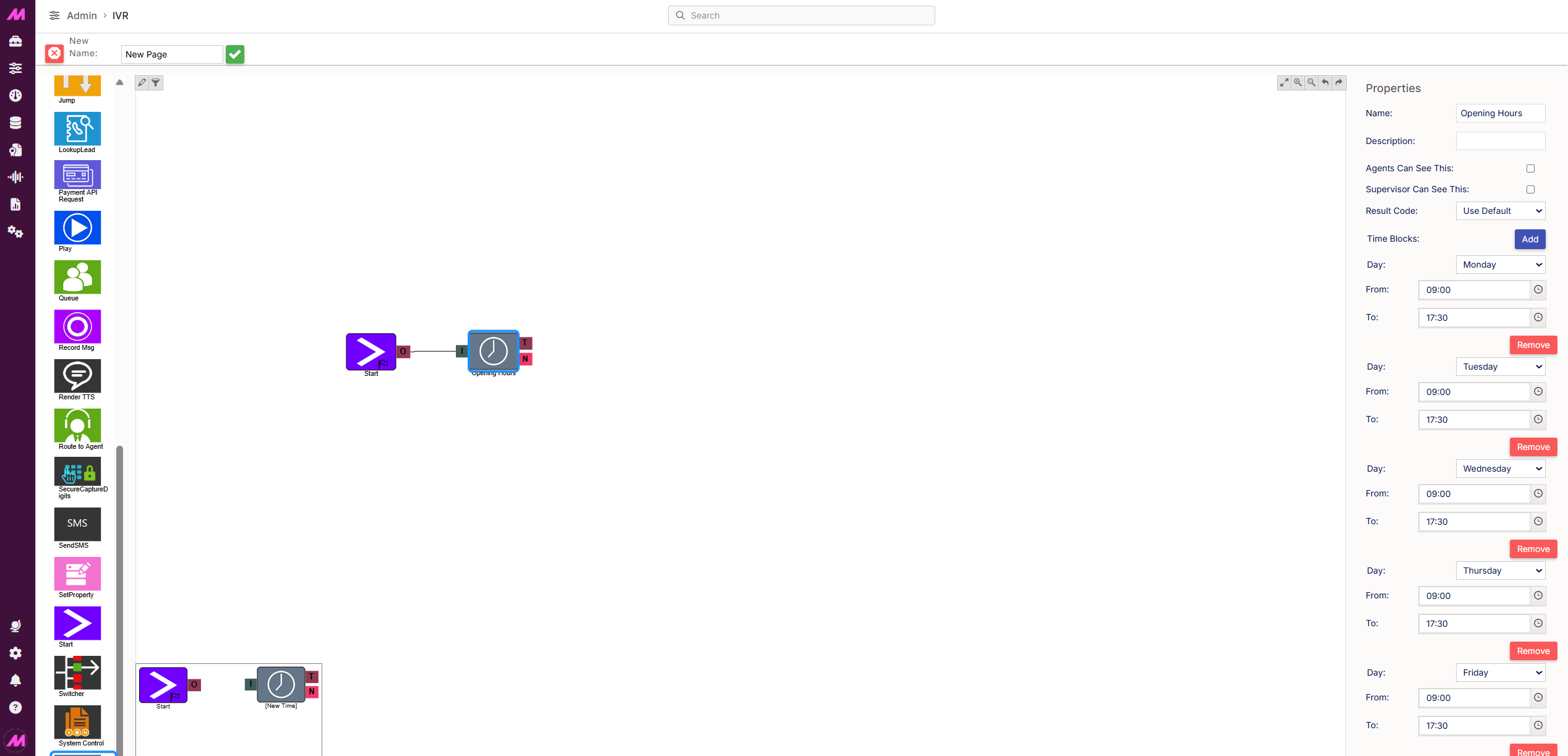
When connecting elements, all you need to do is select and drag from one joining tab to another.  Once connected, the elements will stay joined even when moving round the screen.

Fig.3 - Connecting 2 elements


Creating/editing an IVR Routine 

To create a basic IVR routine you will just need:

  • Start element 
  • Time check element
  • Play element 
  • Queue (Optional)
  • End call element


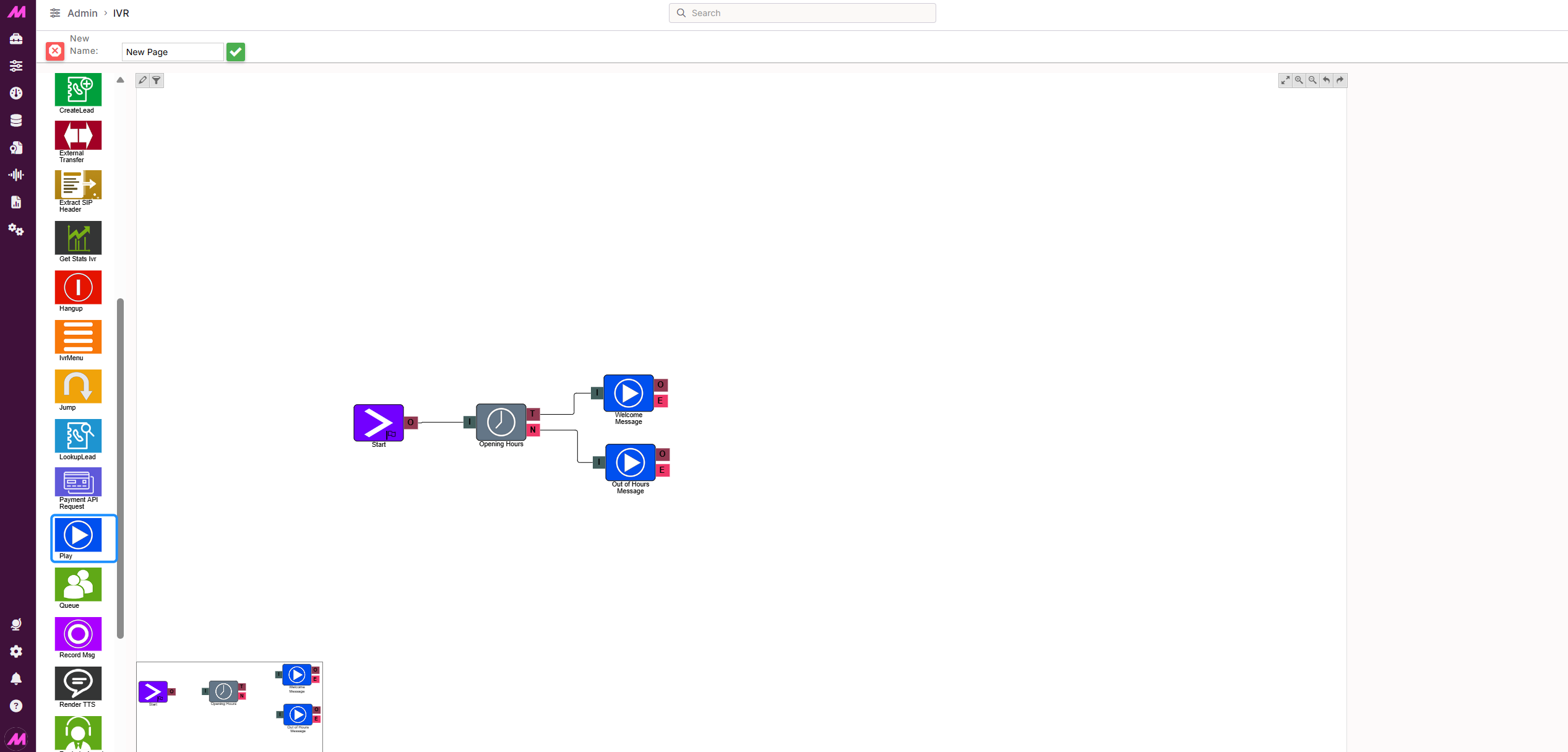
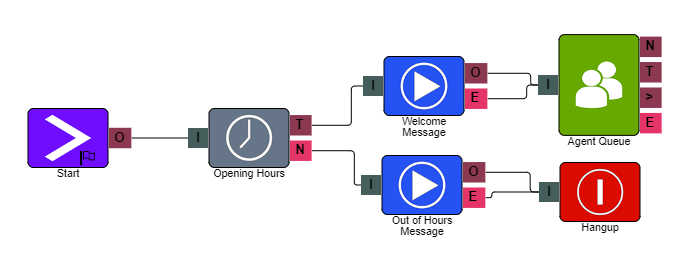
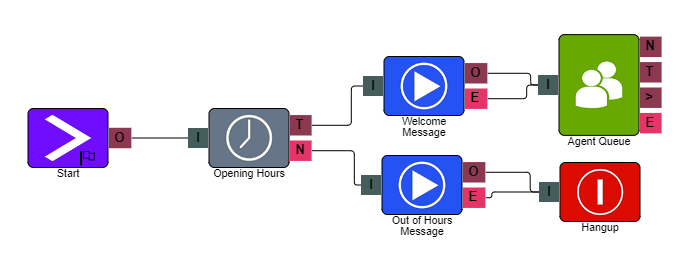
This would look something like the below. 


Fig.4 - A basic IVR route


The Elements 

These are the elements you would be using in the basic IVR creation. 

  • Start element
  • Time element
  • Play element
  • Queue element
  • Hang up element

Start element

You will need to include a 'Start' element on all IVR routes created. The start should be named clearly for easy recognition when assigning inbound numbers.


O = Output


Name, Description - On each IVR element, you can add a name and a description of the element.


Agent Can See This - This makes the element visible to an agent during a live call when they view the IVR/Workflow transfer option, enabling them to transfer the customer into the IVR. 


Supervisor Can See This - Anyone with the role type set as 'supervisor' within their main role, will be able to see the option but no-one else.


Time element

Allows the addition of opening hours/out of hours routing check on your IVR.


I = Input


T = True


N = No Match


Name, Description - On each IVR element, you can add a name and a description of the element.


Agent Can See This - This makes the element visible to an agent during a live call when they view the IVR/Workflow transfer option, enabling them to transfer the customer into the IVR. 


Supervisor Can See This - Anyone with the role type set as 'supervisor' within their main role, will be able to see the option but no-one else.


Result Code - You can assign a result code to the IVR element. This result code will be used upon a customer disconnecting the call while in the element.


Time Block - Adding a time block allows you to set the times for the message options. 


In the basic IVR example above (Fig.4), when a customer calls in between the opening hours, they will go through to the welcome message and then the queue element.  If the customer calls outside the hours, they will go through to the 'out of hours' message.


Play element

Allows you to play an audio file to the caller in the IVR.


I = Input


O = Output


E = Error


Name, Description - On each IVR element, you can add a name and a description of the element.


Agent Can See This - This makes the element visible to an agent during a live call when they view the IVR/Workflow transfer option, enabling them to transfer the customer into the IVR. 


Supervisor Can See This - Anyone with the role type set as 'supervisor' within their main role, will be able to see the option but no-one else.


Result Code - You can assign a result code to the IVR element. This result code will be used upon a customer disconnecting the call while in the element


Phrase - You can select audio files to be played at this stage of the IVR. These will be listed underneath as they are added (multiple can be selected).


Queue element

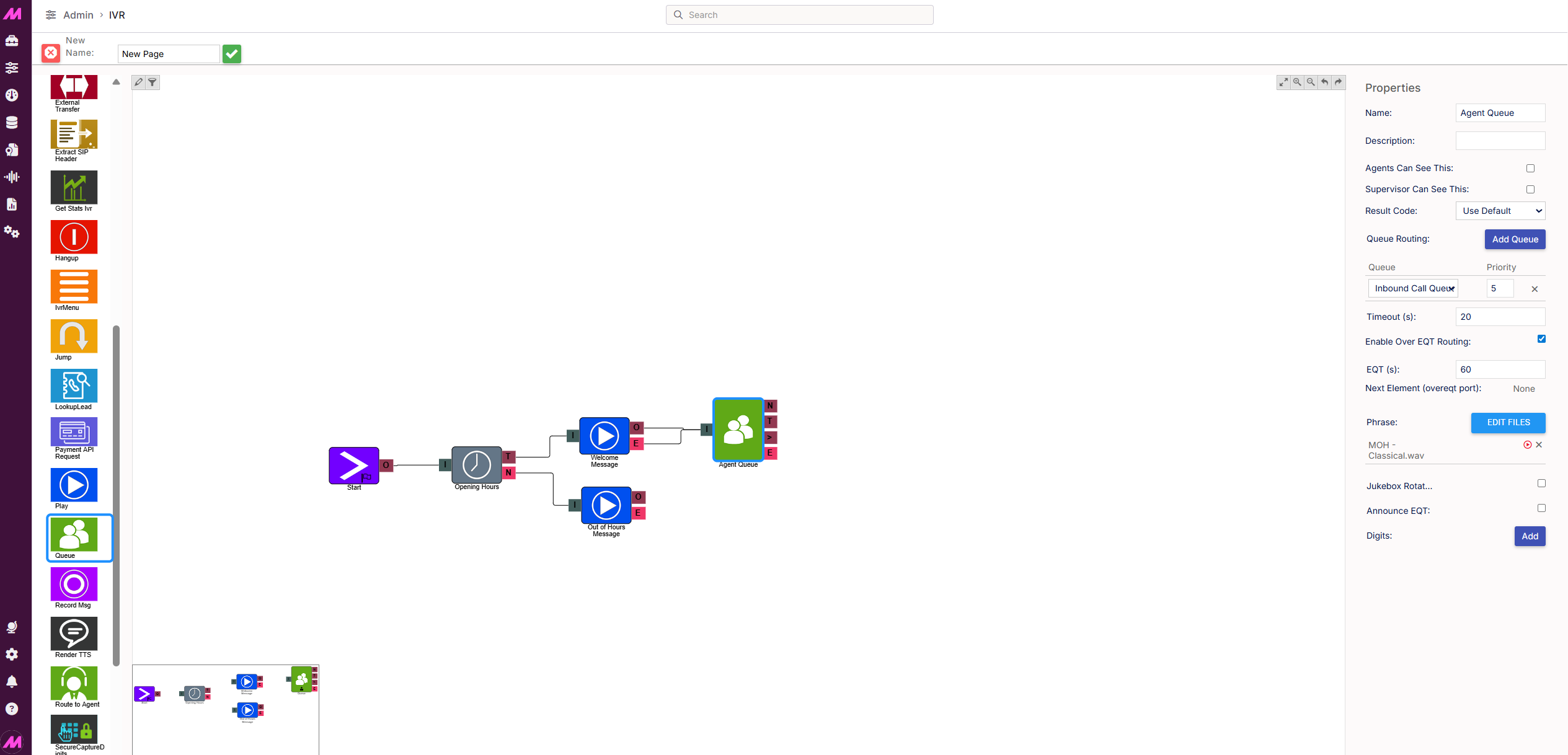
Here you can allocate queues (groups of agents) for the call to be routed to.


I = Input


N = No Staff


T = Timeout


> = Over EQT


E = Error


Name, Description - On each IVR element, you can add a name and a description of the element.


Agent Can See This - This makes the element visible to an agent during a live call when they view the IVR/Workflow transfer option, enabling them to transfer the customer into the IVR. 


Supervisor Can See This - Anyone with the role type set as 'supervisor' within their main role, will be able to see the option but no-one else.


Result Code - You can assign a result code to the IVR element. This result code will be used upon a customer disconnecting the call while in the element 


Queue Routing - Clicking this will produce a drop-down where you can select a queue.  You can add more than one queue and can set a priority out of 10 for each queue, 1 being the lowest and 10 being the highest priority.  For more information on configuring the available queues, click here


Timeout - You can set the amount of time before moving the customer to the timeout route.


Enable Over EQT Routing - Checking this will enable the option to move the customer down the 'over EQT' route.  This can put them into a different queue or to a message to say 'leave a number for a call back'. You must have an element connected to the > symbol on the element.


EQT (s) - Here you set the EQT (Estimated Queue Time) threshold in seconds. If the EQT is over this threshold it will move the customer to the Next Element.

Next Element (overeqt port) - Displays where the customer will be sent next.


Phrase - You can select an audio file to be played at this stage of the IVR.


Jukebox Rotation - When more than one 'phrase' is added, checking here will rotate the starting play file. For more information on Jukebox Rotation click here.


Announce EQT - Checking this will play the EQT (Estimated Queue Time) at the start of the queue and periodically (every 3 minutes).  If the EQT was announced previously on a 'Command IVR Element', the EQT would not be played at the start of the Queue but would still be played every 3 minutes.


Digits - Clicking here will add a digit for the customer to select e.g. 'Press 1 for sales' etc.  The more you add, the more options appear on the IVR element;


Digits can be edited by selecting them on the right (Limited to one digit).  They can also be deleted by clicking the X next to them.


Hang-up element

The IVR will hang up when the call gets to these elements present on the IVR.


I = Input


Name, Description - On each IVR element, you can add a name and a description of the element.


Agent Can See This - This makes the element visible to an agent during a live call when they view the IVR/Workflow transfer option, enabling them to transfer the customer into the IVR. 


Supervisor Can See This - Anyone with the role type set as 'supervisor' within their main role, will be able to see the option but no-one else.


Result Code - You can assign a result code to the IVR element. This result code will be used upon the call disconnecting at this stage.


For more on IVRs and other elements and options, click here.

Assigning the IVR


Once you have finished building your IVR set up, you can now assign the IVR to an inbound number for your customers to call.

Firstly, head to the Inbound numbers page


This page houses all the inbound numbers for your system and allows you to configure what happens with each inbound number.


To add your IVR to an existing inbound number, simply select the relevant start element from the drop down under the destination IVR section of the table.


If your Inbound number isn't present, you will need to add it to the table on the page. This is usually done for you during onboarding but you may need to add more numbers going forward.


Details
Telephone no*Enter the telephone number you wish to assign ta a destination.
Bear in mind a valid telephone number is required with no spaces and starting with either 0, a two digit country code or an asterix (*). If you are unsure which prefix to use, please contact the support team and they will be able to check this for you. 
DescriptionEnter your preferred description for this number. E.g. 'main inbound' or 'customer services number'.
Campaign(s)*Select the campaign that calls to this number will be associated with.
This is important when it comes to reporting as calls to this number will be recorded against this campaign. A campaign is always required.
TagsHere you can assign specific tags to the inbound route. For more on tagging, see this guide.


Destination
List*Select the default list that calls to this number will be associated with.
This is important when it comes to reporting as calls to this number will be recorded against this list unless overridden by other settings.
If a call to this number isn't matched to an existing lead, a new lead will be created and added to this list.
Don't forget other system settings will effect the script that is presented to your users.
A list is always required.
IVR*The IVR determines where calls to this number will be routed by default.
Don't forget, you are selecting the IVR start element here (The actual IVR name will appear in brackets) If you cannot see your IVR, it may be that it doesn't yet have a start element included.
An IVR is always required.


Status
ActiveThis is a handy way to quickly tell which numbers are currently active and those which are not.
You may see an alert icon here, this is a warning for when you have emergency routing enabled. It is telling you that the number does not have an emergency route setup, so it will continue to follow the default route settings.
EnableToggle to enable/disable this number. Bear in mind that if a number is disabled, no calls will be received.


Once you have finished assigning this out you can hit update and the IVR is ready to use.