
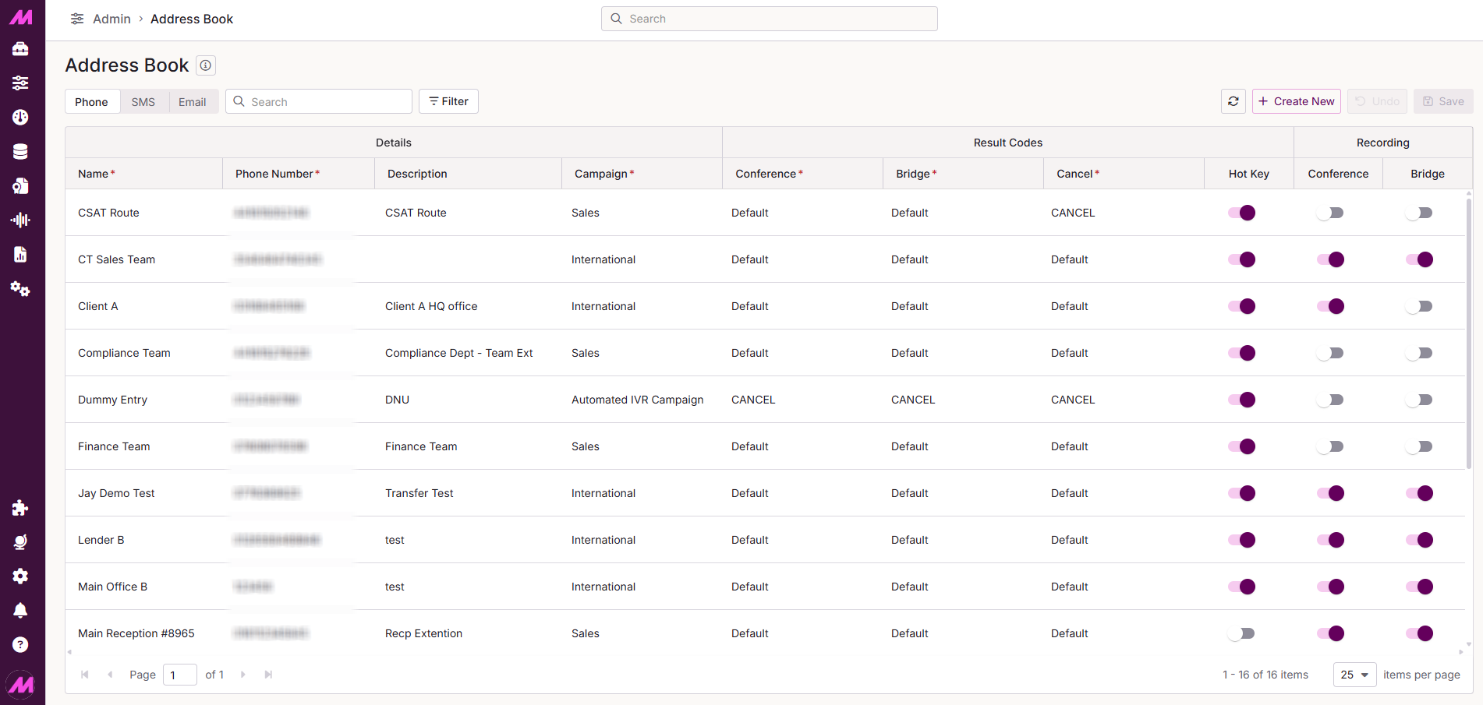
Address Book
The Address Book page is where you configure the external transfer destinations available to your agents. When an agent needs to transfer a voice call, SMS, or email interaction, they select from this predefined list in Contact Hub.
To access it, go to Admin > General > Address Book.
For voice transfers, the Address Book gives you additional control beyond a simple transfer destination — you can assign custom result codes to different transfer outcomes and choose how recordings are handled. This lets you track where transfers are succeeding or failing, and investigate specific calls via Recordings Playback or Record History.
You can also mark a voice transfer entry as a Hot Key or Address Book type. Hot Keys are useful in warm/cold transfer setups — for example, when passing a customer from a warmer to a closer and you want to track conversion rates. Address Book entries are used for standard transfers.
Page controls
Use the tabs across the top of the page to switch between Phone, SMS, and Email entries. The remaining controls sit to the right of the tabs.
| Control | Description |
|---|---|
| Phone | Shows the Phone address book entries. |
| SMS | Shows the SMS address book entries. |
| Shows the Email address book entries. | |
| Filter | Allows you to filter the view on various options. The available filter options vary by tab — see the Filter options section below for a full breakdown. |
| Refresh | Reloads the page to pull in any changes made since the page was last loaded. |
| Create New | Adds a new row to the table, ready for you to configure a new entry. |
| Undo | Reverts any unsaved changes made during the current session. |
| Save | Saves any additions or changes made on the page. |
Filter options
The fields available when using the Filter vary depending on which tab you are viewing.
| Tab | Available filters |
|---|---|
| Phone | Campaign, Conference Result Code, Bridge Result Code, Cancel Result Code, Hot Key Enabled, Recording Conference, Recording Bridge |
| SMS | Campaign |
| Campaign, Transfer Method Enabled, Transfer Method (Email Body or Attach) |
Deleting entries
To delete a single entry, hover over it and select the bin icon. A confirmation window will appear, confirm to proceed with the deletion.
To delete multiple entries at once, select the tick box to the left of each entry you want to remove, then select Delete. You will then be prompted to type DELETE to confirm before the action is completed.
Phone entries
Select the Phone tab to view and manage voice transfer destinations.
| Field | Description |
|---|---|
| Name* | The name of the entry, visible to agents in Contact Hub. Must be between 1 and 400 characters. |
| Phone Number* | The number agents will transfer customers to. |
| Description | An optional description of the transfer destination. |
| Campaign* | The campaign where this entry will be available. Select All to make it available across every campaign, or choose a specific campaign to restrict it. |
| Conference Result Code* | Result code for the conference stage — when the agent, customer, and external party are all connected. If set to Default, uses HKT_WARM for Hot Key entries or BRIDGE_WARM for Address Book entries. |
| Bridge Result Code* | Result code for the bridge stage — the call between the customer and external party after the agent has left. If set to Default, uses HKT_BRIDGE for Hot Key entries or BRIDGE for Address Book entries. |
| Cancel Result Code* | Result code applied if the agent cancels the transfer before it completes. If set to Default, uses HKT_CANCEL for Hot Key entries or CANCEL for Address Book entries. |
| Hot Key Enabled* | When enabled, the bridge call type is set to HotKey. When disabled, it remains as AddressBook. This affects reporting and stats only — it does not change how the transfer behaves. |
| Recording Conference | Toggle to enable or disable a separate recording entry in Recordings Playback for the conference stage. This does not affect whether the conference is recorded within the agent's own call recording — that is controlled by campaign and user recording settings. |
| Recording Bridge | Toggle to enable or disable recording of the bridge stage — the call between the customer and external party after the agent has left. |
* Required field
SMS entries
Select the SMS tab to view and manage SMS transfer destinations.
| Field | Description |
|---|---|
| Name* | The name of the entry, visible to agents in Contact Hub. Must be between 1 and 400 characters. |
| Phone Number* | The number agents will transfer the SMS interaction to. |
| Description | An optional description of the transfer destination. |
| Campaign* | The campaign where this entry will be available. Select All to make it available across every campaign, or choose a specific campaign to restrict it. |
* Required field
Email entries
Select the Email tab to view and manage email transfer destinations.
| Field | Description |
|---|---|
| Name* | The name of the entry, visible to agents in Contact Hub. Must be between 1 and 400 characters. |
| Email* | The email address agents will transfer the interaction to. Multiple addresses are allowed, simply press enter to add each one. |
| Description | An optional description of the transfer destination. |
| Campaign* | The campaign where this entry will be available. Select All to make it available across every campaign, or choose a specific campaign to restrict it. |
| Transfer Method Enabled | When enabled, agents can transfer emails to this entry. When disabled, the entry is available in the address book but cannot be used as a transfer destination. |
| Method | Controls how the ticket history is included when the email is transferred. Select Email Body to include the ticket history in the body of the email, or Attach to include it as an attachment. |
* Required field