
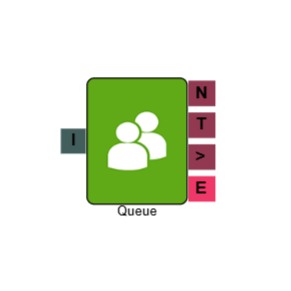
Queue
The Queue element places a caller into a queue to wait for an available agent. While waiting, the caller hears the audio files configured on the element. Once an agent becomes available, the call is connected. You can configure the element to route calls differently if no agents are available, or if a caller has been waiting beyond a set threshold.
Connections
| Connection | Description |
|---|---|
| I – Input | The entry point for this element. Connect from the preceding element in your IVR flow. |
| N – No Staff | The path taken when no agents assigned to the queue(s) are logged into a campaign. For example, everyone's on a break status. If at least one agent is logged in, even if they're in Not Ready, the call doesn't route down this path. |
| T – Timeout | The path taken when a caller has been waiting longer than the configured timeout period. |
| > - Over EQT | The path taken if when a caller reaches the queue, the Estimated Queue Time is above threshold |
| E – Error | The path taken if the element encounters an error. |
Settings
| Field | Description |
|---|---|
| Name | Give the element a clear name so it is easy to identify within your IVR flow. |
| Description | Optional. Add a note to explain the element's purpose — useful in more complex flows. |
| Agent Can See This | When enabled, agents can transfer a live caller directly to this element via the IVR Transfer option. |
| Supervisor Can See This | When enabled, the element is visible in the IVR Transfer list for users with a Supervisor role. It remains hidden from all other users. |
| Result Code | Assign a result code to this element to track calls that pass through this queue. |
| Queue | Select the queue you want to route the caller into. The available queues are pulled from your configured queues in MaxContact. |
| Timeout (s) | Set the maximum time in seconds a caller can wait in the queue before being routed down the Timeout (T) path. Leave blank to allow callers to wait indefinitely. |
| Enable Over EQT Routing | Creates another output path on the Queue element, for Over EQT. |
| EQT (s) | If Enable Over EQT Routing is enabled, you can set the threshold at which a caller would be moved down the Over EQT path. |
| Phrases | Click Add to select one or more audio files to play to callers while they wait in the queue. Files are played in the order listed, from top to bottom, and loop until an agent becomes available or the timeout is reached. For best audio quality, we recommend uploading files in WAV format, 16-bit, 8kHz, mono. |
| Jukebox Rotation | When enabled, the element rotates which audio file plays first each time a caller enters the queue. See Jukebox Rotation below for full details. |
| Announce EQT | Enabling this will play the EQT at the start of the queue and periodically (every 3 minutes). If the EQT was announced previously on a Command element, the EQT would not be played at the start of the Queue, but would still be played every 3 minutes. |
| Digits | Clicking here will add a digit for the customer to select e.g. Press 1 for Sales. The more you add, the more options appear on the IVR element. |
Jukebox Rotation
When multiple audio files are added to the Queue element, Jukebox Rotation controls which file plays first each time a caller enters the queue. Without it enabled, files always play in the same top-to-bottom order. With it enabled, the starting file rotates automatically, so different callers hear a varied sequence.
To illustrate how this works, take three files: Music_A, Music_B, and Music_C.
| Rotation | Play order |
|---|---|
| Off (default) | Music_A, Music_B, Music_C |
| After first rotation | Music_B, Music_C, Music_A |
| After second rotation | Music_C, Music_A, Music_B |
By default, the rotation occurs every three minutes. If you need to adjust this interval, contact the support team.