
Banners
Banners provide a way of displaying scrolling messages on your dashboards in real time, without needing to republish or have agents refresh their page.
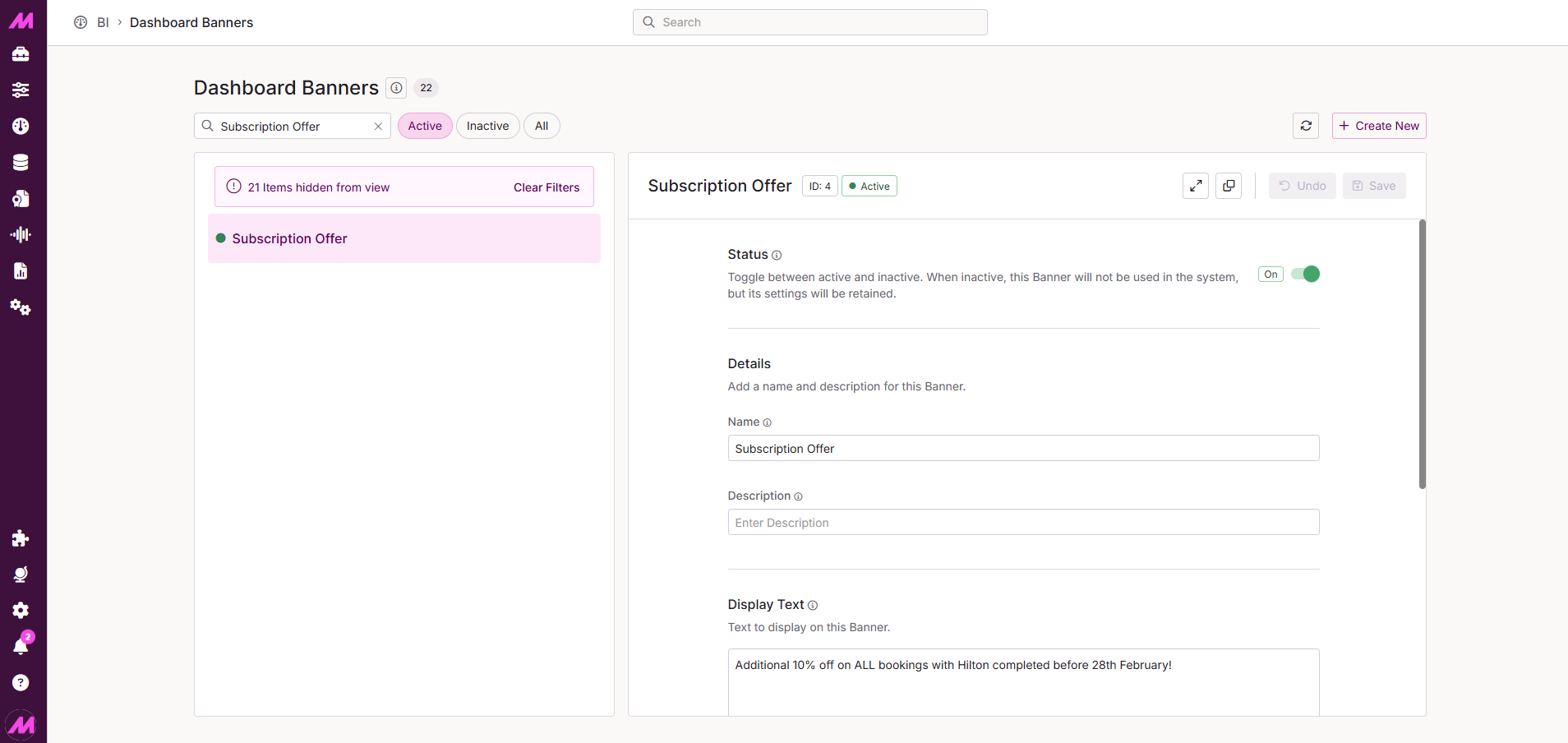
To access the Banners page, select Banners from the Dashboard Management panel.
Page layout
The page is split into three areas.
| Area | Description |
|---|---|
| Banner list | The left-hand panel, showing all banners available on your system. |
| Banner Details tab | Where you create and edit banners. |
| Usage Information pane | Shows where the selected banner is currently in use across your dashboards. |
Filtering and creating banners
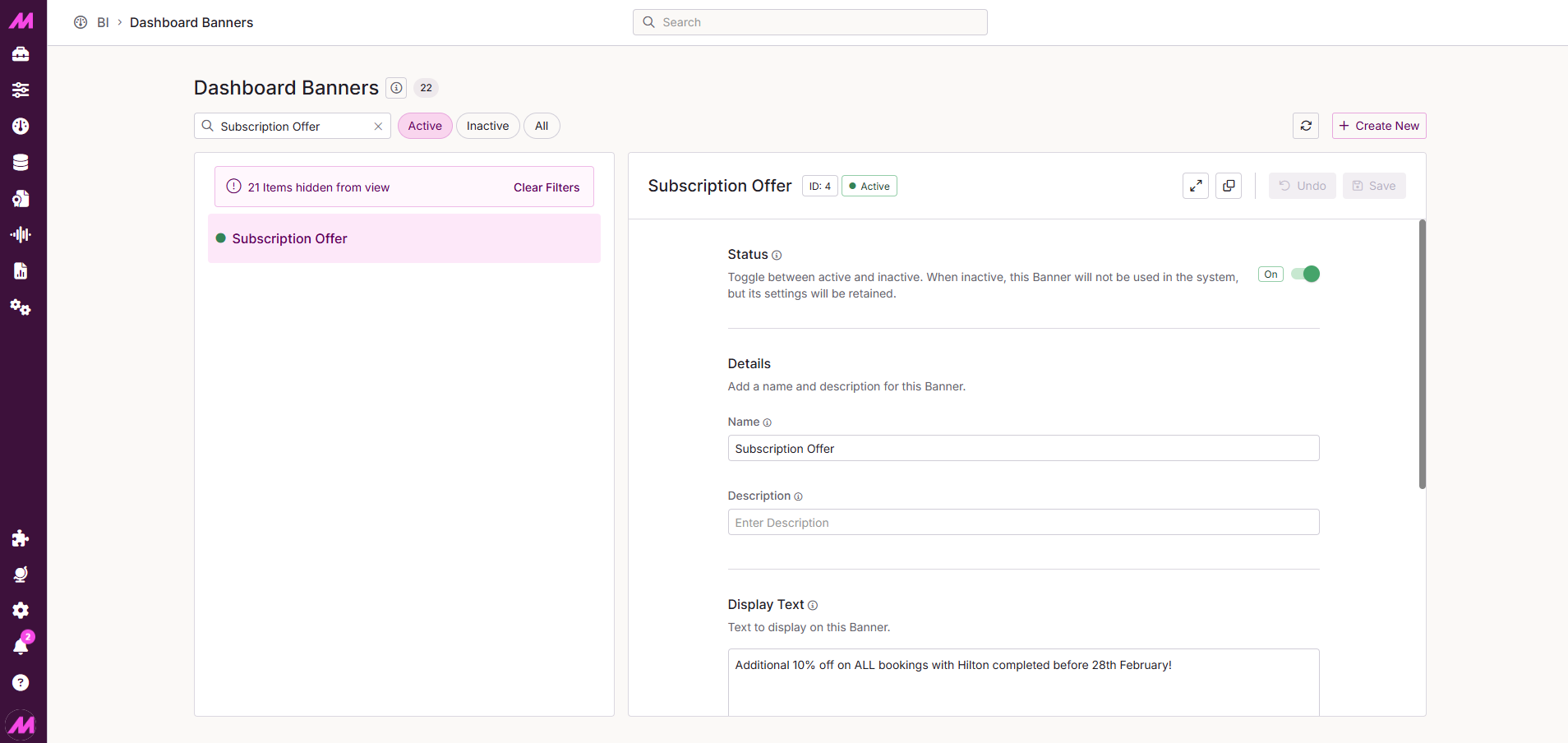
Across the top of the page you can filter the banner list by Active, Inactive, or All.
To create a new banner, select Create New. To edit an existing banner, select it from the list on the left — its details will load in the Banner Details tab. Once you have made your changes, select Save to save new or updated banners.
Banner details
| Field | Description |
|---|---|
| Active | Toggle to set the banner as active or inactive. |
| Name | The name of the banner, as it will appear on dashboards and within this page. Maximum 50 characters. |
| Description | A brief description of what the banner is intended for. As the number of banners grows, this helps you quickly identify which is which. |
| Display Text | The message that will scroll across your dashboards when the banner is in use. |
 |  |
Usage information
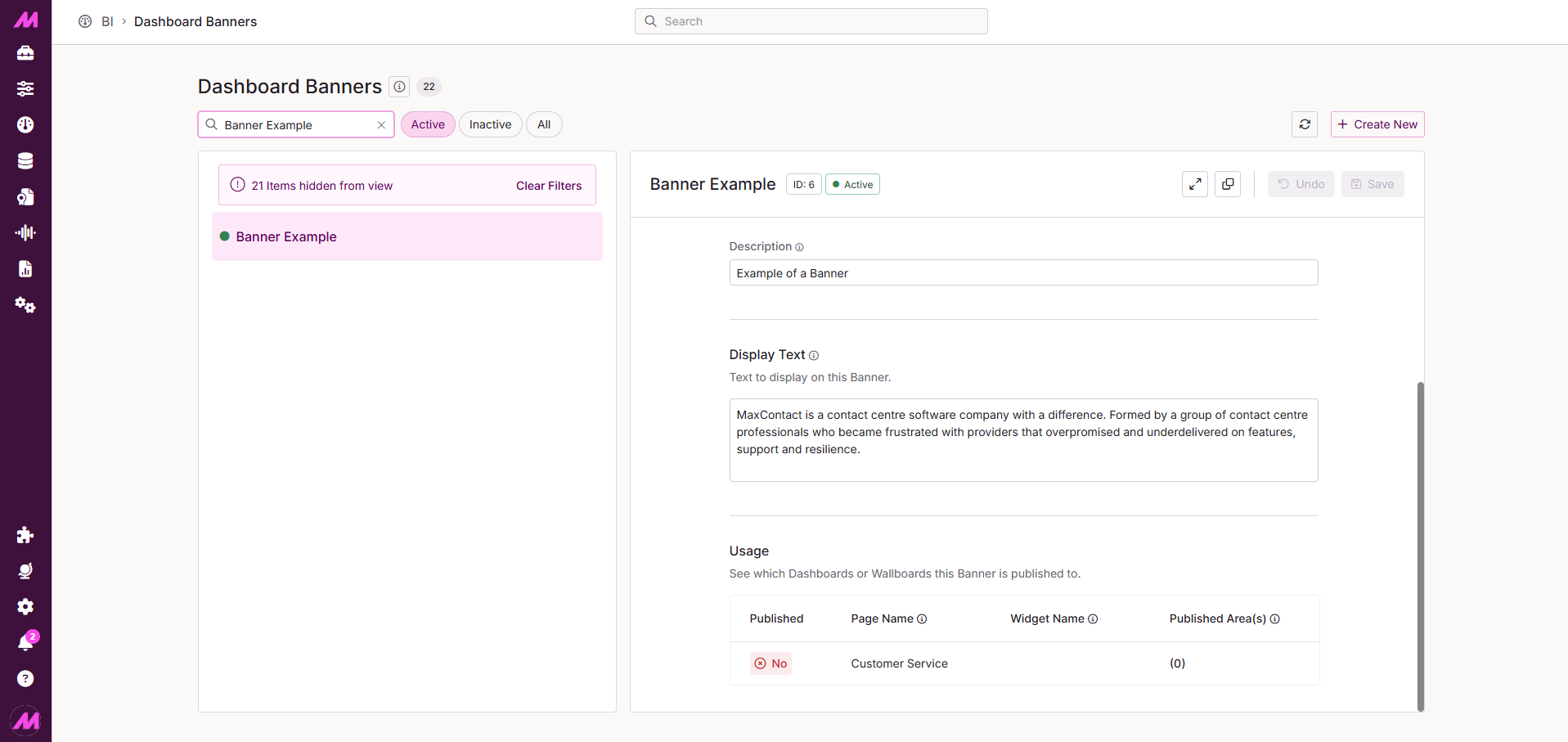
The Usage Information pane shows where the selected banner is currently assigned across your dashboards. Each entry displays the following.
| Column | Description |
|---|---|
| Published | Whether the dashboard the banner is assigned to is currently published (active). |
| Page name | The name of the dashboard the banner has been added to. |
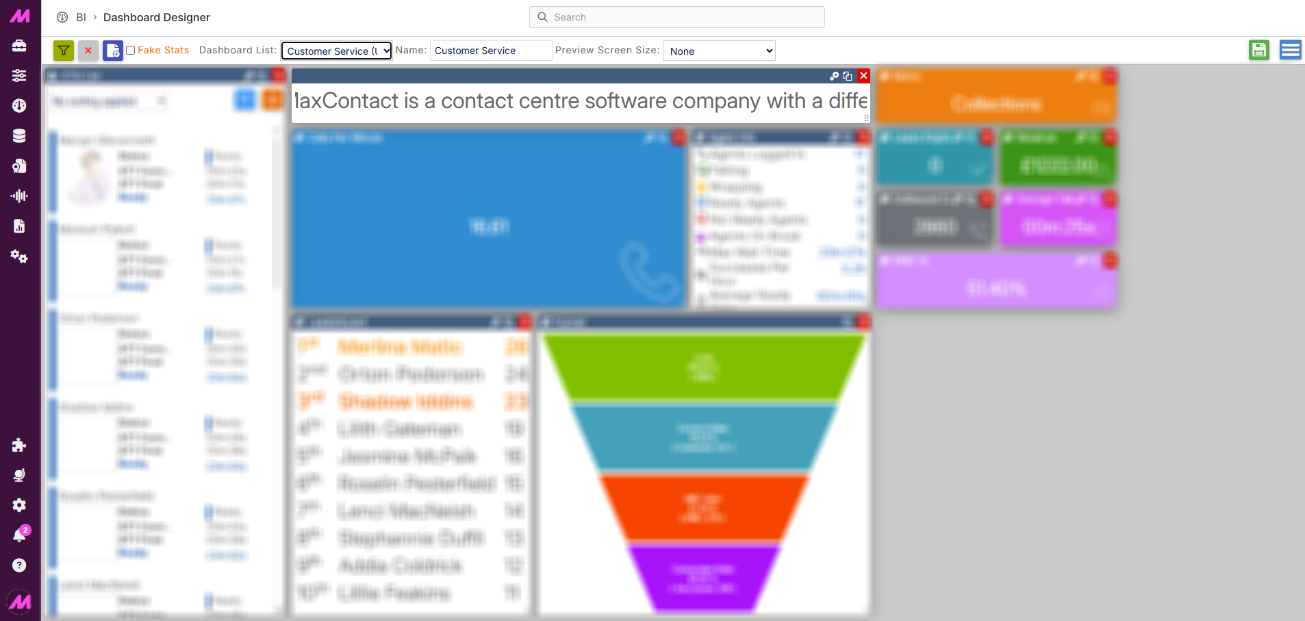
| Widget name | The name given to the banner widget on that dashboard. This is displayed in the widget's top bar and is separate from the banner name itself. |
| Published area | The location or locations where the dashboard containing the banner is published. |