Drag and Drop Fields - General
Training Team
Modified on: Mon, 15 Jun, 2026 at 4:52 PM
Drag and Drop Fields — General
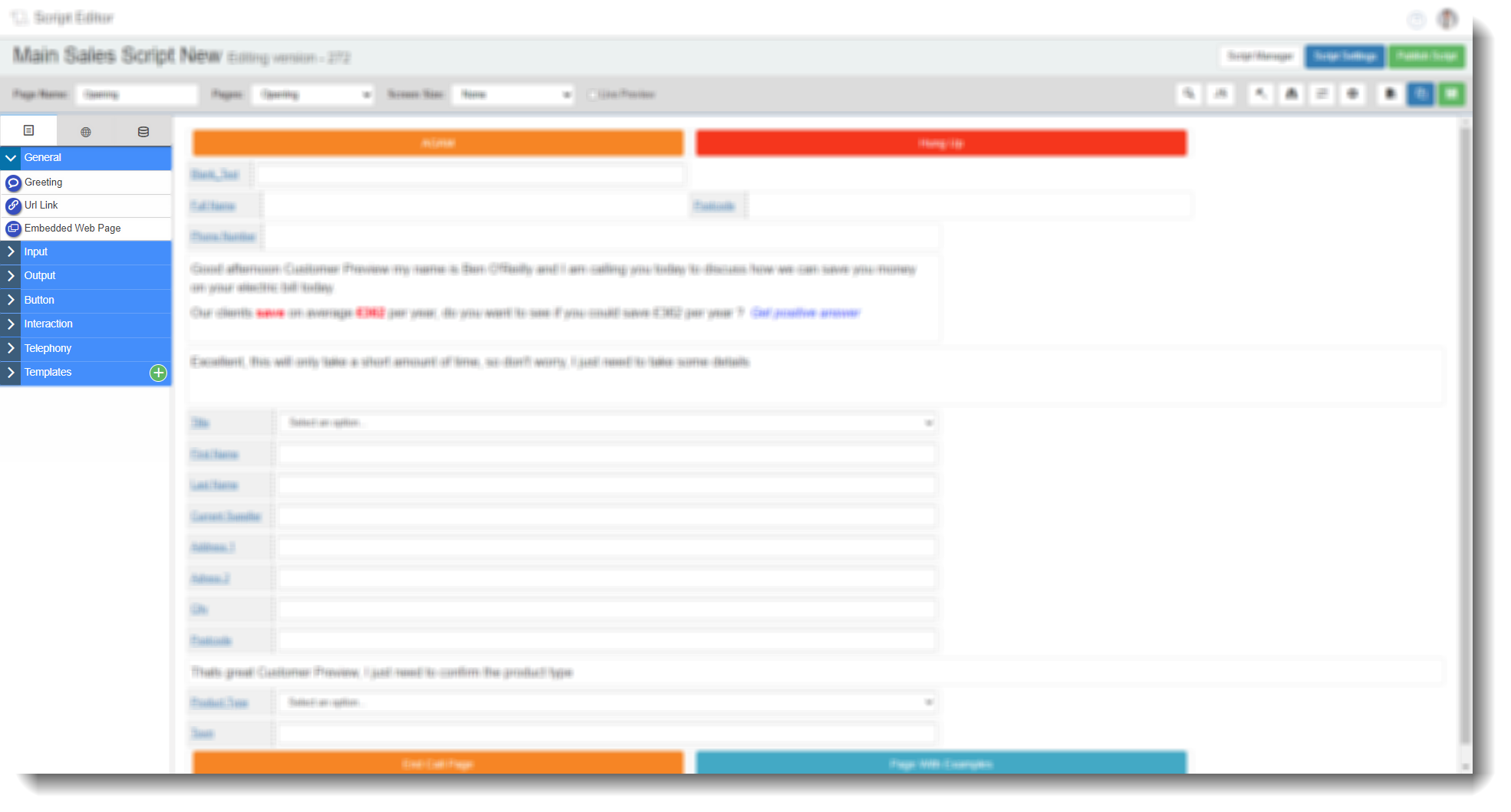
The General tab in the Field Options panel contains three field types: Greeting, URL Link, and Embedded Web Page. Drag any of these onto a script page to add them. Select the edit icon on a placed field to open its configuration dialog.
Each field type has multiple configuration tabs. The tabs available vary by field type and are described below.
 Greeting
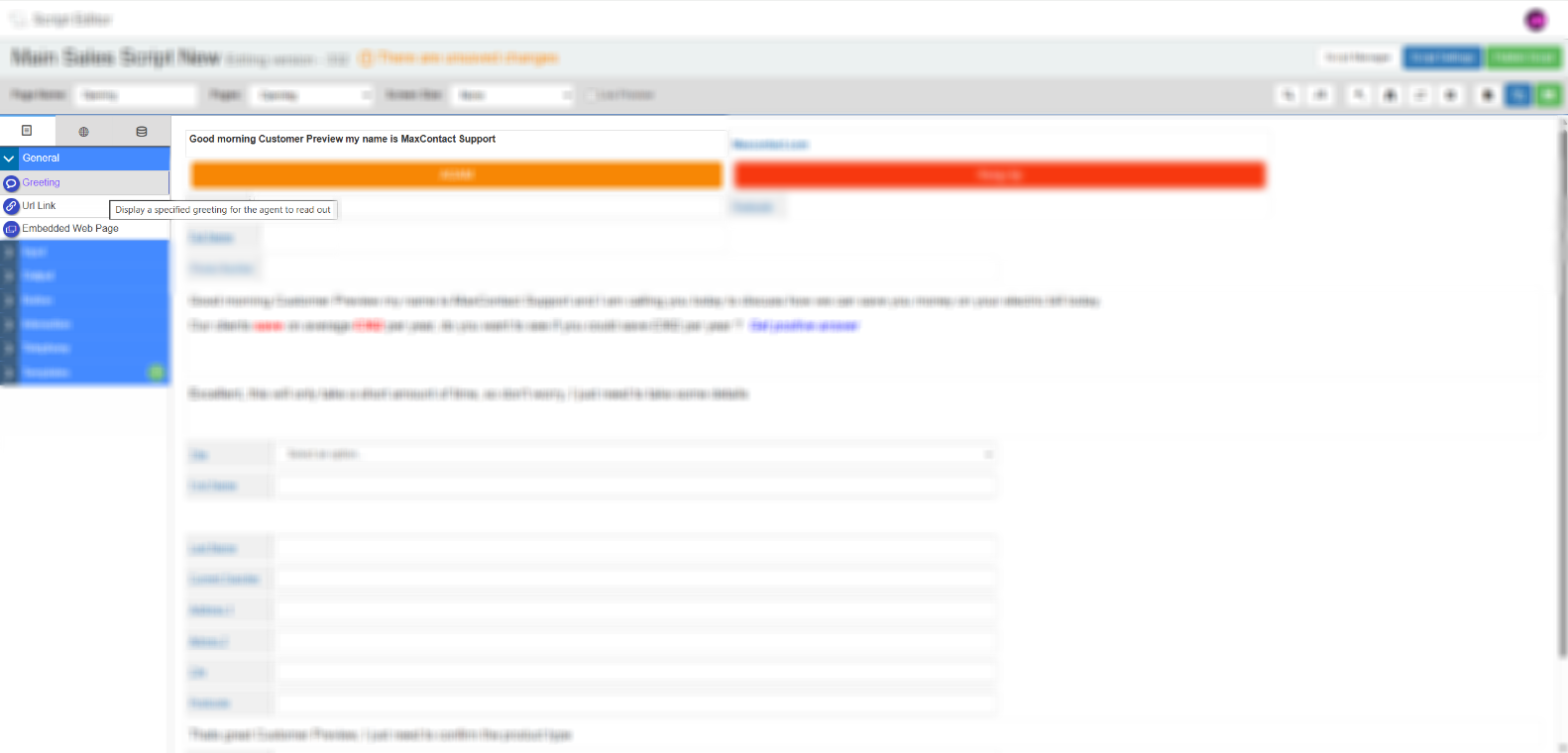
Displays a personalised greeting to the agent at the start of a call. The greeting can include lead data pulled dynamically from the database, and different greetings can be set for different call types.
Tab 1 — Field Config
| Setting | Description |
|---|
| Reference name | The system-generated reference for this field. Can be edited. |
| Default greeting | A dropdown of preset greeting options to choose from. |
| Edit your greeting | Lets you write a custom greeting. To include lead data, select a field from the Select a field dropdown and select Add. A preview below the editor shows how the greeting will appear when populated with lead data. |
Tab 2 — Field Style
| Setting | Description |
|---|
| Visible | Controls whether the field is visible on the script. Rules can be added to change visibility based on agent actions. |
Tab 3 — Advanced Greetings
| Setting | Description |
|---|
| Greetings for call types | Lets you set a different greeting for each call type. The system identifies the call type automatically and displays the corresponding greeting on the script. |
URL Link
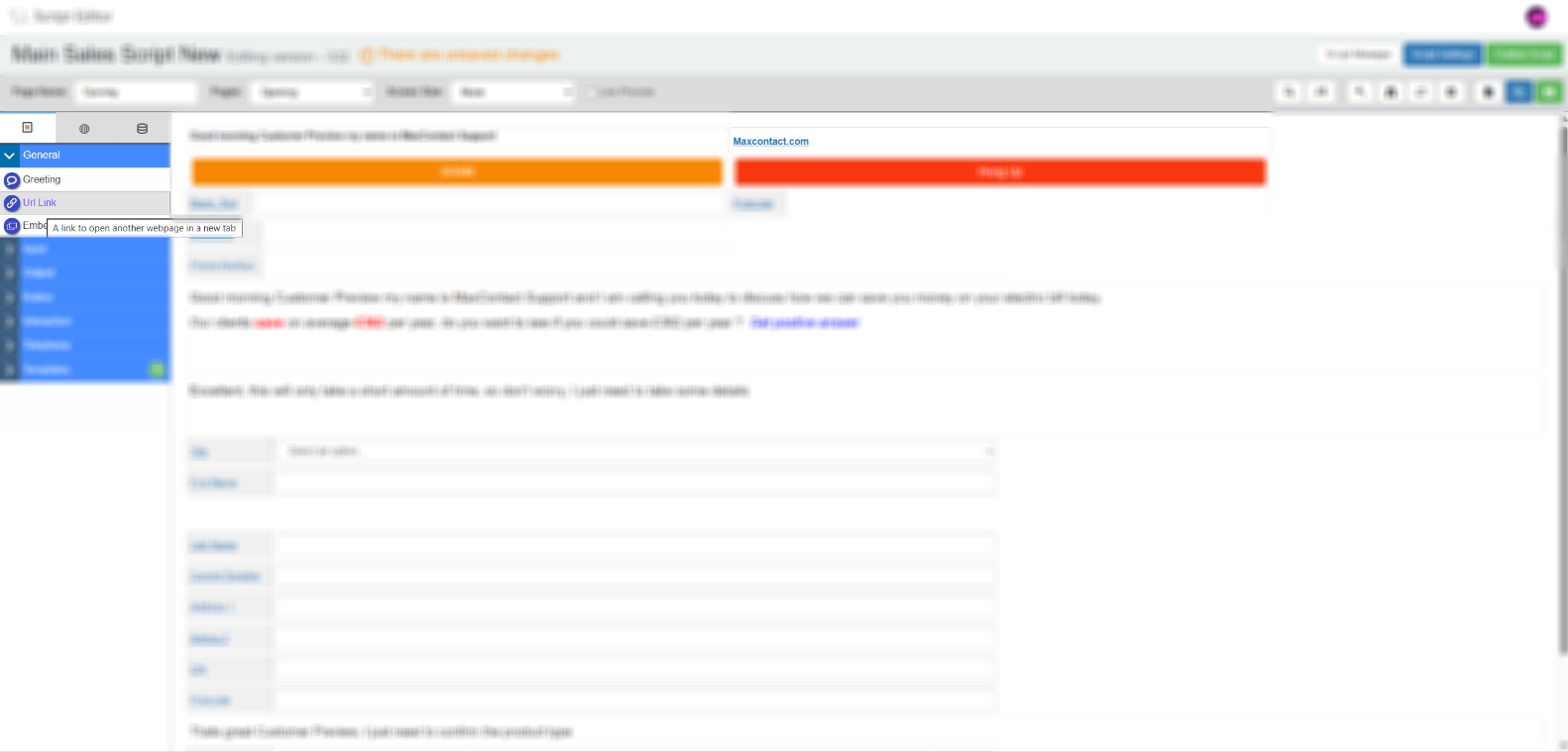
Adds a clickable link to the script. Commonly used to integrate with a CRM or other external system. Speak to your CRM provider to confirm the correct URL format to use.
Tab 1 — Field Config
| Setting | Description |
|---|
| Reference name | The system-generated reference for this field. Can be edited. |
| Label | The display text for the link as it will appear on the script. |
| URL | The web address the link will open. |
Tab 2 — Field Style
| Setting | Description |
|---|
| Visible | Controls whether the field is visible on the script. |
Tab 3 — Database
| Setting | Description |
|---|
| Use database field or global field | Choose whether to populate this field from a database field or from an existing global field on the script. |
| Duplicate script fields | Shows any other fields in the script linked to the same database field. Changes to one will affect the other. |
| Select customer data table | Select the data table you want to link this field to. |
| Choose database field | Select the specific field from the chosen table to link to this script field. |
| Create a new field | Opens options to create a new database field if the one you need does not exist. |
| Create a new table | Opens the Contact Data Tables page in a new tab where you can create a new data table. |
Embedded Web Page
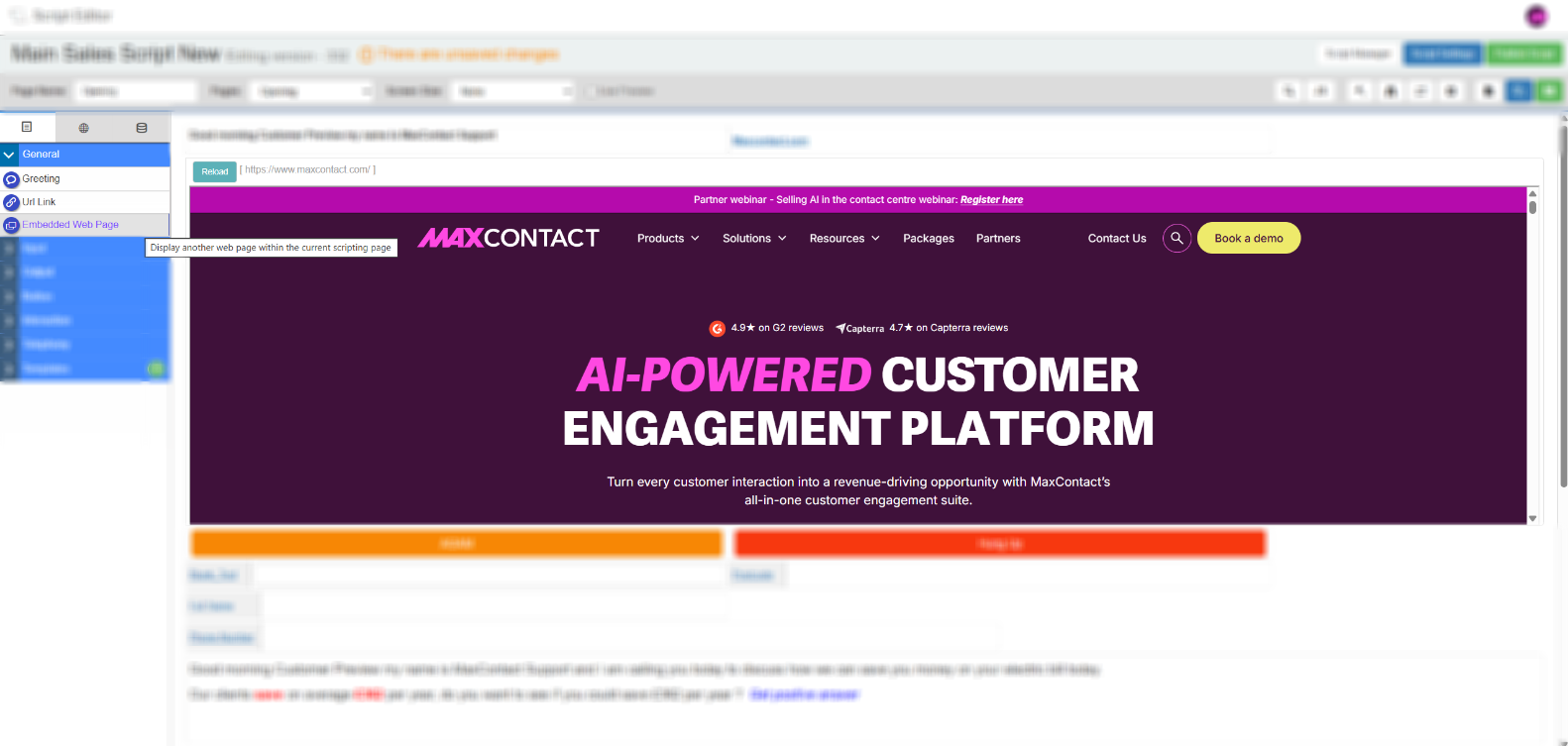
Embeds a web page directly within the script, displaying it as a panel with full functionality. Useful for loading a CRM record or other web-based tool alongside the script during a call. Custom URLs can be configured to include lead data dynamically.
Tab 1 — Field Config
| Setting | Description |
|---|
| Reference name | The system-generated reference for this field. Can be edited. |
| Label | The button label used to load the embedded page. Defaults to Load. |
| URL | The address of the web page to embed. Use Select a field to append lead data dynamically to the URL. |
Tab 2 — Field Style
| Setting | Description |
|---|
| Visible | Controls whether the field is visible on the script. |
| Font size (px) | Sets the font size for text within the embedded page panel. |
| Background, border and font colour | Colour pickers for customising the appearance of the embedded page panel. |
Tab 3 — Database
The Database tab for Embedded Web Page contains the same options as the Database tab for URL Link above. Use these settings to link the field to a data table or global field, or to create a new field or table if needed.
Related articles
