
MaxContact Softphone (WebRTC)
Previously, users needed to install third-party software to nail up to the system and stream call audio to and from an agent. The MaxContact Softphone, using WebRTC, removes this requirement, streaming audio directly inside the agent's browser instead.
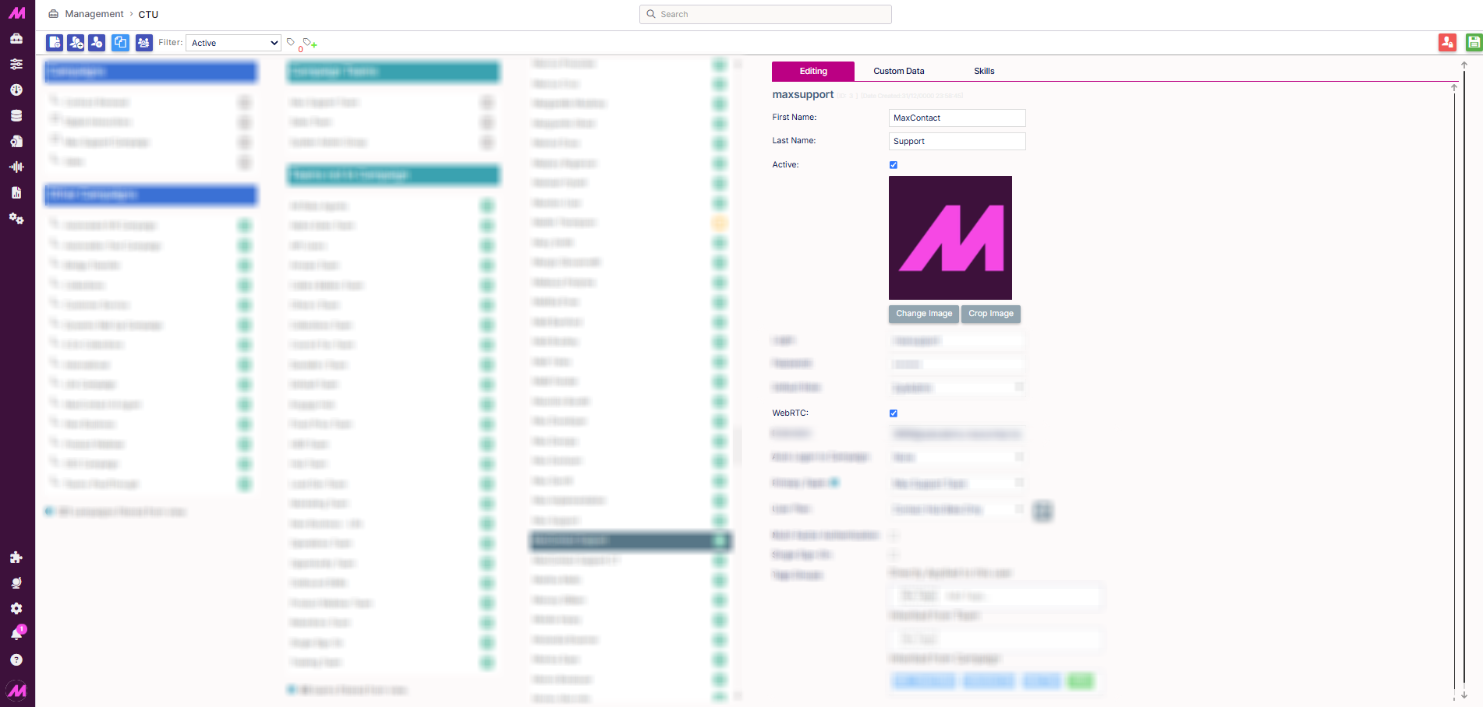
Enabling WebRTC for a user
Once the feature is enabled, admin users decide which users nail up via WebRTC on the CTU page. Select a user, then enable or disable WebRTC on their profile.
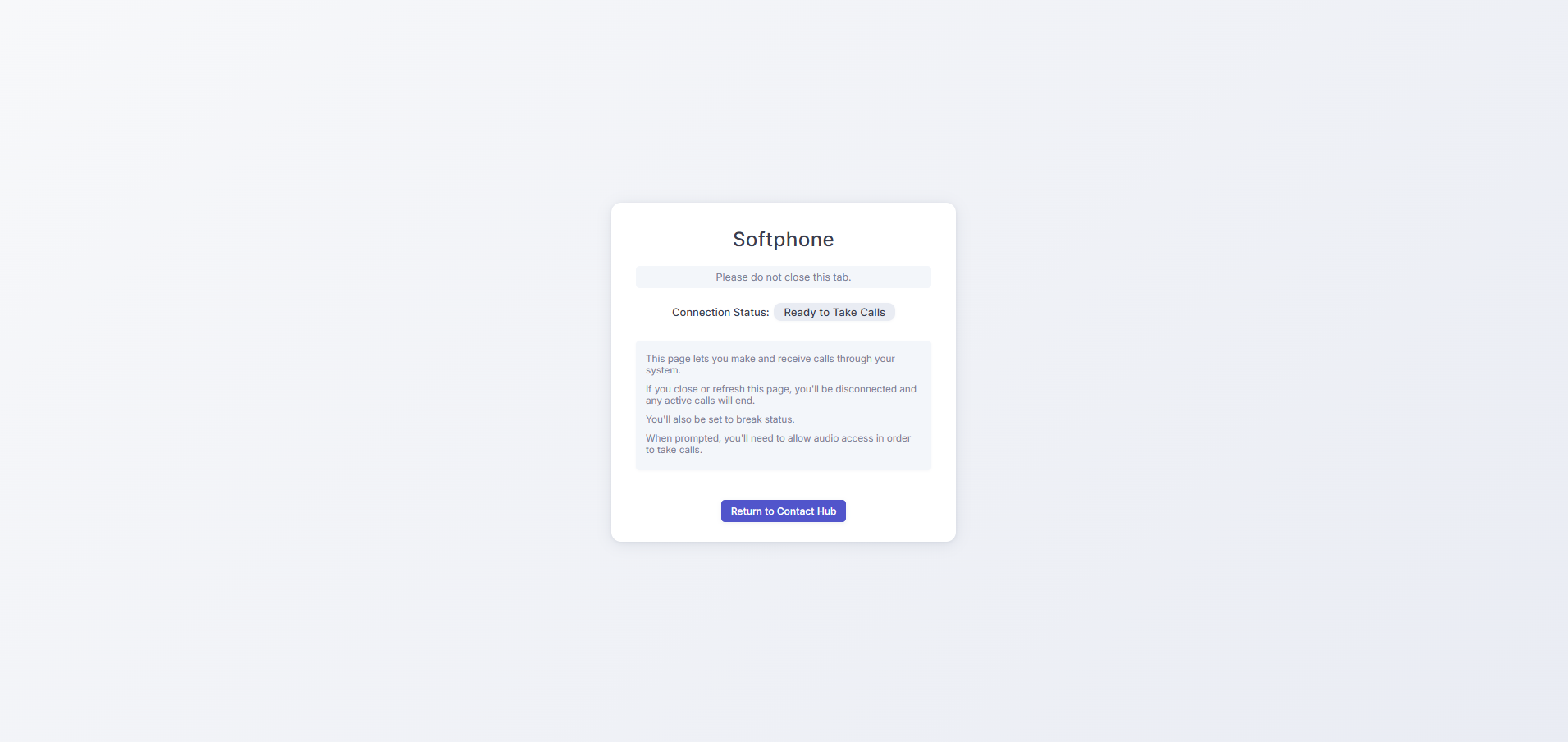
How to use the MaxContact softphone
Using WebRTC to nail up differs slightly from the previous third-party softphone option. Users are no longer responsible for nailing up to the correct extension; extensions are generated and managed by the software instead, so the input fields previously used to enter an extension aren't shown to users on this method.
Softphone tab
When a user nails up, the system checks for an open WebRTC tab. If none is open, it opens one automatically. This tab replaces any previous softphone application and should stay open in the background whenever the user needs an audio connection. If a tab is already open, the system uses that one to connect.
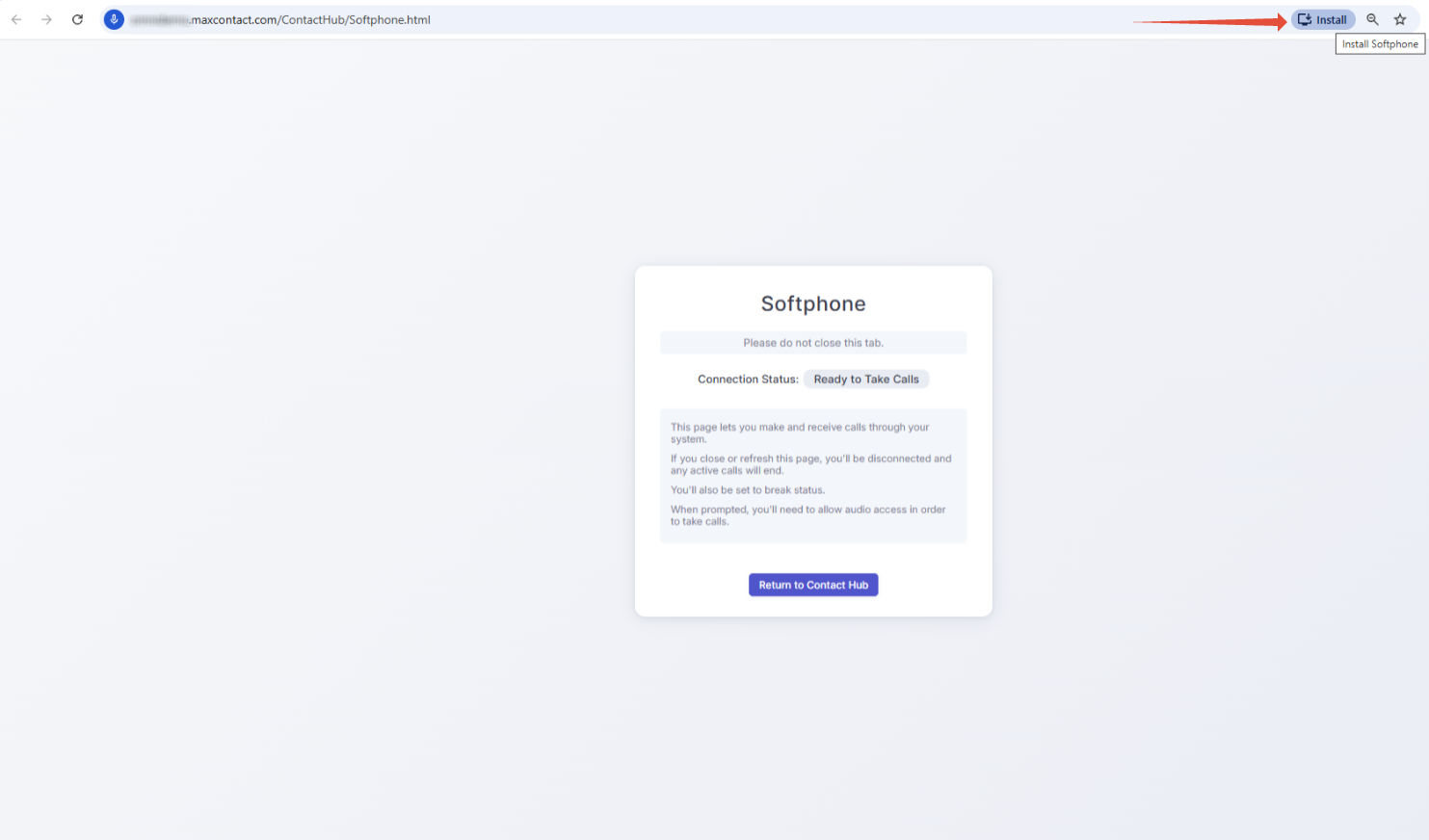
Progressive Web App (PWA)
For Chrome and Edge users, the Softphone tab is available as a Progressive Web App, letting users install it to their local machine. Once installed, they can launch the softphone directly from their PC without opening a browser first. Running as a PWA, the softphone has its own window and a MaxContact icon.
To install it, select the download icon in the browser's URL bar once the system has opened the Softphone tab.
Connection status displays
| Status | Meaning |
|---|---|
| Disconnected | The tab hasn't attempted to connect to the server. |
| Registered | The tab has connected to the server and is available to receive a nail-up call. |
| Ready to take calls | The tab has received and accepted the nail-up call, and the audio stream is established. |
| Not logged in | The tab attempted to register with the server but couldn't connect. |
| Error! Is your microphone enabled? | The nail-up call reached the tab but couldn't be answered. This usually happens when the tab doesn't have access to a microphone. |
Closing the softphone
The WebRTC tab streams audio to and from the user. Closing it severs the connection, disconnecting any calls the user was on and putting them into break.
Coaching
The MaxContact Softphone is also available for coaching. When the feature is enabled, users on the coaching page can choose which method they want to use to nail up, using a checkbox.
IT requirements
To make sure the softphone works on your system, whitelist the following IP addresses:
| IP Address |
|---|
| 20.162.109.249 |
| 51.142.181.96 |
| 51.140.219.158 |
| 51.142.146.196 |
| 20.68.242.130 |
| 20.77.2.119 |
| 20.77.8.143 |
| 20.77.104.41 |
| 172.187.144.209 |
| 20.0.81.87 |
| 20.213.29.68 |
| 20.193.67.178 |
| 20.92.80.238 |
| 40.127.10.195 |
| 102.37.153.105 |
And open the following ports:
| Usage | Port Range | Protocol |
|---|---|---|
| HTTPS | 443 | TCP |
| Turn | 3478, 49152-65535 | UDP |
| VOIP | 15384-30000 | UDP |