
Overview
The MaxContact Webchat application is a self-contained JavaScript widget that can be embedded into your website. Once installed, it allows customers to start a live chat with your contact centre directly from your webpage.
The widget connects your website to MaxContact, enabling customers to send messages, start conversations and receive support in real time.
Implementation
Before the live chat widget can be used, you must first create a Channel or Channel Hub within Manager Portal.
Individual Channel Key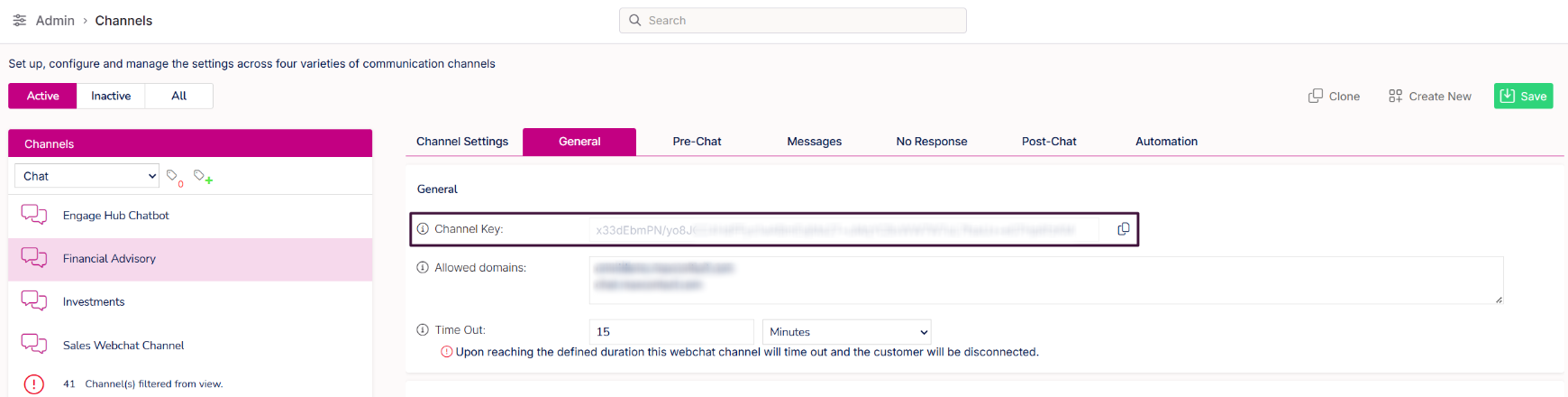 | Channel Hub Key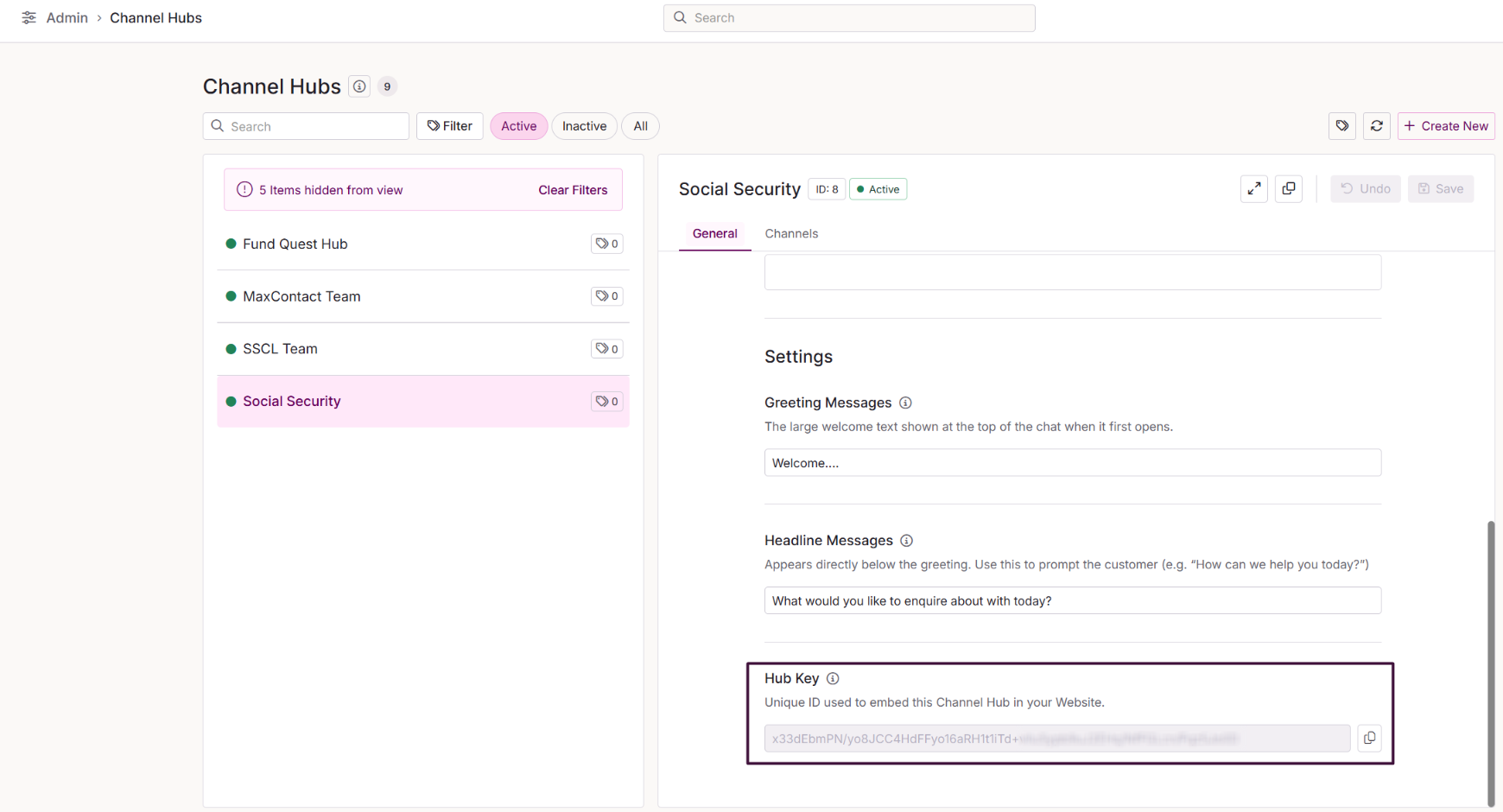 |
Authorised Domains
Within the General tab of the channel configuration, add the website URL that will host the chat widget to the Authorised Domains list. (e.g. www.mywebsite.com)
Note:
This documentation applies to Webchat V2 (Available in Release 7.0). For the implementation of the legacy webchat, refer to the following documentation.
Adding Webchat To Your Webpage
To embed the chat widget, add the required HTML tag to your webpage. This tag contains configuration details that detemine how the widget behaves and appears.
<div id="max-chat-form-container" data-channel-key="xxx" data-start-text="Speak to the Team" data-company-name="Your Company Name" data-primary-colour="" data-theme="magenta" data-show-footer="true" class="default-form"></div>
Below is a breakdown of the available HTML attributes.
data-channel-key
A unique key that identifies the Channel or Channel Hub connected to the webchat widget.
data-start-text
| Defines the call-to-action text displayed before a customer opens the chat. This field is optional. If not provided, the default text "Chat to us" will be used. |  |
data-company-name
Defines the company name shown in the chat header before a conversation begins. This field is optional. If not provided, the system default text will be displayed. | Company Name Provided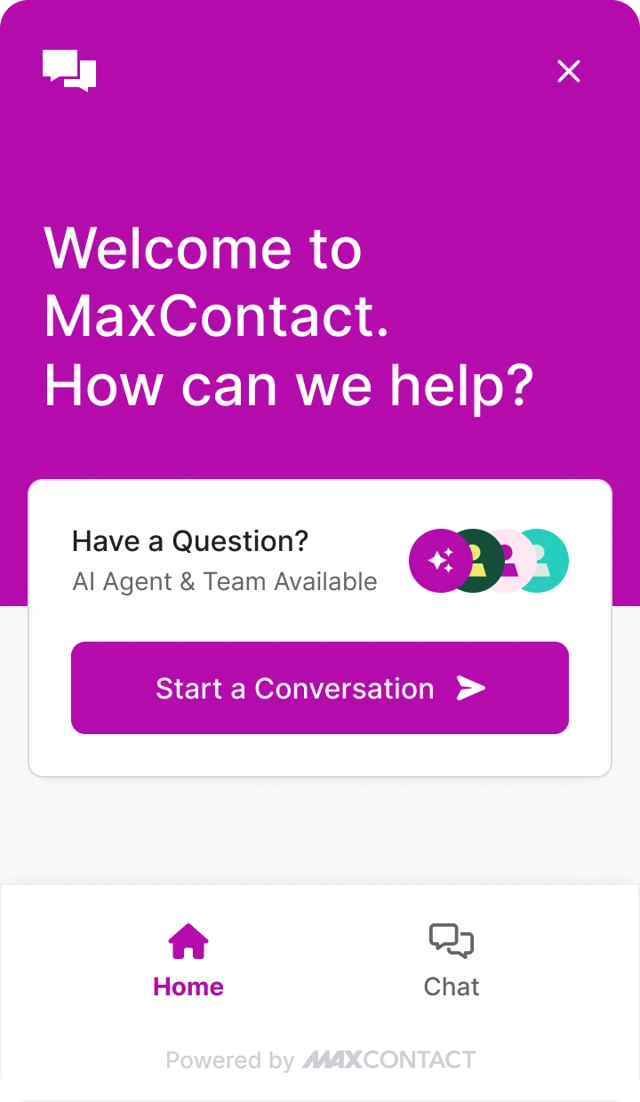  | Company Name not Provided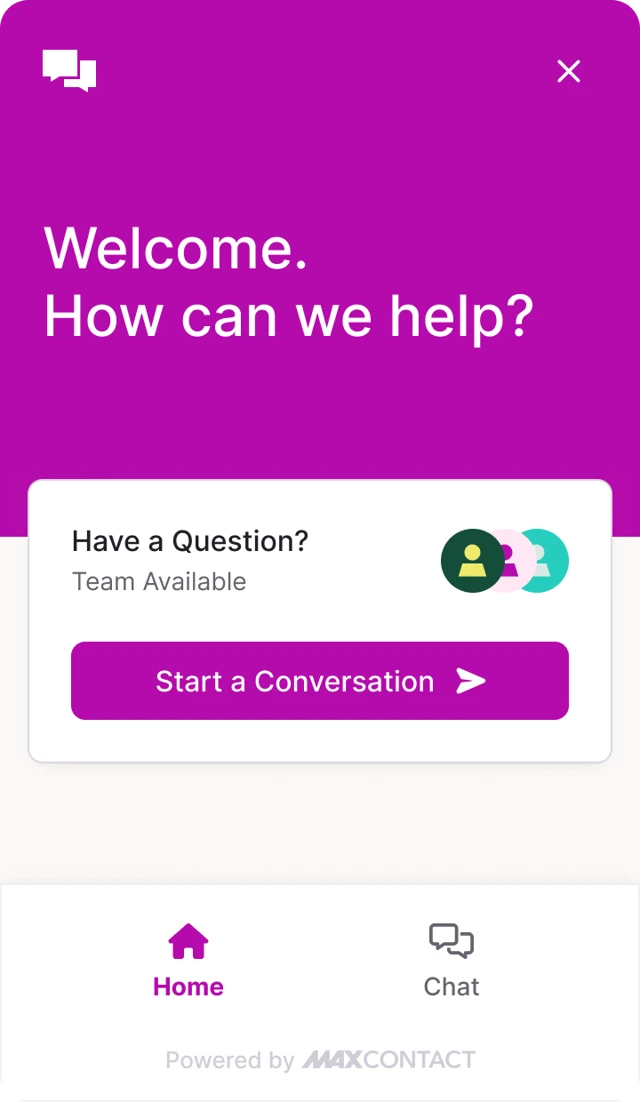  |
data-theme
Applies a predefined theme to the webchat widget. Available options:
If no theme is specified, the widget will default to Blue. This setting can be overridden by the data-primary-colour attribute. | Blue Theme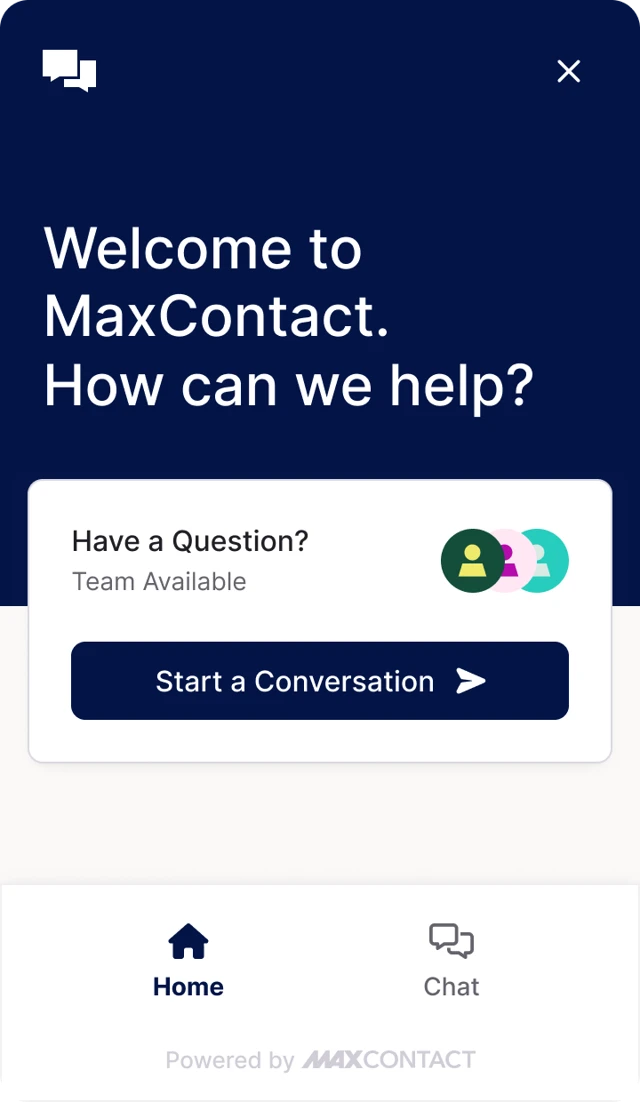 | Magenta Theme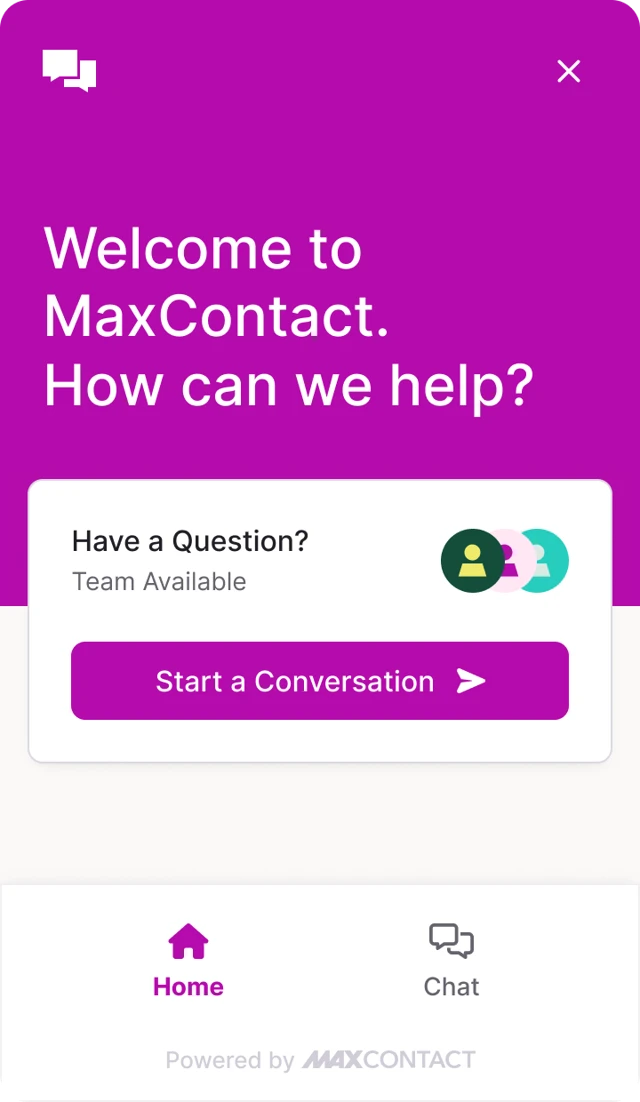 |
data-primary-colour
| Allows you to define a custom primary colour for the webchat interface. Hex colour values are supported (e.g. #FF5733). The colour will be applied to key user interface elements within the chat widget. This field is optional. If not provided, the configured theme colour will be used. | 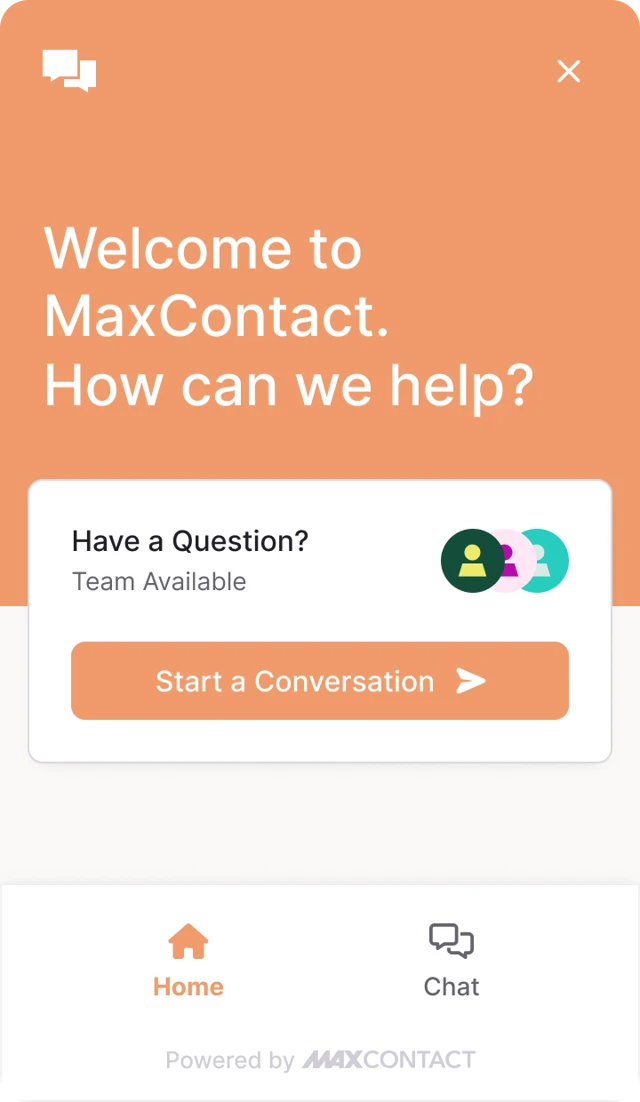 | 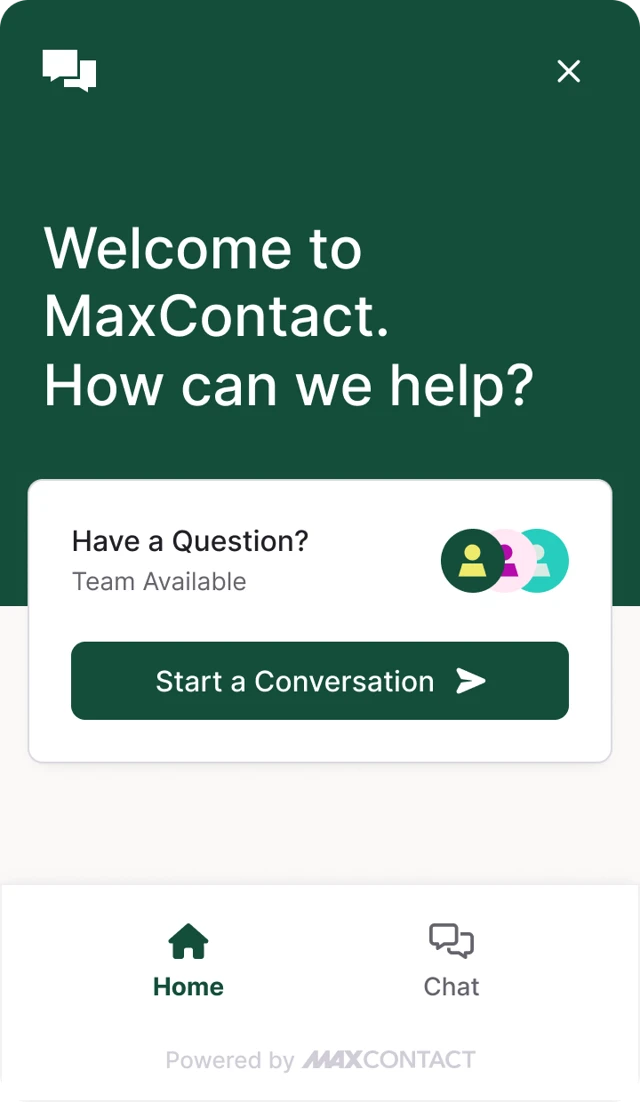 |
data-show-footer
Controls whether the footer branding is displayed. Values:
This field is optional. If not provided, this will default to true. | Footer Shown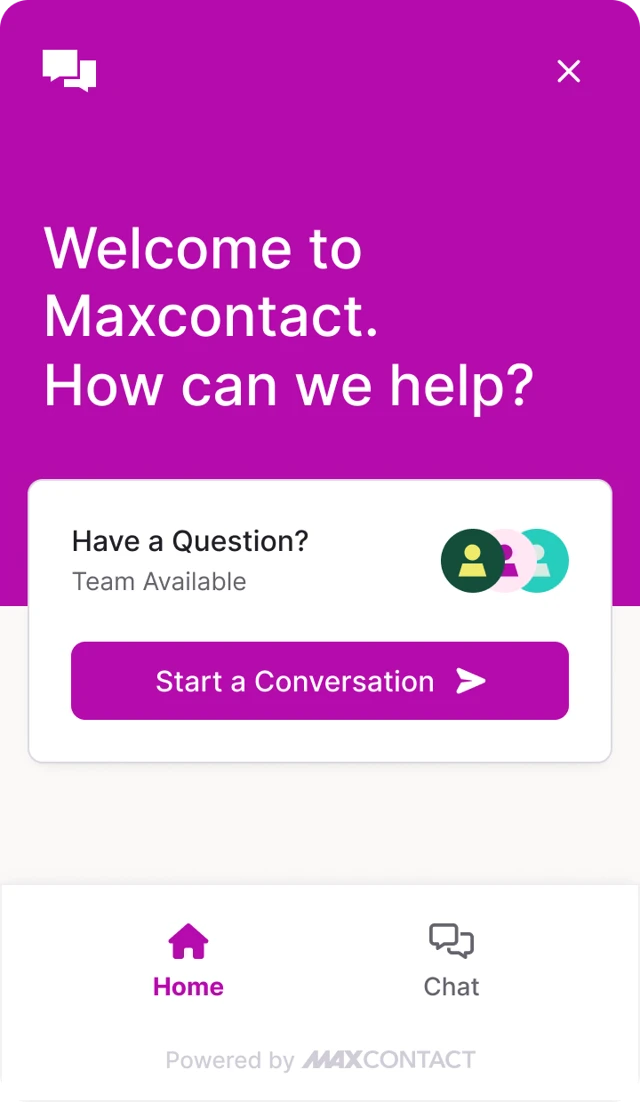 | Footer Hidden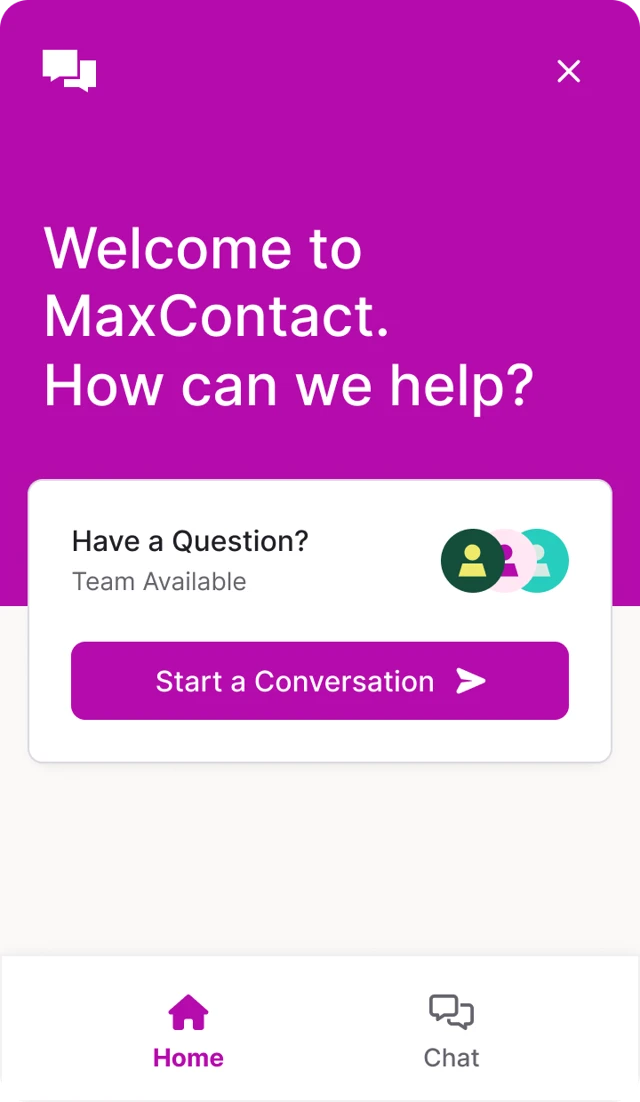 |
class
Used to apply styling to the widget.
Currently supported value: default-form
Adding The Webchat Script
You must also include the webchat script on your webpage.
<script type="text/javascript" src="https://chat.maxcontact.com/CUSTOMERNAME-chat/v2/max.chat.application.min.js"></script>
When adding the script, update:
CUSTOMERNAME-chat
Replace CUSTOMERNAME with your MaxContact domain name.
Your domain can be found in the URL used to access your MaxContact instance, before .maxcontact.com. (e.g. https://www.customername.maxcontact.com)
Cookies
The MaxContact Webchat application uses a temporary cookie to maintain the active chat session.
Key details:
- The cookie expires after 20 minutes of inactivity.
- The expiry time is refreshed while the chat session remains active.
- The cookie is deleted when the customer closes the chat widget.
The cookie stores a secure hash used to:
- Maintain the active chat session.
- Ensure each user session is unique.
- Validate requests sent to the MaxContact platform.