
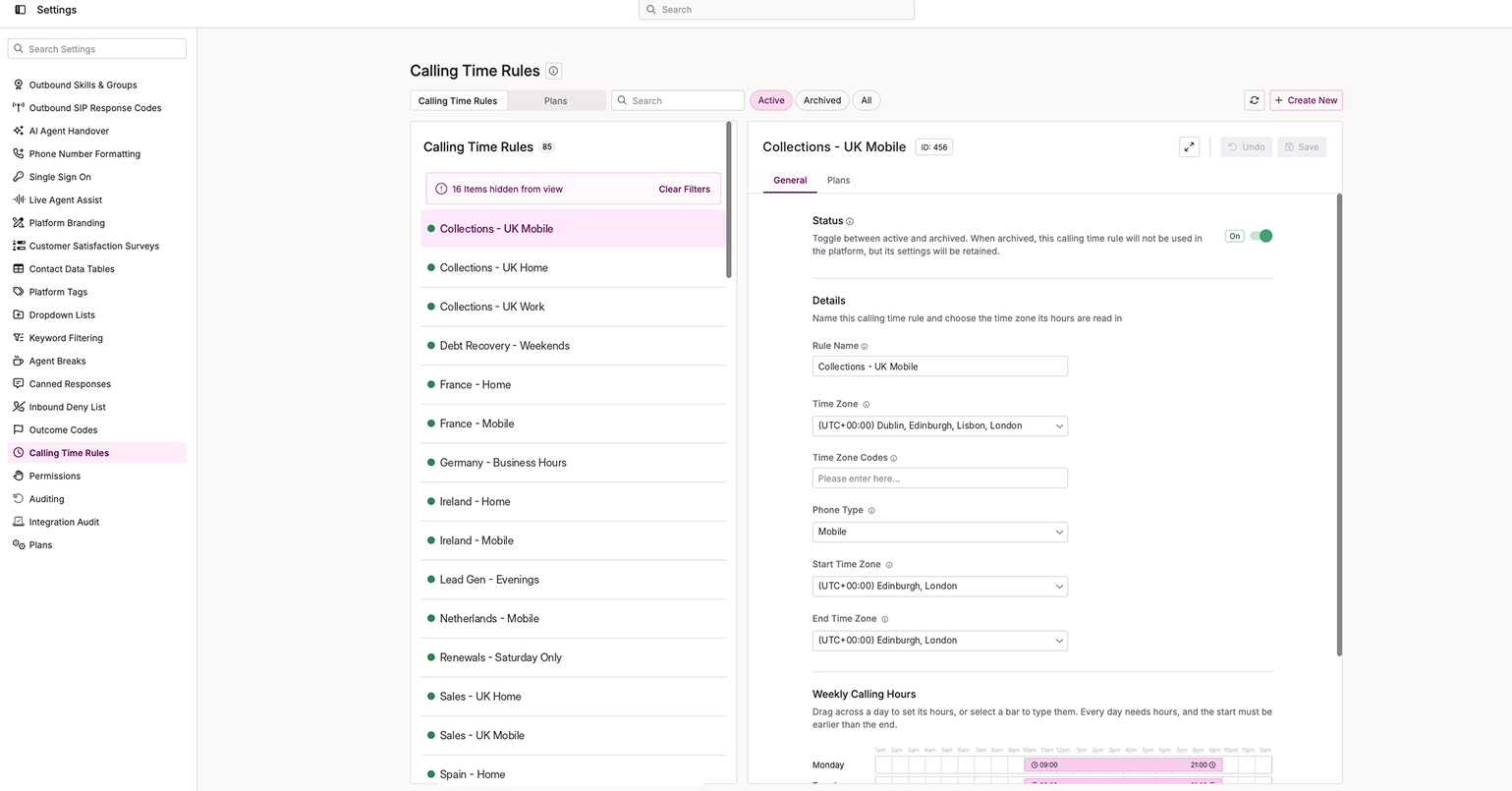
Calling Time Rules
Call time plans control when contacts are eligible to be dialled. They are most often used for international dialling, where contacts in different regions must be called during their local acceptable hours. Find them at Generalised Settings > Call Time Rules.
Each plan contains one or more calling time rules. A rule sets the days, hours, time zones and phone type that it covers. Use several rules in one plan to cover different regions or phone types.
How plans work with schedules
A plan works alongside your campaign and list schedules. It does not override them. Dialling only happens when the schedule and a calling time rule are both active at the same time.
- If the campaign is outside its schedule, no dialling happens, even if the plan allows it.
- If the campaign is inside its schedule but no rule covers that time or day for a contact, the platform does not dial that contact.
Page controls
| Control | Description |
|---|---|
| Calling Time Rules | Switches to the Calling Time Rules tab. |
| Plans | Switches to the Plans tab. |
| Filters | Shows Active, Archived or All calling time rules/plans in the list. |
| Refresh | Reloads the data of the page. |
| Create New | Creates a new Calling Time Rule or Plan depending on the tab selected. |
Calling Time Rules
Add and open a rule
You can add rules after you save the plan. Select Calling Time Rules and select Create new. Enter a name that identifies the region or phone type, such as US EST Mobile or UK Home. New rules start with a blank name, and each name must be unique.
Select a rule to open it. Its hours load when you select it.
Rule settings
| Setting | Description |
|---|---|
| Status | Turns the rule on or off. A rule that is off is archived and not applied, even when its plan is on. |
| Rule Name | A descriptive name for the rule, for example US EST Mobile. |
| Time zone | The time zone the calling window is measured in. The platform dials contacts between the start and end times in this time zone. |
| Time zone code | A list of codes that match imported contacts to this rule. Separate codes with a comma and no spaces. Leave blank to match on the rule's time zone alone. |
| Phone type | Home, Work or Mobile. If you map the number column to a phone type on import, the rule applies only to calls of that type. |
| Start Time Zone | The starting time zone for the rule. You must choose one before you can save. |
| End Time Zone | The ending time zone for the rule. You must choose one before you can save. |
| Weekly Calling Hours | The days the rule covers and the calling window for each day. See Set days and times below. |
Rules saved without time zones
Rules saved before this update without a Start Time Zone or End Time Zone are not changed. They still appear in the list, and viewing them changes nothing.
The first time you edit one of these rules, you must choose both time zones before you can save. This applies to any edit, even turning Status on or off or correcting a name. If you see Please select a start time zone/end time zone, choose both time zones and save again.
Set days and times
Set the calling window for each day in the Days & Times section. You can type the start and end times, or drag the bar for each day.
Enter times in 24-hour format, for example 09:00. If you enter a one-digit hour such as 9:00, the platform accepts it and stores it as 09:00.
Every day has a calling window. You cannot mark a day as do not call.
Archive a plan or rule
You cannot delete a plan or a rule. To remove one from use, set its Status to off. This archives it.
You cannot archive a plan while any list uses it. The dialog names the lists that use the plan. Change the plan on those lists on the Plans tab of the Lists page, then archive the plan.
To see archived plans, set the Filter to Archived or All.
Assign a plan to lists
Assign plans to lists on the Plans tab of the Lists page. You can also apply a plan during a data import to give each contact a time zone as it is uploaded.
Time zone codes
Time zone codes let one import hold contacts from several regions, with each contact called only during its local hours.
- Enter the codes in the Time zone code field of each rule.
- Add a column to your import file with the relevant code for each contact.
- Map that column to the Time Zone Code field during import.
If a contact's code matches a rule, the contact takes that rule's calling restrictions. If you import a single region, you do not need codes. Assign the plan to the list, and every contact dials within the plan's rules.