
Advanced Scripting — JavaScript, CSS & Auto Map
This article covers three advanced scripting features accessible from the Script Editor: the JavaScript editor, the CSS editor, and the Auto Map to DB Field function. Each provides additional control over how a script looks and behaves beyond the standard drag and drop configuration.
JavaScript editor
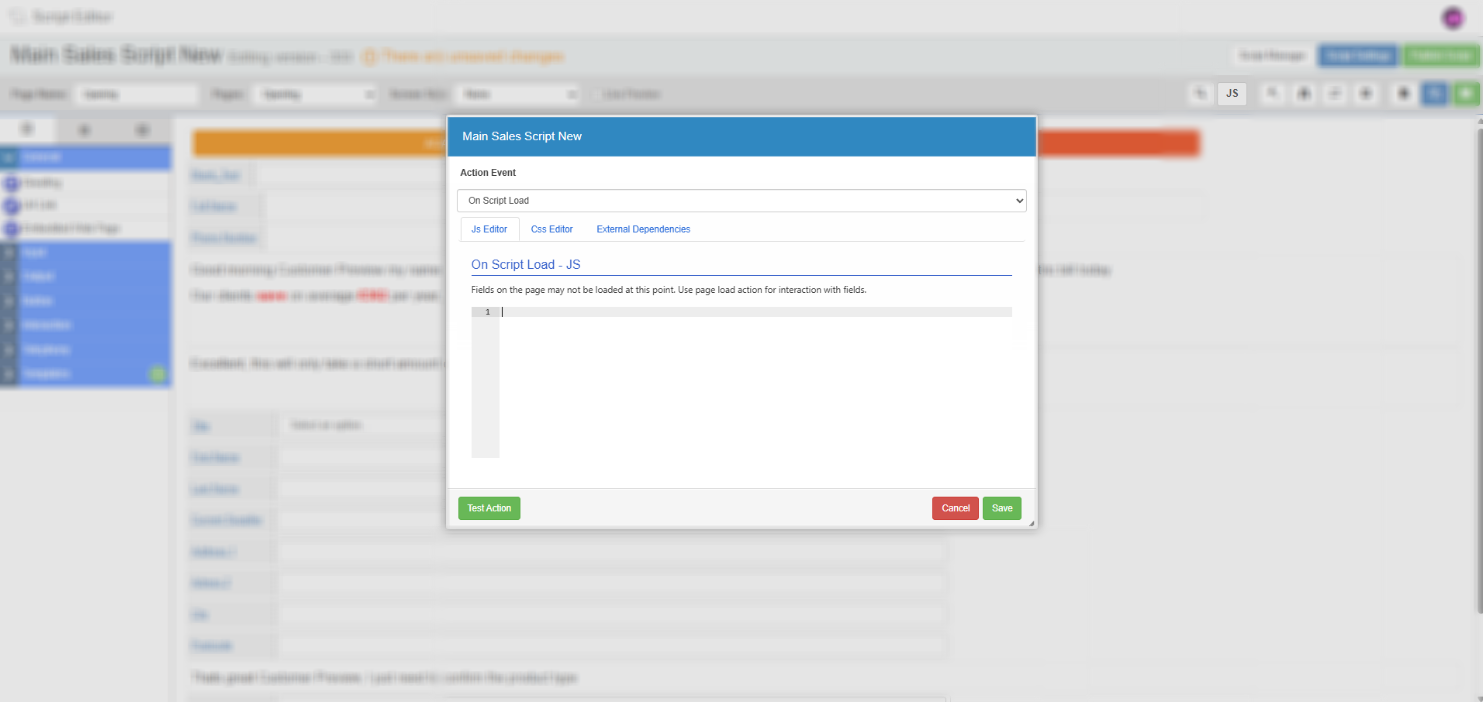
The JavaScript editor lets you attach custom JavaScript to a script page. This can be used to manipulate field values, show or hide elements, trigger external calls, or handle logic that is too complex for the standard Rules editor.
To open it, select the JavaScript button in the Script Editor toolbar.
Action events
The dropdown at the top of the editor lets you choose when your JavaScript runs. Select the action event that fits the behaviour you need.
| Action Event | When the code runs |
|---|---|
| On script load | Runs as soon as the script has loaded for the agent. |
| On page load | Runs as soon as the agent navigates to the page. Use for setting default values or applying logic before the agent interacts with the page. |
| Before Save | Runs before data is saved. |
| On Save of Data | Runs when data on the page is saved — for example, when the agent selects a navigation button with Save on Navigation enabled. Use for post-save logic or data validation before moving on. |
External dependencies
The External Dependencies section allows you to integrate with third-party software by referencing external libraries or scripts. If you need to use this feature, contact the MaxContact support team for guidance on how to configure it correctly for your use case.
CSS editor
The CSS editor lets you apply custom styling to a script page, giving you control over the visual presentation beyond what the standard field style options provide.
To access it, select the CSS Editor tab within the JavaScript editor window. Enter your CSS in the editor and save. The styles are applied when the script page loads for the agent.
Auto Map to DB Field
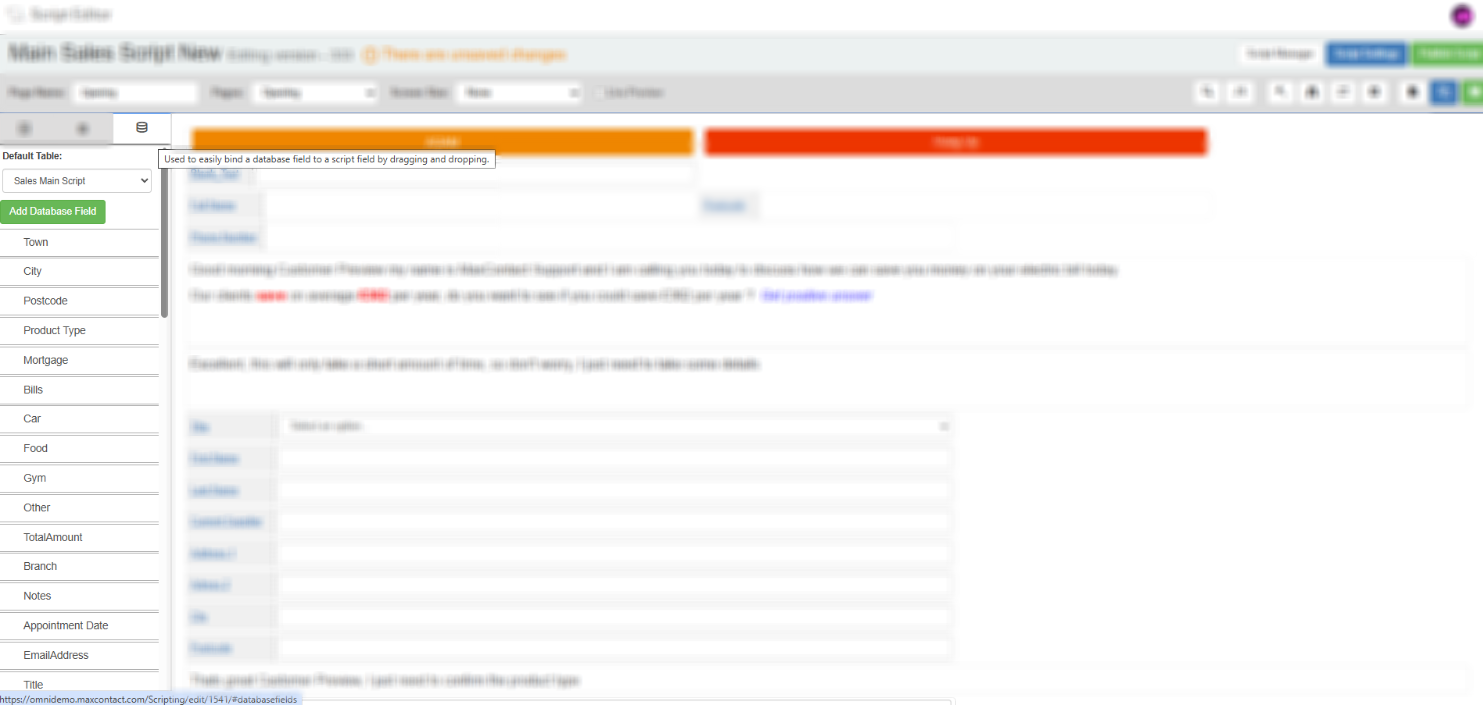
Auto Map lets you add database-linked fields to a script page in a single step, rather than placing a field manually and then configuring its database mapping separately. This is particularly useful when building scripts that need to display or capture a large number of data table columns.
How to use Auto Map
- In the Script Editor, open the Field Options panel on the left and select the Database Fields tab (the third tab).
- Use the dropdown to select the data table you want to map from. The table's available fields are displayed below.
- Drag a field from the list onto an element on your script, to map it against. No further Database tab configuration is required.