
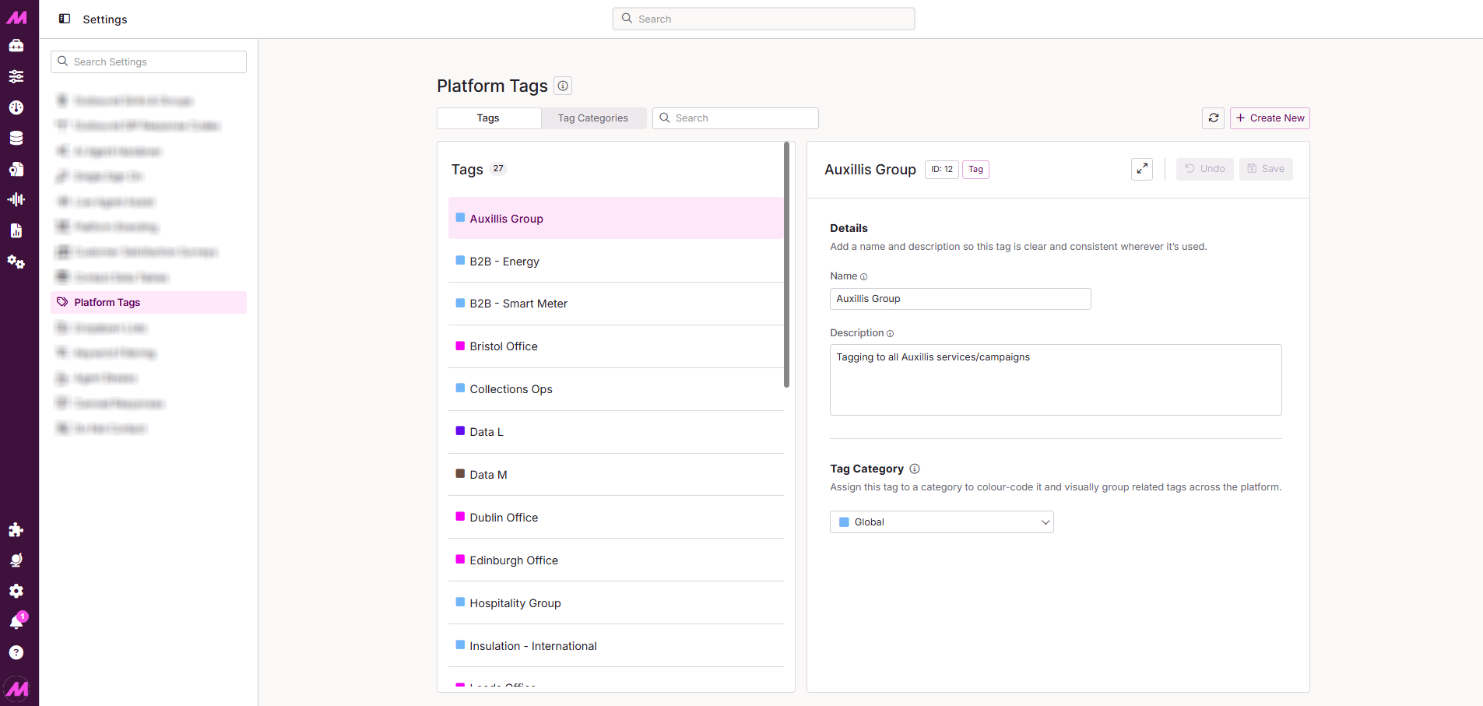
Tagging - Quick Filtering and Tag Management
Tags group lists, campaigns, teams, and users under a common label, which can then be used to control what a user sees, or what data is matched for imports and calls. For the full picture of how tagging affects the system and the permissions involved, see Tagging — Where and How It Affects the System.
On pages that support tagging, such as List Admin, two icons appear in the settings bar for quick access to tags without leaving the page.
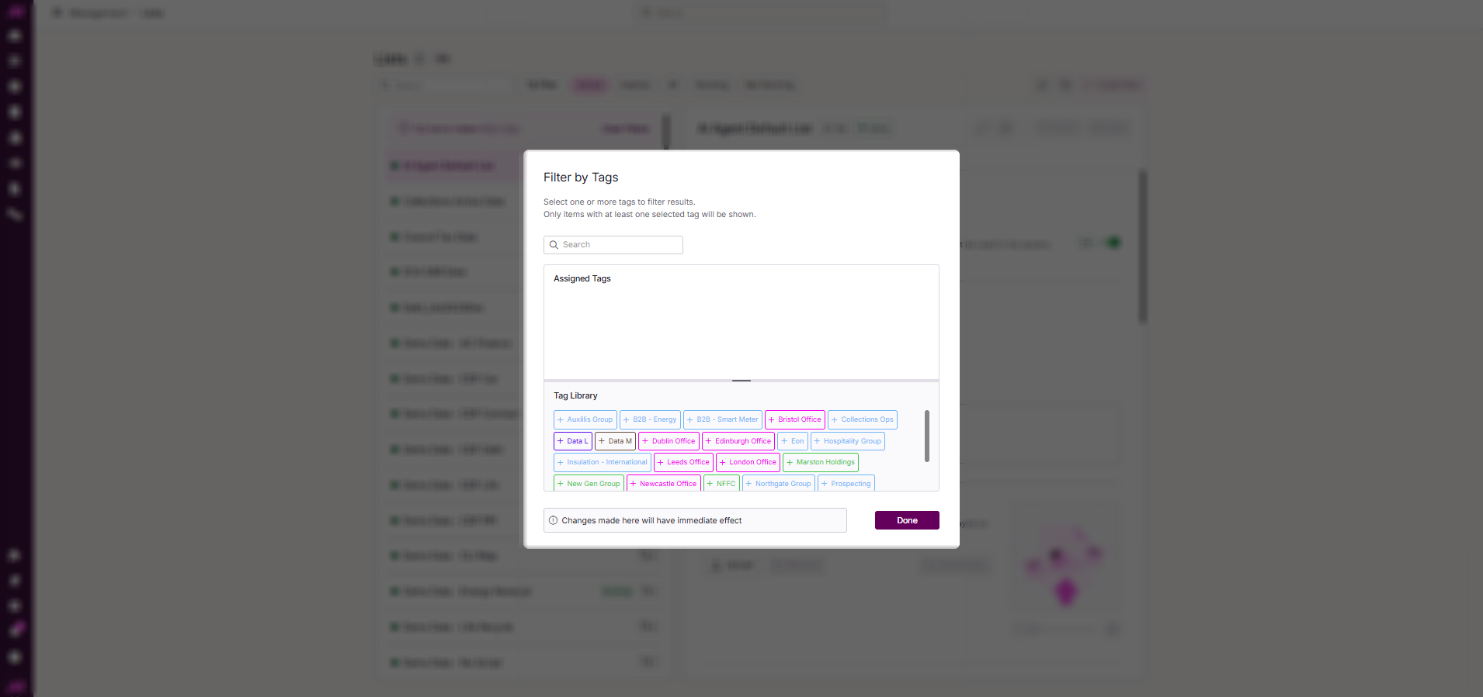
Filtering by tag
Select the filter icon to open a selection box listing the tags already created on the system. Select a tag to filter the page down to everything currently associated with it. Select the same tag again to remove the filter.
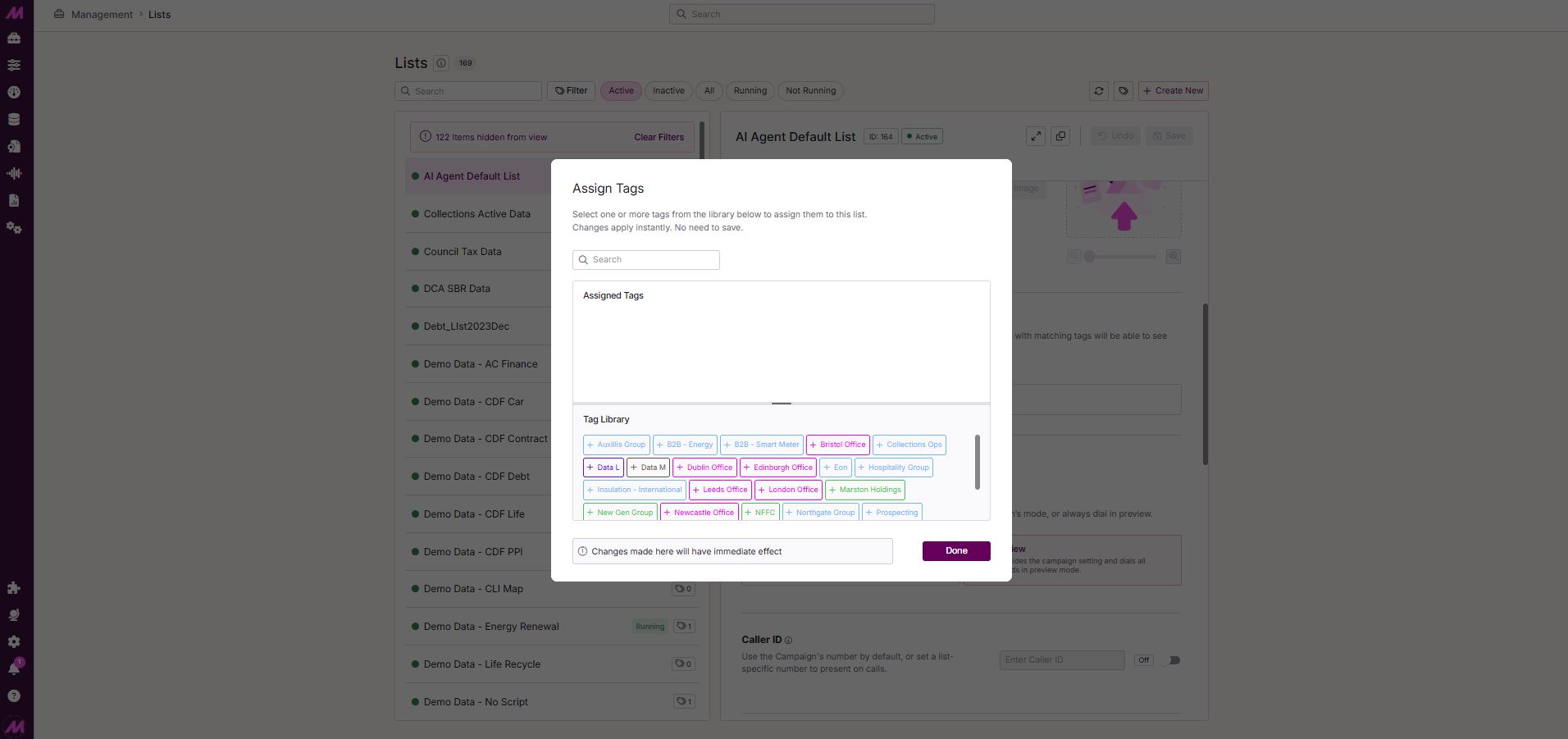
Assign Tag dialog
Select the Assigned Tags field to open the Assign Tags dialog box.
- The top half of the table displays the currently assigned tags to the object selected
- Selecting a tag from the Tag Library allows you to assign to the object, changes made here have an immediate effect.
- Select the Tag icon to open a new tab for the Tag Library.