
The Create Lead IVR element allows for the immediate creation of a Lead from a call which may or may not have a lead associated or matched to it.
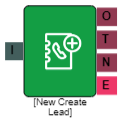
Unless configured to automatically skip, inbound calls try to be matched with an existing lead based on the phone number of the call. For a variety of reasons, some inbound calls may not be matched. While most systems are configured for last-ditch lead creation that creates a Lead when the call is terminated, this IVR element allows the lead to be created in any point in the flow of an IVR routine.
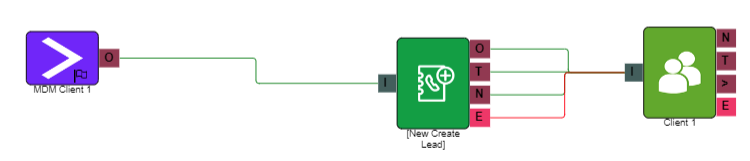
Properties
I = Input
O = Output
T = Timeout
N = No Match
E = Error
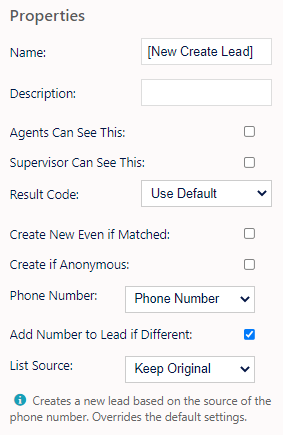
Name, Description - On each IVR element, you can add a name and a description of the element.
Agent Can See This - This makes the element visible to an agent during a live call when they view the IVR/Workflow transfer option, enabling them to transfer the customer into the IVR
Supervisor Can See This - Anyone with the role type set as 'supervisor' within their main role, will be able to see the option but no-one else.
Result Code - You can assign a result code to the IVR element. This result code will be used upon a customer disconnecting the call while in the element.
Create New Even If Matched - Causes the element to always create a new lead even if matched, unless the call is anonymous.
Create If Anonymous - A lead will be created even if the number is anonymous.
Phone Number - Allows you to set the source of the phone number; either the original phone number the call came in on or another property like DTMF digits entered in an earlier element.
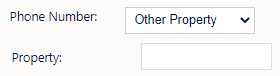
If selecting 'Other Property', you will see the following box where you can enter the name of the element you want to take the number from. The name of the element would need to end with .digits
This would mean you would need to enter capture_number.digits in the 'Property' box for example.
Add Number To Lead If Different - If the number is different to the Leads existing number(s) checking this will add the new number to the Lead.
List Source - Determines what to set as the created Lead's List.
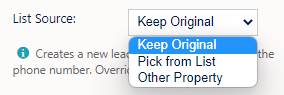
- Keep Original - Keeps the List the call is already set to.
- Pick From List - Gives you a drop down of all lists and allows you to select one.
- Other Property - Lets you enter a List ID.
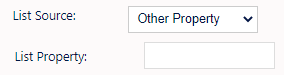
- (If the value is invalid, it will keep the original List value)
Use example
A caller calls in using call-blocking so that their phone number is anonymous.
Prompt the caller for their phone number using a Capture Digits IVR element. Set the 'Digits Validate' to 'Phone Number – UK' (or as appropriate for the region). Use this IVR element to create a lead based on the value they entered for a Capture Digits element.